
Introduction
You grab your iPhone, open your browser, and notice your history is empty, your tabs look different, and everything has a dark theme. That usually means one thing: you are in Incognito or Private Browsing mode.
Many people search ‘how to get incognito off my iPhone’ when:
- Safari or Chrome keeps opening in private mode and will not leave it
- Their usual tabs and browsing history seem to have disappeared
- They want to monitor or control browsing on a child's iPhone
This guide walks you step by step through how to:
- Turn off Private Browsing in Safari
- Turn off Incognito mode in Google Chrome
- Control or block private browsing with Screen Time
- Clear browsing data after leaving incognito
- Fix common problems when private mode will not turn off
You will also learn what incognito actually does (and does not do) for your privacy, so you can choose the right settings for how you browse on your iPhone.
What 'Incognito' Means on iPhone in 2024
Many iPhone users talk about incognito because that is the term Google Chrome uses. Apple's Safari uses the phrase Private Browsing instead, but the idea is very similar: the browser tries not to save local history or cookies from that session.
Safari and Chrome both include a private mode, so when you ask how to get incognito off your iPhone, you are really asking how to leave this temporary, more private session and go back to normal browsing where history and tabs behave the way you expect.
Incognito vs. Private Browsing: Same Feature, Different Name
On iPhone you will usually see:
- Safari: Private or Private Browsing
- Google Chrome: Incognito
Both modes:
- Do not save visited pages to the standard browsing history list
- Try not to keep cookies and site data after you close private or incognito tabs
- Do not store form entries and search terms in the usual way
So whether you see Incognito or Private Browsing, the core function is the same. The difference is mainly the branding used by each browser.
What Private Browsing Does and Does Not Hide on iPhone
It is important to understand the limits of incognito or private browsing:
Private or Incognito can help with:
- Keeping visited sites out of local history on your iPhone
- Reducing stored cookies, autofill details, and saved logins from that specific session
- Letting you sign in to another account without mixing cookies from your main one
Private or Incognito does not hide you from:
- Your internet provider (ISP)
- Your employer or school if they manage the network or device
- The websites you visit, which still see your IP address and activity
So turning incognito off your iPhone changes what your phone stores locally but does not change who can see your traffic across the network.
To make smart choices, you need to know when private mode is actually active. Next, you will see how to tell if your iPhone browser is in incognito or Private Browsing mode.
How to Tell If You Are in Incognito or Private Browsing on iPhone
Before you switch out of incognito, you should confirm that is the mode you are in. Each browser shows clear visual signs, and learning them will save you time the next time your browser looks strange.
On iPhone, Safari and Chrome use different designs, but both make private sessions obvious if you know where to look.
Visual Signs in Safari on iPhone
In Safari, you are in Private Browsing if:
- The main interface is darker than usual, often with a black or dark gray theme
- The tabs button shows Private or a private tab group name
- The address bar and toolbar appear dark instead of light
You can double-check by:
- Tapping the tabs button (two overlapping squares).
- Looking at the bottom of the screen for the tab group label.
- If it says Private, Safari is using Private Browsing.
Visual Signs in Google Chrome on iPhone
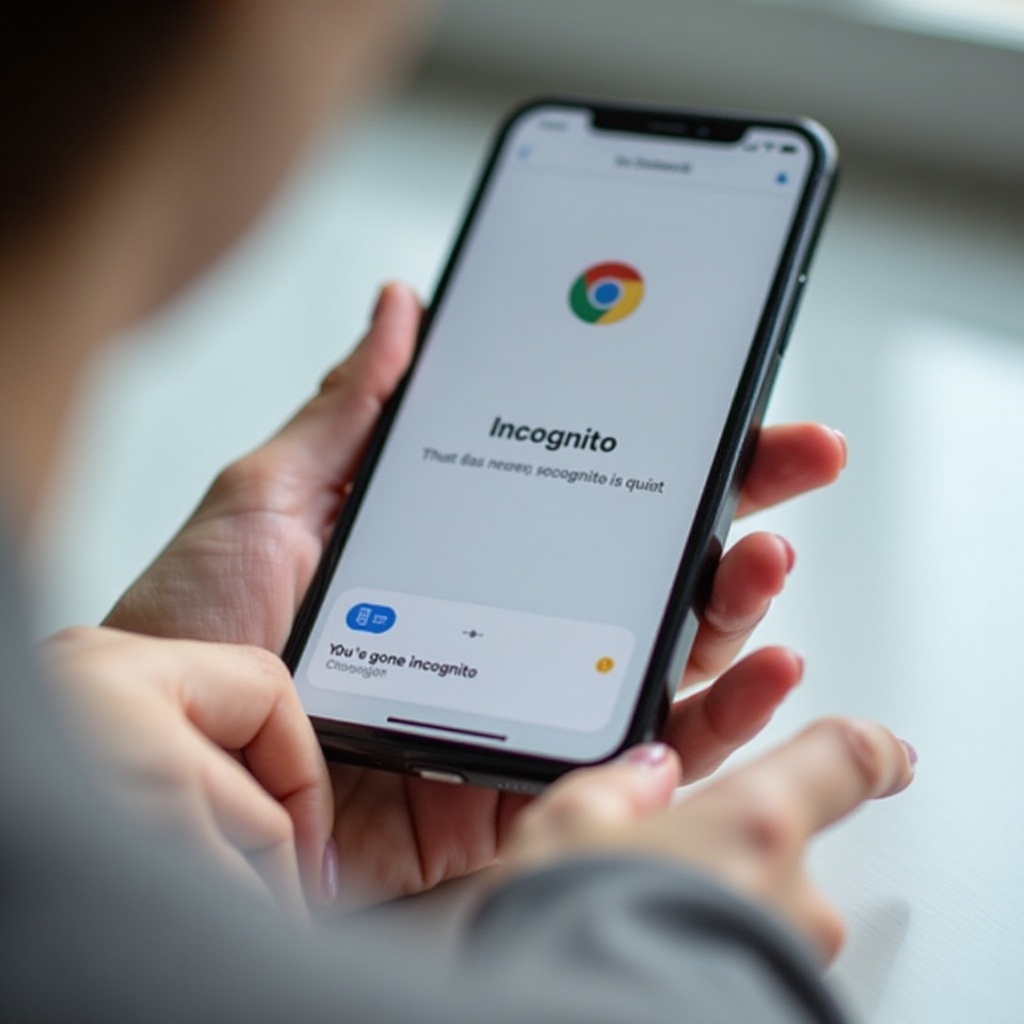
In Google Chrome, you are in Incognito mode if:
- The interface uses a dark theme
- You see the incognito icon (a hat and glasses) near the address bar or tab switcher
- A banner or message says something like You've gone incognito
To confirm:
- Tap the tabs button at the bottom.
- If you see the incognito icon and dark design at the top, you are in Incognito tabs.
Now that you know how to spot private mode, the next step is turning it off. We will start with Safari, since it is the default browser on most iPhones.
How to Get Incognito Off Safari on iPhone
Safari's Private Browsing mode is built right into iOS, so the steps to exit are simple once you know where the Private controls live. The main idea is to switch from the Private tab group back to a normal one.
If Safari keeps opening in a dark theme or you cannot find your usual tabs, use the steps below to go back to standard browsing.
Step-by-Step: Exit Private Browsing from the Tabs Screen
Follow these steps to get out of Private Browsing in Safari:
- Open Safari on your iPhone.
- Tap the tabs button:
- It looks like two overlapping squares.
- It is usually at the bottom right, or top right on some layouts.
- Look at the bottom center of the screen for the tab group name.
- If the label says Private, tap it.
When you tap the tab group label, Safari shows a list of available tab groups, including regular ones.
Switch from Private to a Standard Tab Group
After you tap the tab group label, you will see options such as:
- [Your Name]'s iPhone
- Start Page
- Private
- Any custom tab groups you created
To leave Private Browsing:
- Tap [Your Name]'s iPhone or Start Page or any non-Private tab group.
- Safari switches to that regular group.
- The interface becomes lighter, and your usual tabs return.
You have now turned Private Browsing off for your current Safari session. Your new pages will appear in history as normal, and tabs behave like they did before.
Close All Private Tabs Before You Leave
If you want to fully clear your private session before switching:
- While still in the Private tab group, tap and hold the tabs button.
- Choose Close All [x] Tabs.
- Confirm by tapping Close All Tabs.
This removes every private tab in one action. After that, you can switch back to your regular tab group. No private tabs remain open in the background, which is useful if you share the device.
Once Safari is under control, many users still have to deal with Chrome, where Incognito is the exact feature named in the original search. The next section covers that in detail.
How to Get Incognito Off Google Chrome on iPhone
Chrome uses the word Incognito and has a slightly different layout than Safari. To get out of Incognito mode, you simply close the Incognito tabs and return to your normal tab view.
If Chrome keeps opening in a dark theme with the Incognito icon, use the steps below to switch back.
Closing Individual Incognito Tabs in Chrome
To turn Incognito off in Chrome one tab at a time:
- Open Chrome on your iPhone.
- Check that you see the dark Incognito theme and the hat-and-glasses icon.
- Tap the tabs button at the bottom (a square or box icon).
- View the active Incognito tabs.
- Tap the X in the corner of each Incognito tab to close it.
When you close every Incognito tab, Chrome will return to any regular tabs that were open. If there are no regular tabs, you can create a new one from the tab screen.
Close All Incognito Tabs and Return to Normal Mode
To exit Incognito more quickly:
- Open Chrome and tap the tabs button.
- Make sure you are in the Incognito view (you will see the incognito icon and dark design).
- Look for an option like Close All Tabs, or use a long press on a tab, depending on your Chrome version.
- Confirm that you want to close all Incognito tabs.
After all Incognito tabs are closed, Chrome moves you back to normal browsing by default. The interface becomes light again, and new pages will appear in your regular history.
Confirm You Are Back in Regular Browsing
You are out of Incognito mode in Chrome if:
- The theme appears light instead of dark
- The Incognito icon disappears from the top of the screen
- You no longer see the message that you have gone incognito
At this point, regular browsing applies. Your activity may now show up in your history. If you manage a child's phone or a shared device, you might also want to limit access to private modes. That is where Screen Time comes in.
How to Control or Disable Private Browsing with Screen Time
Screen Time is an iOS feature that lets you set limits and rules for how the iPhone is used. You can use it to restrict or effectively disable Private Browsing in Safari and to control which browsers can run on the device.
This is especially useful for parents who want to reduce the need to constantly remove Incognito or Private mode on a child's iPhone.
Open Screen Time and Check Content & Privacy Restrictions
To start using Screen Time for browser control:
- Open the Settings app.
- Scroll down and tap Screen Time.
- If Screen Time is off, tap Turn On Screen Time and follow the setup prompts.
- Tap Content & Privacy Restrictions.
- Toggle Content & Privacy Restrictions to the on position.
If you have not set a Screen Time passcode before, create one now. Use a different code from your device passcode so that a child or another user cannot easily change the settings.
Change Web Content Settings to Limit Private Browsing
Next, adjust web content to limit private access:
- Inside Content & Privacy Restrictions, tap Content Restrictions.
- Tap Web Content.
- Choose one of these options:
- Unrestricted Access: Allows all websites and Private Browsing.
- Limit Adult Websites: Blocks many adult sites and can also limit Private Browsing.
- Allowed Websites Only: Only allows websites you specify.
When you select stricter options, iOS may remove or gray out Safari's Private Browsing option. This makes it harder for someone to enable private mode on that iPhone.
Managing Private Browsing for a Child's iPhone
For a child's device, you can manage Screen Time from your own iPhone using Family Sharing:
- On your phone, go to Settings > Screen Time.
- Tap your child's name under the Family section.
- Open Content & Privacy Restrictions and adjust Web Content as above.
- Optionally, go to Allowed Apps to restrict or remove browsers like Chrome or Firefox that support incognito.
These controls reduce how often you need to manually get incognito off your child's iPhone and help you guide safer browsing habits.
After you have turned off private modes and set any needed restrictions, you may want to clear leftover data. The next section shows how to do that for Safari and Chrome.
Clear Browsing Data After Turning Off Incognito on iPhone
Even after you exit private or Incognito mode, your browser may still hold data from past normal sessions. Clearing this data can protect privacy on a shared device and may also fix minor browser issues.
Safari and Chrome handle data differently, so it is worth clearing them separately if you use both.
Clear Safari Website Data and History
To clear Safari data from your iPhone:
- Open Settings.
- Scroll down and tap Safari.
- Tap Clear History and Website Data.
- Confirm by tapping Clear History and Data in the pop-up.
This deletes:
- Your browsing history from Safari
- Cookies and website data
- Some cached files and stored website information
While Private Browsing tries not to store much of this in the first place, clearing history and data ensures you remove older non-private information as well.
Clear Chrome Browsing Data on iPhone
To clear browsing data in Chrome:
- Open the Chrome app.
- Tap the three dots (…) at the bottom or top right.
- Tap History.
- Tap Clear Browsing Data.
- Select what to clear, such as Browsing history, Cookies, Site Data, and Cached Images and Files.
- Tap Clear Browsing Data and confirm.
Doing this can:
- Remove traces of sites you visited in regular mode
- Free up storage space from cached files
- Resolve some loading or display issues in Chrome
What Data May Still Be Visible to Others
Even after turning off incognito and clearing your data:
- Your internet provider may still log which domains you visit.
- A work or school-managed device might send traffic through monitoring tools.
- Websites you visit still know your IP address and may track you with other techniques.
This is why private browsing is only one part of online privacy. When private mode itself misbehaves, you also need troubleshooting steps. That is what we will cover next.
Troubleshooting: Incognito Will Not Turn Off or Keeps Reappearing
Sometimes, Private Browsing or Incognito seems stuck. The browser may reopen with private tabs, or the interface may remain dark even after you think you closed everything.
Most of the time, a few simple fixes solve these issues without wiping your iPhone.
Force-Close the Browser and Restart Your iPhone
First, force-close the browser app:
- Swipe up from the bottom of the screen and pause in the middle (or double-press the Home button on older iPhones).
- Find Safari or Chrome in the app switcher.
- Swipe the app card up and off the screen to close it fully.
Then restart your iPhone:
- Press and hold the side button and either volume button until the power slider appears.
- Drag the slider to turn the iPhone off.
- Wait a few seconds, then press and hold the side button again to turn it back on.
After the restart, open Safari or Chrome and use the earlier steps to exit Private or Incognito mode again.
Update iOS and Your Browser App in 2024
Bugs can cause odd behavior in private modes, such as tabs not closing correctly or the interface getting stuck. Keeping iOS and your browser apps updated reduces these problems.
To update:
- Go to Settings > General > Software Update.
- Install any available iOS update.
- Open the App Store and tap your profile icon.
- Scroll down to see available app updates and update Chrome and any other browser you use.
Recent updates often include fixes for tab management, crashes, and Private Browsing issues.
Reset Privacy and Screen Time Settings if Needed
If private browsing options are greyed out, missing, or behave strangely, your Screen Time or configuration profiles might be involved.
You can try:
- Going to Settings > Screen Time and turning Screen Time off, then turning it on again and reconfiguring your restrictions.
- Using the Forgot Passcode? option in Screen Time if you cannot remember the code.
- Going to Settings > General > Transfer or Reset iPhone > Reset and choosing Reset All Settings.
Reset All Settings does not erase your photos or apps. It just resets system settings like Wi-Fi, privacy, and Screen Time preferences. This can clear a hidden conflict that affects private browsing modes.
Once your browser behaves normally again, you can focus on using privacy tools in a more intentional way rather than relying only on incognito.
Privacy Tips After Turning Off Incognito on iPhone
Turning incognito off your iPhone changes how your phone stores local data, but it does not replace broader privacy practices. To protect your activity better, combine private browsing with other iOS features and good security habits.
Used correctly, Private Browsing is a useful tool rather than something you always need to disable.
When You Should Use Private Browsing Instead of Disabling It
Private Browsing remains helpful in several situations:
- When you use a shared iPhone and do not want your history visible to others
- When you need to sign into a site with a second account without affecting your main login
- When you want to test how a website behaves without old cookies or saved data
In these cases, leaving Private Browsing available and using it on purpose makes more sense than trying to remove it entirely from your iPhone.
Use a Trusted VPN and iPhone Privacy Features
To go beyond local privacy and protect your traffic on the network:
- Use a trusted VPN app to encrypt your connection and hide your traffic from local networks.
- Turn on App Tracking Transparency and limit tracking for apps that do not need it.
- Review Location Services in Settings and restrict location access for apps that do not need your exact position.
These tools work alongside Private Browsing or Incognito and offer much stronger overall privacy than private mode alone.
Protect Your iPhone with Strong Lock Screen Security
If someone can unlock your iPhone, they can open your browsers and view your tabs and saved data. Good lock screen security is a key part of protecting your browsing activity.
Consider the following steps:
- Use Face ID or Touch ID whenever possible.
- Set a strong passcode instead of simple options like 0000 or 1234.
- Limit sensitive notifications on the lock screen if you do not want others reading them.
With these protections in place and a clear understanding of how to get incognito off your iPhone, you can control both how your browser behaves and how much your device reveals.
Conclusion
You now know how to get incognito off your iPhone in both Safari and Chrome, how to control or restrict private browsing with Screen Time, and how to clear leftover browsing data. You have also seen how to fix problems when private mode will not turn off and how to combine private browsing with stronger privacy tools like VPNs and lock screen security.
Use these steps to manage your browsing modes with confidence, keep your iPhone working the way you expect, and decide when private modes help you and when they get in the way.
Frequently Asked Questions
How do I permanently disable incognito or private browsing on my iPhone?
You cannot fully remove private browsing from every browser, but you can limit Safari with Screen Time. Go to Settings > Screen Time > Content & Privacy Restrictions, enable it, then open Content Restrictions > Web Content and choose ‘Limit Adult Websites’ or ‘Allowed Websites Only’. This can hide or disable Safari’s Private Browsing option. You can also remove or restrict third-party browsers like Chrome that support Incognito.
Can my internet provider still see what I do after I turn off incognito?
Yes. Whether incognito is on or off, your internet provider can usually see which domains you visit because your traffic passes through their network. Private browsing mainly stops local history and cookies from being saved on your iPhone. If you want more privacy from your provider or local networks, use a trusted VPN in addition to normal or private browsing.
Why does Safari’s private browsing option disappear or stay greyed out?
If Safari’s Private Browsing option is missing or greyed out, Screen Time or a device management profile may be restricting it. Check Settings > Screen Time > Content & Privacy Restrictions and review Web Content settings. Stricter options can hide Private mode. Also go to Settings > General > VPN & Device Management to see if a work or school profile is controlling your browser and limiting private browsing.