
Introduction
Struggling to connect your Beats headphones to your phone can be both frustrating and inconvenient, especially when you rely on them for music, calls, or work. Fortunately, many connectivity issues are common and relatively easy to fix. This guide offers comprehensive troubleshooting strategies to help reconnect your Beats headphones to your phone without hassle.
Understanding the Problem
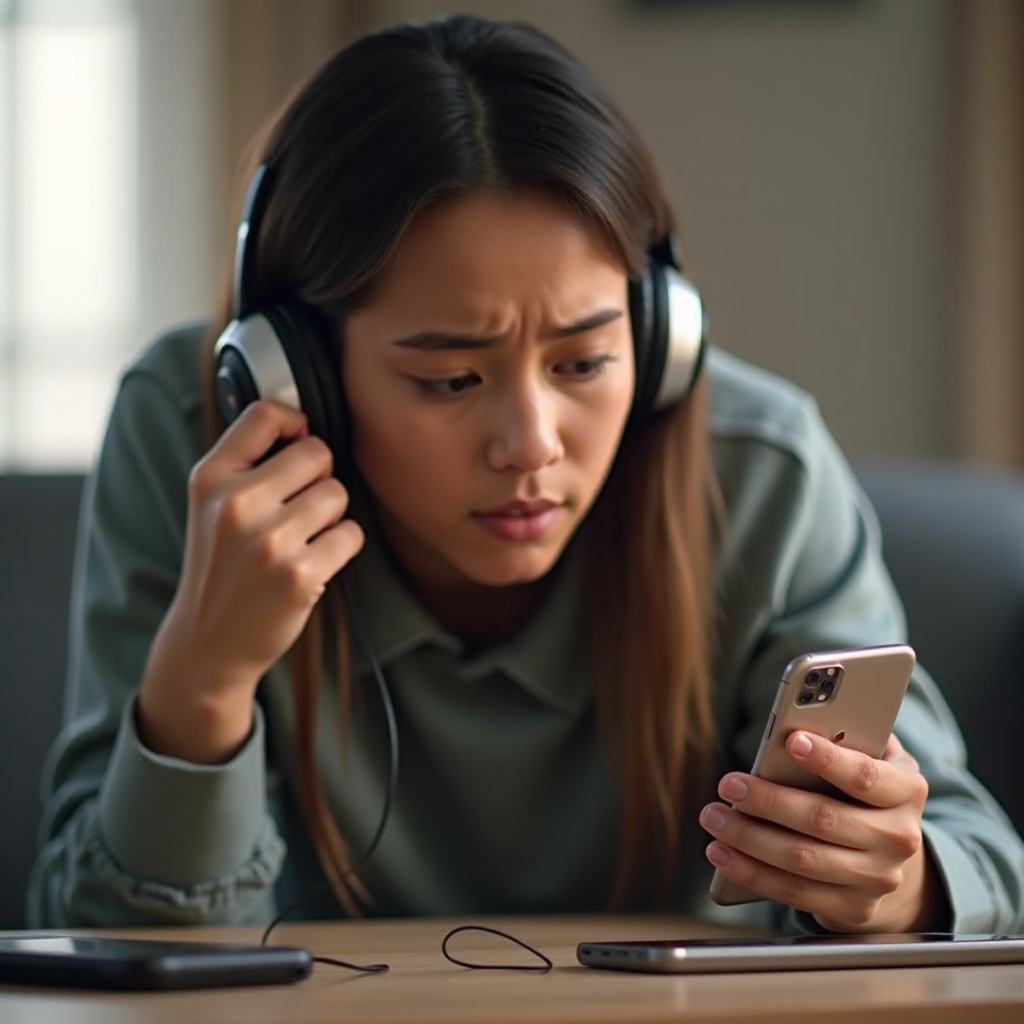
Before attempting to fix connectivity issues, it’s crucial to understand what might be causing the problem. Since Beats headphones connect via Bluetooth, several potential factors can disrupt the connection, such as interference from other devices, battery issues, or outdated software. Additionally, recognizing the specific model of your Beats is vital, as different models may present unique challenges in terms of compatibility and connection.
Common Connectivity Issues
- Bluetooth Interference: Devices like Wi-Fi routers, other Bluetooth gadgets, or even microwaves can disrupt your connection.
- Low Battery: Connectivity problems often occur when either the phone or the headphones have low battery.
- Software Glitches: Using outdated software or firmware can hinder connectivity between your devices.
Types of Beats Headphones and Compatibility
Beats offers a variety of models, including Solo, Studio, Powerbeats, and more. Each model may have its Bluetooth protocol requirements. Ensure your phone’s Bluetooth version is compatible with your Beats device, which is critical in maintaining a stable connection.
Basic Troubleshooting Steps
Having identified potential issues, start with basic troubleshooting steps. These initial methods are often sufficient for resolving common connectivity problems.
Checking Bluetooth Settings on Your Phone
- Enable Bluetooth: Verify that Bluetooth is turned on in your phone’s settings.
- Visibility Settings: Ensure your phone is discoverable to nearby Bluetooth devices.
Ensuring Beats Headphones Are Charged
- Battery Level Check: Make sure your Beats headphones are adequately charged, as low battery levels often result in connection issues.
- Charging Procedure: Use the original charger to charge your headphones until they’re fully powered.
Advanced Troubleshooting Techniques
If basic troubleshooting doesn’t resolve the connection issues, advanced methods are necessary. These techniques help tackle persistent problems and ensure a more stable connection.
Resetting Your Beats Headphones
Resetting your headphones can clear internal glitches and reset to factory settings.
– Solo/Studio: Hold down the power and volume down buttons for 10 seconds.
– Other Models: Refer to the user manual for specific reset instructions.
Forgetting and Re-Pairing Your Device
- Forget Device: In Bluetooth settings on your phone, select your Beats headphones and choose ‘Forget’.
- Re-Pair: Put your Beats into pairing mode and reconnect them to your phone.
Updating Software and Firmware
- Software Updates: Make sure your phone’s operating system is up to date.
- Firmware Updates: Via the Beats app or website, check for the latest firmware updates for your headphones.
Exploring External Factors
Beyond the straightforward fixes, sometimes external factors can impact your connection. Addressing these can ensure a consistent and reliable Bluetooth connection.
Identifying Bluetooth Interference
- Distance and Obstacles: Keep devices within a reasonable range, typically 30 feet or less, without any physical barriers like walls.
- Limit Other Devices: Reduce the number of active Bluetooth devices in the vicinity to minimize interference.
Checking Distance and Obstructions
Ensure that nothing is obstructing the signal between your phone and headphones and maintain an adequate proximity to sustain a stable connection.
When to Seek Professional Help
If your connectivity issues persist after all attempts, it might be wise to seek professional help. Knowing when to reach out can save time and further inconvenience.
Recognizing Hardware Issues
If problems persist, they might indicate a hardware issue. Inspect your headphones for any visible damage or anomalies.
Contacting Beats Support
- Reach Out: Contact Beats customer support for expert assistance.
- Warranty Check: Check if your headphones are under warranty for potential repairs or replacements.
Preventive Measures for Future Connectivity
Establishing good habits and preventive care can help avoid future connectivity issues.
Regular Device Maintenance
Ensure your phone and headphones remain clean and in good condition. Regularly check for and install firmware updates.
Keeping Software Updated
Regularly update your phone’s operating system and Beats firmware to maximize compatibility and functionality.

Conclusion
By carefully following these troubleshooting steps, most connectivity issues between Beats headphones and your phone can be resolved. Regular maintenance and being mindful of potential issues will help ensure a more seamless audio experience.
Frequently Asked Questions
Why do my Beats keep disconnecting during calls?
Bluetooth interference or low batteries can cause disconnections during calls. Ensure devices are charged and minimize interference from other devices.
Can I connect my Beats to multiple devices at once?
Some Beats models support multi-device pairing. Check your model’s specifications to see if this feature is available.
How do I know if my Beats need a firmware update?
Use the Beats app or visit the Beats website to check for the latest updates. Keeping your firmware updated ensures optimal performance.