
Introduction
You pick up your phone, unlock it, and suddenly the screen flashes green, shows a strange green tint, or starts flickering. You probably ask yourself, ‘Why is my phone glitching green, and is it about to die?’ This type of display problem is common on modern smartphones, especially those with OLED or AMOLED screens.
A green glitch can appear for many reasons. Sometimes it is a simple software bug after an update. Other times, it is a warning sign that the display hardware is damaged or failing. The good news is that you can often figure out the cause at home and try a few safe fixes before you spend money on repairs.
This guide explains what a green glitch looks like, how to tell if it is a software or hardware problem, practical steps to fix it, and when you should stop troubleshooting and talk to a professional. By the end, you will know whether you can fix it yourself or if it is time for a new screen or even a new phone.
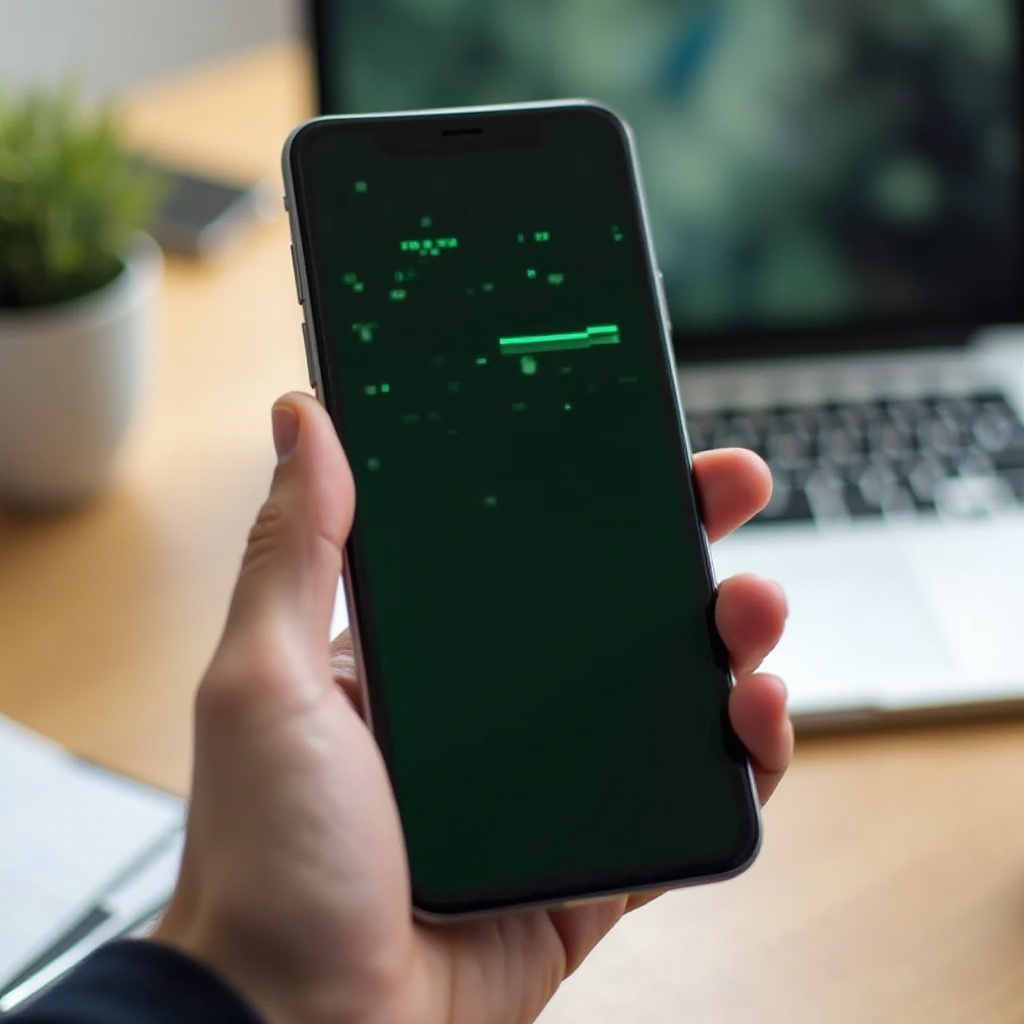
What Does a ‘Green Glitch’ on Your Phone Actually Look Like?
Before you can fix anything, you need to identify what kind of green glitch you are dealing with. Different patterns often point to different causes. Pay attention to what you see and when it appears.
Green tint across the entire screen
A common complaint is a green tint that covers the whole display. Whites look slightly green, and darker areas can look muddy or uneven. You may notice it more:
- At low brightness levels
- On gray or white backgrounds
- On the lock screen or Always-On Display
This type of issue can be related to software, such as color calibration bugs, or to the OLED panel itself aging or failing.
Random green flicker or flashes
Another type of green glitch shows up as:
- Quick green flashes when you unlock your phone
- Flickering green bars when you scroll or switch apps
- Random green screen flicker while watching videos or gaming
Flicker can come from display driver bugs, graphics issues, or loose internal connections. It can be tricky because it may not appear all the time and may depend on how hot or bright the screen is.
Solid green screen or green lines
More severe cases include:
- A full green screen where you cannot see anything else
- Vertical or horizontal bright green lines
- A section of the screen that is solid green or heavily tinted
These problems often suggest hardware damage, such as a failing screen panel or damaged connectors. While software can still play a minor role, hardware is usually the main suspect here.
Now that you can match what you see with a type of glitch, the next step is to figure out whether the issue lives in your software or your hardware so you can choose the right type of fix.
Is It a Software Bug or a Hardware Problem?
When you wonder, ‘Why is my phone glitching green?’ you are really asking whether it is something a reset or update can fix, or whether you are facing a broken screen. You can run a few simple tests to point you in the right direction and avoid wasting time on the wrong kind of solution.
The screenshot test to identify the source
This is one of the simplest and most reliable checks:
- Wait until the green glitch appears.
- Take a screenshot.
- View the screenshot on your phone.
- If possible, send the screenshot to another device, such as a laptop or another phone, and view it there.
Now look closely:
- If the green tint or lines show up in the screenshot on another device, the problem is likely software-related.
- If the screenshot looks normal on another device, the issue is probably hardware-related, because the system captured the image correctly but the screen is not displaying it correctly.
Checking if the green glitch appears in photos of the screen
You can also use another phone to take a picture of the glitch:
- If the green glitch appears in the photo taken of your screen, that confirms what you are seeing is real on the display itself.
- Compare this with the screenshot test. If the screenshot is fine but the photo shows the problem, that is another strong sign of a hardware issue.
When the issue only shows in certain apps or screens
Pay attention to where and when the green glitch appears:
- Only in a specific app, like a video app or game: this could be an app bug or a compatibility issue.
- Only on the lock screen or Always-On Display: this may point to a software bug or a certain display mode.
- During bootup or on the logo screen: this is more likely related to hardware or deep system problems.
Once you have a good idea whether you are dealing with software or hardware, you can move on to focused troubleshooting. It is smart to start with likely software causes and fixes, because those are usually easier and cheaper to handle.
Common Software Reasons Your Phone Is Glitching Green
Software issues can change how your phone drives the display, which can lead to green tint, flicker, or other odd behavior. Understanding these causes helps you decide which settings to check and which changes to try first.
Recent system update causing display bugs
Major system updates sometimes introduce new display bugs. These can affect:
- Color calibration
- Brightness curves
- GPU drivers for graphics
After an update, you might notice a green tint or flicker at certain brightness levels or in specific apps. In many cases, manufacturers release quick patches after users report these problems, but there can be a delay before the fix arrives.
Problematic apps, launchers, or themes
Third-party apps can cause display issues when they:
- Force overlays on top of the system interface
- Use custom color profiles or filters
- Conflict with system-level display features
Home screen launchers, custom themes, and screen filter apps are common culprits. If the green glitch appears only when using certain apps or after installing a new theme, you may have found your trigger.
Display settings, color filters, and accessibility options
Both iPhone and Android offer multiple display settings that can change colors and contrast:
- Color filters
- True Tone or similar adaptive color features
- Night mode or blue light filters
- Accessibility display adjustments
If one of these settings is misconfigured or bugged, it can make the screen look greenish, especially at low brightness or in dark mode. Someone else might have changed these settings without you noticing, or they could have been altered by an update.
Beta software and early access firmware issues
If you are running:
- iOS or Android beta versions
- Manufacturer beta firmware for brands like Samsung or Google Pixel
you are more likely to see odd visual glitches, including green screens. Beta software is not always stable and can contain display driver issues that will not appear on stable releases.
When you suspect software, you can try several fixes in a safe, step-by-step way. That brings you to practical actions you can take at home before you consider repairs.

Step-by-Step Software Fixes You Can Try at Home
If your tests suggest a software problem, try these steps in order. You do not need advanced skills, but you should back up your data before big changes so you do not risk losing important information.
Restarting your phone and forcing a reboot
Start with the simplest action:
- Perform a normal restart through the power menu.
- If the phone is frozen, use the forced restart method for your model, such as a combination of the volume and power buttons.
A reboot clears temporary glitches in memory and can fix minor display bugs that built up over time.
Updating or rolling back system software
Next, check for updates:
- Go to Settings and open the System or Software Update section.
- Install any available updates.
Updates often include bug fixes for display problems. If the glitch started right after a new update and there is no fix yet, check your manufacturer support pages to see whether they acknowledge a display issue. Some devices allow a rollback to a previous stable version, but not all do. Always follow official instructions when you consider a downgrade.
Booting into Safe Mode (Android) to test third-party apps
On Android, Safe Mode helps you check if third-party apps are causing the problem:
- Press and hold the power button.
- Tap and hold ‘Power off’ until you see a ‘Safe Mode’ option.
- Confirm to restart in Safe Mode.
In Safe Mode, only system apps run. If the green glitch disappears:
- A downloaded app, theme, or launcher is likely the cause.
- Remove recent or suspicious apps one by one, then restart normally and test.
Resetting display settings or ‘Reset All Settings’
If the issue seems tied to display options:
- Turn off all color filters, night modes, and adaptive color features.
- Look for a reset option that affects only display or general settings without touching your data.
On many phones, you can reset system settings through the Reset section in Settings. ‘Reset All Settings’ restores default configurations while keeping your photos and apps, which often clears misconfigured display options that cause green tint.
Backing up data and performing a factory reset
If nothing else works and you still believe it is software:
- Back up your phone using iCloud, Google, or a computer connection.
- Go to Settings, open the Reset or System section, and choose the factory reset option.
- Confirm and wait for the reset to finish.
After the reset, test the phone before restoring all apps and settings. If the green glitch appears even on a clean system with no extra apps installed, the problem is likely hardware-related.
If your tests now point toward hardware, it is time to look at physical causes and see what might be wrong inside the device.
Hardware-Related Causes of a Green Screen Glitch
When software fixes do not help, or your tests show the problem lives in the display itself, you are probably dealing with hardware damage or wear. Modern screens are thin and complex, so small problems can cause big visual issues, including green glitches.
Physical damage from drops, bends, or pressure
Even if your screen is not visibly shattered, a hard drop or repeated bending can:
- Damage the internal layers of the display
- Crack solder joints or tiny components
- Loosen the display connector on the motherboard
Green lines, partial green sections, or flicker that worsens when you twist or press the phone often point to this kind of damage. The device may still turn on and respond to touch, but the display no longer behaves correctly.
Water or moisture damage affecting the display
Moisture can reach the display through:
- Cracked glass
- Damaged seals
- Long exposure to humidity or steam
Water damage can corrode internal circuits and lead to:
- Random green flicker
- Patches of green or discoloration
- Progressive worsening over time
Check for recent exposure to rain, spills, or high humidity, even if the phone is rated as water resistant. Water resistance can weaken over time or fail when the device is already damaged.
Failing OLED/AMOLED panel and green tint issues
Many 2024 phones use OLED or AMOLED screens, which look great but can develop over time:
- Uneven color
- Green or pink tint
- Burn-in or ghosting
If the green tint is subtle, appears mostly at low brightness, and slowly gets worse, your panel may be aging or faulty. Some phone models also have known display issues that manufacturers quietly address with extended repair programs or goodwill repairs.
Loose or damaged display connectors
Inside your phone, a ribbon cable links the display to the motherboard. Drops, bending, or poor repairs can:
- Loosen this connector
- Damage the cable
- Create intermittent contact
This often causes random glitches, lines, and color shifts, which can include green. Sometimes the problem appears only when the device is moved or when the frame flexes slightly.
You cannot safely open the phone at home without risking more damage or voiding coverage, but you can run some safe checks to see how serious the hardware problem might be before you talk to a technician.
How to Diagnose Hardware Problems Safely
When hardware is the likely cause, you should avoid risky DIY hacks that can make things worse. Instead, use simple, safe checks to understand what is going on so you can explain it clearly to a repair shop and decide what to do next.
Visual inspection of the screen, frame, and corners
Look closely at your phone in good light:
- Check corners and edges for small cracks or chips.
- Inspect the frame for bends, dents, or warping.
- See whether any areas of the glass are lifted or not sitting flush.
Damage in these spots often lines up with areas where green glitches appear. Even hairline cracks can allow moisture or pressure to damage the screen layers.
Testing behavior at different brightness levels
Change brightness and watch the screen carefully:
- If green tint or flicker appears only at low brightness, it may be related to how the display hardware or drivers handle power at that level.
- If the glitch gets worse at high brightness, that can point to panel stress or damage that shows under stronger backlight or higher pixel output.
Note these patterns, as they are useful details for a technician when they diagnose the problem.
Using built-in diagnostics on major 2024 phones
Many phones include hidden or built-in test tools:
- Some Samsung models support special codes that open a diagnostics menu, or tests inside the Samsung Members app.
- Google Pixel and other brands include diagnostics inside support or device care sections in Settings.
Run display tests and note any anomalies, like lines or color blocks that do not match the expected pattern. Take photos or video clips of the test screens to show the repair center.
Why you should avoid pressing, twisting, or ‘massaging’ the screen
Online, you will see ‘tips’ like pressing hard around the screen edges, twisting the phone, or heating it with a hair dryer. Avoid these methods:
- You can turn minor damage into complete failure.
- You may crack the glass or worsen connector issues.
- You can void warranties or make later repair more expensive.
If your checks suggest a serious or worsening issue, it is time to consider professional help and weigh the cost of repair against the value of the phone.
When You Need Professional Repair or Screen Replacement
At some point, continuing to ask ‘why is my phone glitching green?’ is less useful than asking ‘how do I get it fixed?’ When home fixes and resets do nothing, and hardware seems to be at fault, professional repair is your best option.
Signs the display is failing and will not recover with software fixes
Consider repair or replacement if:
- Green lines or patches are permanent and growing.
- The screen goes fully green or black randomly.
- Touch input starts failing alongside color issues.
- The problem began after a clear drop, crack, or water exposure.
These signs rarely fix themselves and usually get worse. Delaying repair can leave you without a working phone at a bad moment.
Typical costs for screen replacement on popular 2024 models
Prices vary by brand and model, but as a rough guide:
- Budget Android phones usually cost noticeably less to repair.
- Mid-range and flagship phones with OLED can cost a significant amount for a screen replacement, sometimes close to half the device’s value.
Check official support sites or local repair shops for exact quotes, and always ask whether the price includes parts, labor, and any warranty on the repair.
Official service centers vs. third-party repair shops
You have two main options:
- Official service center (Apple, Samsung, Google, and others):
- Uses original parts.
- Keeps warranty intact if it is still valid.
- Often more expensive but more predictable in quality.
- Third-party repair shop:
- Usually cheaper.
- Quality can vary from excellent to poor.
- May use aftermarket screens that differ in color, brightness, or durability.
For expensive phones, original parts are often worth the extra cost, especially if you care about display quality and future software updates.
How warranties, AppleCare, and carrier protection can help
Before paying out of pocket:
- Check if your phone is still under the standard manufacturer warranty.
- Look for extended coverage like AppleCare+, Samsung Care+, or carrier insurance plans.
- Review what is covered: accidental damage, defects, or both, and check the deductibles.
Document the problem with photos or videos so you can show the issue clearly when you visit a store or start a support chat. Good evidence can speed up approval for repairs or replacements.
Once you know your repair options, you still need to decide whether to fix your phone now or live with the glitch for a while and plan a replacement later.
Can You Keep Using a Phone That Glitches Green?
Not every green glitch means you must rush to repair, especially if budget is tight. Some people prefer to keep using the phone for a while when the problem is mild and does not affect basic tasks.
Safety and usability considerations
A green screen glitch is usually not dangerous in itself. However:
- It can strain your eyes over long periods, especially if contrast is poor.
- It can affect how images, videos, and apps appear, which can be frustrating.
- It may signal that the display could fail at any time, which is risky if you rely on your phone for work or emergencies.
If the glitch affects how you read, type, or see important content, repair becomes more urgent, even if the phone still technically works.
Adjusting settings to make the screen more tolerable
You can reduce how noticeable the green tint is while you plan your next step:
- Increase or decrease brightness to find a level where the issue is less visible.
- Enable dark mode system-wide to reduce the amount of bright, tinted areas.
- Adjust color temperature or profiles, if your phone allows it, to balance the tint slightly.
These steps will not fix the underlying problem, but they can help you cope for a short time until you decide on repair or replacement.
When ongoing use might make the problem worse
If the cause is physical damage or a failing panel, heavy use can:
- Increase heat and stress on the screen.
- Make lines or patches spread faster.
- Trigger sudden failure when the panel is already weak.
If you notice rapid worsening, limit use and plan for repair or replacement soon so you are not caught without a working device.
Whether you repair or replace, you probably want to avoid seeing the same green glitch on your next phone. That makes prevention an important final step.
How to Prevent Future Green Screen Glitches
You cannot avoid every hardware fault, but good habits and smart choices reduce the risk of another ‘why is my phone glitching green’ moment with your next device.
Protecting your phone from drops, bends, and pressure
Physical protection goes a long way:
- Use a sturdy case that covers corners and edges.
- Add a quality screen protector to guard against scratches and small impacts.
- Avoid sitting on your phone or keeping it in tight back pockets where it can bend.
Less impact and bending means fewer internal display issues and less chance of loose connectors.
Avoiding overheating and extreme temperatures
Heat can speed up screen wear and worsen tint:
- Do not leave your phone in direct sunlight or in a hot car.
- Let it cool if it feels very hot, especially during gaming or charging.
- Avoid using heavy apps while charging for long periods if the device gets hot.
Keeping your phone within a reasonable temperature range helps protect both the screen and internal components.
Smart charging habits and heavy gaming sessions
Long, high-load sessions stress the display and internal parts:
- Take breaks during long gaming or streaming sessions to let the phone cool.
- Use quality chargers and cables from trusted brands.
- If your phone supports fast charging, avoid leaving it fast charging unattended for many hours when it becomes very warm.
These habits reduce heat buildup, which can slow down wear on the display.
Choosing phones and repairs with reliable display parts
When you buy or repair a phone:
- Research known display issues for the model you are considering.
- Check reviews of repair shops and ask about the quality and source of replacement screens.
- Prefer original or high-grade parts when possible to keep color and brightness consistent.
These choices help your next screen stay clear and stable for longer and lower the chance that you will face the same green glitch again.
Conclusion
A green glitch on your phone screen is annoying, but it is also a useful clue. It tells you that something in your software, hardware, or both is not working correctly. By watching how the glitch appears, running simple tests like screenshots and photos, and trying structured software fixes, you can often figure out whether the problem is fixable at home or needs professional care.
If software resets, updates, and Safe Mode do not help, your display may be damaged or failing. At that point, it makes sense to compare repair costs with the value of your phone and check what your warranty or protection plan covers. In some cases, a screen replacement keeps your phone going comfortably for years. In others, you might decide that it is time for an upgrade.
Now, when you ask ‘why is my phone glitching green’, you can move beyond worry and guesswork. You have a clear process to diagnose, fix, and prevent the problem, and you can make a smart, informed decision about whether to reset, repair, or replace your device.
Frequently Asked Questions
Why is my phone glitching green only sometimes, not all the time?
Intermittent green glitches often point to software triggers, such as a specific app, brightness level, or display mode, or to loose internal connections that act up when the phone moves or warms up. They can also be early signs of display wear. Track when it happens and which apps you use so you can see patterns and decide if it is a simple app issue or the start of hardware failure.
Can a software update completely fix a green screen glitch?
A software update can completely fix a green screen glitch when the cause is software-related, such as a display driver bug or bad color calibration introduced by a previous update. However, if the screen has physical damage, water exposure, or a failing panel, no software update will repair it. Use the screenshot test and, if needed, a factory reset to separate software problems from hardware faults.
Is it worth repairing a green-tinted screen, or should I replace the phone?
It depends on the age and value of your phone, the cost and quality of a screen replacement, and how serious the green glitch is. If your phone is fairly new and the repair cost is reasonable, fixing the screen often makes sense. If the phone is old, slow, or the repair price is close to the cost of a newer device, replacing the phone may be the better long-term choice. Always check your warranty and any protection plans before you decide.