
Introduction
You open Messages, tap where your favorite stickers used to be, and suddenly nothing shows up. The icon looks different, your sticker packs don't appear, and it feels like iOS has wiped everything. If you've recently updated your iPhone or switched to a new device, you're not imagining it. Many users ask the same question: why did all my stickers disappear on iPhone?
The good news: in most cases, your stickers are not truly gone. They're hidden, moved to a new place in Messages, disabled as iMessage apps, or tied to a different Apple ID. Sometimes a sticker app was offloaded to save storage. In other cases, an iOS update changed the interface and made it harder to find what used to be one tap away.
This guide explains the most common reasons your iPhone stickers seem to have vanished and walks you through practical fixes. You'll learn where stickers live in iOS 17 and later, how to re-enable hidden packs, and what to do if you changed phones, regions, or Apple IDs. Follow each section in order and you'll have the best chance to get your stickers back without losing other data.
How iPhone Stickers Work in iOS 17 and Later
To fix missing stickers, you first need to understand how Apple handles them in current versions of iOS. The way stickers work in Messages changed noticeably in iOS 17 and later, especially with the new sticker drawer and live stickers.
What Counts as a 'Sticker' on iPhone Now
On modern iOS versions, 'stickers' can mean several things:
- Sticker packs from the App Store
These are iMessage apps that you download as standalone sticker packs. They show up inside Messages as part of the iMessage app system. On newer versions, some also appear as full apps on your home screen.
- Live Stickers created from your photos
iOS lets you lift a subject from a photo and save it as a live sticker. These live stickers are not separate apps. They sit in a special section inside the sticker drawer.
- Sticker features inside other apps
Some apps like games, productivity tools, or social apps include built-in sticker packs as part of their iMessage app extensions.
All of these count as stickers from the user's point of view, but the system handles them differently. That's why some stickers might return quickly while others take more work to restore.
Where Stickers Live Inside the Messages App
In iOS 17 and later, Apple redesigned the Messages interface. Instead of the old horizontal app bar, you now see:
- A plus (+) button next to the text field that opens a menu.
- A sticker icon within that menu that opens the sticker drawer.
Inside the sticker drawer, you'll see:
- Recently used stickers.
- Your live stickers.
- Installed sticker packs and compatible iMessage apps.
If you look for the old app bar under the text box, you may think your stickers disappeared. In reality, they've moved into this new drawer layout.
Why Stickers Seem to Disappear After Updates
Major iOS updates often change:
- The position of the sticker icon.
- How iMessage apps display.
- The way Apple groups emoji, live stickers, and packs.
If you were used to an older layout, the new design can make it look as if everything vanished. In some cases, the update may also:
- Temporarily disable older sticker apps until they're updated.
- Hide certain apps from the main list.
- Log you out of the App Store or cause sync delays.
Now that you know where stickers are supposed to live in iOS 17 and later, the next step is to understand the specific reasons they disappear so you can match each problem with the right fix.
Most Common Reasons Your iPhone Stickers Disappeared
Stickers rarely vanish for no reason. Usually, one of a few predictable issues causes the problem. Understanding these helps you pick the right solution instead of guessing and changing random settings.
Interface Changes in the Latest iOS Version
The most frequent cause is simple: the interface changed. After an update:
- The sticker icon may move into the plus (+) menu.
- The old app bar may no longer appear by default.
- Live stickers may sit in a different area than emoji or packs.
This doesn't delete your content; it just hides it behind a new layout that feels unfamiliar.
Sticker Packs Disabled or Hidden in Messages
Stickers come as iMessage apps. iOS can:
- Turn some of them off after an update.
- Keep rarely used packs hidden in a 'More' or secondary section.
- Reorder the visible apps so your favorite pack sits at the end.
If a pack is disabled, it won't appear in the sticker drawer at all, even though the app is still on your device.
Deleted or Offloaded Sticker Apps
To save space, your iPhone can offload apps you don't use often. When that happens:
- The app icon may show a small cloud symbol.
- The sticker pack from that app disappears from Messages until you redownload it.
- If you fully deleted the app, the stickers go with it.
This is especially common if your storage is low and you have many sticker packs installed.
Apple ID, Region, or Device Change Issues
Stickers tie to:
- Your Apple ID.
- Your App Store country or region.
- The device you're using if sync isn't enabled.
You can lose access if:
- You switched Apple IDs.
- You changed your App Store region and the sticker app isn't available in the new region.
- You moved to a new iPhone and not all apps finished downloading.
Now that you know the main causes, you can start with the easiest fix: checking the new sticker drawer. If the layout change is to blame, you might recover your stickers in seconds.
Step 1 – Check the New Sticker Drawer in Messages
Before changing any settings or resetting anything, make sure you're looking in the right place. The new sticker drawer is where most users find their 'missing' stickers in iOS 17 and later.
How to Open the Sticker Drawer in a Conversation
Follow these steps:
- Open the Messages app.
- Tap any conversation or start a new one.
- Look at the left side of the text field and tap the plus (+) button.
- In the menu that appears, tap Stickers.
This opens the new sticker drawer where iOS 17 and later keep:
- Recently used stickers.
- Live stickers you created.
- Installed sticker packs and compatible iMessage apps.
If your usual stickers appear here, they were not gone; they were just moved into this new panel.
Switching Between Emoji, Live Stickers, and Packs
Inside the sticker drawer:
- Use the small icons or tabs to switch between categories.
- Look for the section labeled Live Stickers to see custom ones from your photos.
- Scroll through the drawer to see all available packs and options.
Many users miss their stickers because they're only viewing one tab or they don't scroll through the full drawer. A quick check here can save a lot of time.
Finding Recently Used and Favorite Stickers
At the top of the drawer, you often see:
- Recently used stickers.
- Frequently used emoji that can act like stickers in some contexts.
If your favorite stickers show up here but you can't find the full pack, that means the pack still exists but might be hidden as an iMessage app. The next step is to re-enable and manage those hidden packs.
Step 2 – Re-Enable Hidden Sticker Packs and iMessage Apps
If you can't see certain packs in the sticker drawer, they may be disabled or hidden in the iMessage app list. Restoring visibility here often makes stickers show up again.
Open the iMessage App List and Manage Apps
To check this:
- In a Messages conversation, tap the plus (+) button.
- Scroll down the list and tap More or a similar option like Store or Manage, depending on your interface.
- Look for a section like iMessage Apps or Manage.
Here, you'll see all iMessage apps, including sticker packs that might be hidden from the main view.
Turn Sticker Packs Back On if They Are Disabled
Inside the manage screen:
- Find the sticker pack you're missing.
- Make sure the toggle next to it is On.
- If it's off, turn it on and go back to the conversation.
Your sticker pack should now appear again in the sticker drawer or app list inside Messages. If it doesn't, double-check that the app is still installed on your iPhone.
Reorder Sticker Apps for Quicker Access
You can usually:
- Tap an Edit button or similar option.
- Drag sticker apps up or down to change the order.
- Place your most used packs near the top so you don't think they're gone when they're just buried.
If your packs are enabled but still don't show, you need to confirm the underlying apps are still installed on your iPhone. That's the focus of the next step.
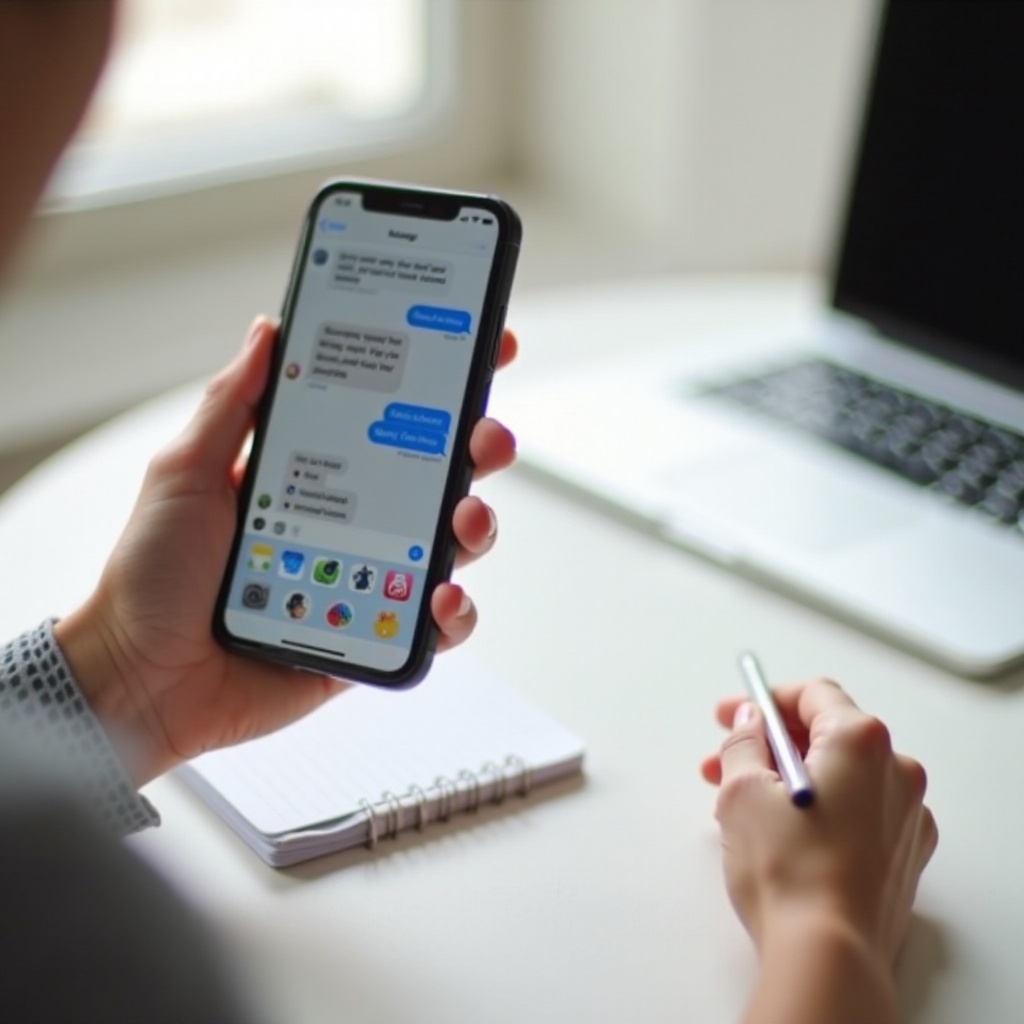
Step 3 – Confirm Sticker Apps Are Still Installed on Your iPhone
If re-enabling doesn't help, the sticker app itself may be offloaded or deleted. Without the base app, the sticker pack can't appear in Messages.
Check Your Home Screen and App Library
Do this:
- Swipe through your home screens and look for any sticker-related apps.
- Swipe left until you reach the App Library and search by app name.
- If you see a cloud icon next to the app, it was offloaded to save space.
An offloaded app still shows in your purchase history but isn't stored locally on your phone, so its stickers disappear from Messages until you restore it.
Restore Offloaded Apps from the App Store
To restore an offloaded sticker app:
- Tap the app with the cloud icon.
- Wait for it to download again.
- Return to Messages and check the sticker drawer.
Once the app is back on your device, its stickers usually reappear automatically without any extra steps.
Re-Download Sticker Packs from Your Purchase History
If the app is not on your phone at all:
- Open the App Store.
- Tap your profile picture in the top right.
- Tap Purchased.
- Search for the sticker app by name and tap the download icon.
If the app has been removed from the App Store by the developer, you may not be able to re-download it, but many older sticker packs still appear here. With the apps confirmed, you can now look at how recent updates might still be affecting sticker behavior.
Step 4 – Fix Sticker Issues After an iOS Update
Even with apps installed and enabled, a recent iOS update can cause temporary glitches in Messages. Addressing update-related issues can restore your stickers without drastic changes.
Update to the Latest Available iOS Version
Sometimes the update that broke something is fixed by the next minor version. To check:
- Open Settings.
- Go to General > Software Update.
- If an update is available, plug in your phone, connect to Wi-Fi, and install it.
Minor releases often patch issues with Messages and iMessage apps, so staying current can resolve problems where stickers won't load or appear correctly.
Restart Messages and Force Restart Your iPhone
Try these steps:
- Force close Messages by swiping up from the bottom (or double-pressing Home) and swiping the app away.
- Reopen Messages and check for stickers.
- If that doesn't work, perform a force restart of your iPhone according to your model instructions.
A simple restart can clear cache issues that make stickers appear missing, especially right after an update.
Reset All Settings Without Erasing Your Data
If problems persist:
- Go to Settings > General > Transfer or Reset iPhone.
- Tap Reset.
- Choose Reset All Settings.
This does not delete your data, photos, or apps, but you will need to re-enter Wi-Fi passwords and some preferences. Sometimes this step restores normal behavior for Messages and iMessage apps. If stickers are still missing, the problem may involve your account or region settings.
Step 5 – Check Apple ID, Region, and iCloud Settings
Sticker access depends heavily on your Apple ID and App Store region. If you changed either or own multiple Apple IDs, your stickers may no longer appear where you expect them.
Make Sure You Are Signed In to the Correct Apple ID
Check your Apple ID:
- Open Settings.
- Look at the name at the top; tap it for more details.
- Confirm it's the same Apple ID you used to buy or download your sticker packs.
If you sign in with a different Apple ID, you won't see sticker apps tied to the old one, and they won't show in your purchase history on this account.
Verify Your Country/Region Has Access to the Sticker App
Some sticker apps:
- Only exist in certain countries or regions.
- Disappear when you switch to a region where they're not available.
To check your region:
- Go to Settings > [Your Name] > Media & Purchases.
- Tap View Account, then Country/Region.
If you changed regions, some stickers may not be downloadable anymore. That can explain why they vanish even though you're using the same device.
Check 'Messages in iCloud' and Sync Settings
For users with multiple Apple devices:
- Open Settings > [Your Name] > iCloud.
- Scroll to Messages and check if it's enabled.
- If you want stickers and message content to sync across devices, turn this on.
This can help keep sticker-related content consistent between your iPhone and other Apple devices. The apps themselves still need to be installed locally, but sync can prevent some confusion about where stickers appear. If your stickers disappeared right after you bought a new iPhone, the next step focuses on that scenario.
Step 6 – Fix Sticker Problems After Getting a New iPhone
Upgrading to a new iPhone can make it seem like stickers vanished when, in reality, the transfer didn't complete or some apps didn't move over as expected.
What Happens to Stickers During iPhone Transfer
Depending on how you moved data:
- Quick Start / device-to-device transfer usually copies apps and data directly from the old iPhone.
- iCloud backup restore downloads apps again from the App Store after restoring settings and data.
- Computer backup restore does something similar with local copies of your apps.
Sticker packs need their base apps to transfer or re-download. If the app never finished installing, the stickers won't show in Messages.
Confirm All Apps Finished Downloading After Setup
After getting a new iPhone:
- Check your home screens and App Library for apps with 'waiting' or cloud icons.
- Make sure your iPhone stays on Wi-Fi and plugged in until downloads finish.
- Open each sticker app at least once to ensure it's properly installed.
If downloads stopped midway due to poor connection or lack of storage, some sticker apps might never have arrived on the new device.
Restore Sticker Packs Manually if They Didn't Transfer
If a sticker pack didn't appear after the transfer:
- Open the App Store.
- Go to Purchased under your profile.
- Re-download the missing sticker apps one by one.
Once you confirm the new device has the apps, it's time to check deeper system factors like restrictions, storage, and network, which can still hide or block stickers.
Advanced Fixes: Restrictions, Storage, and Network Issues
If stickers still disappear or fail to re-download after you've tried the basic steps, system-level settings might be the cause. Checking these can resolve stubborn issues without wiping your phone.
Screen Time and Content Restrictions That Hide Stickers
Screen Time can limit iMessage apps. To check:
- Go to Settings > Screen Time.
- Tap Content & Privacy Restrictions.
- Confirm app installations and in-app purchases are allowed.
- Check App Limits to ensure Messages or related apps aren't restricted.
Strict Screen Time settings can hide or block sticker downloads, especially on managed or child devices.
Low Storage and Offloading of Less-Used Apps
When storage is low:
- iOS may offload rarely used apps to free space.
- Sticker apps are often the first to go because they are non-essential.
Check storage:
- Go to Settings > General > iPhone Storage.
- Review which apps are offloaded.
- Free up space by deleting large, unneeded apps or files.
Then redownload your sticker apps so they're less likely to get offloaded again.
App Store or Network Problems Blocking Re-Downloads
Sometimes the issue is simple connectivity:
- Make sure you're on a stable Wi-Fi or cellular connection.
- Try turning Airplane Mode on and off to reset the network.
- Sign out and back into the App Store via Settings > [Your Name] > Media & Purchases.
If the App Store cannot verify purchases or reach the server, your sticker apps might fail to download and stay 'missing' even though you can see them in purchase history.
How to Prevent Your iPhone Stickers From Disappearing Again
Once everything works again, it makes sense to prevent the same problem from coming back. A few simple habits can keep your stickers safe and easy to find.
Keep iOS and Sticker Apps Updated Regularly
Get into the habit of:
- Updating iOS when stable releases appear.
- Allowing automatic updates for apps, including sticker packs.
- Opening sticker apps or using stickers occasionally so iOS sees them as active.
This helps avoid compatibility issues and glitches around major updates, which are a common trigger for disappearing stickers.
Use the Same Apple ID Across All Your Devices
To reduce confusion:
- Stick with one Apple ID for purchases when possible.
- Avoid switching Apple IDs just to download apps from different regions.
- If you must change, note which stickers belong to which account.
This keeps your purchase history clean and makes it easier to restore stickers on new devices.
Back Up Your iPhone and Keep a List of Favorite Packs
Protect your content by:
- Keeping iCloud Backup turned on.
- Doing periodic manual backups to a computer if you prefer.
- Making a simple list (or screenshots) of your favorite sticker packs and their names.
If anything goes wrong during an update or restore, you'll know exactly which apps to re-download later and won't waste time trying to remember pack names.
Conclusion
When you first notice that your stickers are gone, it's easy to assume iOS erased them. In reality, the most common reason you wonder 'why did all my stickers disappear on iPhone' is that Apple changed the Messages interface or hid the packs as iMessage apps. Other frequent causes include offloaded apps, Apple ID or region changes, and incomplete transfers to a new iPhone.
By checking the new sticker drawer, re-enabling hidden packs, confirming app installations, and reviewing your Apple ID and region, you can recover most missing stickers without drastic steps. Only in rare cases do you need advanced fixes like resetting settings or dealing with strict Screen Time controls.
Work through the steps in this guide in order, from simple to advanced. In many cases, you'll find that your stickers never truly disappeared — they were just waiting in a new place for you to bring them back into view.
Frequently Asked Questions
Why did my iPhone stickers disappear after updating iOS?
Major iOS updates often change the Messages layout and how iMessage apps display. Your stickers may have moved into the new sticker drawer, been disabled as iMessage apps, or temporarily hidden while the system rebuilt the app list. Open a conversation, tap the plus (+) button, then tap Stickers to check the new drawer, and review the iMessage app manage screen to re-enable any disabled packs.
Can I get back sticker packs that were deleted from the App Store?
If a developer removes a sticker app from the App Store, new users usually cannot get it. However, if you previously downloaded or purchased the pack with your Apple ID, you may still see it under your App Store Purchase history and be able to re-download it. If it does not appear there, or the download fails, you likely cannot restore that specific pack and may need to look for a similar alternative.
Will restoring my iPhone from an iCloud backup bring back my stickers?
Restoring from an iCloud backup can bring back Messages content and reinstall apps, including sticker apps, as long as they are still available in the App Store and tied to your Apple ID. However, a full restore resets your device to an earlier state, which may cost you newer data. Before you restore, try the other steps in this guide—re-enabling apps, re-downloading from the App Store, and checking Apple ID and region—since these are safer and usually enough to recover your stickers.