
Introduction
You tap a download link in Safari on your iPhone, the arrow icon flashes for a moment, and then the file seems to vanish. Many users end up asking the same thing: where to see downloads in Safari iPhone, and how do you get back to those files when you need them?
Safari handles files differently from a typical computer browser. There is no big Downloads icon on your Home Screen, and the system uses the Files app as a central place for saved documents. Small toolbar icons and hidden folders can make downloads feel confusing, especially if you came from Android or only browsed the web without saving files before.
This guide shows you exactly where to see downloads in Safari iPhone, step by step. You will learn how Safari downloads work, how to view recent downloads from the arrow icon, how to find them in the Files app, how to change the default download location, and how to fix common problems when files do not appear. By the end, you will know where your downloads go and how to keep them organized and easy to find.
How Safari Downloads Work on iPhone
Before you can track downloads, you need to know what Safari treats as a real download and what it only displays on the screen. This difference explains why some content shows up as files and other content does not.
What Counts as a Download in Safari on iPhone
Safari creates a download when it actually saves a file to your device or to iCloud Drive. That usually happens when you:
- Tap a direct file link such as a PDF, ZIP, document, or audio file.
- Long‑press a link and choose ‘Download Linked File’ or a similar option.
- Tap a site download button that triggers a file download instead of just opening a page.
Typical examples of true downloads include:
- PDF documents
- Word, Excel, PowerPoint, Pages, Numbers, and similar files
- ZIP archives and other compressed files
- MP3, WAV, and many other audio formats
- MP4 or similar downloadable video files
- Configuration profiles and certain installers
When Safari starts a download, it uses your chosen download folder (set in Settings) and adds the file to its built‑in downloads list.
Viewing Online vs. Saving a File Locally
Not everything you tap becomes a saved download. Safari can also display content directly without storing it in your Downloads folder. That happens when:
- You open a PDF in Safari’s own viewer and do not save it.
- You stream audio or video from a site instead of downloading it.
- A website displays an image, document, or media inline on the page.
In these cases you see the content, but Safari has not yet created a file entry for it.
To turn that onscreen content into a saved file, you need to:
- Tap the Share icon and choose ‘Save to Files’ to store it in the Files app.
- Or long‑press the link or image and choose ‘Download Linked File’ if available.
Only then will the file show up in your chosen download location.
Common File Types You Can Download in Safari
Most people use Safari downloads for a few specific file types:
- PDFs: statements, manuals, e‑books, tickets, and forms.
- Office documents: DOCX, XLSX, PPTX; Pages, Numbers, and Keynote files.
- Media: lecture audio, podcasts, ringtones, and video clips.
- Archives: ZIP files that contain photo sets, project files, or documents.
Knowing what Safari can download helps you decide whether something should appear in your Downloads folder or only display in the browser.
Once you understand what counts as a download, the next step is learning where to see downloads in Safari iPhone while they are in progress and right after they finish.
Where to See Downloads in Safari on iPhone
Safari includes a small but powerful downloads list that shows you active downloads and the most recent completed files. This is your first stop right after you tap a download link.
Finding the Download Icon in the Safari Toolbar
Whenever you start a download, Safari shows a small downward arrow in its toolbar. Depending on your layout, the toolbar can sit at the bottom or top of the screen.
To spot the icon:
- Open Safari.
- Tap a link that starts a file download.
- Watch for the downward arrow icon to appear in the toolbar area.
If you do not see the arrow:
- There may be no active or recent downloads.
- The toolbar could be hidden; tap near the bottom or top edge to show it.
- The arrow might sit behind a ‘More’ (…) button if you customized the toolbar.
Check the ‘More’ menu and add the Downloads button back if needed.
Understanding the Download Arrow and Progress Indicator
The arrow icon gives you a quick status view:
- A simple arrow means at least one file has downloaded recently.
- An arrow with a circular progress ring means a file is downloading.
- A partially filled circle suggests a download in progress or paused.
You can tap this icon while a download is active to see how much data has finished. For large files or slow network connections, this is useful to confirm the download is still moving.
Opening the Recent Downloads List Inside Safari
To view Safari’s list of recent downloads:
- Tap the download arrow icon in the toolbar.
- A small panel appears, showing your most recent downloaded files.
- Tap a file in this list to open it instantly.
From this panel you can also:
- Tap the magnifying glass next to a file to jump straight to it in the Files app.
- Swipe left on an item to remove it from the recent list.
- Tap ‘Clear’ to empty the recent downloads list.
Removing a file from this list does not always delete the file itself; it only clears the quick history. To manage the files themselves, you need the Files app, which is where downloads live after Safari finishes saving them.
How to Find Downloaded Files Using the Files App
The Files app is the central place where Safari saves your downloaded documents, archives, and other file types. If you want to manage downloads over time, this is where you should look.
Opening the Files App from Your Home Screen or App Library
To open the Files app:
- Look for the blue folder icon labeled ‘Files’ on your Home Screen.
- If you cannot find it, swipe down on the Home Screen to open Spotlight search.
- Type ‘Files’ in the search bar and tap the app when it appears.
Files is Apple’s built‑in file manager on iPhone. It shows items from local storage, iCloud Drive, and other connected cloud services.
Locating the Default ‘Downloads’ Folder on iPhone
Safari saves downloads by default to a folder named ‘Downloads’. To reach it:
- In Files, tap ‘Browse’ at the bottom if you are not already in browse view.
- Under ‘Locations’, look for ‘iCloud Drive’ and ‘On My iPhone’.
- Tap the location you think Safari uses (often ‘iCloud Drive’).
- Find and open the ‘Downloads’ folder inside that location.
Most Safari downloads from your iPhone will end up in one of these Downloads folders unless you changed the location in Safari settings.
Switching Between ‘On My iPhone’ and ‘iCloud Drive’ Locations
Safari lets you save downloads either on your device or in the cloud:
- ‘On My iPhone’ stores files directly on the phone.
- ‘iCloud Drive’ stores files in your iCloud account and syncs them to other Apple devices.
If a file is missing from one Downloads folder, check the other:
- In Files, tap ‘Browse’.
- Tap ‘On My iPhone’ and look for a ‘Downloads’ folder.
- Then tap ‘iCloud Drive’ and check its ‘Downloads’ folder.
Many people think files are gone when they are simply in a different Downloads folder than expected.
Using Search, Sorting, and Browse to Quickly Locate Files
If you still cannot find a download:
- Open Files and tap ‘Browse’.
- Pull down to reveal the search bar at the top.
- Type part of the file name, a keyword, or an extension such as ‘pdf’.
- Review the search results across all locations.
You can also sort folders by date, name, or size to bring recent downloads to the top. Use these tools to quickly locate files without checking each folder one by one.
Now that you know where Safari sends your files, you may want to pick a more convenient location or a custom folder. You can do that in Safari’s settings.
Changing the Default Safari Download Location on iPhone
If your files always appear in a place you do not like, change Safari’s default download folder. This small tweak makes it much easier to answer where to see downloads in Safari iPhone for every new file.
Step‑by‑Step: Changing Safari’s Download Folder in Settings
To adjust the download location:
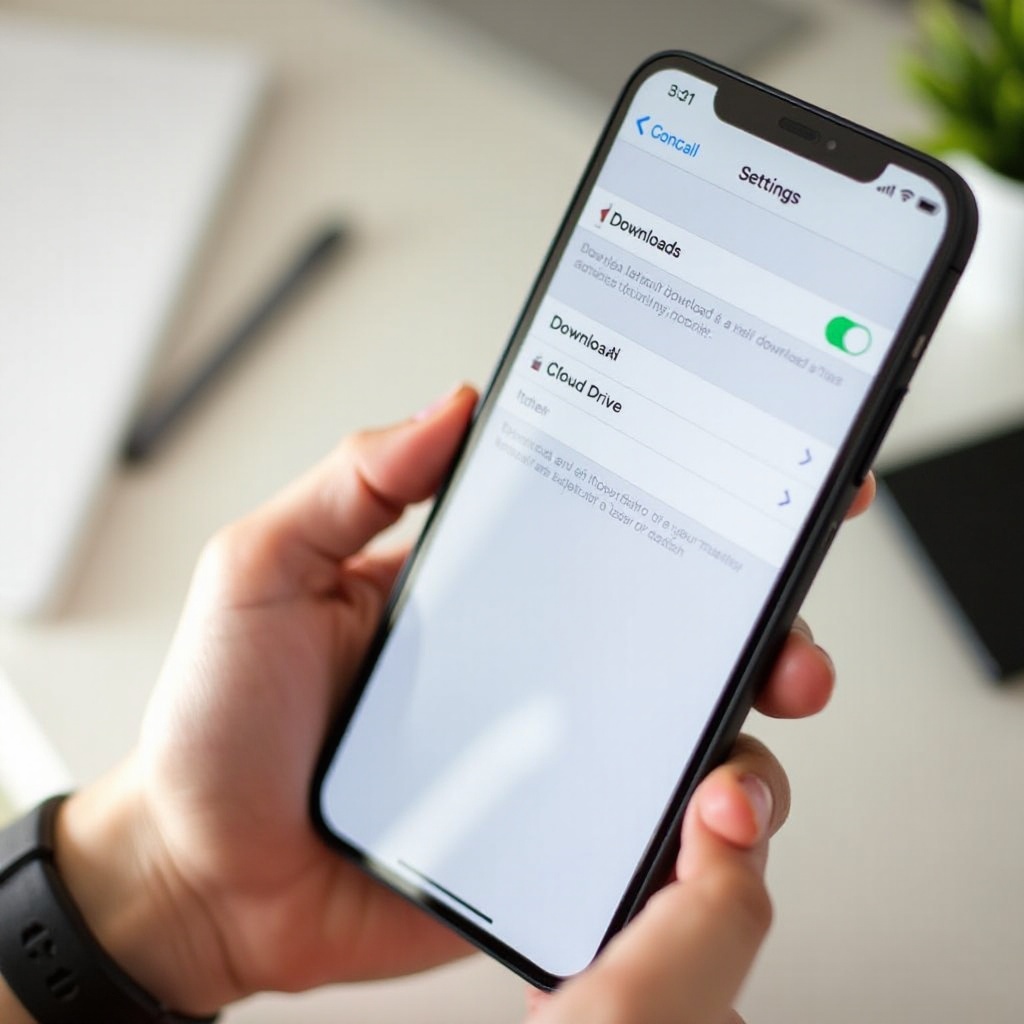
- Open the Settings app on your iPhone.
- Scroll down and tap ‘Safari’.
- Tap ‘Downloads’.
- Choose ‘On My iPhone’, ‘iCloud Drive’, or tap ‘Other…’ to pick a specific folder.
When you choose ‘Other…’, the Files interface opens so you can navigate to or create a folder. Safari will then use that folder for all future downloads.
Choosing Between ‘On My iPhone’ and ‘iCloud Drive’
Your choice affects how and where you can access your downloads:
- Use ‘On My iPhone’ if:
- You prefer keeping files only on the device.
- You have limited iCloud storage.
-
You often work offline and do not need cross‑device access.
-
Use ‘iCloud Drive’ if:
- You want downloads available on other Apple devices with the same Apple ID.
- You do not mind using your iCloud storage quota.
- You like the idea of cloud backup for important files.
Pick what matches your usage and storage plan so your downloads end up where they help you most.
When to Use Custom Folders for Specific Download Types
You can also direct Safari to save files into custom folders instead of the generic Downloads folder. For example, you might create:
- A ‘Work’ folder for reports, contracts, and client files.
- A ‘Study’ or ‘School’ folder for course PDFs and assignments.
- A ‘Media Downloads’ folder for audio, video, and large assets.
To do this, create the folder in the Files app first. Then go back to Settings > Safari > Downloads and choose ‘Other…’. Select your new folder so Safari saves files there automatically.
Best Practices to Keep Your Downloads Organized
Simple habits make downloads much easier to manage:
- Rename important files with clear, descriptive names.
- Move completed documents from Downloads into purpose‑built folders.
- Avoid letting the Downloads folder grow without review.
- Schedule a quick cleanup session each week or month to remove clutter.
With the location set and a structure in place, the next step is using your downloads effectively: opening, sharing, and managing them directly from your iPhone.
Opening, Sharing, and Managing Safari Downloads
Finding downloads is useful, but you get real value when you open, share, and organize those files. Safari and the Files app make this straightforward once you know the basic actions.
Opening PDFs, Documents, Photos, and Media Files
To open a downloaded file:
- Launch the Files app and go to your chosen Downloads folder.
- Tap the file you want to use.
- The file opens in a built‑in viewer or in a compatible app.
For example:
- PDFs open in a built‑in viewer, Apple Books, or a PDF reader.
- Office documents open in Pages, Numbers, Keynote, Microsoft Office, or similar apps.
- Images can open in Files or the Photos app if you saved them there.
- Audio and video files play in Files or open in your preferred media app.
If a file type does not open, install a suitable app from the App Store and try again.
Using the Share Sheet to Send Downloads via Messages, Mail, or AirDrop
To share a downloaded file with someone or another app:
- In Files, tap and hold the file.
- Choose ‘Share’ from the menu.
- Select the app or contact you want, such as Messages, Mail, AirDrop, or a third‑party app.
From the share sheet you can:
- Send a file as an email attachment.
- Share it via messaging apps.
- AirDrop it to nearby Apple devices.
- Save it to other cloud services like Google Drive or Dropbox.
Renaming, Moving, and Tagging Files in the Files App
You can keep your downloads organized with a few quick actions:
- To rename: tap and hold the file, then choose ‘Rename’ and type a better name.
- To move: tap and hold the file, choose ‘Move’, then select the new folder.
- To tag: tap and hold, pick ‘Tags’, and apply one or more colored labels.
Tags help you group related files even when they live in different folders or locations within Files.
Deleting Unneeded Downloads to Free Up Storage Space
Over time, downloads can fill a lot of storage. To remove them:
- Open Files and go to your Downloads folder.
- Tap the three dots (…) and select ‘Select’.
- Tap each file you want to delete.
- Tap the trash can icon to move them to Recently Deleted.
If you use iCloud Drive, open ‘Recently Deleted’ in Files and empty it to free space on all devices. This keeps your iPhone performing well and prevents storage warnings.
Even with good organization, issues still appear. When files go missing or downloads fail, a few targeted checks can usually solve the problem.
Why You Can’t Find Your Safari Downloads (Troubleshooting)
If you follow the usual steps and still cannot see your downloads, something may be blocking the process or sending files to unexpected places. This section covers the most common causes and fixes.
Download Icon Missing or Not Showing in Safari
If the arrow icon is not visible:
- Make sure you actually started a download. Tap a known file link.
- Tap near the top or bottom edge of the screen to reveal the toolbar.
- Tap the ‘More’ (…) icon and check whether the Downloads button is hidden.
If the icon still refuses to appear, close Safari from the app switcher and reopen it. Then try a fresh download. In rare cases, a quick restart of your iPhone can also help.
Files Not Appearing in the Downloads Folder
If a download does not show up where you expect:
- Confirm the download finished by tapping the Safari arrow and checking progress.
- Open Files and check the Downloads folder under both ‘On My iPhone’ and ‘iCloud Drive’.
- Use the Files search bar to look for the file name or type.
If the file still does not appear, the download may have failed before completion, or the file may have opened directly in another app instead of saving to Files.
Downloads That Open Directly in Another App
Some file types and websites trigger other apps instead of saving to the default Downloads folder. For example:
- PDFs may open in a dedicated PDF reader.
- Audio files can open in an audio or music app.
- Documents may open in Word, Pages, or another editor.
If this happens and you want a copy in Files:
- Use the Share option inside that app.
- Choose ‘Save to Files’.
- Select your Downloads folder or another folder you prefer.
This gives you a separate file you can manage through the Files app.
Fixing Failed, Stuck, or Interrupted Downloads
When a download stalls or fails:
- Tap the arrow icon in Safari.
- Look for files with incomplete progress circles.
- Tap a file to pause and resume, or remove and restart the download.
If your network is unstable:
- Connect to a more stable Wi‑Fi network.
- Avoid downloading very large files on a weak cellular signal.
- Try again when your connection improves.
Storage, Network, and Settings Issues That Affect Downloads
Other factors can also block downloads:
- Low storage: if your iPhone is almost full, Safari might not be able to save files.
- Data limits: restrictions on cellular data may stop large downloads.
- Security tools: VPNs, content filters, or special profiles can block certain file types.
To check storage, go to Settings > General > iPhone Storage. If space is low, delete unused apps, large videos, or older downloads. Review any security or filtering apps if you suspect they are interfering with file downloads.
Sometimes the confusion comes from mixing Safari downloads with in‑app downloads. Understanding how other apps handle files helps you avoid wasted time searching in the wrong place.
Safari Downloads vs. Other iPhone Apps
Safari is not the only way to download content on iPhone. Many apps have their own download systems, and they often store data differently. Knowing this difference keeps expectations realistic when you look for files.
How Safari Downloads Differ from In‑App Downloads
Safari downloads rely on the Files app and your chosen download folder. In contrast, other apps often:
- Keep offline files inside their own private storage areas.
- Hide files from the Files app and other apps.
- Offer downloads that are meant to stay within the app.
This means that offline shows in a streaming app or cached songs in a music app will not appear in your Safari Downloads folder.
Where Photos, Videos, and Attachments May Be Saved Instead
Different content types have different default homes:
- Images: if you choose ‘Save Image’, Safari sends photos to the Photos app, not Files.
- Videos: some saved videos go to Photos, while others remain in Files depending on how you save them.
- Email attachments: you can open them in Mail, then choose ‘Save to Files’ or keep them inside Mail.
- Message attachments: you can save them to Photos or Files, or leave them inside Messages.
If you saved a picture from Safari and cannot find it in Files, check the Photos app first.
Chrome, Other Browsers, and Their Download Locations on iOS
Alternative browsers such as Chrome, Firefox, or Edge on iOS often tie into the same Files system but may use different folders. Common patterns include:
- Saving to the same Downloads folder as Safari.
- Saving to a browser‑specific folder under ‘On My iPhone’ or ‘iCloud Drive’.
If you switch browsers, note which one you used for each download so you look in the right place and avoid confusion.
Why Some Content Never Shows Up in the Files App
Certain content, especially media from streaming services, is not stored as regular files:
- Netflix, Disney+, and other streaming apps keep offline videos inside their apps.
- Spotify and Apple Music store offline tracks in their own protected storage.
- Many news and reading apps cache articles internally.
These downloads are not meant to be moved or shared as files, so they never appear in the Files app or Safari’s download list.
Even though different apps handle files in different ways, Safari downloads remain easy to manage if you follow safe habits online. That brings us to security and privacy.
Safety, Privacy, and Smart Download Habits in 2024
While you learn where to see downloads in Safari iPhone, it is just as important to know how to avoid risky files and protect your personal data.
Recognizing Suspicious Download Links and Fake Buttons
Malicious sites try to trick users using:
- Huge ‘Download’ buttons that are actually ads.
- Fake system alerts claiming your device is infected.
- Pop‑ups pushing software or profiles you do not need.
To stay safe:
- Download from trusted websites and sources.
- Ignore pop‑ups that demand urgent action or promise miracles.
- Avoid clicking on multiple download buttons; target the one that matches the file name you expect.
When in doubt, close the tab and look for the file on a more reputable site.
Safari Warnings, Website Permissions, and Safe Browsing
Safari includes several protections:
- It warns you if a site is reported as unsafe.
- It may block suspicious downloads or ask for confirmation.
- It limits what pages can do without your explicit consent.
Read these warnings instead of dismissing them automatically. If Safari marks a site as risky, consider finding an alternative source for your download.
Handling Sensitive Documents and Personal Data Securely
For files that contain sensitive data, such as IDs, financial forms, or legal documents:
- Store them in a clearly labeled but private folder in Files.
- Protect your iPhone with a strong passcode and enable Face ID or Touch ID.
- Avoid sending these documents over insecure channels.
- Consider using secure storage or document apps with extra encryption.
Safe habits ensure that you gain the benefits of easy downloads without exposing your data to unnecessary risks.
With security in mind, it helps to have a short process you can follow every time a file seems to disappear. The next checklist pulls everything together into four simple steps.
Quick Checklist: How to Find Any Safari Download on iPhone
When a file seems missing, this quick checklist brings together the main points about where to see downloads in Safari iPhone and how to recover them.
Step 1: Check the Safari Downloads Arrow
- Open Safari.
- Tap the download arrow in the toolbar.
- Look for your file in the recent downloads panel.
- Confirm that the download shows as completed, not still in progress.
If the file is listed, tap it to open, or use the magnifying glass icon to reveal it in the Files app.
Step 2: Open Files and Look in the Downloads Folder
- Launch the Files app and tap ‘Browse’.
- Check the ‘Downloads’ folder under ‘On My iPhone’.
- Check the ‘Downloads’ folder under ‘iCloud Drive’.
- Sort by date so the newest files appear at the top.
Many missing download problems are solved at this step.
Step 3: Search by File Name, Type, or Date
- Pull down in Files to show the search bar.
- Enter part of the file name, a keyword, or a file type such as ‘pdf’.
- Review results across all storage locations.
If you only know when you downloaded it, sort folders by date and scan the recent entries.
Step 4: Re‑Download Safely if You Still Can’t Find It
If the file still does not appear:
- Go back to the website, email, or app where you got the file.
- Tap the download link again and watch the Safari arrow for progress.
- After it completes, open Files and confirm where it arrived.
- Move or rename it so you can find it more easily next time.
Following these four steps greatly increases your chances of recovering a ‘lost’ file without frustration.
Conclusion
Finding where to see downloads in Safari iPhone becomes simple once you understand how Safari works with the Files app. The arrow icon in Safari gives you quick access to recent downloads, while the Files app and its Downloads folder keep your saved content organized over time, either on your device or in iCloud Drive.
By setting a clear default download location, creating helpful folders, renaming important files, and cleaning up old downloads, you keep your storage under control and your documents easy to locate. When something goes wrong, the troubleshooting tips and quick checklist help you spot download errors, storage limits, or app conflicts and fix them fast.
With these steps and habits, you can download, find, and manage files on your iPhone with confidence, instead of wondering where that important document disappeared.
Frequently Asked Questions
Why can’t I see the downloads icon in Safari on my iPhone?
The downloads arrow only appears after Safari starts or recently completes a download. Try tapping a file link to trigger a download, then look for the arrow in the toolbar. If you still don’t see it, tap the ‘More’ (…) button in the toolbar and check whether the Downloads button is hidden there. Closing and reopening Safari, or restarting your iPhone, can also fix temporary glitches.
Where do PDF downloads from Safari go on iPhone in 2024?
Most PDF downloads from Safari go to the Downloads folder in the Files app. Open Files, tap ‘Browse’, then check the Downloads folder under both ‘On My iPhone’ and ‘iCloud Drive’. If you only previewed the PDF in Safari and never chose ‘Save to Files’, it may not be stored yet. To save it, tap the Share icon in Safari, select ‘Save to Files’, and choose your Downloads folder.
How do I change where Safari saves downloads on my iPhone?
To change Safari’s download location, open Settings, scroll down and tap ‘Safari’, then tap ‘Downloads’. Choose ‘On My iPhone’, ‘iCloud Drive’, or tap ‘Other…’ to pick a specific folder in the Files app. Once you set a new folder, Safari will save all future downloads there, which makes it easier to remember exactly where to see downloads in Safari iPhone every time you download a file.