
Introduction
You open your laptop, scan the Wi‑Fi list, and see a wall of networks with random names. You know your iPhone hotspot is on, but you are not sure which one is yours. That simple question pops up: ‘What is my hotspot name on iPhone?
Your hotspot name matters more than you might expect. It helps you spot your own network quickly, and it also affects how much personal information you reveal to people nearby. A clear, neutral, and secure hotspot name can save you time, avoid awkward moments, and reduce privacy risks.
This guide walks you through everything you need to know in 2024:
- What an iPhone Personal Hotspot is and how it works
- Where your hotspot name comes from
- How to find and change your hotspot name
- How to secure your hotspot with a strong name and password
- Common hotspot name issues and how to fix them
- Practical tips if you rely on hotspot for work or travel
By the end, you will know exactly what your hotspot name is, how to control it, and how to keep your shared connection as safe and convenient as possible.
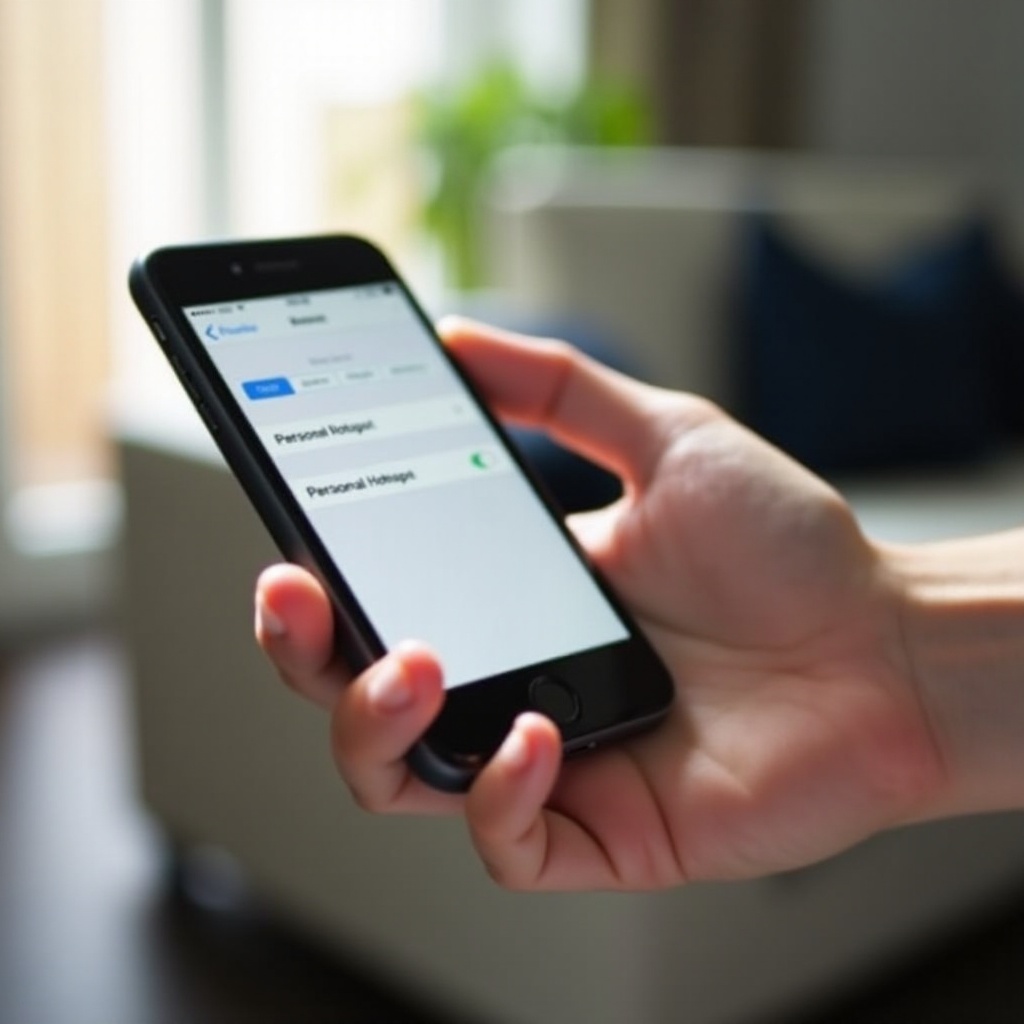
What Is a Personal Hotspot on iPhone?
Before you can manage your hotspot name, it helps to understand what the Personal Hotspot feature does and where that name shows up.
A Personal Hotspot lets your iPhone share its mobile data connection with other devices. Those devices connect to your phone just like they connect to a regular Wi‑Fi router.
Think of your iPhone as:
- A mini Wi‑Fi router that broadcasts a network name
- A modem that uses your mobile data plan to reach the internet
When you turn Personal Hotspot on, your iPhone:
- Creates a Wi‑Fi network that other devices can see
- Shows a network name (your hotspot name) in other devices’ Wi‑Fi lists
- Uses a password so only people you allow can connect
How Personal Hotspot Works on iPhone in 2024
On current iOS versions, Personal Hotspot can share your connection in three ways:
- Wi‑Fi – the most common method, using a visible network name
- Bluetooth – for low‑power connections with some devices
- USB – for a direct cable connection to a computer
Most people use Wi‑Fi. In that mode, your iPhone broadcasts a wireless network name and accepts devices that enter the correct password.
Where Your iPhone Hotspot Name Is Used
Your hotspot name is the label that appears:
- In the Wi‑Fi list on laptops, tablets, and other phones
- Inside the Personal Hotspot screen on your iPhone, in the connection instructions
That name is how you and others identify which network to join when several are available.
Hotspot Name vs Wi‑Fi Name vs Device Name
You may see different terms and wonder if they refer to different things:
- Hotspot name – what other devices see in their Wi‑Fi list when your iPhone shares its data
- Wi‑Fi name / network name / SSID – technical labels for the same visible network name
- Device name – what your iPhone calls itself in Settings and when it connects to other devices
On an iPhone, your hotspot name and your device name are usually the same. This link is the key to understanding and changing the name.
Now that you know what a hotspot is and where the name appears, the next step is to see how iOS decides what that name should be.
Where Does My iPhone Hotspot Name Come From?
Apple keeps naming simple by using one main name for your phone. That same name appears in several places, including your hotspot.
How iPhone Creates a Default Hotspot Name
When you first set up your iPhone, iOS gives your device a default name. It often looks like:
- ‘John’s iPhone’
- ‘iPhone’
- ‘iPhone 15’
This default device name is what your hotspot uses as its Wi‑Fi network name. There is no separate ‘hotspot name’ field in Settings because Apple ties them together.
The Connection Between Device Name and Hotspot Name
On iPhone, the rule is simple:
- Device name = Hotspot name (for the Wi‑Fi network name)
If your iPhone is called ‘Sarah’s iPhone’, your hotspot name in the Wi‑Fi list will also be ‘Sarah’s iPhone’.
That means:
- To change the hotspot name, you change the device name
- When you rename the iPhone, the hotspot name updates automatically
Examples of Default and Custom Hotspot Names
You might see names like:
- Default style: ‘David’s iPhone’
- Custom but simple: ‘David‑Phone‑Hotspot’
- Business‑friendly: ‘Company‑Work‑Phone’
- Neutral: ‘MyMobileWiFi’
If your device name is long or shows your full name, it appears that way as a hotspot too. Many users prefer to change it for privacy or to make it easier to recognize.
Now that you understand where the hotspot name comes from, you can check what your current name is and confirm how other devices see it.
How to Find Your Hotspot Name on iPhone (Step‑by‑Step)
There are several easy ways to see your hotspot name. You can look it up on your iPhone or confirm it from another device that wants to connect.
Quick Steps if You Just Need the Answer
If you want the fastest route and do not need extra detail:
- Open Settings.
- Tap General.
- Tap About.
- Look at the Name field at the top.
Whatever appears there is your hotspot name.
If you still want to see how it looks in the hotspot menu or on another device, use the methods below.
Method 1: Check Personal Hotspot in Settings
This method shows your iPhone name in the hotspot section itself.
- Open Settings on your iPhone.
- Tap Personal Hotspot.
If you do not see it on the main screen, tap Cellular first, then tap Personal Hotspot. - At the top or in the ‘To Connect Using Wi‑Fi’ text, you will see a line that includes your iPhone’s name.
For example, it may say something like:
To connect using Wi‑Fi, look for ‘Alex’s iPhone’ in the list of networks.
The name inside the quotes is your hotspot name.
Method 2: Check Your Device Name in About
Because the device name and hotspot name match, this method is very reliable.
- Open Settings.
- Tap General.
- Tap About.
- Look at the field labeled Name.
This is both your device name and your hotspot name.
Method 3: Verify the Hotspot Name from Another Device
You can also confirm the name by looking at the Wi‑Fi list on another device.
- On your iPhone, go to Settings > Personal Hotspot.
- Turn on Allow Others to Join.
- On your laptop, tablet, or another phone, open the Wi‑Fi settings.
- Look at the list of available networks.
- Find the name that matches your iPhone’s device name.
That is your active hotspot name. This method is helpful when you are in a place with many networks and want to double‑check which one is yours.
Once you know your hotspot name and how it appears to other devices, you may decide to change it, especially if it shows your full name or looks confusing in a crowded Wi‑Fi list.
How to Change Your iPhone Hotspot Name
You now know what your hotspot is called and how to find it. The next step is to change the name if you want something more private, professional, or easy to recognize.
Important Note: You Change the Device Name, Not a Separate Hotspot Name
iOS does not offer a separate hotspot name field. Instead:
- You rename the device.
- The hotspot name changes to match the new device name.
Any place that shows your device name, such as AirDrop or Bluetooth, will now use the new name as well. Keep that in mind when you choose it.
Step‑by‑Step: Renaming Your iPhone in Settings
Follow these steps to change your hotspot name by renaming your iPhone:
- Open Settings on your iPhone.
- Tap General.
- Tap About.
- Tap the Name field at the top.
- Delete the current name.
- Type your new desired name.
- Tap Done on the keyboard.
You have now changed your device name, and your hotspot name has updated to match it.
How to Confirm the New Hotspot Name Is Active
To make sure other devices see the new name instead of the old one:
- Turn your hotspot off and on again:
Go to Settings > Personal Hotspot and toggle Allow Others to Join off, wait a few seconds, then turn it back on.
- On the other device, toggle Wi‑Fi off and back on.
- Open the Wi‑Fi list again and look for the new network name.
If the old name still appears on the other device, select that network on the device and choose the option to forget or remove it. Then scan again and connect to the new name.
With your new hotspot name in place, it is worth choosing a name that protects your privacy, looks professional when needed, and still makes your network easy to spot.
Best Practices for Choosing an iPhone Hotspot Name
Your hotspot name is visible to anyone nearby. A smart name helps with privacy, security, and convenience, whether you are at home, at work, or in a busy public space.
Privacy‑Friendly Naming to Protect Your Identity
Avoid putting too much personal detail into your hotspot name. In public places, strangers can see your network in their Wi‑Fi lists, even if they cannot connect without the password.
Try to avoid using:
- Your full name (for example, ‘John Smith iPhone’)
- Your phone number or email address
- Your home address or apartment number
Instead, pick something neutral, such as:
- ‘Mobile‑WiFi‑01’
- ‘Work‑Hotspot‑Phone’
- ‘Travel‑Data‑Hub’
These names do not reveal who you are but still help you recognize your network.
Easy‑to‑Recognize Names for Families and Teams
If several people in your home or office use hotspots, clear names help everyone connect to the right one. A little structure goes a long way.
You can use simple patterns like:
- ‘Family‑Main‑iPhone’
- ‘Team‑Lead‑Hotspot’
- ‘Kids‑Phone‑Hotspot’
Short, descriptive names make it easy to pick your network from a crowded list and reduce the chance of connecting to the wrong hotspot.
Names to Avoid for Security and Professional Reasons
Some names can cause problems, look unprofessional, or confuse people. Try not to use:
- Offensive or rude words
- Impersonations like ‘Airport‑Free‑WiFi’ or ‘Office‑WiFi’
- Anything that reveals sensitive company or project details
A good rule of thumb: if you would not want a boss, client, or stranger to see it over your shoulder, do not use it as your hotspot name.
Once your hotspot name is clear and privacy‑friendly, the next step is to secure the connection itself, starting with your password and basic settings.
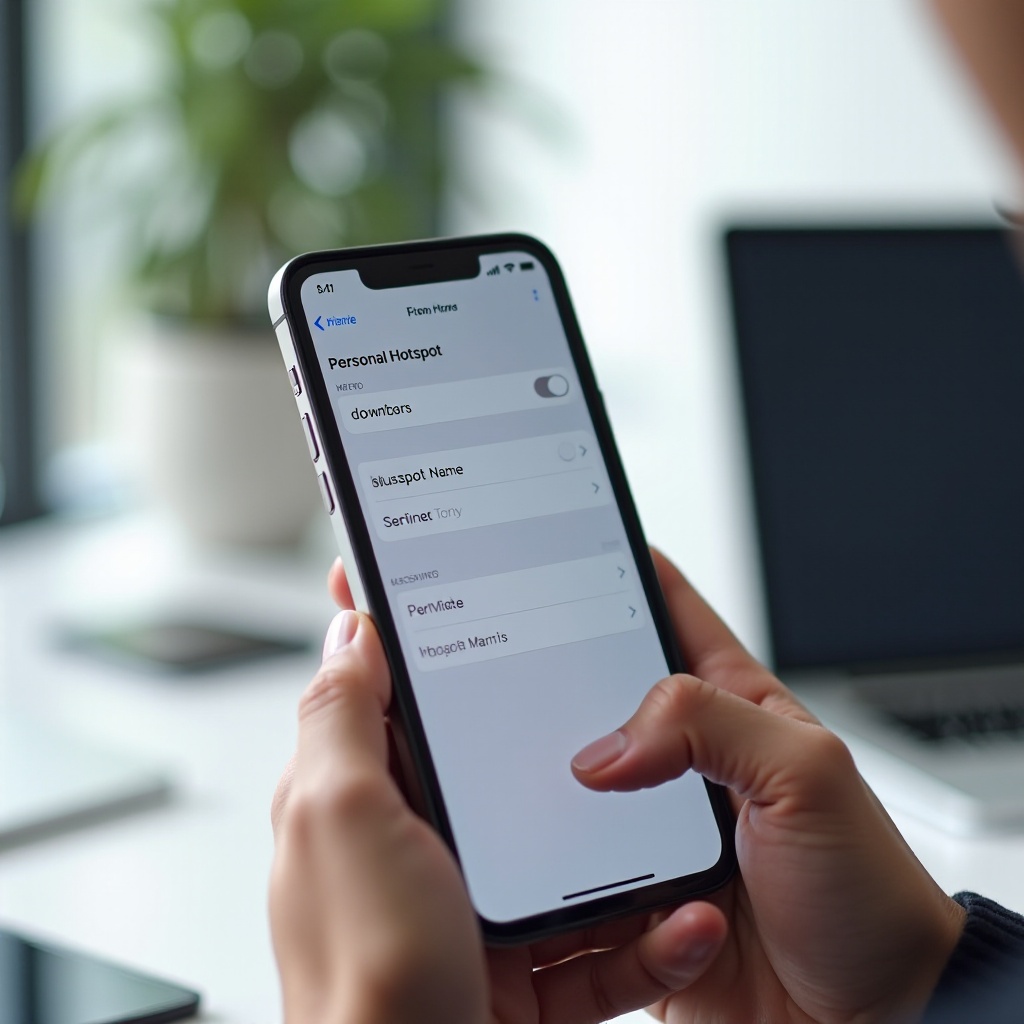
Securing Your iPhone Hotspot: Name and Password Tips
A smart hotspot name supports privacy, but real security depends on your password, encryption, and how you control access. With a few settings, you can keep your shared connection safer.
Does the Hotspot Name Affect Security?
The name alone does not protect your data. It is mainly about:
- How easy it is to identify your network in a list
- How much personal information you share with nearby users
Security comes from:
- The encryption iOS uses for Personal Hotspot
- A strong, unique hotspot password
- Good habits when sharing access
How to Change Your iPhone Hotspot Password
To set or change your hotspot password:
- Open Settings.
- Tap Personal Hotspot.
- Tap Wi‑Fi Password.
- Delete the old password.
- Enter a new password.
- Tap Done.
Share this password only with people you trust, and avoid sending it in public group chats when you can.
Strong Password Guidelines for Safe Tethering
For a strong hotspot password, follow these tips:
- Use at least 12 characters if possible
- Mix uppercase and lowercase letters
- Add numbers and symbols
- Avoid simple words, names, or easy patterns
For example:
- Weak:
12345678orpassword123 - Stronger:
River!32Sand_9
The goal is to make it very hard for someone nearby to guess your password by trial and error.
Monitoring and Controlling Connected Devices
You can see who is using your hotspot and cut off access when you are done.
- Go to Settings > Personal Hotspot while the hotspot is on.
- Look under the Allow Others to Join toggle for a list or count of connected devices.
To control access:
- Turn Allow Others to Join off when you are finished sharing.
- Change the password if you think someone unwanted has it.
- Keep an eye on how many devices are connected at once.
With your hotspot name and password in good shape, you are less likely to run into problems. Still, issues can happen, so it helps to know how to fix common hotspot name glitches.
Troubleshooting Common Hotspot Name Problems
Even with the right settings, you might see odd behavior. Maybe you renamed your iPhone, but other devices still show the old hotspot name, or your hotspot does not appear on the Wi‑Fi list at all.
Hotspot Name Not Updating on Other Devices
If you changed your device name but another device still shows the old hotspot name:
- On your iPhone, toggle Allow Others to Join off and back on in Settings > Personal Hotspot.
- On the other device, toggle Wi‑Fi off and back on.
- If the old name still appears, open Wi‑Fi settings on that device and choose Forget or Remove for the old network.
- Scan for networks again and connect to the new name.
Devices often cache network names, so they sometimes need a manual refresh to update.
Hotspot Network Not Visible in Wi‑Fi Lists
If your hotspot does not appear at all on another device:
- Make sure Cellular Data is on in Settings > Cellular.
- Open Settings > Personal Hotspot and confirm Allow Others to Join is turned on.
- Check that you are not in Airplane Mode. If you are, turn Wi‑Fi and Bluetooth back on.
- Move the devices closer together and remove any obvious obstacles.
- Restart both your iPhone and the device that needs the connection.
If the Personal Hotspot option itself is missing or greyed out, your carrier or plan may not support tethering. In that case, contact your carrier for details.
Old Hotspot Name Still Appearing After Rename
If some devices still show your old hotspot name, even after you renamed the iPhone and toggled the hotspot:
- Forget the old network on each device.
- Make sure the devices are not using a saved profile or custom network configuration.
- Restart those devices after you forget the old network.
This behavior is normal caching rather than a problem with your iPhone. Clearing the saved network forces the device to treat your hotspot as new.
When to Reset Network Settings or Contact Your Carrier
If nothing seems to fix your hotspot problems, you can reset network settings as a last resort.
- Back up your iPhone to iCloud or a computer.
- Go to Settings > General > Transfer or Reset iPhone > Reset > Reset Network Settings.
- Enter your passcode and confirm.
This clears saved Wi‑Fi networks, passwords, and other network settings, so you will need to reconnect to Wi‑Fi afterwards.
If you still cannot use your hotspot or see the network name, contact your carrier to check whether hotspot use is allowed and active on your data plan.
Once your hotspot name works as expected and your connection is stable, you can take things a step further with a few advanced tips for people who use their hotspot often.
Advanced Hotspot Tips for Power Users in 2024
If you rely on your iPhone hotspot for remote work, travel, or as a backup when home internet fails, a few extra tricks make your setup easier and more predictable.
Using Different Hotspot Names Across Multiple iPhones
If you own more than one iPhone or share hotspots within a team, give each phone a clear, distinct name.
Examples:
- ‘Work‑iPhone‑Hotspot’
- ‘Backup‑Phone‑Data’
- ‘Travel‑iPhone‑Hotspot’
Rename each device in Settings > General > About > Name so you never confuse networks on the Wi‑Fi list. This is especially useful when several iPhones are in the same room.
Hotspot Behavior with Dual‑SIM or eSIM Plans
If you use dual‑SIM or eSIM on your iPhone:
- Your hotspot uses the data line you select as the main data plan in Settings > Cellular.
- The hotspot name stays tied to the device name, not to a specific SIM.
- Switching the active data line affects which carrier and data allowance the hotspot uses.
This setup lets you choose which plan pays for your hotspot data while keeping one consistent network name.
Managing Data Usage While Using Your Hotspot
Hotspot sessions can burn through data faster than normal phone use, especially with laptops and streaming apps.
To manage data usage:
- Limit large downloads and video streaming on connected devices.
- Pause automatic system and app updates when you use your hotspot.
- Check mobile data use in Settings > Cellular and scroll down to see which apps use the most data.
- Remind people connected to your hotspot that they are using your mobile data, not free Wi‑Fi.
A clear hotspot name helps everyone recognize your network, and good data habits protect your plan from surprise charges.
Conclusion
Your hotspot name on iPhone is simply your device name, shown to the world whenever you share your mobile data connection. Once you understand that link, managing it becomes simple.
You have learned how to:
- Find your hotspot name in Settings and on other devices
- Change it by renaming your iPhone
- Choose a name that is clear, neutral, and privacy‑friendly
- Secure your hotspot with a strong password and safe sharing habits
- Fix common issues when the name does not update or the hotspot does not appear
- Use advanced tips when you depend on your hotspot for work or travel
With a few quick changes, you can make your hotspot easier to recognize and safer to use. The next time someone asks ‘What is my hotspot name on iPhone?’, you will know the answer, the settings, and the best way to set it up for everyday use.
Frequently Asked Questions
Can I have a different hotspot name and device name on my iPhone?
No. On iPhone, the hotspot name and the device name are linked. The hotspot uses the device name as its Wi‑Fi network name. When you change the device name in Settings > General > About > Name, the hotspot name updates to match it. iOS does not allow you to set a separate, independent hotspot name.
Will changing my hotspot name disconnect devices that are already connected?
Usually yes. When you change your device name, the hotspot network name changes too. Devices that were connected to the old name treat the new name as a different network. They will need to reconnect. After you rename the phone, toggle the hotspot off and back on, then have other devices select the new name and enter the password again.
Why can’t other devices see my iPhone hotspot name even when it’s turned on?
If other devices cannot see your hotspot name, first check that Allow Others to Join is enabled in Settings > Personal Hotspot and that Cellular Data is on. Make sure you are not in Airplane Mode, or if you are, turn Wi‑Fi and Bluetooth back on. Move the devices closer, then restart both the iPhone and the other device. If Personal Hotspot is missing or still does not work, contact your carrier to confirm that hotspot use is enabled on your data plan.