
Introduction
Many smartphone users face storage challenges, and a flash drive can be the perfect solution. With this simple device, you can expand your Android phone’s capacity, ensuring seamless file transfers and secure backups. This guide will walk you through everything you need to know about using flash drives with Android phones.
Understanding Flash Drives and Android Compatibility
Flash drives are a versatile storage solution that offers numerous benefits for Android users.
What is a Flash Drive?
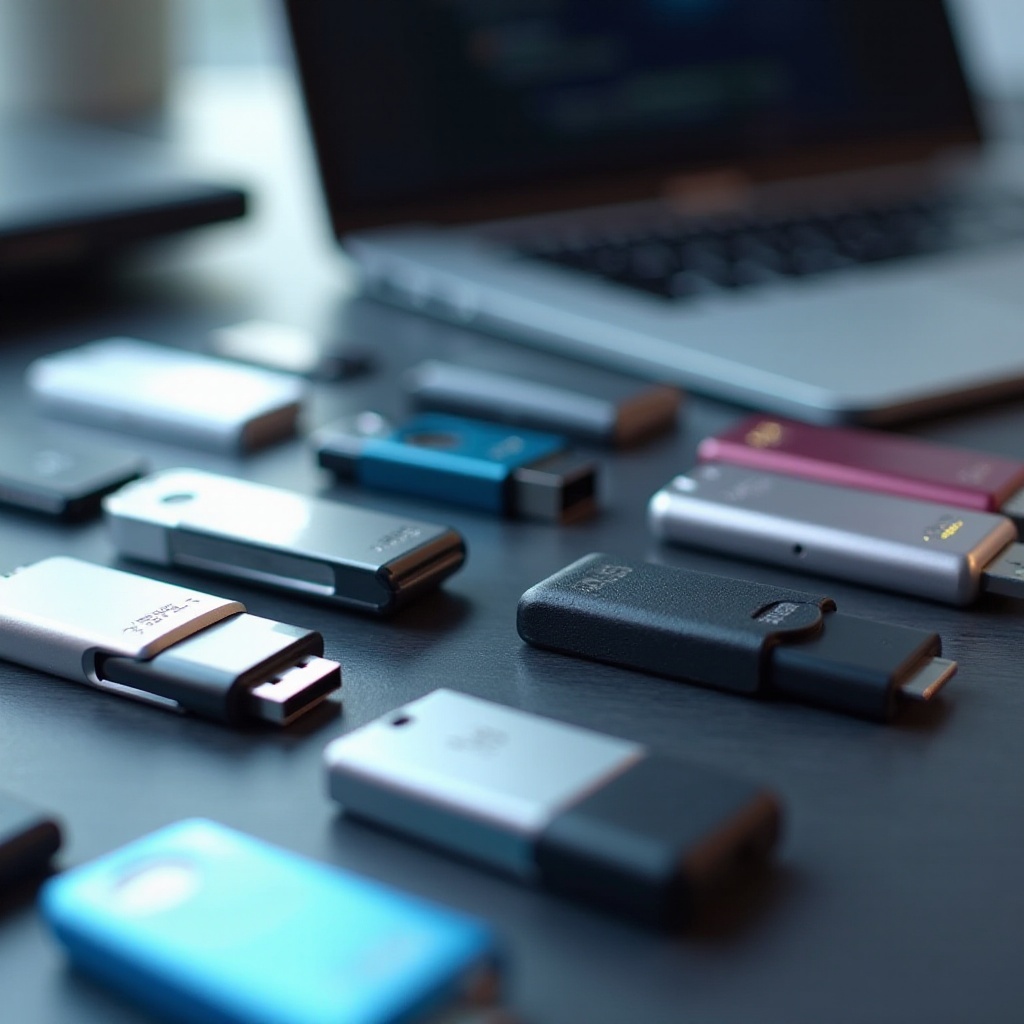
A flash drive is a small, portable storage device that uses flash memory to store data. Its compact design allows users to transfer files between different devices effortlessly.
How OTG (On-The-Go) Technology Works
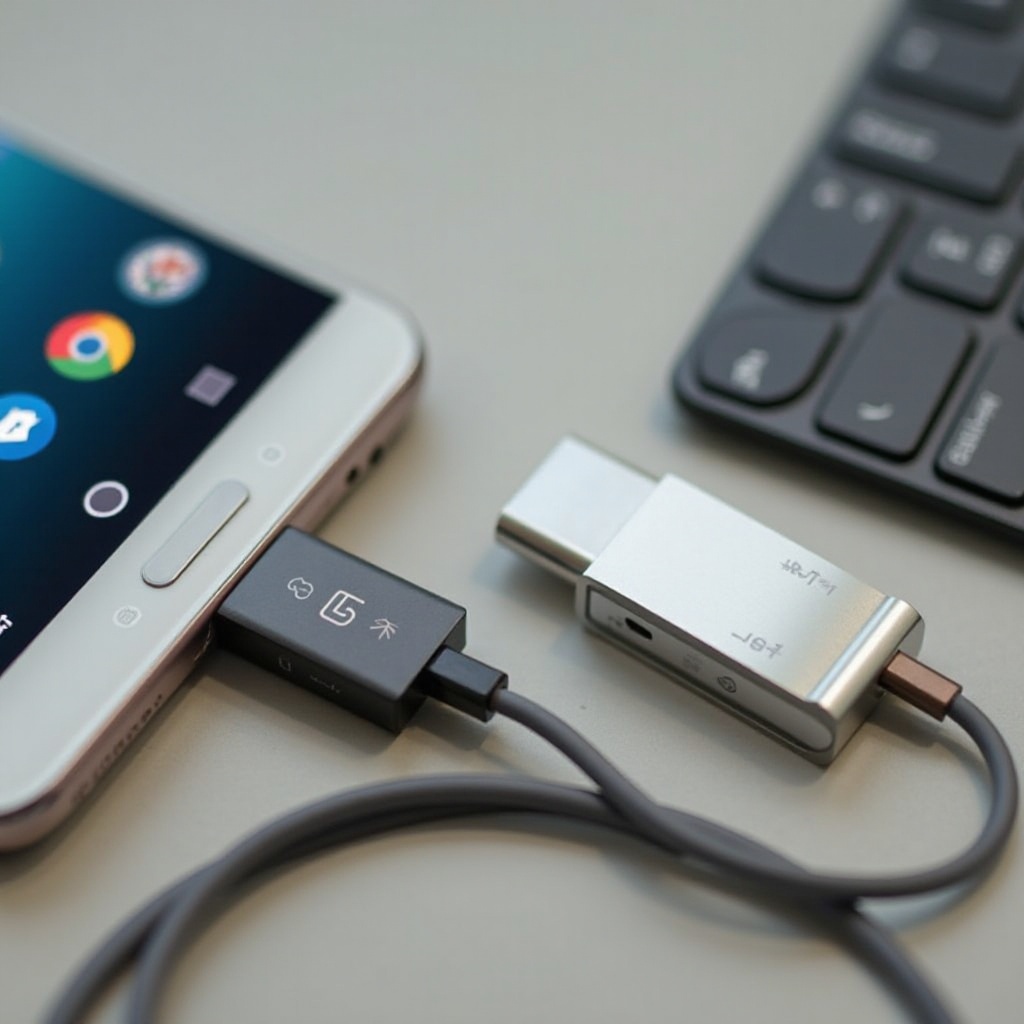
OTG technology lets Android phones directly connect with other devices like flash drives. It’s a feature that enables your phone to read and write data to an external storage device, provided your phone supports OTG.
Types of Flash Drives Suitable for Android Devices
There are several flash drives compatible with Android phones:
- Standard USB Flash Drives: Need an OTG adapter.
- Dual USB Drives: Include connectors for both USB and micro-USB or USB-C.
- Wireless Flash Drives: Connect through Wi-Fi without cables.
Choosing the right type depends on your phone’s ports and personal preference.
How to Connect and Use a Flash Drive with Your Android Phone
Once you understand compatibility, learning to connect and use a flash drive with your phone is straightforward.
Necessary Equipment and Cables
You’ll need:
- An OTG adapter or a dual USB flash drive.
- A compatible flash drive.
- A file manager app for organizing files.
Step-by-Step Connection Guide
- Ensure your phone supports OTG.
- Use an OTG adapter if needed, and connect the flash drive.
- Launch a file manager app to browse the drive.
- Copy or move files between your phone and the drive.
Using File Manager Apps for Access
File manager apps help you navigate and manage files on your flash drive. Apps like ‘ES File Explorer’ or ‘Solid Explorer’ are popular choices for their intuitive interfaces and powerful features.
Benefits of Using a Flash Drive with Your Android Phone
Flash drives bring numerous advantages to Android devices beyond just capacity.
Expanded Storage Solutions
With a flash drive, you can swiftly add extra storage without needing a new phone or expensive upgrades.
Streamlined File Transfers
Flash drives provide a simple way to move files between devices. They’re invaluable for working professionals who frequently switch between gadgets.
Secure Data Backup
Utilize flash drives to back up essential data, safeguarding against loss if your phone is damaged or loses data.
Top-Rated Flash Drives for Android Phones in 2024
Several flash drives stand out for their performance and features.
SanDisk Ultra Dual Drive
This drive features dual USB-A and USB-C connectors, offering fast data transfers and a solid build, perfect for users who value efficiency.
Samsung Duo Plus
Samsung’s Duo Plus is flexible, with USB-C and USB-A connectors. Its robust design and transfer speeds make it a popular choice among users.
Kingston DataTraveler Micro
For those seeking compact solutions, the Kingston DataTraveler Micro, with its USB-C connector, offers durability and reliable performance.
Troubleshooting Common Issues
While using a flash drive is straightforward, you might face some common issues.
Resolving Connection Problems
If the flash drive isn’t recognized:
- Check OTG support on your phone.
- Ensure connections are secure.
- Restart the phone.
Handling File Transfer Errors
To avoid errors when transferring files:
- Verify enough space on both devices.
- Confirm file format compatibility.
- Use a dependable file manager app.
Formatting the Flash Drive Correctly
Reformatting might be necessary for functionality. Using ‘FAT32’ or ‘exFAT’ ensures compatibility with most Android devices. Always back up data before reformatting.
Conclusion
By understanding how to use a flash drive with your Android phone, you can resolve storage issues, facilitate file transfers, and ensure data safety. Choose the right flash drive, follow connection procedures, and troubleshoot effectively to maximize your phone’s potential.
Frequently Asked Questions
Can all Android phones support flash drives?
Not all Android phones support flash drives. To check compatibility, look up the phone’s specifications or use an OTG checker app.
How do I know if my phone supports OTG?
You can find out if your phone supports OTG by checking the user manual or downloading an OTG checker app from the Google Play Store.
Is it safe to store sensitive data on a flash drive?
Flash drives are generally safe, but it is wise to encrypt sensitive files for extra security against unauthorized access or data breaches.