
Introduction
Apple Maps is an essential navigation tool for many, offering crucial real-time traffic updates to improve travel planning. Users relying on this app may face issues when traffic data doesn’t display correctly. This blog examines possible reasons behind these issues and offers actionable solutions to restore visibility on your device.
A firm grasp of Apple Maps traffic features paves the way for effective troubleshooting. By exploring how these features work, you can better understand potential issues.
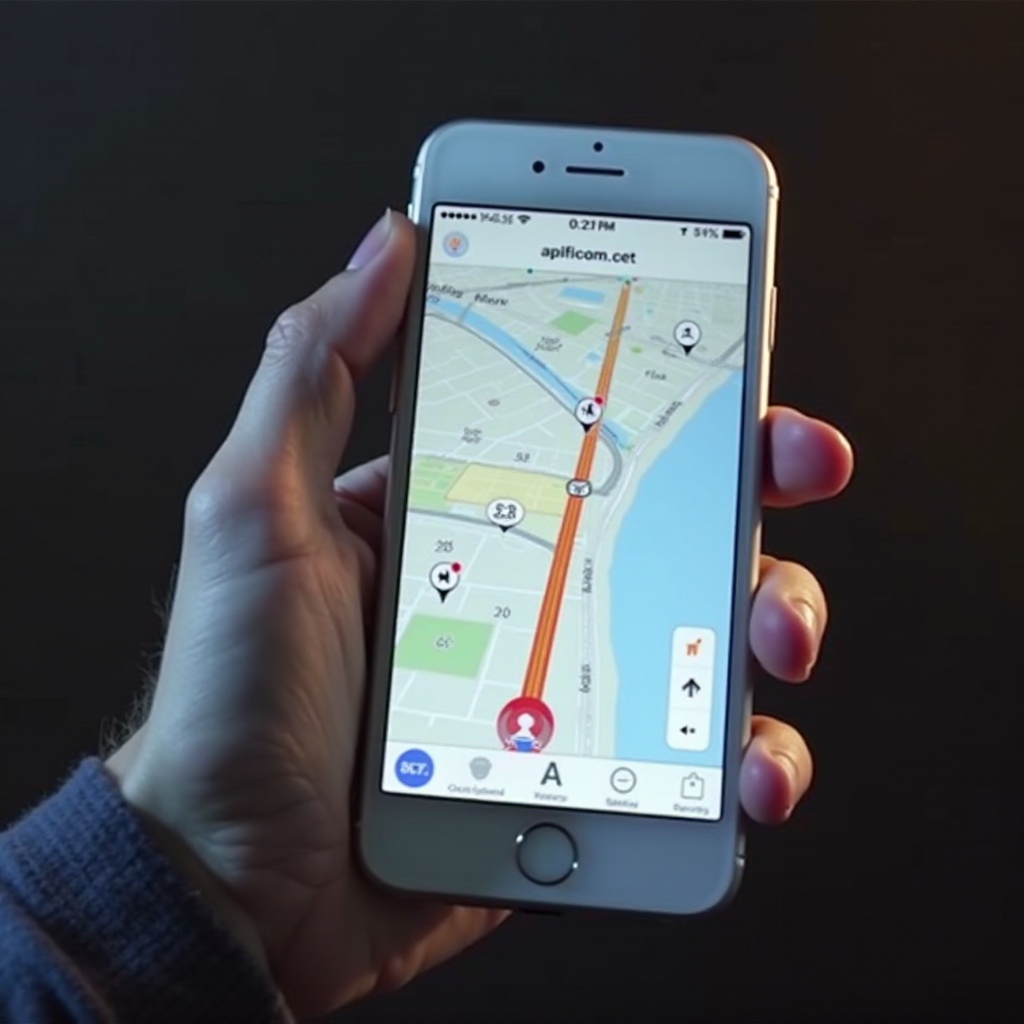
Understanding Apple Maps Traffic Features
Apple Maps integrates GPS data, crowdsourced information, and collaborations with various sources to present traffic conditions like delays, accidents, and roadworks. These features aim to assist users in efficient route planning.
Given this setup, analyzing why traffic data might not render can help pinpoint challenges. Let us delve into the possibilities.
Common Reasons Traffic Data Might Not Appear
Several factors can hinder traffic updates in Apple Maps. Resolving these should be your initial step.
Connectivity Issues
Stable internet access via Wi-Fi or cellular data is a prerequisite for accessing real-time updates. Weak signals can interfere with data reception.
Software Updates Needed
Updates for Apple Maps and iOS regularly include enhancements and bug repairs. Failure to update may restrict access to certain features.
Incorrect Settings or Configurations
Improper settings can obstruct app performance. Ensure location services and related permissions are correctly configured.
Transitioning from identifying potential causes, let’s move to troubleshooting these challenges effectively.
Step-by-Step Troubleshooting Guide
Apply these strategies to restore traffic visibility in Apple Maps:
1. Ensure Strong Internet Connection
– Confirm connectivity by testing another app or browsing online. A stable signal is essential for uninterrupted updates.
- Update Apple Maps and iOS
-
Regularly check for app and system updates in the App Store and Settings. Using up-to-date software ensures feature consistency.
-
Review Location Services Settings
-
Access Settings > Privacy > Location Services and verify permissions are enabled for Apple Maps.
-
Reset Network Settings
-
Go to Settings > General > Reset > Reset Network Settings. Note that this removes saved Wi-Fi networks, requiring reconnection afterward.
-
Uninstall and Reinstall Apple Maps
- Press the app icon to delete and then reinstall from the App Store, resolving any potential app-specific glitches.
When traditional methods don’t suffice, consider exploring advanced solutions tailored to technical intricacies.
Advanced Troubleshooting Techniques
For persistent issues, undertake more technical approaches:
iOS System Diagnostics
– Utilize iOS diagnostics in Settings to identify software problems affecting Apple Maps functionality. Contact Apple Support for comprehensive assistance.
Third-Party Navigation Alternatives
– During troubleshooting, third-party apps like Google Maps and Waze offer equivalent traffic features and can serve as temporary navigation substitutes.
Having explored diverse solutions, it’s time to recap and emphasize the importance of maintaining app functionality.
Conclusion
Ensuring seamless operation of Apple Maps involves understanding its features and addressing issues as they arise. System updates, reviewing settings, and confirming stable connectivity are crucial tasks. When problems continue, external technician support and alternative navigation apps offer viable options.
Restoring traffic data visibility in Apple Maps requires systematic troubleshooting and adaptive measures, fostering smoother navigation experiences.
Frequently Asked Questions
Why is Apple Maps traffic data not showing on my iPhone?
This may be due to connectivity issues, outdated software, or incorrect app settings.
How can I fix Apple Maps not displaying traffic?
Ensure internet connection is stable, update all software, and verify location permissions are active. Reset network settings if needed.
Are third-party apps better for real-time traffic data?
They can be a temporary alternative, especially when troubleshooting Apple Maps issues. Apps like Google Maps offer reliable traffic data.