
Introduction
Apple’s AirTags are popular for keeping track of items like keys or bags. However, connectivity issues with your iPhone can be a significant setback. This guide provides practical steps to solve connection problems, ensuring your AirTags function as intended.
Understanding AirTag and iPhone Compatibility
To begin, it’s crucial to ensure that your devices are compatible. AirTags work with iPhone models running iOS 14.5 or later. Ensuring compatibility can prevent many common issues. For enhanced features like precision finding, you’ll need at least an iPhone 11.
These prerequisites are foundational, as knowing your devices meet these requirements is the first step in troubleshooting.
Common Reasons Why AirTags Won’t Connect
Several factors can disrupt the connection between your AirTag and iPhone:
- Bluetooth Connectivity Issues: Both devices must have Bluetooth enabled. Check your iPhone’s Bluetooth settings to confirm.
- iOS Software Updates: An outdated iOS can lead to malfunctioning AirTags. Keeping your iPhone updated ensures better performance and compatibility.
- AirTag Battery Concerns: A low or dead battery in your AirTag can cause disconnects. Regularly check and replace the battery as needed.
By identifying these common issues, you’re better equipped to address them directly.
Essential Steps for Initial Troubleshooting
Start with these basic troubleshooting steps:
- Ensure Bluetooth is Enabled on Your iPhone: Navigate to Settings and confirm Bluetooth is turned on.
- Check the AirTag’s Battery: Open the AirTag by pressing its back cover to inspect or replace the battery.
- Restart Both Devices: A simple reboot of your iPhone and AirTag can often fix minor connectivity issues.
These steps often rectify simple problems and restore connectivity.
Advanced Troubleshooting Techniques
If initial steps don’t help, consider these advanced methods:
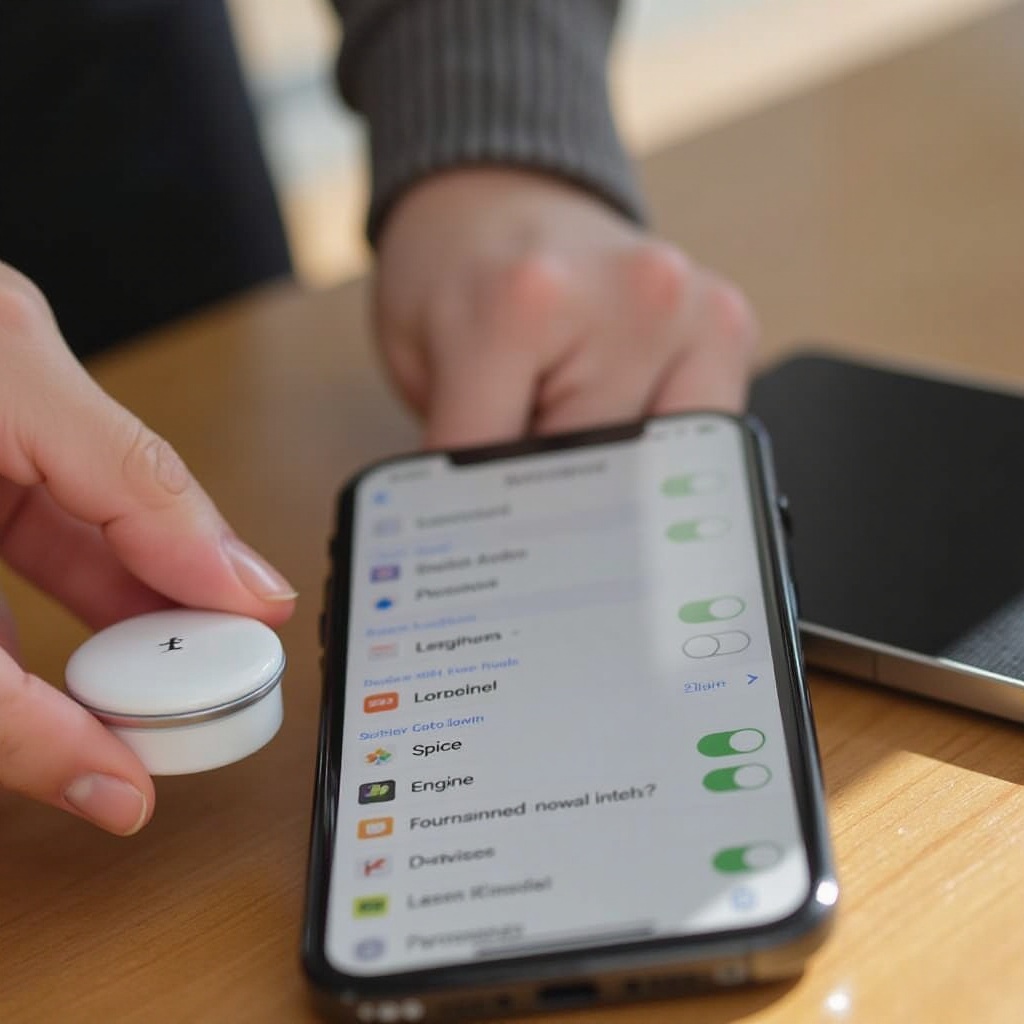
- Reset the AirTag: Remove and reinsert the battery to reset the AirTag. Wait for the sound confirmation.
- Re-pair the AirTag with iPhone: Remove the AirTag from your Find My app, then add it back as a new device to refresh the connection.
- Inspect for Physical Damage: Examine the AirTag for any visible damage that might affect its operation. If damaged, consider reaching out to Apple Support.
Once physical or pairing issues are ruled out, software solutions are the next logical step.
Software Solutions for Connection Problems
Corrective software actions can resolve many issues:
- Updating to the Latest iOS Version: Check for software updates under Settings > General > Software Update.
- Remove Beta Software: Experimental software might interfere with AirTag functions; revert to the stable version of iOS.
- Toggle Airplane Mode On and Off: This can reset the iPhone’s network settings and solve minor bugs.
Proper software ensures stable and reliable functionality.
Final Steps and When to Seek Help
If issues persist, further action is needed:
- Persistent Issues: If problems continue, they may indicate a more complex issue.
- Contact Apple Support: For unresolved problems, Apple Support provides professional help and solutions.
- Additional Support Resources: Utilize Apple’s online resources and community forums for additional guidance and problem-solving tips.
When all else fails, professional assistance can be crucial in resolving technical issues quickly and effectively.
Conclusion
AirTags are invaluable tools for item tracking, but connection issues can disrupt their utility. By following these troubleshooting tips, most issues can be resolved swiftly. Consistent updates and maintenance play a critical role in ensuring seamless AirTag operation.
Frequently Asked Questions
What iPhone models are compatible with AirTags?
AirTags work with iPhone models running iOS 14.5 or later. For enhanced features, an iPhone 11 or newer is recommended.
How often should I replace my AirTag battery?
The AirTag battery typically lasts about a year. Check battery status regularly and replace when notified.
Can interference from other devices affect AirTag connectivity?
Yes, devices that use Bluetooth can interfere. Keep other electronic devices at a distance to maintain a clear connection.