
Introduction
Welcome to a transformative journey into iPhone customization where creativity merges with user-friendliness. As blank icons rise in popularity among iOS enthusiasts, they provide a unique opportunity to enhance both the look and functionality of your home screen. Whether you aim for a minimalist aesthetic or want a unique themed layout, blank icons offer the flexibility you need to mirror your personal style. Let’s delve into the world of blank icons and explore how they can elevate your iPhone experience.
What Are Blank Icons?
Definition of Blank Icons
Blank icons are essentially invisible placeholders that blend seamlessly with your iPhone’s wallpaper. They act as spacers between app icons, enabling users to design an uncluttered, visually appealing home screen. These icons do not contain or launch apps but are tools for organizing visible app placement.
How Blank Icons Function on iPhones
On iPhones, blank icons serve as strategic spacers that do not perform any active functions. Their primary role is to allow users to exercise creativity in organizing how their apps are displayed, ultimately elevating the user’s aesthetic and practical experience.
Now that we understand what blank icons are, let’s explore the benefits they bring to your iPhone home screen setup.
Benefits of Using Blank Icons
Personalizing Aesthetic Appeal
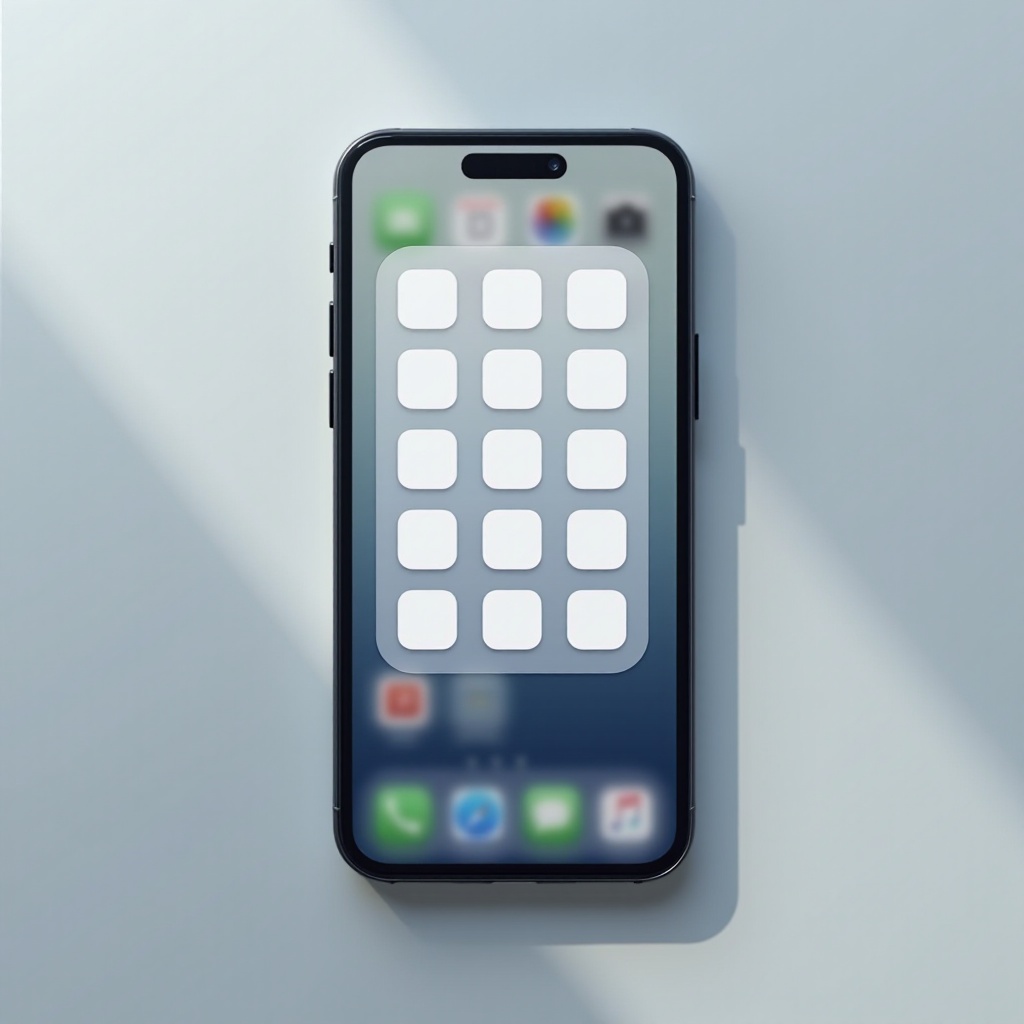
Blank icons empower users to introduce endless creativity and personal expression to their devices. You can align apps with specific themes or simply create breathing room that distinguishes your home screen’s look, all adding enjoyment each time your phone unlocks.
Enhancing Home Screen Organization
Beyond aesthetics, blank icons significantly aid in decluttering. By placing them strategically, users can subdivide their screen into intuitive sections—like work, entertainment, or lifestyle—allowing rapid access to core apps without the chaos.
Improving Productivity and Focus
A streamlined home screen promotes clarity and focus. By using blank icons to highlight priority apps or segregate distractions, users can create an environment conducive to productivity. Critical apps become easier to locate, bolstering your efficiency.
Having discussed the advantages of these clever placeholders, it’s time to learn how to create them on your iPhone.
How to Create Blank Icons on iPhone
Using the Shortcuts App
- Open the Shortcuts app.
- Tap the ‘+’ button to create a shortcut.
- Add the action ‘Open App’ and select any app.
- Tap the three dots to open settings, then choose ‘Add to Home Screen.
- Leave the name blank, tap the icon to ‘Choose Photo,’ and use a blank image matching your background.
Utilizing Third-Party Icon Apps
Several apps like Clear Spaces can create blank icons with ease. Such apps often come with handy customization features that cater specifically to user needs.
Step-by-Step Walkthrough for Each Method
Whichever method you select, ensure your icons seamlessly blend with your wallpaper for optimal visual appeal. Experimentation with backgrounds and icon arrangements is encouraged to achieve your desired effect.
Armed with your blank icons, you are now ready to explore creative applications that can profoundly impact your iPhone’s interface.
Creative Ways to Use Blank Icons
Designing Unique Themes
Use blank icons to enhance thematic displays reflecting interests or hobbies. They serve as dividers for themed app clusters, enriching the narrative of your home screen.
Building Functional Layouts
Create intuitive screens where functionality complements design. Blank icons can amplify important apps while maintaining an uncluttered appearance, highlighting what you need most.
Real-Life Examples and Inspiration
Online communities and visual boards like Pinterest are packed with creative screen setups shared by users. Such resources offer endless inspiration and practical examples to draw from.
As you express your creativity, challenges may arise. Let’s address how to troubleshoot common problems associated with blank icons.
Troubleshooting Common Issues
Common Mistakes to Avoid
Ensure cohesiveness between wallpaper and icons to avoid a disjointed appearance. Using harmonious elements will maintain a seamless visual experience.
Solutions to Frequent Problems
If icons look out of place, consider adjusting your wallpaper or repositioning the icons. Specialized apps can help perfect the arrangement for cleaner, more appealing designs.
Having tackled potential roadblocks, let’s examine some of the best apps available in 2024 to assist in creating and customizing blank icons.
Best Apps for Blank Icons in 2024
Overview of Top Apps
Leading apps such as Widgetsmith, IconBoard, and Makeover facilitate the creation of custom icons with extensive options to suit various preferences.
Features Comparison
Evaluate personalization capabilities, user interfaces, and iOS compatibility when selecting an app. These factors are essential in meeting your customization needs.
User Reviews and Ratings
Explore reviews and ratings for insights into user experiences. This guidance aids your selection process, ensuring your expectations align with app performance.
Lastly, as we wrap up this exploration of blank icons, let’s review the core benefits, effective methods, and creative uses that have been discussed.
Conclusion
Blank icons serve as keystones for transforming and personalizing any iPhone user’s home screen. They offer a unique synergy of aesthetic pleasure and purposeful organization, encouraging creativity. With the apt methods and tools outlined here, anyone can craft a masterful, personalized home screen experience.
Frequently Asked Questions
How do blank icons enhance my iPhone experience?
Blank icons help organize your screen and personalize its appearance, affecting both functionality and aesthetics.
Are blank icons compatible with all iPhone models?
Yes, blank icons can be used on all iPhone models running iOS versions that support the Shortcuts app.
Can I revert my home screen to original settings after using blank icons?
Absolutely. Simply remove the blank icons, and your home screen will revert to its default layout.