
Introduction
Does your smartphone seem to have a mind of its own, installing games without asking you? Many users find themselves puzzled by this unexplained behavior, leading to a cluttered phone and potential security threats. To regain control, understanding why this occurs is vital. This comprehensive guide will explore the possible reasons, offer actionable solutions, and provide preventive tips to save your device from unwanted app chaos.
Why Is Your Phone Automatically Installing Games?
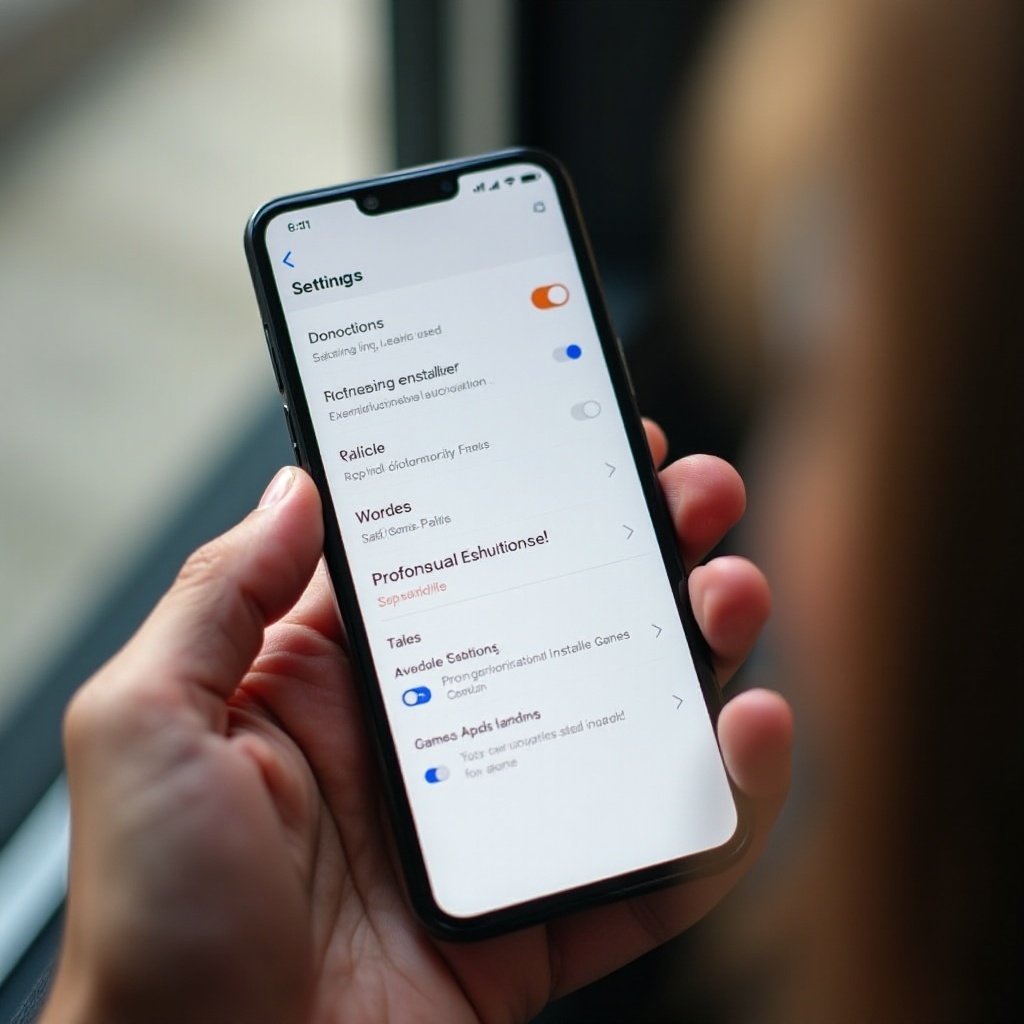
The problem often lies in several overlooked areas of your smartphone settings. Default app store settings can allow apps to download and update without explicit permission, causing mysterious installations. Additionally, pre-installed software or bloatware by manufacturers or carriers might execute background installations without your knowledge. Moreover, shared settings and linked devices can lead to unexpected downloads.
Understanding Automatic Installations
Automatic installations can occur due to pre-configured app store settings or permissions granted during initial app installs, allowing background access for downloads which happen without your approval.
Common Sources of Unwanted Apps
– App Store Settings: Driven by default download and update configurations.
– Linked Devices and Accounts: Unexpected installations can arise from shared settings across multiple devices.
– Pre-installed Software: Bloatware or adware may covertly install apps.
Analyzing Your Phone’s Current Settings
Identifying and understanding possible sources of unwanted games is only half the solution. The next step involves diving into your phone’s current settings to rectify the issue. Start with examining app store settings, reviewing permissions related to automatic installations and updates.
Reviewing App Store Settings
Both Google Play and Apple’s App Store have configurations that control app installations and updates. Navigate through these settings and alter options to disable automatic installations, instead requiring user approval for new content or updates.
Checking Linked Devices and Accounts
Assess whether your phone is downloading games due to linked devices or shared account settings. Regularly review permissions and synchronization settings to prevent such occurrences. Disconnect any suspicious devices from your account.

Solutions to Prevent Automatic Installations
Once the sources are identified and settings adjusted, you can implement further practical measures to prevent future automatic installations.
Adjusting App Store Preferences
1. Disable Automatic Updates: Stop the app store from updating apps automatically.
2. Require User Permission: Make user approval mandatory before apps install or update.
3. Enable Alerts for New Installs: Activate notifications for new installations to stay informed.
Managing Permissions and Access
Revoking permissions that are more extensive than necessary helps reduce risks. Regular audits help identify apps with excessive permissions; adjust them to block unknown sources from installing anything.
Enhancing Your Phone’s Security
Ensuring your smartphone’s security protects it against unwanted installations. Implement security measures by using apps dedicated to monitoring and guarding your smartphone.
Using Security Apps
Install security applications that provide robust defenses against automatic installations, scanning for and removing potential threats like unwanted apps. Real-time alerts offer notifications of suspicious activities.
Regular Device Scans
Conducting regular scans helps maintain your device’s integrity, detecting and eliminating unwelcome components before they inflict damage.
Advanced Fixes for Persistent Issues
If these measures don’t resolve the problem, consider more advanced solutions which could be intrusive but resolute for deeply-rooted cases.
Resetting App Preferences
Resetting app preferences eradicates all pre-configured permissions without losing app data, which can effectively stop automatic installations by restoring default settings.
Factory Reset Considerations
A factory reset is a final resort that wipes your device clean, removing all harmful apps, or persistent issues relating to automatic installations. Ensure essential data is backed up as this process will delete all stored content.
Proactive Measures for Future Prevention
Taking proactive steps is crucial to uphold your smartphone’s security.
Regular Maintenance Checklist
– Weekly Settings Audit: Regularly verify permissions and app activity.
– App Source Authentication: Download apps only from reputable stores to minimize risks.
– Scheduled Scans: Regularly scheduled scans keep your device secure.
Trusted App Sources Recommendations
Limit downloads to trustworthy app stores and developers. Avoid sideloading apps from unknown origins, which often carry risks and automatic installation scripts.
Conclusion
Regaining control of your smartphone’s app installations is critical for ensuring optimal performance and security. By understanding the root causes of unwanted installations and implementing solutions and preventive measures, you can stop unsolicited apps in their tracks. Regularly reviewing and adjusting settings, along with employing security apps, provides ongoing protection. Remain vigilant, ensuring your device stays secure and free from unwanted installations.
Frequently Asked Questions
Why does my phone install unwanted apps automatically?
Automatic installations can result from app store settings, permissions unknowingly granted during app setups, or linked device settings.
How can I identify and remove unwanted apps effectively?
Leverage security apps to scan and detect unwanted installations. Regularly check apps and permissions, removing anything non-essential.
What steps should I take if factory reset doesn’t stop the issue?
Seek professional assistance to diagnose deeper hardware or software problems if issues persist post-reset.