
Introduction
Slideshows offer a delightful way to relive cherished memories stored on your iPhone. However, if the slideshow speed feels too brisk, you may miss appreciating every captured detail. Adjusting the speed not only enhances your viewing enjoyment but also lets you savor every visual moment fully. This guide outlines clear steps to manage speed effectively and achieve the perfect pace for your slideshows.
Understanding iPhone Photo Slideshows
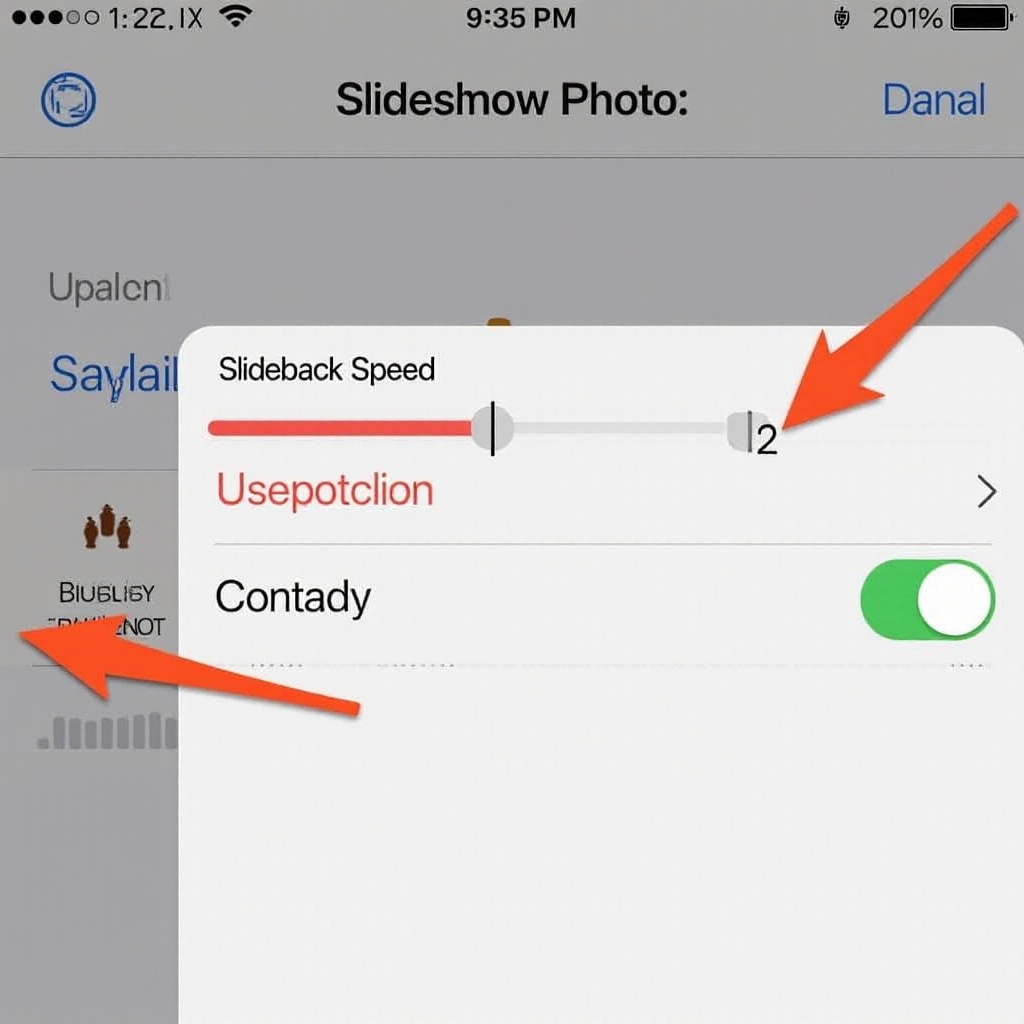
The iPhone Photos app includes a built-in slideshow feature, enabling seamless transitions between images. While convenient for displaying photos quickly, the default speed sometimes moves faster than desired. Knowing the functionality of this feature empowers you to adjust settings to better suit personal preferences. Within the Photos app, the slideshow speed can be controlled, and understanding these options is key to customizing the experience.
Armed with insight into how iPhone slideshows operate, you can proceed to the specifics of adjusting the speed to tailor your viewing.
Step-by-Step Guide to Slowing Down Slideshow
Modifying the slideshow speed on an iPhone is simpler than one might expect. Follow this guide to make adjustments:
- Access the Slideshow Settings:
- Navigate to the Photos app and select an album containing the desired images.
- Open a photo to enter viewing mode.
-
Tap the ‘Share’ icon and scroll to ‘Slideshow.
-
Adjust Speed Settings:
- Tap the screen during slideshow playback to open options.
- Select ‘Options.
-
Choose a new speed setting from options like Fast, Medium, or Slow.
-
Save Your Preferences:
- Confirm the preferred speed setting.
- Exit settings to apply the changes.
These steps allow the personalization of slideshow speed, enhancing your photo display experience. Next, explore further customization options for perfecting your slideshow.
Additional Tips for Customizing Your Slideshow
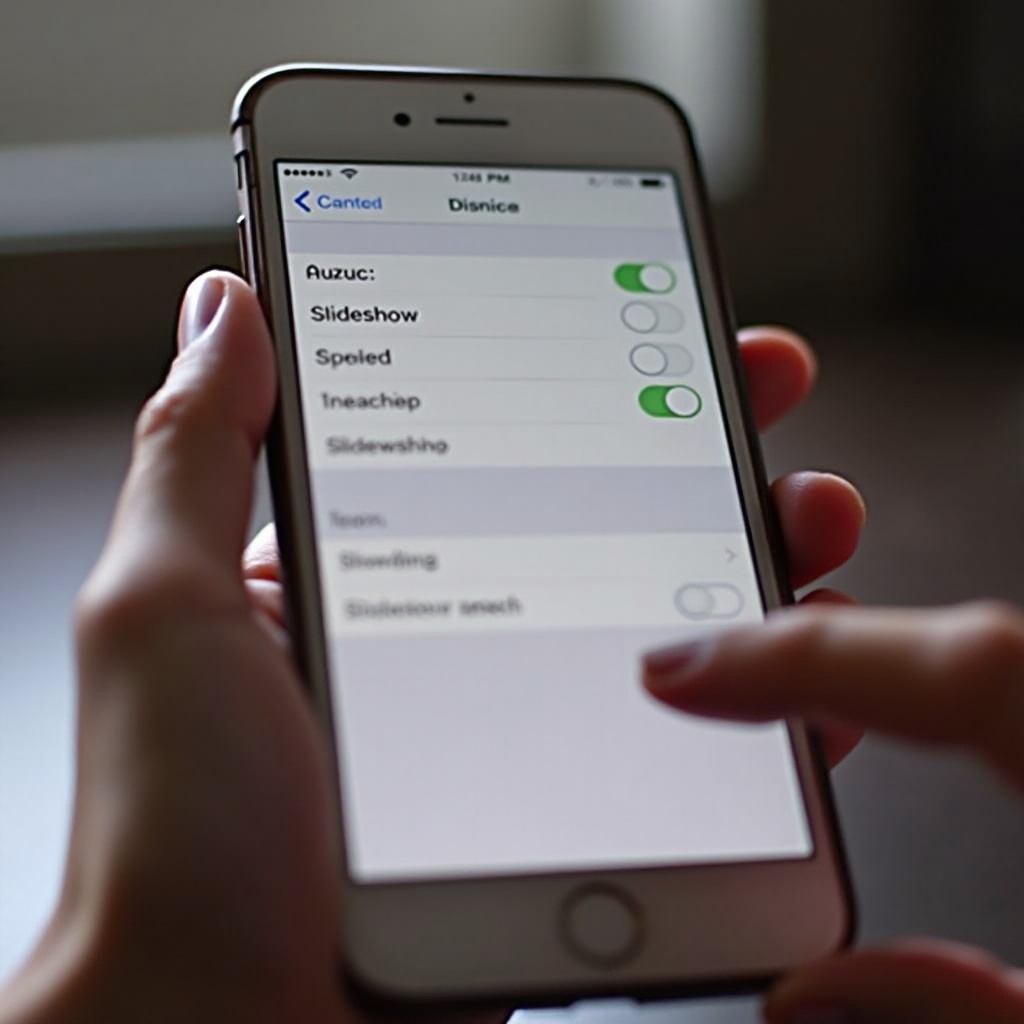
Customization options extend beyond speed adjustments, allowing creative enhancement:
-
Music and Transition Options:
Adding music elevates slideshows, enhancing emotional and visual depth. In slideshow options, select a soundtrack from your Music app that complements the images. Alter transitions for dynamic pacing. -
Organizing Photos for Optimal Flow:
Arranging photos in a storytelling sequence boosts impact. Sort chronologically or thematically for natural progression. Rearrange the images within your album to refine your slideshow.
These strategies ensure a personalized and engaging slideshow where each image stands out.
Utilizing Third-Party Apps for Enhanced Control
When native app features are insufficient, third-party applications offer advanced control:
-
Overview of Top Apps:
Consider apps such as iMovie, SlideShow Creator, and Photostage SlideShow for higher customization potential beyond standard settings. -
Features Comparison:
Assess features such as superior editing tools, overlay options, and diverse export formats. Some apps provide additional speed control, unique transitions, and creative templates.
Using these applications can elevate your storytelling and slideshow creativity.
Troubleshooting Common Slideshow Speed Issues
Encountering issues when slowing down slideshows is common; here’s how to solve them:
-
Default Settings Problems:
Verify that chosen speed settings haven’t reverted. Reapply necessary changes if settings reset. -
App Compatibility Issues:
Keep iOS and apps updated to mitigate errors due to outdated software.
Resolving these issues guarantees a smooth and enjoyable slideshow experience.
Conclusion
By slowing down your iPhone slideshows, the viewing experience becomes immersive and enjoyable. Adjusting speed settings and applying additional customization options transform ordinary photo displays into captivating visual presentations. Should you need more features, exploring third-party apps can offer advanced control for storytelling. Perfectly paced slideshows enhance the appreciation of your captured moments!
Frequently Asked Questions
How do I change the photo order in a slideshow?
In the Photos app, open the album and drag the images to arrange them in your preferred sequence.
Can I add text to my iPhone slideshow?
The native Photos app doesn’t support text overlays, but you can use apps like iMovie to add text for enhanced narrative.
What are the best third-party apps for slideshow editing?
Consider iMovie for robust editing features and Photostage SlideShow for comprehensive customization possibilities.