
Introduction
Voice messages help you say more than a text ever can. Tone, emotion, and natural pauses all carry meaning that plain words on a screen often miss. If you use an iPhone, you already have powerful tools for sending quick audio messages built into your device.
Many people still only use regular texts or calls because they are not sure how voice messages work or worry that they are complicated. The good news: sending voice messages on iPhone is simple once you know where everything is and which settings to check.
This guide walks you through every major way to send voice messages on iPhone in 2024. You will learn how to use the Messages app, Voice Memos, and popular chat apps like WhatsApp. You will also see how to fix common problems and keep your messages private, clear, and convenient for the people who receive them.
What Are Voice Messages on iPhone and Why Use Them?
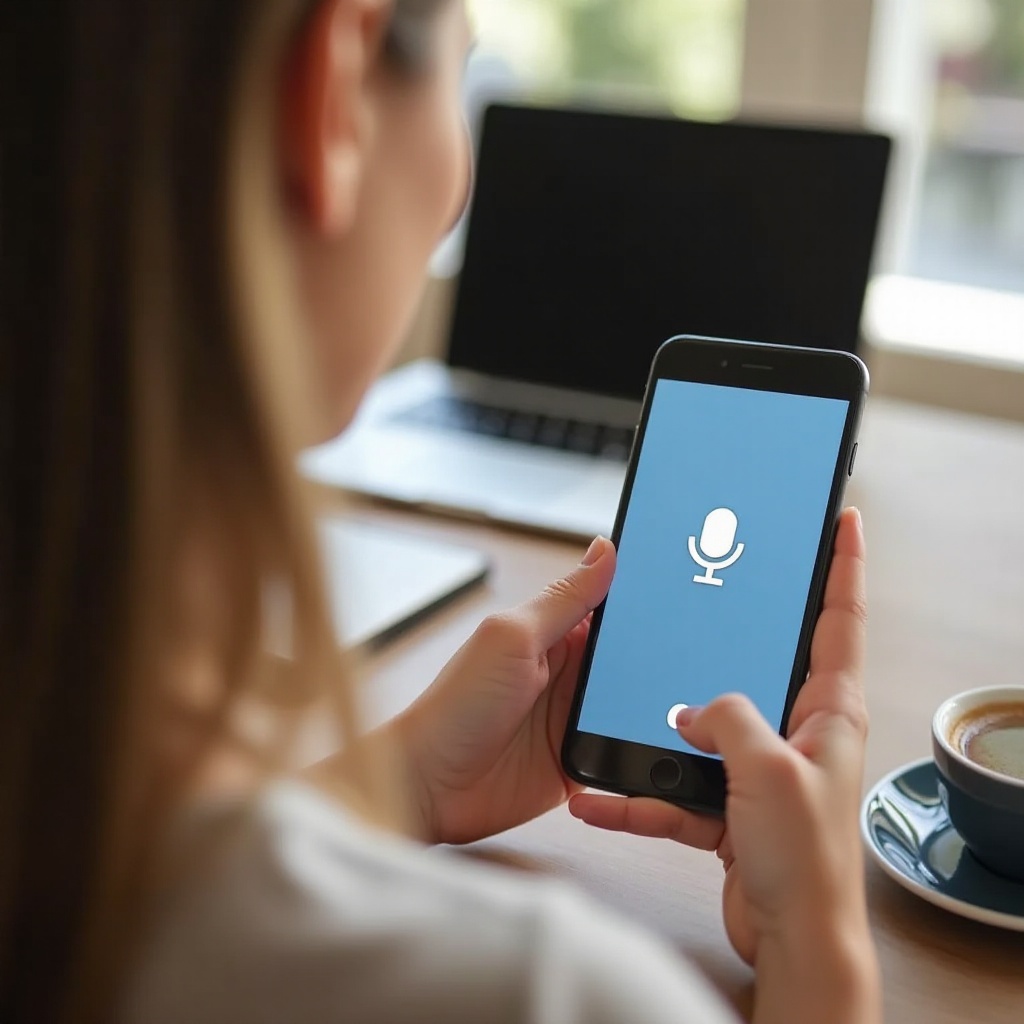
Voice messages on iPhone are short audio recordings that you send instead of typing a text. You press a button, speak, and your iPhone records your voice and delivers it to your contact. The most common way is through the Messages app, but other apps also support voice notes.
You can think of voice messages as a middle ground between texting and calling. They are more personal than texts and less demanding than a phone call. The other person can listen when they have time, and they hear your tone and emotion.
Voice messages offer some key advantages:
-
Clarity of meaning
Your voice carries emotion. Sarcasm, jokes, and serious topics all come across more clearly. This helps avoid misunderstandings that often happen in text.
-
Speed and convenience
Speaking is faster than typing long texts. If you have a lot to say, a 30-second voice message is easier than writing several paragraphs on a small screen.
-
Accessibility
Voice messages can help people who struggle to type on small screens or who have visual or motor challenges. It is also easier when you are walking or carrying something.
In some situations, voice messages are better than calls or video. If the other person is busy, working, or in a different time zone, a quick audio note lets them respond when they can. You avoid phone tag and still keep the communication personal.
Now that you know what voice messages are and why they matter, the next step is to set up your iPhone correctly so sending voice messages feels smooth and reliable every time.
Getting Ready: Settings You Need Before Sending Voice Messages
Before you start sending voice messages on iPhone, it helps to make sure your device and settings are ready. A few quick checks will save you from problems like failed sends, silent recordings, or missing audio buttons.
First, update your iPhone to the latest version of iOS:
- Open Settings.
- Tap General.
- Tap Software Update.
- Install any available updates.
Newer iOS versions often improve the Messages app and fix audio bugs, so staying updated is important for reliable voice messaging.
Next, confirm that iMessage is on and linked to your Apple ID:
- Open Settings.
- Tap Messages.
- Make sure iMessage is turned on.
- Tap Send & Receive and check that your phone number or email is selected.
iMessage allows you to send higher-quality audio messages between Apple devices. If iMessage is off, your messages may fall back to regular SMS/MMS, which can limit features and reduce reliability.
Finally, review microphone and notification permissions:
- Go to Settings > Privacy & Security > Microphone and confirm that Messages, Voice Memos, and any chat apps you use are allowed to access the microphone.
- Go to Settings > Notifications and check that you receive alerts for Messages and your chat apps so you do not miss incoming voice messages.
With these settings in place, your iPhone is ready to record and send audio reliably. The next step is to learn the exact steps for sending voice messages inside the Messages app.
How to Send Voice Messages in the Messages App (iMessage)
The Messages app is the main place people send voice messages on iPhone. Apple has changed the look of the voice message tools over recent updates, but the process stays simple: open a chat, tap the audio button, record, and send.
Here is a clear step-by-step process to send a voice message:
- Open the Messages app.
- Tap an existing conversation or start a new one.
- In the message bar, look for the audio icon (often a waveform or microphone, depending on your iOS version).
- Press and hold the icon to start recording, or tap once if your version uses tap-to-record.
- Speak clearly into your iPhone’s microphone.
- Release the button (or tap Stop) when you finish.
- Tap Send to deliver the recording.
If you do not like your recording, most recent iOS versions let you review or cancel before sending. Look for a small play icon to preview. If it sounds wrong, tap X, Delete, or a similar button to discard and record again.
You can also send voice messages to Android or other non-Apple users. The main difference is that iMessage features like encryption and high-quality audio may not apply. Your iPhone might send the file as an MMS or as an audio file if the carrier supports it. In some cases, the recipient will receive it as a downloadable file rather than an inline audio bubble.
Managing how long audio messages stay on your iPhone is also important. By default, iOS can delete audio messages after a short time to save space. To change this:
- Go to Settings > Messages.
- Scroll to Audio Messages.
- Tap Expire.
- Choose Never if you want to keep audio messages until you delete them manually.
Once you feel comfortable sending quick audio notes through iMessage, you may want more control over length and quality. For that, the built-in Voice Memos app gives you more flexibility.
Using the Voice Memos App to Create and Share Longer Voice Messages
Voice Memos is a built-in app designed for recording longer and higher-quality audio. It is ideal for detailed explanations, instructions, interviews, or messages that you might want to keep and reuse.
To record a high-quality voice memo:
- Open the Voice Memos app.
- Tap the red record button.
- Hold the phone so the bottom microphone faces you.
- Speak clearly and keep the phone steady.
- Tap the red button again to stop recording.
Your recording appears in the list with a default name based on your location or time. You can tap the title to rename it, for example, ‘Message for Sarah about project.’ Giving each memo a clear name makes it easier to find later.
Editing is simple:
- Tap the recording.
- Tap Edit or the waveform icon.
- Drag the handles to trim the start or end.
- Tap Done to save.
To share a voice memo as a message:
- Tap the recording.
- Tap the share icon.
- Choose Messages.
- Select the contact and tap Send.
You can also share via Mail, AirDrop, or cloud apps like Files, Drive, or Dropbox. This is useful when you want to keep a high-quality, longer message that your contact can save, download, or use later.
Using Voice Memos for sending voice messages on iPhone gives you more control than the standard audio feature in Messages. However, many of your daily conversations likely happen in third-party apps. Understanding how those apps handle voice notes will help you keep a consistent routine.
Sending Voice Messages in Popular Third-Party Apps on iPhone
Many people rely on apps like WhatsApp, Telegram, Signal, Facebook Messenger, or Instagram for daily communication. All these apps support some form of voice message or voice note, and the process is similar to the Messages app.
On WhatsApp, for example:
- Open WhatsApp and select a chat.
- Press and hold the microphone icon next to the message field.
- Speak while holding the button.
- Release to send.
- To lock recording for hands-free use, swipe up while holding the button, then release.
WhatsApp lets you listen before sending if you slide up to lock and then press play. You can delete the recording if you are not happy with it.
Telegram and Signal also use a press-and-hold microphone icon inside the chat. Some of these apps include extra features like:
- Voice messages that self-destruct in secret or private chats.
- Different playback speeds so the listener can hear faster or slower.
- Read and listen receipts that show when the other person played your message.
For Facebook Messenger and Instagram DMs, the pattern repeats: open the chat, tap and hold the microphone, record, and release to send. Some apps also allow you to slide your finger to cancel before sending.
Cross-platform use matters when your contacts use Android. Third-party apps solve this by sending voice notes over their own network, not through SMS/MMS. That means quality, encryption, and features stay consistent whether your contact has an iPhone or Android device.
Once you are comfortable sending voice messages on iPhone across different apps, you should focus on making those messages sound as clear as possible. Good audio quality helps your contacts understand you faster and with less effort.
Improving Audio Quality and Reliability of Your Voice Messages
Clear audio makes a big difference. Poor sound, background noise, or dropped recordings can frustrate your contacts. A few simple habits will help your voice messages sound more professional and easier to understand.
Start with microphone placement:
- Hold the bottom of your iPhone about 6–10 inches from your mouth.
- Avoid covering the microphone with your hand or case.
- Do not rub your fingers over the mic while speaking.
To reduce background noise:
- Move to a quieter area if possible.
- Turn down music, TV, or loud fans.
- Face away from strong wind if you are outside.
To avoid interruptions and failed sends:
- Check your signal before recording. Weak Wi‑Fi or cellular can delay or fail uploads.
- Disable Airplane Mode and make sure mobile data is on if you are away from Wi‑Fi.
- Consider turning on a Focus mode so calls and alerts do not break your attention while recording.
Using headphones or external microphones can also help. Wired or Bluetooth earbuds place the microphone closer to your mouth, which cuts room noise. External mics designed for iPhone can give podcast-level sound for very important audio messages.
When your voice messages sound good and send reliably, the next concern is how to keep them safe and how to use them politely. Privacy and etiquette matter because voice messages feel personal and can reveal more than text.
Privacy, Security, and Voice Message Etiquette
Voice messages often feel more personal than text because they carry your tone and mood. That makes privacy and etiquette very important. You want to protect your recordings and keep your contacts comfortable.
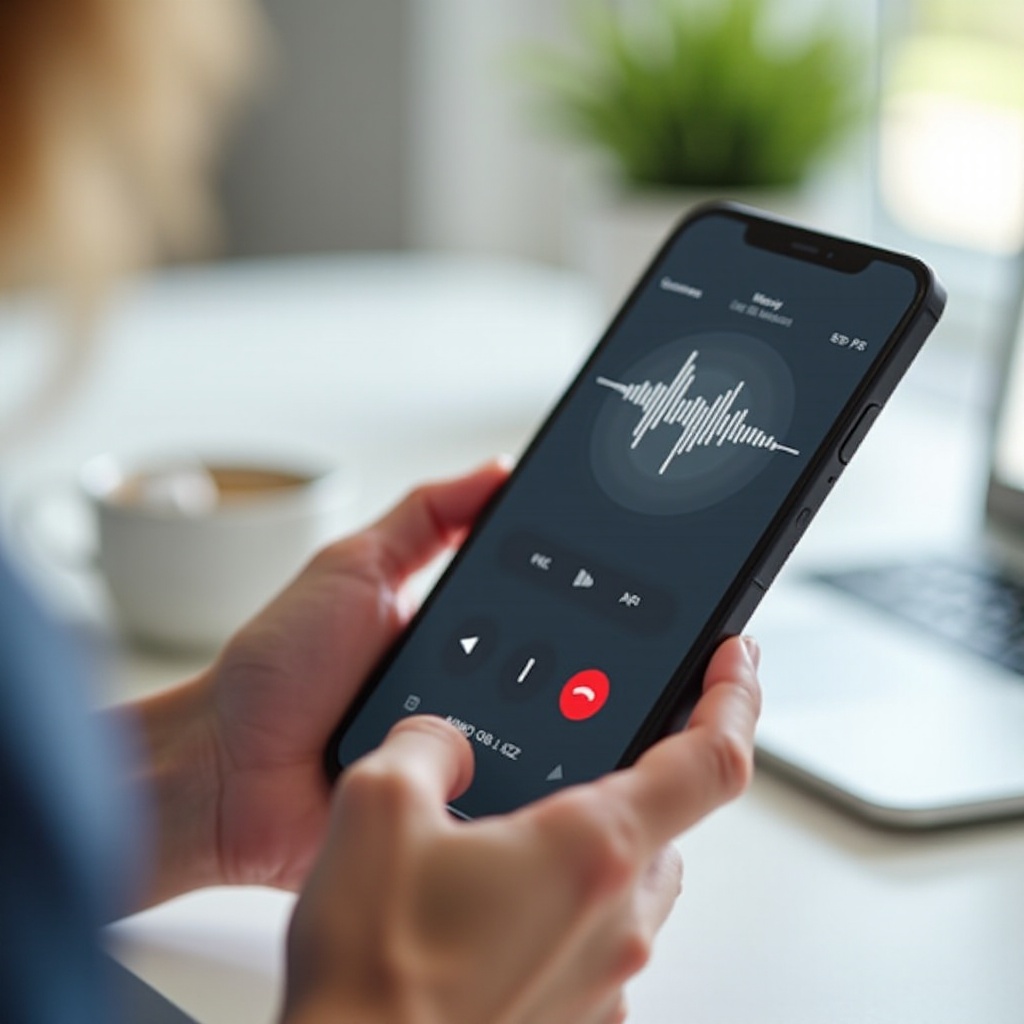
iMessage secures audio messages with end-to-end encryption between Apple devices. This means only you and the other person can access the content, not Apple or your carrier. Third-party apps like WhatsApp, Signal, and some others also use strong encryption for voice notes.
Still, you should treat sensitive audio carefully:
- Avoid sharing passwords, private numbers, or financial details in voice messages.
- Delete voice messages that contain sensitive information once they are no longer needed.
- Lock your iPhone with a passcode or Face ID to keep others from listening to your messages.
Voice message etiquette keeps communication smooth and pleasant:
-
Keep it concise
Try to keep most messages under one minute. If you need more time, consider breaking it into several short messages or using Voice Memos and explaining why it is long.
-
Consider context and timing
Think about where the other person might be. A loud voice note may not be ideal if they are at work or in a quiet place.
-
Give a quick text preview for long messages
You can send a short text like ‘Sending a 2-minute voice note explaining the plan’ to prepare them.
Managing and deleting sensitive audio messages helps you keep your history clean and your storage free. Even with good habits, problems do happen. Knowing how to troubleshoot common issues will help you keep sending voice messages on iPhone without stress.
Troubleshooting Common Problems with Voice Messages on iPhone
Even with the right setup, you might run into issues when sending voice messages on iPhone. The most common problems involve messages not sending, audio being too quiet, or recordings not working at all.
If your voice messages will not send or get stuck:
- Check your internet connection. Switch between Wi‑Fi and cellular to test.
- Toggle Airplane Mode on and off to refresh the signal.
- Restart the Messages app by swiping it away in the app switcher and reopening it.
- If that fails, restart your iPhone.
When recordings are silent or very quiet:
- Make sure your volume is up and the side mute switch (if your model has one) is off.
- Clean the microphone and speaker grills with a soft, dry brush or cloth.
- Disconnect Bluetooth devices to make sure the sound plays through the correct output.
- Test recording in the Voice Memos app. If sound is also bad there, it may be a hardware issue.
If you get errors or messages disappear too fast:
- Check Settings > Messages > Audio Messages and change the Expire option to Never if you want to keep audio longer.
- Delete old conversations and media to free space if your storage is nearly full.
When none of these steps fix the issue, you might need deeper help. You can:
- Reset network settings under Settings > General > Transfer or Reset iPhone > Reset > Reset Network Settings.
- Contact Apple Support through the Support app or Apple’s website.
- Visit an Apple Store or authorized service provider if you suspect hardware damage.
Once you know how to solve these common problems, you can rely on voice messaging as part of your normal communication. The final step is to bring all these ideas together so you can use voice messages with confidence.
Conclusion
Sending voice messages on iPhone does not need to be complicated. Once you understand where the audio tools live in the Messages app, how Voice Memos works, and how third-party apps handle voice notes, it becomes a natural part of daily communication.
You can now record quick updates, share detailed explanations, and keep conversations personal even when you and your contacts are too busy to call. With a few simple habits for sound quality, privacy, and etiquette, your voice messages will be clear, secure, and appreciated.
Voice messaging combines the warmth of your voice with the flexibility of text. Start using it more often, test different apps, and adjust your settings until sending voice messages on iPhone feels as easy as tapping out a quick text.
Frequently Asked Questions
Why do my voice messages disappear on my iPhone?
By default, iPhones can delete audio messages shortly after you play them to save storage. To stop this, go to Settings > Messages > Audio Messages > Expire and change the setting from ‘After 2 Minutes’ (or similar) to ‘Never’. You can also tap ‘Keep’ next to an audio message in a conversation if you want to save just that one.
Do voice messages use my data or my SMS plan?
Voice messages sent through iMessage or apps like WhatsApp, Telegram, or Signal use your internet connection, not your SMS text package. That means they use Wi‑Fi or mobile data. If you are not on Wi‑Fi, your mobile data plan will handle the traffic. Messages sent as MMS through your carrier may count against your MMS or data plan, depending on your carrier’s rules.
How can I save an important voice message permanently?
You have several options to save important voice messages on iPhone. In the Messages app, tap and hold the audio message, then choose options like ‘More’ and ‘Save’, or forward it to yourself or another app. You can also use Voice Memos to re-record the message while it plays, then save and name the new recording. Finally, share the saved audio from Messages or Voice Memos to Files, cloud storage, or email so you have an extra backup outside the conversation.