
Introduction
Losing your Safari icon can be quite a hassle, especially when it disrupts your smooth internet experience. This challenge, often faced by iPhone users, affects daily tasks and browsing needs. Fortunately, there are practical and straightforward methods to restore your Safari icon, diving into why it disappears and ensuring it doesn’t happen again.
Understanding the reasons behind the disappearance of your Safari icon is crucial for effectively addressing this issue. Throughout this guide, we’ll cover potential causes, immediate fixes, more in-depth solutions, and finally, preventative measures to avoid such disruptions in the future.
Understanding Why the Safari Icon Disappears
The loss of the Safari icon can arise from several factors. Sometimes, it’s a simple organizational oversight, where the icon is tucked away in an obscure folder. Other times, it may stem from glitches following iOS updates or accidental adjustments in settings.
By identifying the cause, you can approach the problem with confidence, targeting solutions that keep your browsing habits intact. As we transition into the next section, keep these potential causes in mind—they will guide the solutions you’ll apply to retrieve your icon efficiently.
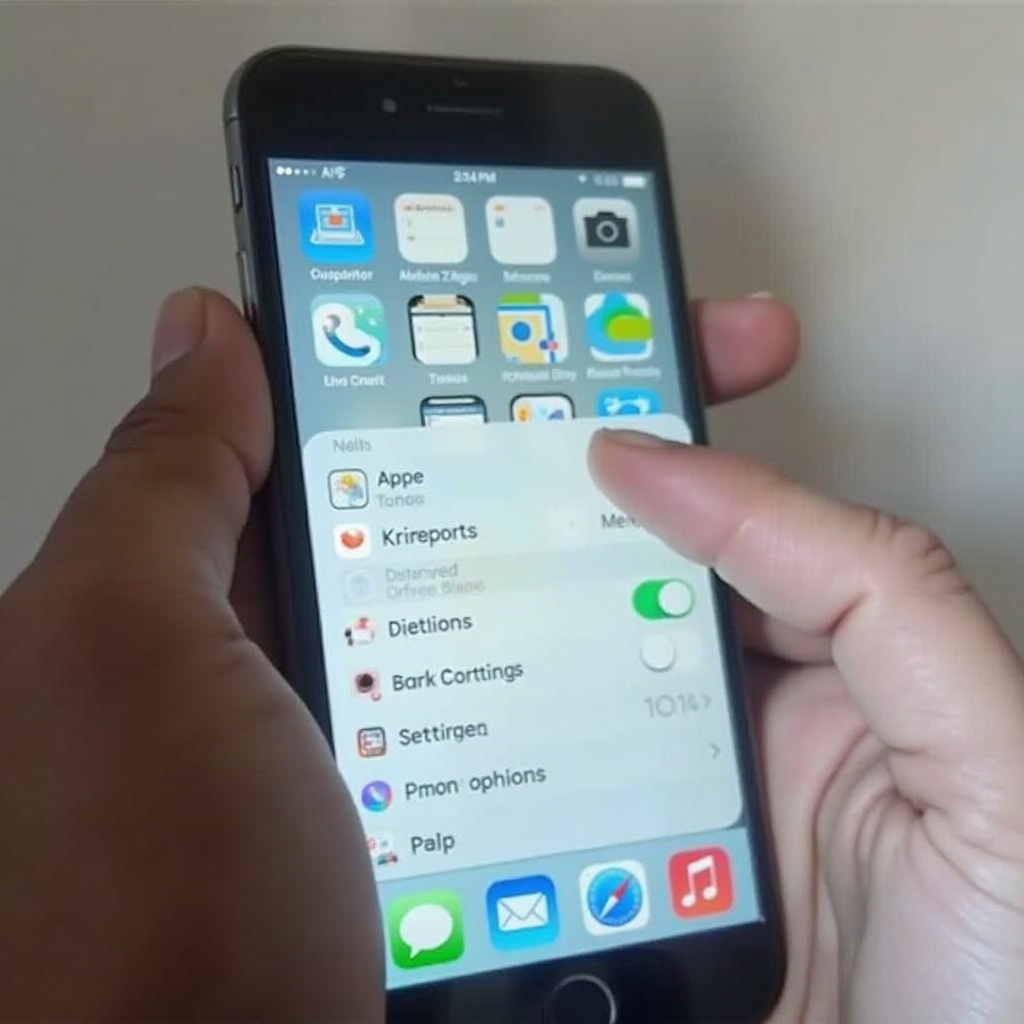
Quick Fixes to Restore Safari
The disappearance of the Safari icon can often be resolved with these quick, effective solutions:
-
Check Hidden Screens and Folders: Navigate through every screen and folder on your device to uncover any misplaced apps.
-
Use Spotlight Search: Utilize this tool by swiping down on your home screen and typing ‘Safari’ to discover its current location.
Starting with these essential checks can resolve the issue for many users, providing a swift return to normal usage. However, if the icon remains elusive, consider implementing more advanced measures to ensure recovery.
Advanced Solutions for Missing Safari Icon
Persistent problems call for more advanced approaches:
-
Reset Home Screen Layout: Go to ‘Settings > General > Reset > Reset Home Screen Layout’. This action reverts your organizational setup, making hidden apps visible once more.
-
Reinstall Safari Through App Store: Search for Safari in the App Store and reinstall if necessary. This process is effective if the app has been removed or disabled.
-
Resetting Device Settings: Utilize ‘Settings > General > Reset > Reset All Settings’. Although your data remains intact, this resets personalized settings, potentially solving visibility issues.
Deploy these advanced solutions with care, ensuring even complex problems are thoroughly addressed. Once resolved, focus on instituting preventative practices that safeguard your app visibility going forward.
Prevention Tips to Avoid Losing Safari Icon
Keep your Safari icon front and center with these preventative strategies:
-
Regular iOS Updates: Promptly install updates to rectify any bugs or glitches affecting app visibility.
-
Organizing Apps Effectively: Routinely assess your folder structure and app locations to maintain efficient access and prevent accidental misplacement.
By adhering to these practices, you set yourself up for a seamless user experience, ensuring apps like Safari stay within easy reach while optimizing your device’s organization and functionality.
Conclusion
Preventing the disappearance of your Safari icon necessitates both immediate action and foresight through organization and maintenance. The solutions offered in this guide provide comprehensive assistance, restoring functionality for a seamless user experience. Being proactive is crucial; stay updated and organized for continuous, hassle-free browsing.
Frequently Asked Questions
Why does my Safari icon disappear again after restoring?
Apps can disappear due to settings changes or updates causing minor glitches. Regularly check your device settings and screen organization.
Can I replace Safari with another browser on iPhone?
Yes, alternatives like Chrome or Firefox are available. Safari, however, remains popular due to its integration with iOS.
What should I do if none of the fixes work?
If persistent issues arise, contacting Apple Support is advisable. They offer tailored guidance and solutions.