
Introduction
Siri is a vital part of the iPhone experience, offering convenience through easy voice commands. However, it’s troubling when Siri suddenly stops speaking. Identifying the causes of Siri’s silence and knowing how to troubleshoot effectively can restore its voice interaction. This guide delves into the sources of the issue and provides clear steps to make Siri talk again.
Understanding Why Siri Isn’t Talking
Several common issues can lead to Siri’s silence. These range from specific settings being misconfigured to potential software bugs affecting performance. Siri requires the collaboration of software and hardware to work smoothly. By understanding these foundational problems, users can apply appropriate solutions to restore Siri’s voice functionality.
Common Reasons for Siri’s Silence
There are multiple causes for Siri failing to provide voice feedback:
-
Audio Output and Volume Issues: Sometimes, the device’s volume is muted or redirected through a Bluetooth accessory, preventing Siri’s voice output.
-
Settings and Permissions Misconfigurations: Misconfigurations within Siri’s settings can stop it from working correctly. Make sure the right permissions are granted and Siri is fully enabled.
-
Software and Hardware Interferences: Physical damage or software bugs can lead to Siri’s malfunction.
Grasping these reasons allows users to troubleshoot efficiently and explore the best possible fixes.
Basic Troubleshooting Steps
In most cases, simple adjustments can solve the problem:
-
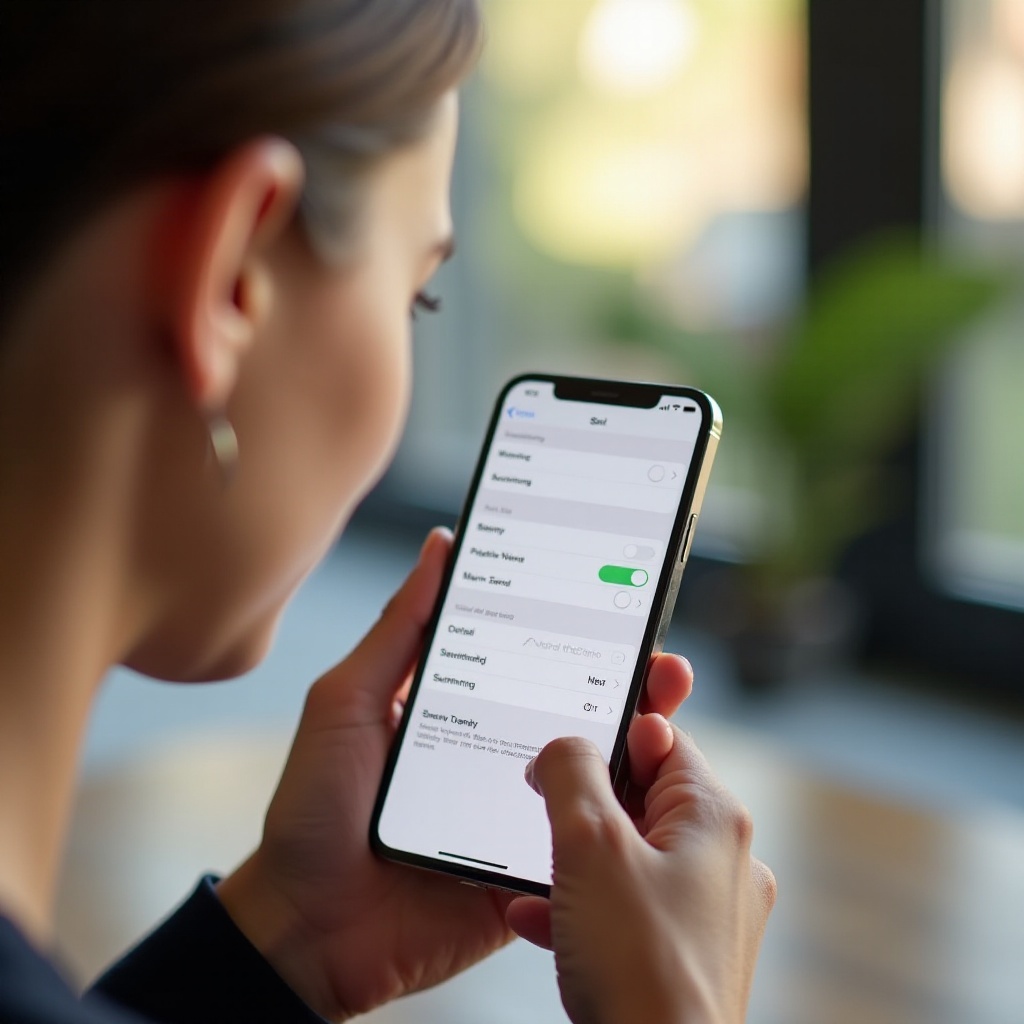
Checking Siri’s Settings: Navigate to ‘Settings > Siri & Search’ and ensure key features are activated. Verify the language and Siri’s functionality settings.
-
Verifying Network and Internet Connection: Make sure your iPhone is connected to a stable internet source, as this is crucial for Siri’s operations.
-
Restarting and Resetting Options: Restart your device to clear minor glitches. If it doesn’t work, try resetting network settings found under ‘Settings > General > Transfer or Reset iPhone > Reset > Reset Network Settings’.
If these steps don’t help, it may be time for more advanced methods.
Advanced Fixes for Persistent Siri Issues
When basic steps fail to resolve the problem, consider the following advanced strategies:
-
Updating iOS and Software: Ensure your iOS version is up to date to prevent software incompatibilities which can influence Siri’s performance.
-
Performing a Factory Reset with Precautions: A factory reset may clear deep-rooted software errors, but back up all essential data first to prevent data loss.
-
Seeking Professional Support from Apple: If Siri remains silent after all attempts, consult Apple Support. They can provide advanced diagnostics and potential hardware repair.
Applying these strategies will often return Siri to full functionality.
Conclusion
Siri’s silence can be frustrating but avoidable by understanding its causes and applying correct fixes. Whether through simple checks or advanced troubleshooting, you can restore Siri’s voice and improve device usability. Experience smooth communication with Siri by staying informed and proactive.
Frequently Asked Questions
Why is Siri not responding to my voice commands?
Several factors could influence Siri’s responsiveness, including muted volume, permission issues, and network connectivity problems. Check these settings to ensure optimal performance.
Can a recent update cause Siri to stop talking?
Yes, occasionally software updates may introduce bugs that affect Siri’s functionality. Ensuring your iOS is current and free of glitches can often resolve these issues.
How can I contact Apple Support if Siri issues persist?
Visit Apple’s official website or use the Apple Support app for guidance regarding professional troubleshooting, diagnostics, and potential repairs for complex Siri issues.