
Introduction
The Nest Doorbell has become an integral part of home security, offering convenience and safety. However, if it’s not ringing on your phone, it loses its effectiveness. Ensuring your Nest Doorbell alerts you properly is essential for maintaining security and peace of mind. This guide provides in-depth solutions to tackle this common issue.
Understanding Nest Doorbell Notifications
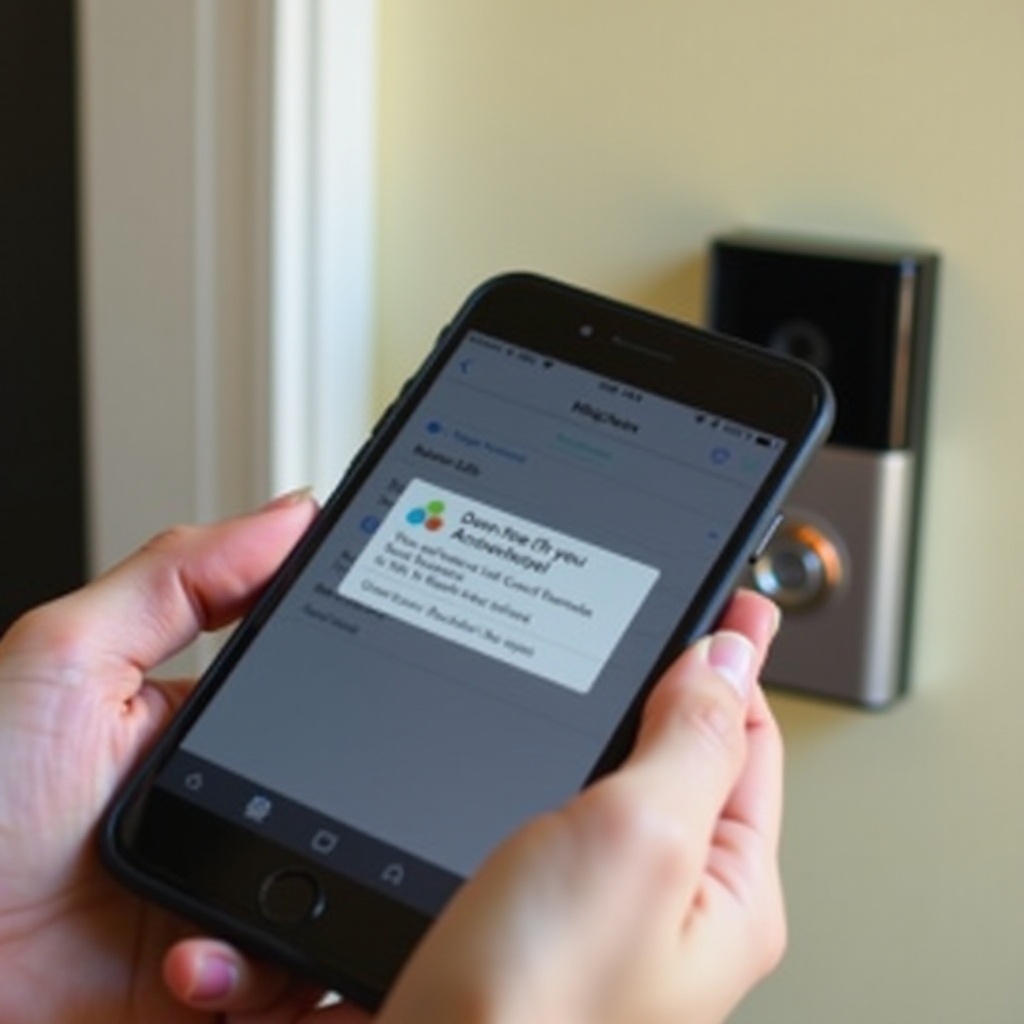
Before diving into troubleshooting, it’s crucial to understand how notifications are designed to function. When the Nest Doorbell detects motion or someone presses it, an alert is sent to your phone via the Nest app. This alert system relies on correct settings, a stable internet connection, and app functionality. Understanding this process helps in addressing issues effectively. Now let’s examine some potential causes of the problem.
Possible Causes of Notification Issues
Several factors could be responsible for notifications failing to reach your phone. Addressing these causes methodically will help in resolving the problem efficiently.
– Incorrect Phone Settings: Notifications might be blocked due to permission settings.
– Network Connectivity Problems: A poor internet connection can prevent alerts from being delivered.
– Outdated Nest App: Compatibility issues arise when the app is not up-to-date.
– Nest Service Status: Occasionally, Nest services may be down or experiencing disruptions.
Once these causes are identified, we can move on to specific troubleshooting actions designed to restore normal operations.
Step-by-Step Troubleshooting Guide
Follow these practical steps to ensure your Nest Doorbell alerts you appropriately:
1. Checking Phone Settings:
– Access your phone’s settings and navigate to notifications.
– Ensure Nest app notifications are enabled with sound alerts activated.
2. Verifying Network Connection:
– Test your Wi-Fi or mobile data for stability.
– If unstable, restarting your router or contacting your ISP may be necessary.
3. Updating the Nest App:
– Visit the App Store or Google Play Store.
– Install any available updates to keep the app in sync with system requirements.
4. Reviewing Nest Account Settings:
– Log into the Nest app and check settings to confirm notifications are properly configured.
These steps should help restore your Nest Doorbell’s functionality. If issues persist, consider exploring more comprehensive solutions.
Advanced Solutions for Persistent Problems
If basic troubleshooting doesn’t resolve the issue, you may need to try these advanced steps:
– Factory Resetting the Nest Doorbell:
– Locate and hold the reset button on the device for 10 seconds.
– After the status light flashes, reconfigure the device via the app.
– Reinstalling the Nest App:
– Uninstall the app from your phone, then reinstall it and sign in.
– Check if the issues are resolved post-reinstallation.
– Device Compatibility Checks:
– Ensure your phone’s OS is compatible with the Nest app.
– Refer to Nest’s compatibility list and update your phone if necessary.
Employing these advanced solutions can resolve deeper technical issues, ensuring seamless notification delivery.
Preventive Measures for Notification Reliability
Maintaining consistent and reliable Nest Doorbell notifications involves regular preventive practices.
- Routine Maintenance:
- Regularly review and update phone settings.
- Ensure app permissions are intact to allow notifications.
- Ensuring Regular Updates:
- Enable automatic app updates to keep all systems current.
- Frequently check for any updates to maintain app and device compatibility.
By adopting these preventive measures, you protect against future notification issues, keeping your home security intact.
Conclusion
Resolving the issue of your Nest Doorbell not ringing on your phone involves a blend of understanding, troubleshooting, and maintenance. From adjusting settings to employing advanced technical solutions, these guidelines are geared towards restoring and maintaining optimal functionality. Keeping your system updated ensures your home security remains reliable and effective.
Frequently Asked Questions
Why is my Nest Doorbell not ringing on my phone?
Common reasons include incorrect notification settings, poor network connection, and outdated app software. Following the troubleshooting steps above can help identify and resolve the issue.
How can I reset my Nest Doorbell settings?
Locate and press the reset button on your device for about 10 seconds until the light flashes. After resetting, reconfigure your Nest Doorbell through the app.
What should I do if I keep missing notifications?
Ensure your phone is connected to a strong network, notifications are enabled for the Nest app, and the app is updated. Also, check your phone’s Do Not Disturb settings. If problems persist, explore advanced solutions.