
Introduction
Encountering the ‘Cannot Complete Action’ error related to new iCloud terms on iPhones can be frustrating, but it’s a common issue that can be addressed with the right approach. When trying to update their iCloud terms and conditions, many users face interruptions, making it crucial to resolve the problem swiftly. This article aims to provide valuable insights into the underlying causes of this issue and offer practical solutions for smooth navigation of iCloud’s updates.

Understanding the Latest iCloud Terms and Conditions Update
Before diving into troubleshooting, let’s understand the essence of the new iCloud terms. Apple’s periodic updates aim for improved user experiences, feature enhancements, and compliance with legal standards. The 2024 update focuses on better privacy protection and efficient syncing across devices. Accepting these new terms is vital to fully access iCloud’s services. Unfortunately, some users encounter technical hurdles during acceptance due to software or network discrepancies.
Common Causes of the ‘Cannot Complete Action’ Error
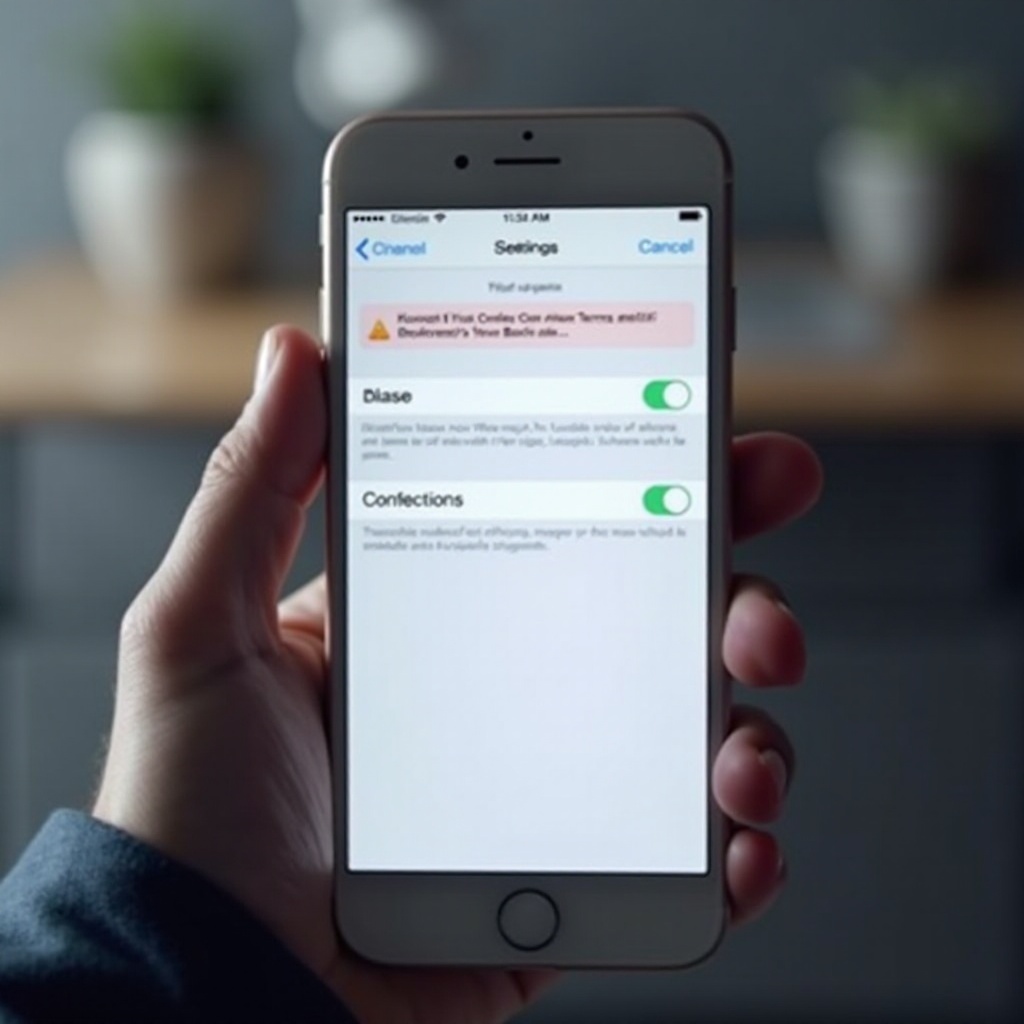
Grasping the reasons behind this error helps in devising effective solutions. Let’s explore the typical culprits:
- Software Compatibility Issues: Devices with outdated iOS versions often fail to support new terms, causing acceptance errors.
- Network Connectivity Problems: Unstable internet connections may disrupt the acceptance process.
- Apple ID Configuration Errors: Misconfigured or outdated Apple ID settings might prevent successful acceptance of terms.
These challenges highlight the necessity of regular device updates and proper setting configurations.
Step-by-Step Troubleshooting Guide
To tackle the issue, follow a systematic approach to eliminate the common obstacles:
- Ensure Device Software is Up-to-Date:
-
Access Settings > General > Software Update to check for updates. Install any available updates to ensure compatibility with new iCloud terms.
-
Stabilize Internet Connection:
-
Switch to a reliable Wi-Fi network if initially using cellular data. Restart routers or modems to reinforce connections.
-
Re-configure Apple ID Settings:
- Navigate to Settings > [Your Name] > Password & Security, verifying current passwords and updating security preferences.
These measures will assist most users in overcoming initial acceptance hurdles.
Advanced Solutions for Persistent Issues
Should basic troubleshooting not suffice, consider more advanced interventions to address persistent problems:
- Perform a Force Restart on Your iPhone:
-
For iPhone X or newer models, press and quickly release the Volume Up button, follow with the Volume Down button, then press and hold the Side button until the Apple logo appears.
-
Reset Network Settings:
-
Visit Settings > General > Reset > Reset Network Settings to clear network configurations without affecting personal data.
-
Log Out and Back Into iCloud:
- Select Settings > [Your Name] > Sign Out, then re-enter your credentials to refresh iCloud configurations.
These advanced techniques can bypass persistent issues and streamline the acceptance of updated terms.
Conclusion
Through effective troubleshooting, users can resolve the ‘Cannot Complete Action’ error, enhancing their iPhone’s functionality and gaining access to the improved features of iCloud’s 2024 update. Staying updated with software, maintaining a stable internet connection, and ensuring precise Apple ID settings are key components of a smooth acceptance process. When simple fixes don’t suffice, advanced solutions are available, providing comprehensive support to all users seeking seamless iCloud integration.
Frequently Asked Questions
How do I ensure my Apple ID is correctly set up?
To verify Apple ID settings, proceed to Settings > [Your Name] > Password & Security and ensure your password is up-to-date. Refresh settings by signing out and back in.
What should I do if my iPhone software is updated but the error persists?
Consider resetting network settings or performing a force restart. For ongoing issues, further advanced troubleshooting or reaching out to Apple Support may be necessary.
Can third-party tools help resolve iCloud acceptance issues?
While third-party tools exist, they might not be reliable or safe. Following official troubleshooting steps and contacting Apple Support is advisable for data security and privacy.