
Introduction
Android Auto has become essential for modern drivers, facilitating hands-free control of navigation, calls, and music. Despite its usefulness, sound issues can arise, detracting from your driving experience. This guide provides effective methods to address these audio problems and improve the system’s reliability.
Understanding Sound Issues in Android Auto
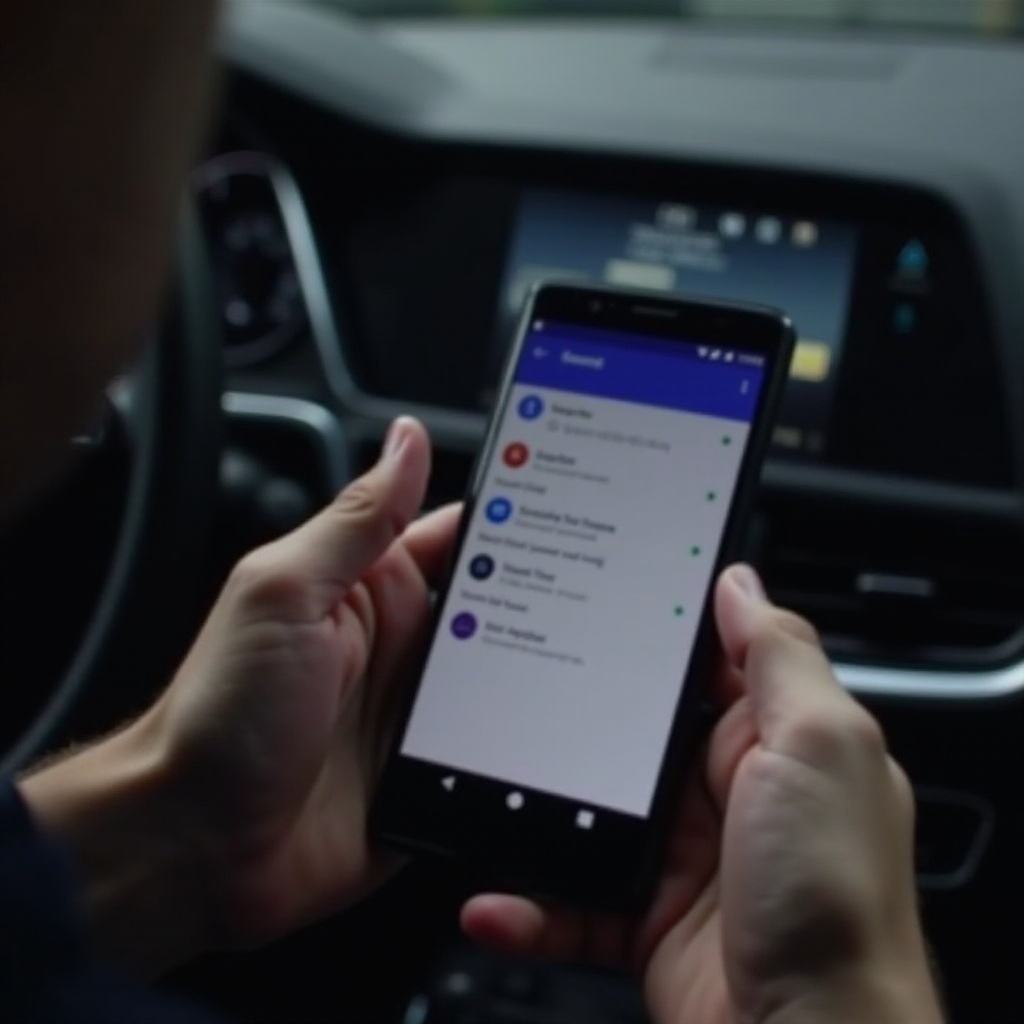
Maintaining quality audio in Android Auto requires understanding the common challenges users face. Recognizing how Android Auto integrates with your vehicle is key to identifying sound malfunctions.
What is Android Auto?
Android Auto enables drivers to access smartphone functions through their car’s interface, ensuring safety by minimizing distractions. You can manage music, navigation, and communication using voice commands or touchscreen controls. Knowing its operation lays the foundation for troubleshooting issues.
Common Audio Problems Users Face
Users typically encounter no sound, distorted audio, or delayed playback. These issues often stem from connectivity problems, outdated software, or incorrect settings. Identifying these can streamline the troubleshooting process.
Basic Troubleshooting Steps
Start with simple checks to rectify sound issues. Correctly configuring your device settings and connections can solve many common problems.
Checking Audio Output Settings
- Open your Android Auto app.
- Navigate to Settings and select audio options.
- Confirm the audio output is directed to the car’s speakers or appropriate device.
Ensuring Proper Bluetooth Connection
- Access Bluetooth settings on your phone.
- Verify that your phone is paired with the car system.
- Look for any alerts indicating connectivity issues.
Restarting Devices
Often, a simple restart of your phone and car system can eliminate minor glitches. Switch off both devices and reboot them to reset their operations and refresh connections.
Advanced Solutions to Fix Audio Problems
If initial troubleshooting doesn’t resolve issues, turn to more advanced methods. These solutions involve software updates and settings adjustments.
Keeping Your Software Up-to-Date
Software updates address bugs and improve functionality, hence:
- Regularly check for Android updates on your phone.
- Update Android Auto via Google Play Store.
- Ensure your car’s infotainment system firmware is current.
Reconfiguring Bluetooth Settings
Reconnecting devices can fix persistent sound problems:
- ‘Forget’ the Bluetooth connection in your phone settings.
- Restart both devices.
- Re-pair the phone and car system, ensuring accurate device recognition.
Clearing App Cache and Data
Cache conflicts can impede performance. To clear them:
- Access Settings on your Android phone.
- Navigate to Apps, locate Android Auto, and tap.
- Select ‘Storage’ and clear both cache and data for a fresh start.

Device-Specific Fixes
Different brands might require distinct solutions. Here are some tailored approaches for popular models.
Solutions for Samsung Devices
Samsung smartphones may need device-specific attention:
- Use the Device Care function to optimize settings.
- Clear system cache via recovery mode to troubleshoot deeper issues.
Fixes for Pixel Phones
Pixel users can improve their Android Auto experience as follows:
- Activate Safe Mode to check if third-party apps disrupt sound.
- Consider a factory reset for ongoing issues, ensuring data backup beforehand.
When to Seek Professional Help
Consult professionals if DIY methods fail to restore sound quality.
Recognizing Hardware Issues
Hardware failures might cause persistent audio problems, such as total sound loss despite software fixes.
Contacting Support
Engage with knowledgeable customer care representatives:
- Reach out to your phone’s manufacturer support.
- Visit authorized service centers for comprehensive diagnostics.
Conclusion
By employing these strategies, you can significantly enhance your Android Auto audio experience. Regular updates and maintenance are vital, so ensure your device and app are current. A smooth audio setup enriches driving and improves focus, promoting safety on the road.
Frequently Asked Questions
Can I use Android Auto wirelessly?
Yes, wireless Android Auto is available, but it depends on your vehicle’s compatibility.
Is sound issue common with Android Auto updates?
Occasionally, updates may affect sound. Compatibility between device and app versions is crucial.
Can third-party apps affect Android Auto sound?
Yes, third-party apps can impact sound, particularly those that modify audio settings. Safe Mode can help identify any conflicts.