
Removing unwanted software such as Gemini from your Samsung phone is crucial for improving performance, freeing up storage, and safeguarding privacy. Gemini, a pre-installed app on some Samsung devices, can consume resources and clutter user experience. This comprehensive guide will help you effectively remove Gemini from your Samsung phone, ensuring a streamlined user experience.
Introduction
Samsung phones often come pre-installed with applications commonly known as bloatware. Gemini is one such app that users frequently inquire about. While it is intended to offer enhanced functionality, many find it redundant or intrusive. By removing Gemini, you can significantly enhance your phone’s performance and free up valuable space. This guide will walk you through the steps needed to uninstall Gemini from your Samsung phone safely.

Understanding Gemini and Its Impact
Gemini is typically included in the factory settings of Samsung devices. While it may offer certain features, these are often unnecessary, especially when similar or better alternatives are available. Users often complain that Gemini slows their devices, drains battery life, and may raise privacy concerns due to the data it accesses.
Removing Gemini not only boosts your phone’s speed but also gives you greater control over the applications running on your device. Understanding its implications will help you make a more informed decision.
Preparing for Uninstallation
Before you commence the uninstallation process, adequately prepare your Samsung phone:
-
Backup Your Data: Ensure all essential data is backed up using Samsung Cloud, Google Drive, or other backup solutions.
-
Check Battery Level: Ensure your phone is at least 50% charged to avoid interruptions.
-
Update Software: Update your device’s software to the latest version to prevent potential compatibility issues during the uninstallation.
These steps will set the groundwork for a smooth uninstallation process.
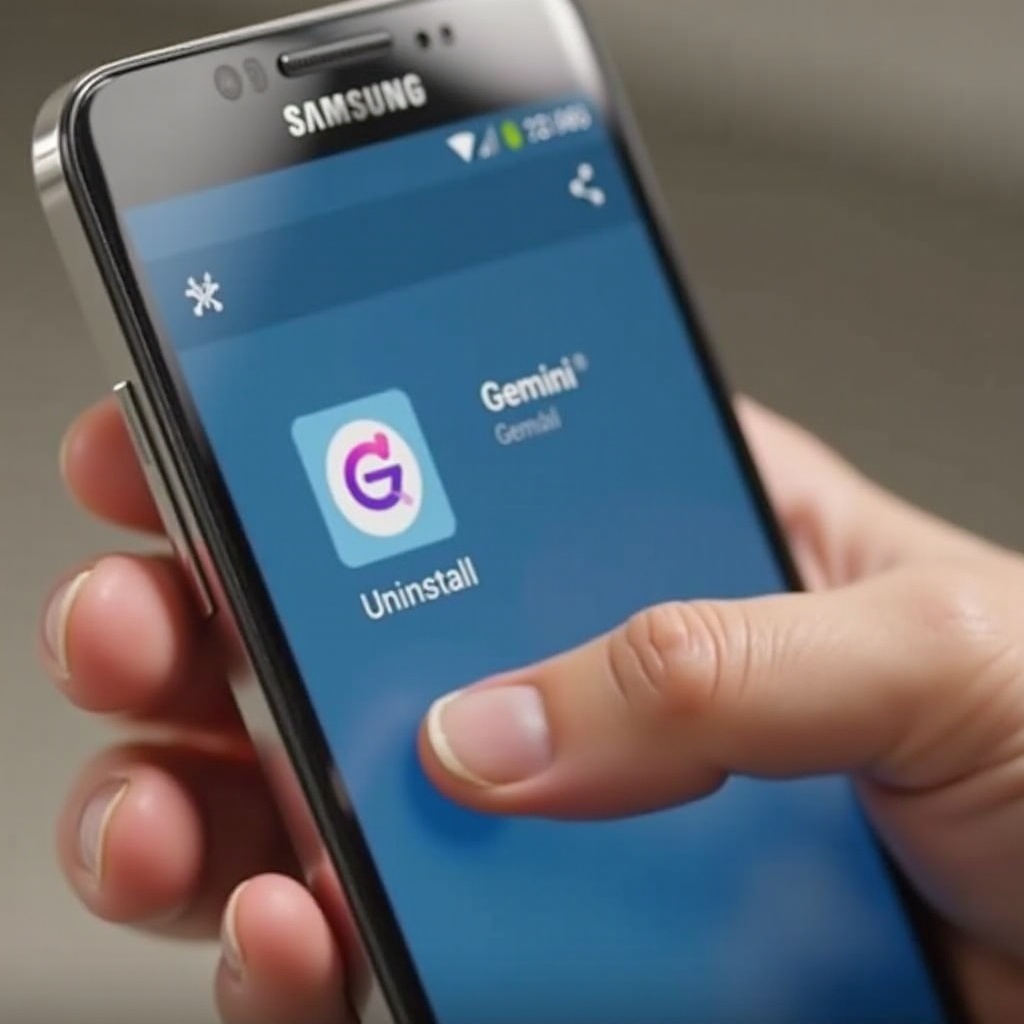
Method 1: Uninstalling Gemini via Settings
The most straightforward method for removing Gemini is through the phone’s settings:
-
Open Settings: Tap on the gear icon on your home screen or app drawer.
-
Access Apps: Navigate to ‘Apps’ or ‘Application Manager’ based on your device model.
-
Find Gemini: Use the search function to locate Gemini.
-
Uninstall: Tap on ‘Uninstall’ to remove it.
In cases where ‘Uninstall’ is grayed out, consider alternative removal methods outlined below.
Method 2: Removing Gemini Using Safe Mode
Safe Mode disables third-party apps, aiding in the uninstallation of persistent ones like Gemini:
- Enter Safe Mode:
- Press and hold the Power button until the power off menu appears.
- Tap and hold the ‘Power off’ option until ‘Safe Mode’ is displayed.
-
Tap ‘Safe Mode’ to reboot your phone.
-
Uninstall in Safe Mode:
- Navigate to Settings > Apps > Gemini.
- Tap ‘Uninstall’.
This method helps by isolating the app in a minimal boot setting, making uninstallation easier.
Method 3: Advanced Removal via Developer Options and ADB
For those comfortable with technical processes, using Developer Options and ADB (Android Debug Bridge) is effective:
- Enable Developer Options:
- Go to Settings > About Phone.
-
Tap ‘Build Number’ seven times to enable developer mode.
-
Enable USB Debugging: Activate ‘USB Debugging’ within Developer options.
-
Install ADB on Your Computer: Download ADB from the official Android developer site.
-
Use ADB to Uninstall:
- Connect your phone to the computer.
- Use command prompt commands to remove Gemini.
Advanced users can control precise app management with this method, but it requires caution.
Ensuring System Stability After Removal
After removing Gemini, ensure your Samsung phone operates smoothly:
- Clear Cache: Go to Settings > Device Care > Storage and clear the cache.
- Restart Device: Reboot your phone to refresh system processes.
Keeping a close eye on your device’s performance post-uninstallation will help spot potential issues early.
Alternative Solutions If Uninstallation Fails
If Gemini remains despite attempts to remove it, consider these alternatives:
- Disable the App: Go to Settings > Apps > Gemini > Disable. It won’t remove it but will stop it from functioning.
- Factory Reset: As a last resort, reset your device to its factory settings. Remember, this erases all data, so a backup is essential.
These fallback steps provide solutions if other uninstallation methods prove ineffective.
Conclusion
Removing Gemini from your Samsung phone is a straightforward process with the right preparation and techniques. Whether you’re using standard settings, Safe Mode, or more advanced methods like ADB, you can enhance storage space and optimize your phone’s performance. Regular app management and optimization practices will ensure your device remains efficient and responsive.
Frequently Asked Questions
How can I tell if Gemini is completely removed?
Check your Apps list under Settings. If Gemini does not appear, it’s successfully removed.
What should I do if Gemini keeps reinstalling itself?
Disable automatic updates for apps in the Play Store to prevent Gemini from reinstalling through updates.
Are there any risks associated with removing Gemini from my Samsung phone?
Removing system apps like Gemini is typically safe, but ensure you perform a backup to mitigate risks related to data loss or system errors.