
Introduction
Android phones sometimes inexplicably install games without permission, leaving users frustrated and concerned about security. Understanding the root causes of these automatic installations is essential for device management and protection. This article explores the reasons behind unauthorized game downloads and outlines strategies to prevent them, ensuring your Android operates smoothly and securely.
Why Does Android Keep Installing Games?
The phenomenon of automatic game installations can be traced to several factors:
- Understanding Pre-installed Software and Bloatware: Many Android devices come loaded with bloatware—software that can include games set to update or download new content, often without user intervention.
- Effects of Malware and Adware: Malicious software, such as malware and adware, can be installed through dubious apps or websites. Once on your device, they may trigger game uploads without your consent.
- Impact of Auto-download Settings: Some settings, particularly in the Google Play Store, can be configured to auto-download apps and updates, inadvertently leading to games being installed.
Recognizing these issues is the first step toward stopping unwanted installations. With this understanding, users can move forward with tactics to manage and stop auto-downloads.
Identifying and Managing Automatic Game Installations
Managing unwanted game installations starts with identifying their sources:
- Reviewing App Permissions: Regularly check the permissions granted to apps on your device. Some apps may have permissions that allow them to download updates or new content without alerting you.
- Monitoring Recent Installations: By frequently examining your device’s app installation history, you can pinpoint which apps are adding games without permission.
- Using Security Apps for Detection: Employ reputable security apps to scan your device for any malware or adware. These apps can uncover hidden malicious files causing the unwanted game installations.
Once you’ve identified the sources, deploying preventive measures becomes straightforward and effective.
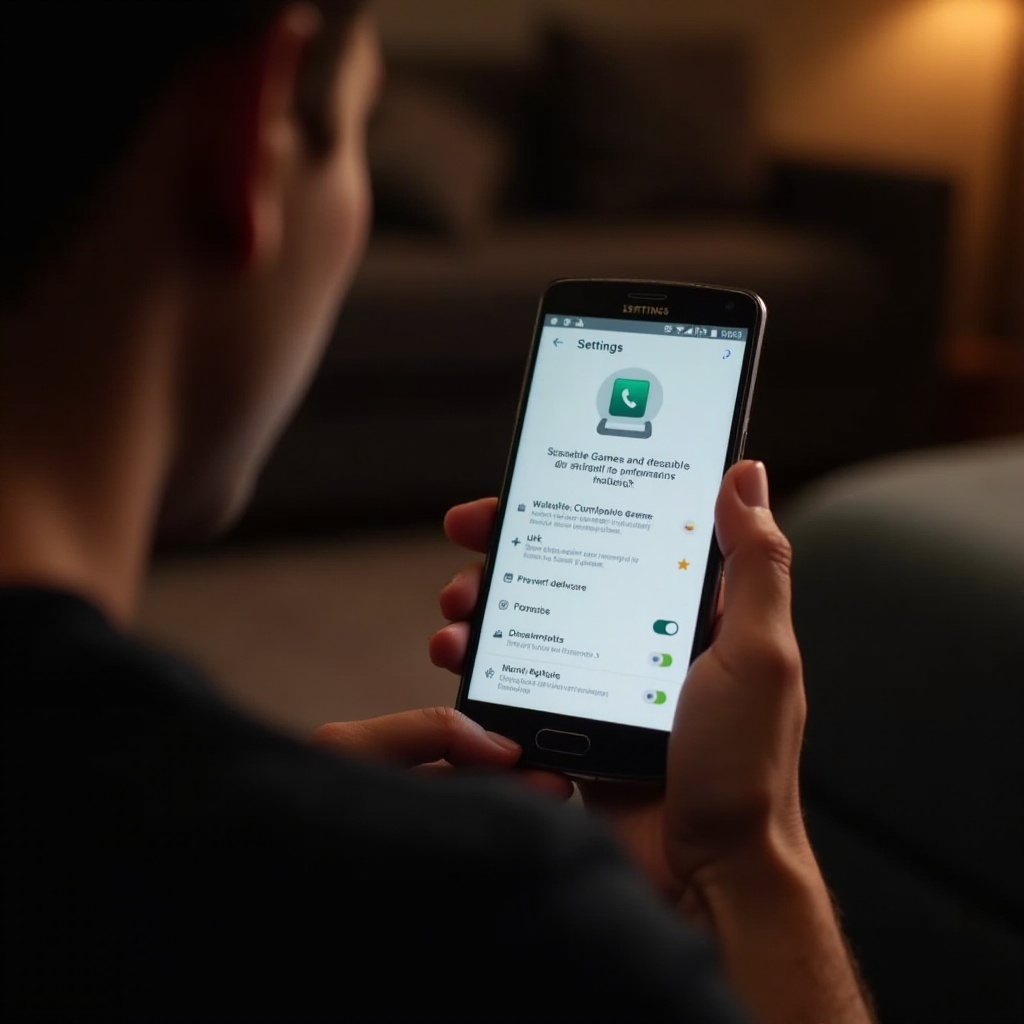
Steps to Prevent Unwanted Game Downloads
Consider implementing these steps to prevent unauthorized game installations:
- Adjusting Google Play Store Settings: Examine the settings in your Google Play Store, turning off auto-updates to prevent games from downloading automatically.
- Managing Third-party App Permissions: Regularly audit third-party app permissions to revoke settings that enable automatic installations.
- Utilizing Built-in Security Features: Activate your Android’s built-in security features such as Play Protect to detect and block harmful downloads.
By securing your device through these tactics, users can transition to long-term strategies for sustained protection.

Long-term Strategies for Android Security
Maintaining control over your Android involves applying comprehensive security practices:
- Regular Software Updates: Keep both your device’s operating system and apps updated to benefit from the latest security enhancements.
- Periodic Device Scans: Schedule regular scans with security apps to identify and remove malware or adware effectively.
- Employing VPNs for Secure Browsing: Using a Virtual Private Network (VPN) adds an extra layer of security, encrypting your internet connection and safeguarding against malicious software infiltration.
Implementing these practices consistently will enhance your device’s defense against unauthorized access and installations.
Conclusion
Automatic game installations on your Android device can be controlled with the right knowledge and strategies. Identifying causes, taking preventive measures, and ensuring ongoing security practices will help you maintain a secure and smoothly operating Android device.
Frequently Asked Questions
Why do games appear automatically on my Android phone?
Games may appear due to pre-installed software, malware, or specific Google Play Store settings that allow auto-downloading.
How can I determine if a third-party app is responsible for game installations?
Review your app permissions and recent installation history to identify apps that may be instigating unauthorized installations.
Are there specific security apps recommended to prevent unwanted game downloads?
Yes, apps like Avast Mobile Security and Norton Security are effective at detecting and preventing malware causing unwanted installations.