
Introduction
Pairing your Beats headphones with your phone enhances your audio experience significantly. Known for their top-notch sound and stylish design, Beats headphones require a proper connection to unlock their full potential. Whether you’re using an iPhone or an Android, this detailed guide will ensure you know exactly how to pair your Beats headphones and enjoy uninterrupted music, calls, and more.
Understanding Your Beats Headphones
Beats headphones come in a variety of models, each with unique features yet a similar pairing method. It’s important to familiarize yourself with your model, be it the Solo, Studio, or Powerbeats, as this knowledge will simplify the pairing process. All models are equipped with Bluetooth technology designed for fast and easy connectivity, making the pairing process straightforward and user-friendly.
Preparing Your Devices for Pairing
Before starting the pairing process, check that your Beats headphones are fully charged to avoid power interruptions. Ensure the Bluetooth setting on your phone is enabled; you can usually do this by swiping down from the top of your phone’s screen and tapping the Bluetooth icon, or by navigating through your settings menu. Keeping your devices in close proximity will also improve pairing success. Activate pairing mode on your Beats by holding down the power button until the LED indicator begins to flash, signaling readiness.
How to Pair Your Beats with an iPhone
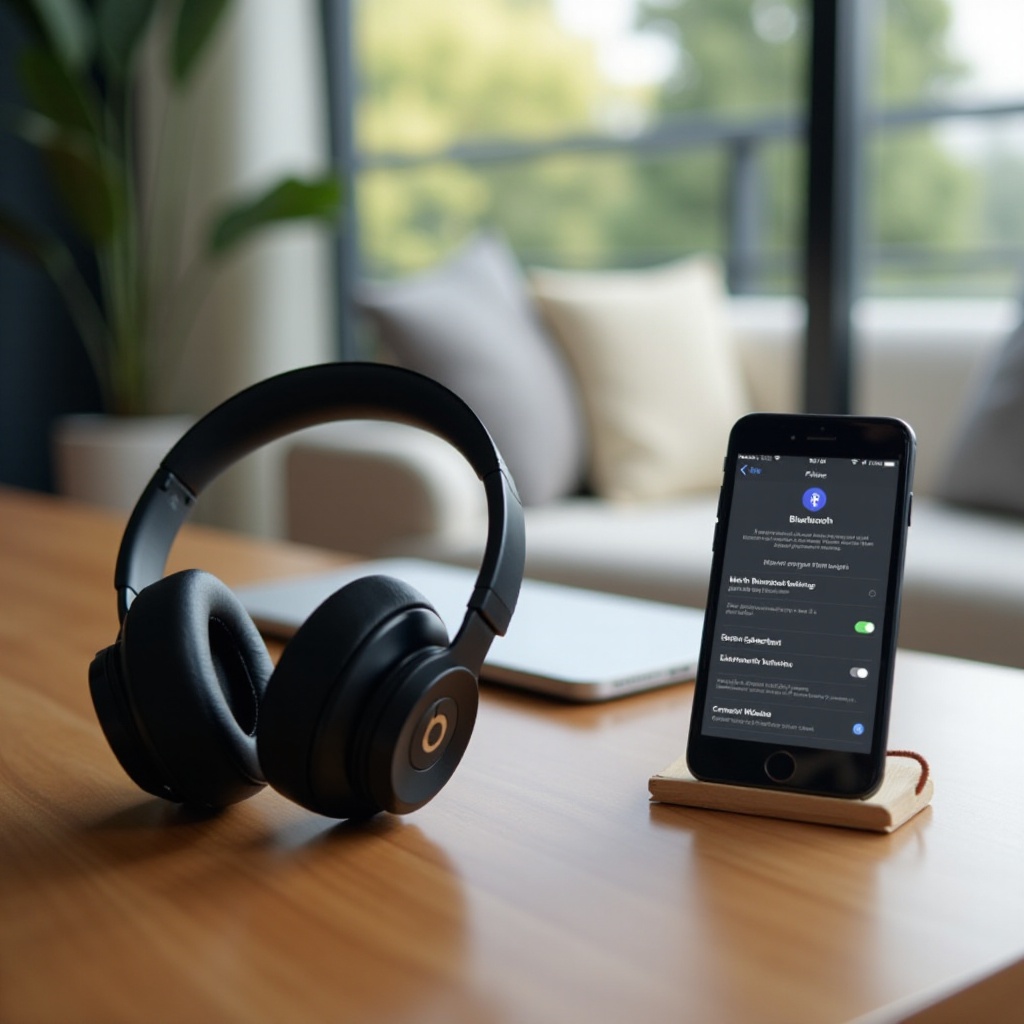
- With your Beats in pairing mode, navigate to the ‘Settings’ app on your iPhone.
- Tap ‘Bluetooth’, ensuring it is turned on.
- Within ‘Other Devices’, locate your Beats headphones and tap their name.
- Once a connection is established, ‘Connected’ will appear next to your Beats.
Should your headphones not appear, consider toggling Bluetooth off and on again or restarting your iPhone. Persistent issues might be resolved by resetting your Beats headphones.
How to Pair Your Beats with an Android Phone
- Set your Beats headphones to pairing mode.
- Open ‘Settings’ on your Android device and select ‘Connected devices’.
- Tap ‘Pair new device’, and wait as your Beats headphones appear on the list.
- Select your headphones to establish a connection.
If they’re not showing up, ensure they’re charged and within range. You can also try restarting your phone or resetting your Beats to fix the problem.
Common Pairing Issues and Troubleshooting Tips
Despite the simplicity of the process, sometimes issues arise that prevent your Beats from pairing smoothly. If the connection fails, check for any updates available for your device or headphones through the Beats app. Updates might resolve unforeseen problems. Keeping devices within an optimal range and free from physical barriers will help maintain a stable connection. Persistent connectivity issues might necessitate a factory reset of your Beats, returning them to their default settings and resolving stubborn problems.
Enhancing Your Beats Experience
Once your Beats are paired, elevate your audio quality by using the Beats app available on both iOS and Android devices. This tool allows you to customize sound settings and monitor battery life. Within the app, firmware updates are smooth and integrate new features and sound enhancements, ensuring optimal performance. Experimenting with sound profiles can tailor your experience further, aligning with your audio preferences.
Conclusion
Connecting your Beats headphones to your phone should be a straightforward process, whether you’re an Apple loyalist or an Android advocate. By following these outlined steps, you can enjoy the superior audio quality without distress. Troubleshooting tips ensure that even unforeseen hitches in the process do not hamper your sound experience, letting you enjoy what Beats are known for – exceptional sound quality.
Frequently Asked Questions
How do I reset my Beats if they aren’t pairing?
To reset your Beats, hold down the power and volume down buttons. Wait for about 10 seconds until the LED lights flash.
Can I pair my Beats with multiple devices?
Yes, Beats headphones can connect to multiple devices, but they will only connect to one device at a time. To switch, disconnect from one device before connecting to another.
What should I do if my Beats keep disconnecting?
Ensure your Beats are fully charged and within range. Remove any barriers or interference sources. Firmware updates and a reset might also solve disconnection problems.