
Introduction
Controlling your audio with precision via your Android device is pivotal for music lovers and smart tech enthusiasts alike. The Sonos widget on Android simplifies your interaction with your audio system, granting effortless management right from your home screen. This article thoroughly explores methods to maximize the utility of the Sonos widget on Android, promoting an elevated and immersive audio experience.
Understanding the Sonos Widget
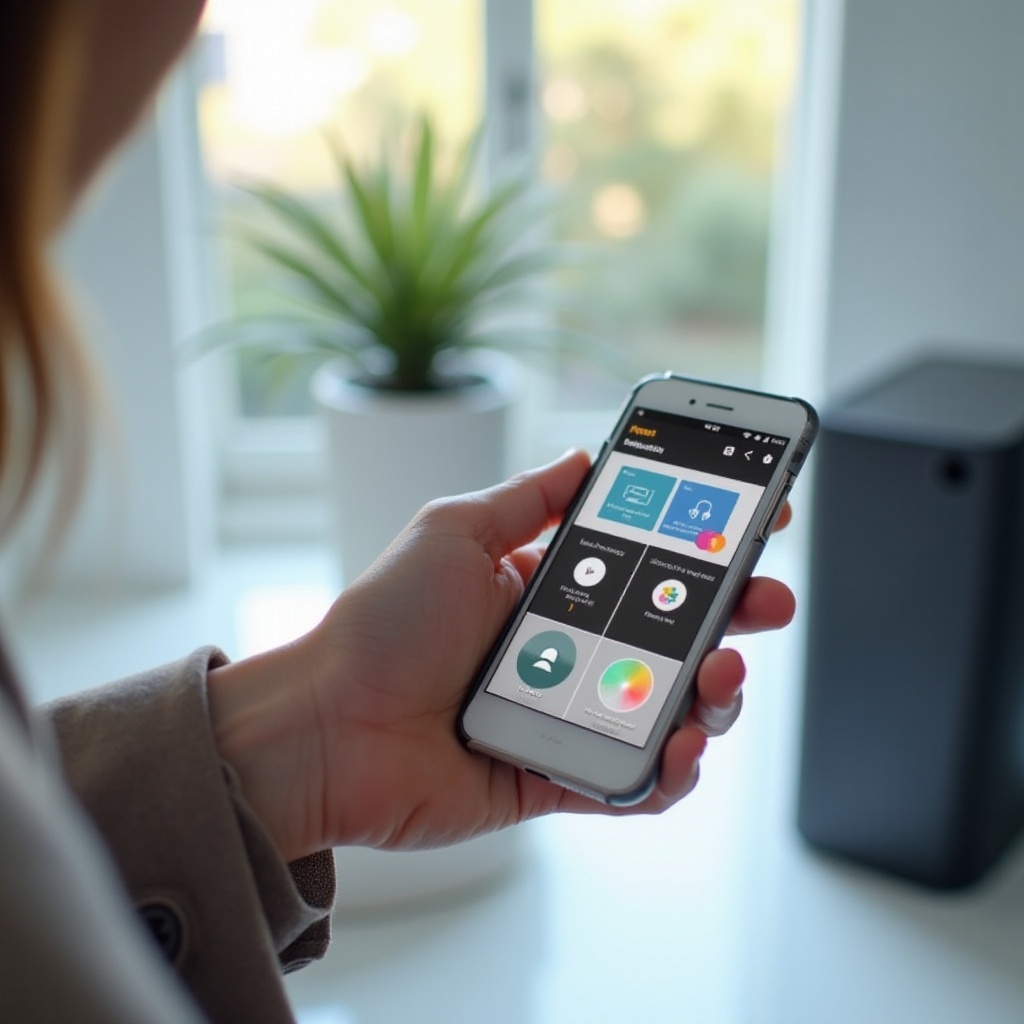
The Sonos widget serves as a dynamic extension of the Sonos app, strategically placed on your Android’s home screen for easy accessibility. This widget facilitates immediate access to key functionalities, enabling users to effortlessly play, pause, and adjust the volume of their Sonos speakers without launching the full app. A comprehensive understanding of the Sonos widget’s features allows users to harness its full potential effectively. Utilize this widget to manage audio in multiple rooms, monitor current playlists, and seamlessly integrate with your existing Sonos ecosystem.
How to Install the Sonos Widget on Your Android Device
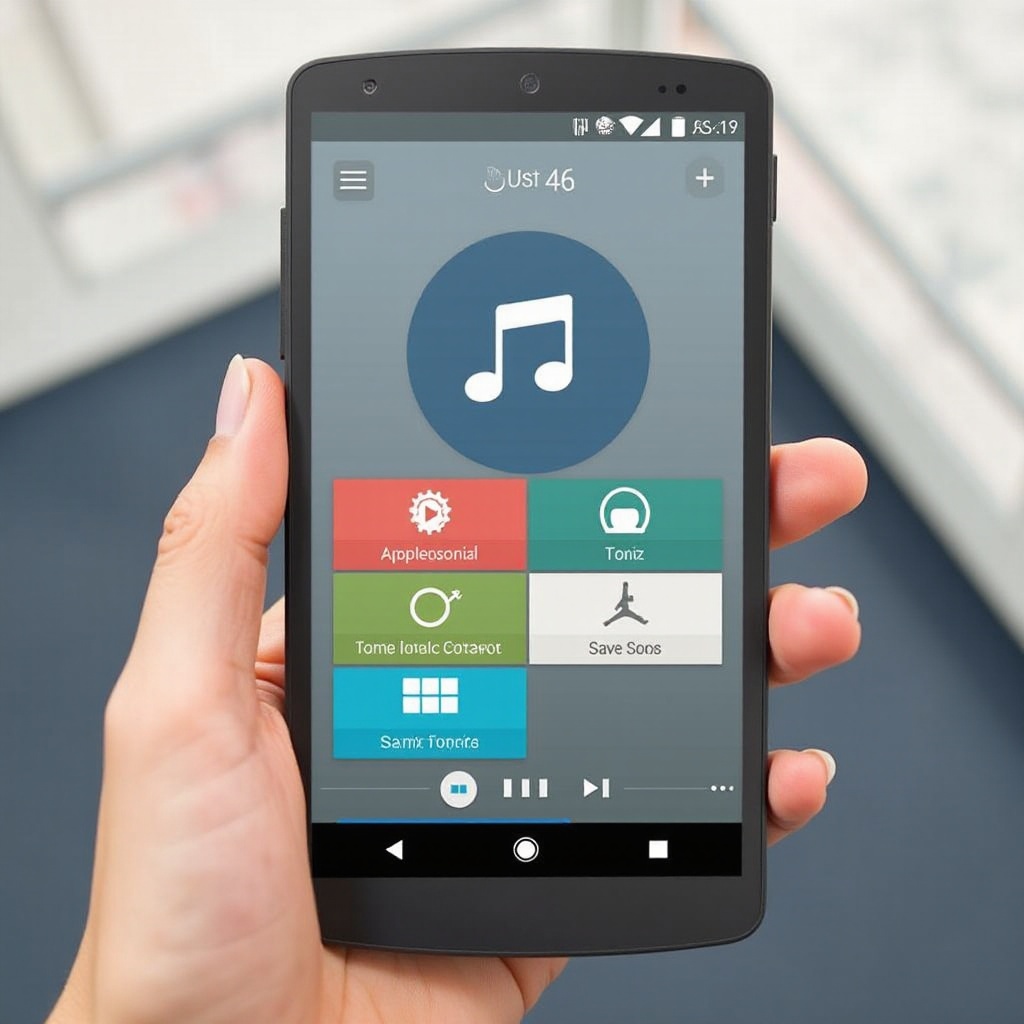
Setting up the Sonos widget is straightforward. First, ensure your Android device is running a compatible OS version, with the latest Sonos app installed:
- Access your app drawer and locate the Sonos app.
- Press and hold the Sonos app icon to reveal widget options.
- Drag the Sonos widget to your desired home screen location.
- Adjust the widget size according to your preference.
Installing the widget on your home screen enables swift audio management and minimizes app navigation. This step lets you control playlists and settings efficiently, creating smooth transitions between different listening environments.
Customizing Your Sonos Widget for Enhanced User Experience
Post-installation, customization is key to tailoring the widget to suit your listening habits. The widget’s adaptability allows adjustments to both appearance and functionality:
- Change Widget Size: Resize the widget for more controls or a compact fit.
- Select Favorite Rooms: Directly access specific rooms via the widget.
- Personalize Music Sources: Prioritize often-played playlists, radio stations, or albums.
Tailoring your Sonos widget optimizes it to meet your specific needs, offering convenience and an enjoyable listening experience. Continual adjustments streamline navigation and reduce the necessity for switching between different applications.
Troubleshooting Common Issues with Sonos Widgets
Even with intuitive setup, users may encounter technical issues with their Sonos widget. These are some common challenges and their solutions:
- Connectivity Errors: Ensure your device is linked to the same Wi-Fi network as your Sonos system.
- Widget Unresponsiveness: Check for app updates or reboot your Android device.
- Playback Disruption: Verify the music source connection and refresh the widget if required.
Identifying potential issues helps users swiftly resolve any interruptions in music playback, maintaining a smooth and uninterrupted audio experience.
Advanced Features and Integrations
For users who wish to leverage their Sonos system fully, exploring advanced features and integrations proves beneficial. With voice control and smart home compatibility, the Sonos widget extends far beyond basic functionalities:
- Voice Commands: Enable voice assistants like Google Assistant for hands-free operation.
- Smart Home Integrations: Sync the widget with other smart devices for holistic environmental control.
Through these sophisticated features, users gain expansive control over their audio environment, crafting personalized soundscapes that transcend standard music listening.
Conclusion
The Sonos widget for Android is an adept tool for audio enthusiasts, merging simplicity with advanced control. By executing installation, customization, troubleshooting, and exploring sophisticated features, users greatly enhance their listening experience. Embrace the utility of the Sonos widget for a modern, optimized, and user-friendly approach to managing home audio systems.
Frequently Asked Questions
What Android versions support the Sonos widget?
The Sonos app and its widget are compatible with most Android versions from Android 5.0 (Lollipop) onward; for best performance, use the latest version.
Can I use the Sonos widget without an internet connection?
No. A stable Wi-Fi connection is required as Sonos speakers rely on internet connectivity to stream music and interact with your Android device.
How do I update my Sonos widget on Android?
Widget updates occur automatically with app updates. Keep your Sonos app refreshed regularly via the Google Play Store to access the latest features and improvements.