
Introduction
Using your iPhone as a personal hotspot can be highly convenient, offering internet access anytime and anywhere. However, if you are not cautious, data overages can occur quickly. This guide provides insights into how to manage your iPhone hotspot data efficiently, helping you avoid unexpected bills while maximizing the value of your data plan.
Understanding iPhone Hotspot
What is an iPhone Hotspot?
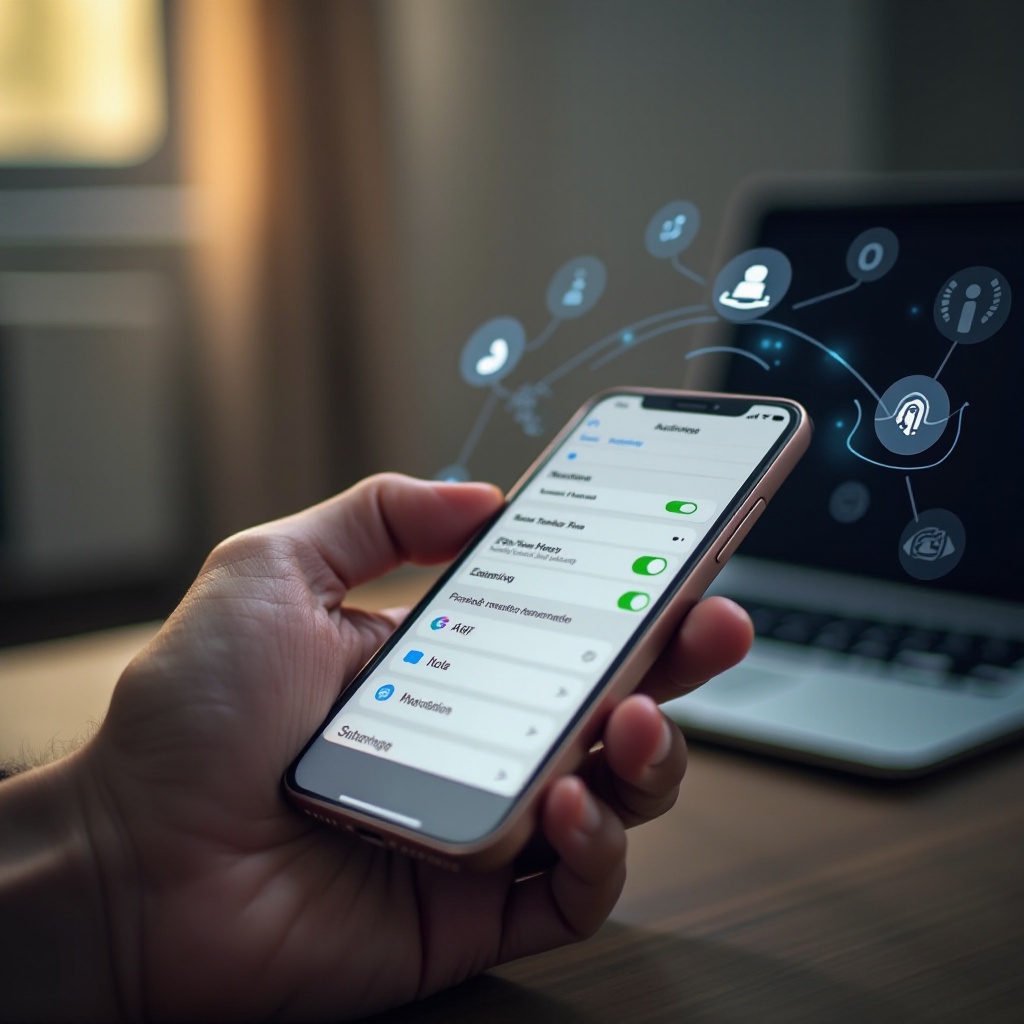
An iPhone hotspot transforms your phone into a mini Wi-Fi router. It allows other devices like laptops, tablets, and even other phones to connect through your mobile data. This feature is especially useful when there are no accessible Wi-Fi networks nearby, offering connectivity wherever there’s a mobile signal.
How to Set Up and Enable Hotspot on Your iPhone
Setting up the hotspot on your iPhone is straightforward: open the ‘Settings’ app, tap on ‘Personal Hotspot,’ then toggle the switch to activate it. Make sure to set a secure Wi-Fi password to protect your connection, and connect your device using the displayed network name and password. You will see a blue indicator bar at the top of the screen once devices are connected.
Factors Influencing iPhone Hotspot Data Usage
Managing your iPhone hotspot effectively requires understanding what affects its data consumption.
Number of Connected Devices
Every device connected to your hotspot consumes data. Therefore, if multiple devices are connected simultaneously, data usage increases substantially. For efficient management, limit the number of devices connected at any time, prioritizing essential devices to ensure necessary tasks are accomplished.
Types of Activities Consuming Data
Different online activities consume varying amounts of data. Streaming HD videos, downloading large files, and video conferencing can use significant data, so it’s advisable to perform them sparingly when using a hotspot. Instead, focus on low-data activities like browsing and emailing.
Background Processes and App Usage
Apps running in the background can drain your data swiftly. To prevent this, disable background app refresh for non-essential apps via the ‘Settings’ app. Monitor which apps are consuming the most data to keep usage in check, ensuring only essential apps are consuming your data.

Tips to Minimize Data Consumption
Minimizing data usage is crucial for efficient hotspot use. Here are several approaches to achieving this.
Managing Connected Devices
- Disconnect devices when not in use.
- Restrict access to necessary devices only, reducing unnecessary consumption and possible data overages.
Adjusting App Settings to Reduce Data Usage
- Turn off automatic app updates and downloads.
- Utilize apps’ data-saving modes if available to decrease consumption.
Leveraging Low-Data Mode and Other iPhone Features
- Enable ‘Low Data Mode’ in the ‘Settings’ app to optimize data usage.
- Avoid HD content streaming to save on data.
With these strategies, you can effectively reduce the amount of data used by your iPhone hotspot.
Monitoring and Tracking Data Usage
Keeping track of your data usage is essential for managing your iPhone hotspot efficiently.
Built-in iPhone Data Tracker
Your iPhone offers a built-in tracker that provides detailed information on your data consumption. Access it by navigating to ‘Settings’ > ‘Cellular’ > ‘Cellular Data’ to monitor your usage, including how much data your hotspot is generating.
Third-party Apps for Detailed Monitoring
For more comprehensive insights, consider utilizing third-party apps designed for tracking data consumption. These tools often feature alerts and breakdowns, helping you understand where your data is going and precluding potential overages.
Troubleshooting Common Issues
Occasionally, you may encounter issues while using your hotspot. Here’s how to handle common problems effectively.
Connectivity Problems
If you face connectivity issues, try toggling your hotspot off and back on. Restarting your iPhone can also resolve persistent problems. Double-check connections and passwords to ensure your devices connect correctly.
Dealing with Data Overages
If data limits are exceeded, contact your carrier for additional data options or plans to prevent further charges. Some providers offer temporary data boosts to help manage immediate needs without incurring overage fees.
Conclusion
Efficient use of your iPhone hotspot involves understanding and managing how devices utilize your data. With the right strategies and monitoring tools in place, you can confidently offer internet access without the fear of unanticipated data overages. Implement these tips to make the most out of your mobile data plan while utilizing your hotspot feature to its fullest potential.
Frequently Asked Questions
Can using my iPhone as a hotspot drain my battery quickly?
Yes, using your iPhone as a hotspot can drain the battery faster. Turn off the hotspot when not in use and consider using a portable charger for extended periods.
How can I check the amount of data used by my hotspot?
Go to ‘Settings’ > ‘Cellular’ > ‘Cellular Data’ on your iPhone to see detailed hotspot data usage.
Are there any additional charges for using the iPhone hotspot feature on my data plan?
Charges depend on your data plan. Some carriers include hotspot usage, while others charge extra. Check with your provider for specifics.