
Introduction
Your Samsung phone should be something you can rely on every day. When it keeps rebooting for no clear reason, it quickly turns from a useful tool into a constant headache. You might miss calls, lose unsaved work, or worry that your phone is about to die for good. If you keep thinking, ‘My Samsung phone keeps rebooting and I don’t know why,’ you are not alone.
Random restarts are a common issue across Samsung Galaxy models, from budget devices to premium flagships. The good news is that most reboot problems come from software issues, bad apps, or simple settings conflicts, not from permanent hardware failure. That means you often can fix the problem yourself at home.
This guide walks you through the most likely causes and practical steps to stop your Samsung phone from rebooting. You will learn how to test for bad apps, clear system cache, update your software, remove external triggers, and recognize when it is time to contact Samsung support.

How to Recognize a Serious Reboot Problem on Your Samsung Phone
Before you start changing settings or uninstalling apps, you need to understand what kind of reboot problem you are facing. Some restarts are normal and even healthy for the system, but others signal a deeper issue that needs attention.
A serious reboot problem usually looks like this:
- Your phone restarts several times a day without warning.
- It reboots when you open specific apps or features.
- It gets stuck on the Samsung logo, then restarts again and again.
- It restarts while charging or right after you unplug it.
If your Samsung phone only restarts once after a system update, that can be normal. Samsung devices sometimes reboot to apply updates or after installing large apps. The problem starts when the reboots keep happening and interrupt your regular use.
Pay attention to patterns like these:
- Does it restart only when using mobile data or Wi‑Fi?
- Does it reboot more when the battery is under a certain percentage?
- Does it happen during gaming, video calls, or other heavy apps?
These patterns will help you match your issue with the right fix in the next sections. Once you have a sense of how and when the reboots happen, you can start looking at the most common causes.
Main Reasons Why Your Samsung Phone Keeps Rebooting
Now that you know what a serious problem looks like, the next step is to understand what usually causes it. Reboot issues fall into two big categories: software and hardware.
If you can still turn the phone on, use apps for a while, and access settings, the cause is more likely software. If the phone reboots even before fully starting, or only reacts to movement or charging, hardware becomes more likely.
Let’s break down the most common causes so you can compare them with your own situation.
Software Glitches and System Bugs
Android and One UI can sometimes develop glitches after updates, app installs, or when the cache gets cluttered. Corrupted system files or bad temporary data can cause random reboots. These problems often respond well to cache clearing, restarts, and installing the latest patches.
Problematic Third-Party Apps and Malware
A buggy app, a poorly coded launcher, or hidden malware can crash your system and trigger a reboot. This happens a lot with:
- Apps from outside Google Play Store or Galaxy Store.
- ‘Cleaner’, ‘booster’, or aggressive ‘free RAM’ apps.
- Shady VPNs, ad-heavy tools, or cloned apps.
If your Samsung phone keeps rebooting right after you installed or updated a specific app, that app is a strong suspect.
Battery, Overheating, and Hardware Issues
Hardware problems are less common but more serious. Aging batteries, loose internal connections, or damage from drops and liquid can cause power instability and random restarts. Overheating can also trigger automatic reboots to protect the device. In those cases, you often see reboots when the phone is hot or under heavy load.
Understanding whether your issue is more likely software or hardware will help you decide how deep to go with the following fixes. We will start with simple checks and then move toward more advanced steps.
Quick Checks to Try Before Advanced Fixes
Before you dive into Safe Mode, cache partitions, or factory resets, you should rule out simple problems. These checks only take a few minutes and can solve minor reboot issues or at least narrow down the cause.
Check Battery Level, Charging, and Cables
Start with the basics:
- Charge your phone to at least 30–50%. Very low battery levels can make the phone unstable.
- Try a different original or certified Samsung charger and cable. Faulty chargers can cause power spikes or drops.
- If the reboots only happen while charging, the cable, adapter, or charging port might be the problem.
If your phone restarts less or stops rebooting with a different charger, you have likely found a simple cause.
Make Sure Your Phone Isn’t Overheating
Overheating can force your Samsung phone to shut down or restart:
- Feel the back and sides of the phone. Is it very hot to touch?
- Close heavy apps like games, streaming, or video editors.
- Remove any thick or low-quality case that traps heat.
Move the phone away from direct sunlight or hot environments. If reboots stop when the phone is cool, heat is a key factor, and you will want to limit demanding tasks or get the device checked.
Free Up Storage Space and Close Background Apps
Low storage and too many background processes can also lead to instability:
- Go to Settings > Battery and device care > Storage.
- Aim to keep at least 10–20% of your storage free. Delete unused apps, large videos, or duplicate photos.
- Close background apps you don’t need, especially those you rarely use.
If your phone becomes more stable after these quick steps, that is a good sign. Next, you can move on to more targeted fixes like soft resets and Safe Mode.
Fix 1 – Soft Reset Your Samsung Phone
Once you have ruled out obvious issues like a bad charger or extreme heat, the first real fix is a soft reset. This is more powerful than a simple restart and can clear temporary system glitches without touching your data.
How to Force Restart Most Samsung Galaxy Models
On most recent Samsung phones, follow these steps:
- Press and hold the Power (or Side) button and the Volume Down button at the same time.
- Keep holding both buttons for about 10–15 seconds.
- Release the buttons when you see the Samsung logo appear.
The phone will reboot. This process clears temporary memory and can fix minor software bugs that cause random reboots, frozen screens, or lag.
When a Soft Reset Is Enough to Stop Random Reboots
A soft reset helps most when:
- The reboot problem started suddenly and has not been going on for long.
- There was no recent drop, water damage, or major system update.
- The phone still works fine between restarts, with no other serious issues.
If your Samsung phone keeps rebooting even after a soft reset, you need to dig deeper. The next step is to check whether a third-party app is behind the problem.
Fix 2 – Boot Into Safe Mode to Test for Bad Apps
If you suspect that an app is causing your reboot problem, Safe Mode is your best tool. In Safe Mode, your Samsung phone only runs core system and Samsung apps. All third-party apps are disabled temporarily, which makes it easier to see whether those apps are to blame.
How to Enter Safe Mode on Samsung Galaxy Phones
To start Safe Mode on most Galaxy devices:
- Press and hold the Power (or Side) button until the power menu appears.
- Tap and hold the ‘Power off’ option until the ‘Safe mode’ icon appears.
- Tap ‘Safe mode’ and let your phone restart.
You will see ‘Safe mode’ at the bottom corner of the screen once it boots. Only preinstalled apps will be active.
What It Means If Your Phone Stops Rebooting in Safe Mode
Use the phone in Safe Mode for a while and keep an eye on its behavior:
- If the phone stops rebooting in Safe Mode, a third-party app is almost certainly causing the problem.
- If reboots continue even in Safe Mode, the issue might be deeper in the system or related to hardware.
Make a list of the apps you installed or updated shortly before the reboot issue started. Those are the most likely culprits when you return to normal mode.
How to Exit Safe Mode Safely
To leave Safe Mode and go back to normal use:
- Press and hold the Power (or Side) button.
- Choose ‘Restart’.
- The phone will boot back into normal mode with all apps enabled.
Once you are out of Safe Mode, you can start uninstalling suspect apps. The next section explains how to do that in a focused way.
Fix 3 – Find and Remove Problematic Apps
Safe Mode gave you a strong clue about whether apps are involved. Now you need to find and remove the specific apps that trigger reboots, especially if your Samsung phone keeps rebooting only after you use certain tools.
Uninstall Recently Installed or Updated Apps
Start with the most recent changes:
- Go to Settings > Apps.
- Sort apps by ‘Recently installed’ or ‘Recently updated’ if that option is available.
- Uninstall any apps that you installed or updated right before the reboot problem began.
Pay special attention to launchers, system ‘optimizer’ tools, unofficial themes, and any app that needs a lot of permissions to run.
Use Battery and Usage Stats to Spot Misbehaving Apps
Samsung provides helpful usage data that can reveal troublemakers:
- Go to Settings > Battery and device care > Battery.
- Tap ‘Usage since last full charge’.
- Look for apps using a lot of battery in the background or showing unusual activity.
If an app you barely use appears at the top of the list, or you see heavy background use from an unknown app, consider disabling or uninstalling it and see if reboots stop.
Avoid Malware, Cloned Apps, and Risky Download Sources
To reduce the chance of future problems:
- Install apps only from Google Play or Galaxy Store.
- Avoid ‘cracked’, modified, or cloned apps from unknown websites.
- Remove any app that shows too many ads, pop-ups, or requests strange permissions.
Cleaning up problem apps often stops reboot issues entirely. If not, your next step is to clear caches and system junk that might be causing instability.
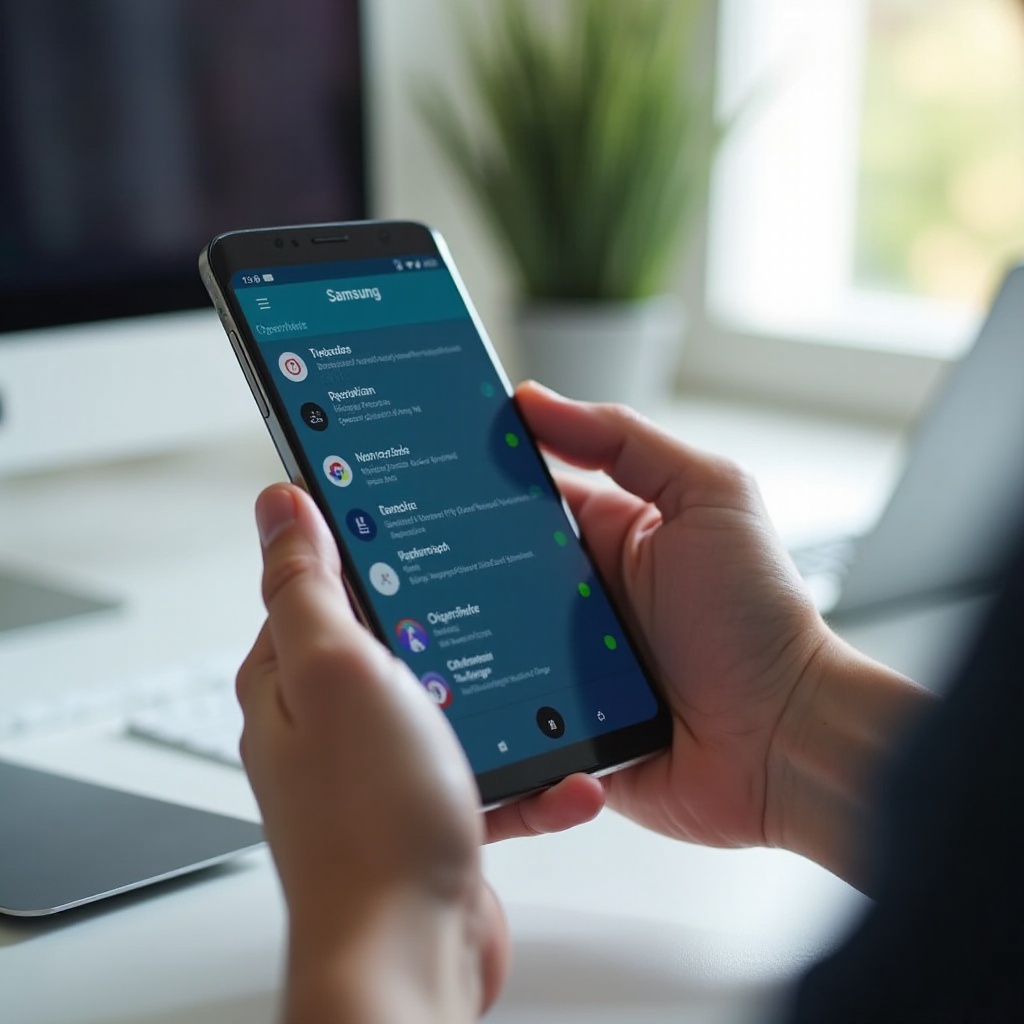
Fix 4 – Clear App Cache and Wipe System Cache Partition
Over time, apps and the system build up cache files. These files are meant to speed things up, but when they get corrupted, they can cause crashes and reboots. Clearing cache is safe and does not delete your personal data.
Clear Cache for Individual Apps Without Losing Data
To clear cache for a specific app:
- Go to Settings > Apps.
- Tap the app you suspect.
- Tap ‘Storage’.
- Tap ‘Clear cache’.
This removes temporary files but keeps your app data and login details. Test the phone after clearing cache for heavy or problematic apps such as social media, browsers, and games.
How to Wipe Cache Partition from Recovery Mode
If clearing individual app cache is not enough, you can wipe the system cache partition:
- Turn off your phone completely.
- Press and hold Volume Up and the Power (or Side) button until the Samsung logo appears.
- Release the Power button but keep holding Volume Up until you see Recovery Mode.
- Use the volume buttons to move to ‘Wipe cache partition’ and press the Power button to select.
- Confirm the action, then choose ‘Reboot system now’.
This clears old system cache files that might be causing random reboots without touching your main data.
When Clearing Cache Won’t Be Enough
If your Samsung phone keeps rebooting even after wiping the cache partition, the problem is probably not just temporary files. At that point, outdated software or faulty external hardware might be involved. The next step is to make sure everything is fully updated.

Fix 5 – Update Your Samsung Software and Apps
Outdated software can create conflicts, bugs, and stability issues. When many users report that ‘my Samsung phone keeps rebooting’, Samsung often releases patches to fix those bugs. Keeping everything updated is a key part of any troubleshooting plan.
Check for Android and One UI Updates in Settings
To check for system updates:
- Go to Settings > Software update.
- Tap ‘Download and install’.
- If an update is available, download and install it.
Keep your device plugged in and make sure you have enough battery and storage. Updates can fix known reboot issues and improve overall device stability.
Keep Google Play and Galaxy Store Apps Up to Date
Apps also need to stay current:
- Open Google Play Store > tap your profile icon > ‘Manage apps & device’ > ‘Update all’.
- Open Galaxy Store > Menu > ‘Updates’ > ‘Update all’.
Developers often fix crash and reboot problems in newer versions, so keeping apps updated reduces conflicts.
Why Security Patches Can Stop Random Restarts
Security patches do more than protect your data. They also include stability improvements and bug fixes. Installing them reduces the risk of malware and system-level errors that can trigger restarts.
If reboots continue even with the latest updates, external hardware like SD cards and accessories may be causing conflicts. That is what you need to test next.
Fix 6 – Remove SD Card and Test Without Accessories
External hardware can cause problems you might not expect. A damaged SD card or a cheap cable can destabilize your phone and cause reboot loops without showing clear error messages.
How a Corrupted SD Card Can Trigger Reboot Loops
A bad SD card can confuse the system when it tries to read or write data:
- Your phone may reboot when you open the Gallery, camera, or file manager.
- You may see errors related to storage, missing files, or corrupted media.
To test this, power off the phone, remove the SD card, then power it on again and see if the reboots stop or become less frequent.
Safely Removing and Testing Without SD Card
Follow these steps:
- Turn the phone off.
- Remove the SIM/SD tray and take out the SD card.
- Reinsert the tray and turn the phone on.
Use the phone for a while without the SD card. If the problem disappears, back up the card on a computer and consider reformatting or replacing it with a higher-quality one.
Checking Chargers, Cables, and Other Accessories
Other accessories can also cause trouble:
- Test a different charger and cable, preferably original Samsung or certified.
- Remove any external battery case or magnetic accessories.
- Try wireless charging with an official or reputable charger if you suspect the cable.
If the phone is stable without certain accessories, replace them with better options. If reboots still persist after all these checks, you may need to reset settings and prepare for deeper system fixes.
Fix 7 – Reset Settings and, If Needed, Factory Reset
When simpler fixes do not work, you may need to reset your phone’s configuration. Start with the least destructive option and only move to a factory reset if nothing else helps.
Reset All Settings Without Erasing Your Personal Data
Resetting all settings can fix misconfigurations that cause reboots without deleting your files:
- Go to Settings > General management > Reset.
- Tap ‘Reset all settings’.
- Read the details, then confirm your choice.
This will reset Wi‑Fi, Bluetooth, app preferences, and other system settings, but it will not delete your photos, apps, or personal files. After the reset, test the phone for a while before changing many settings again.
When You Should Consider a Full Factory Data Reset
If your Samsung phone keeps rebooting after a settings reset, and no other fix has worked, a factory reset may be your best option. It is especially useful when:
- The phone started rebooting after a major system update.
- System files seem corrupted or apps crash constantly.
- The phone is unstable even in Safe Mode.
Remember that a factory reset erases all data on the device, so you must back up first.
Back Up Your Samsung Phone Safely Before a Factory Reset
To protect your data:
- Use Samsung Smart Switch on a PC or Mac to back up apps, settings, and media.
- Sync photos and videos to cloud services like Google Photos or OneDrive.
- Back up WhatsApp and other messaging apps according to their instructions.
After backing up, go to Settings > General management > Reset > ‘Factory data reset’ and follow the prompts. Once the phone restarts, set it up as new and test it before restoring all apps. If reboots return even after a clean setup, hardware is the likely cause.
How to Tell If It’s a Hardware Problem
If none of the software fixes have helped and your Samsung phone keeps rebooting, hardware might be to blame. You need to watch for certain warning signs that point beyond software.
Signs of Battery or Power IC Failure
Look for these symptoms:
- The phone shuts down or reboots when the battery still shows 20–40%.
- The battery drains unusually fast, even in standby.
- The phone reboots when you lightly tap, shake, or move it.
These signs can point to a failing battery or internal power components such as the power IC.
Reboots After Drops, Bends, or Liquid Exposure
Think about recent accidents:
- Did you drop the phone hard onto a solid surface?
- Did it get wet, even briefly, from rain, spills, or submersion?
- Did it bend in a pocket, bag, or under pressure?
Physical or liquid damage can break solder joints or corrode components, leading to random restarts that software cannot fix.
When You Should Stop DIY Fixes and Seek Repair
Stop trying software fixes and consider repair when:
- The phone reboots even during a factory reset or immediately after.
- It gets very hot around the battery, camera, or processor area.
- You see visible damage, swelling, or signs of water inside the ports.
At this point, contacting Samsung or a trusted repair center is the safest route. They can test the hardware and tell you whether a repair or replacement is more cost-effective.
When and How to Contact Samsung or Your Carrier
If you suspect hardware issues or a deep software problem that you cannot solve, professional help is the next step. Samsung and your carrier both offer support options.
Using Samsung Members and Built-In Diagnostics
Samsung provides a helpful app called Samsung Members:
- Open Samsung Members on your phone.
- Go to the ‘Support’ or ‘Diagnostics’ section.
- Run tests for battery, power, and system stability.
These tests can confirm hardware problems and provide codes or logs that support agents can use to diagnose your device faster.
Warranty, Samsung Care+, and Repair Options in 2024
Check your warranty status and coverage:
- Visit Samsung’s official website and enter your device details.
- If you purchased Samsung Care+, review your coverage for repairs or replacements.
- Ask your carrier (such as Verizon, AT&T, or T‑Mobile) if they offer device protection plans.
You can book an appointment at an authorized service center, visit a walk-in location, or mail in your device. Using official channels protects your data and keeps your phone eligible for future support.
What Information to Prepare Before You Call or Visit
To speed up the process, prepare:
- Your phone model and IMEI number (found in Settings > About phone).
- A clear description of when the reboots started and what you have already tried.
- Details about drops, water exposure, previous repairs, or accessories used.
This helps the technician quickly identify whether your phone needs board-level repair, a new battery, or a full replacement. Once you know your hardware situation, you can also focus on preventing future issues.
How to Prevent Future Reboot Issues on Your Samsung Phone
Once your phone is stable again, you will want to keep it that way. Good habits and basic maintenance can greatly reduce the chance of future reboot problems and extend the life of your Samsung device.
Safe App Habits and Permissions Management
Follow these rules:
- Install apps only from official stores like Google Play and Galaxy Store.
- Avoid apps that request unnecessary permissions such as SMS access or full device control.
- Uninstall apps you no longer use instead of letting them run in the background.
Safe app choices lower the risk of crashes, malware, and hidden processes that can cause restarts.
Regular Updates, Backups, and Storage Maintenance
Make maintenance a routine part of owning your Samsung phone:
- Check for system and app updates at least once a month.
- Back up photos and important data regularly to cloud services or a computer.
- Keep enough free storage by deleting old downloads, screenshots, and large, unused files.
This keeps your system light, clean, and less likely to crash under load. It also ensures that if something does go wrong, you won’t lose precious data.
Monitoring Battery Health and Knowing When to Upgrade
Batteries wear out over time. Signs of battery age include fast drain, swelling, overheating, and frequent reboots near low percentages. If your device is several years old and you see these symptoms, consider:
- Replacing the battery through an authorized service center.
- Planning an upgrade to a newer Samsung model with better performance and security.
Taking care of your hardware prevents many stability problems and keeps your phone reliable for longer.
Conclusion
When you keep asking yourself, ‘Why does my Samsung phone keep rebooting?’, the situation can feel overwhelming and disruptive. Yet, most reboot problems start with fixable causes like bad apps, corrupt cache, outdated software, or minor configuration issues.
By going through the steps in this guide, you can tackle the problem in a logical order: quick checks, soft reset, Safe Mode, app cleanup, cache wipes, updates, hardware tests, and finally resets if needed. In many cases, these methods are enough to restore stability without paying for repair.
If, after trying these solutions, your Samsung phone still reboots, hardware is likely involved. At that stage, using Samsung’s diagnostic tools and contacting official support is the safest move. With the right approach, you can either fix your current phone or make a smooth transition to a more reliable device, and stop worrying about surprise restarts interrupting your day.
Frequently Asked Questions
Why does my Samsung phone keep rebooting when I’m not using it?
Random reboots while idle usually point to software or app issues. A background app may be crashing the system, or system cache and files might be corrupted. Start by updating your phone and apps, clearing cache, and testing in Safe Mode. If the phone is stable in Safe Mode, uninstall recently installed or suspicious apps one by one until the reboots stop.
Can I fix a Samsung boot loop without losing my data?
Sometimes you can. If you can still access Recovery Mode, wiping the cache partition may help. Booting into Safe Mode and removing bad apps can also break a light boot loop. However, if the phone restarts before fully booting every time, a factory reset may be necessary. Try to back up data with Smart Switch or cloud services as soon as the phone stays on long enough.
Is it safe to keep using my Samsung phone if it keeps restarting?
If the phone only restarts occasionally and stays cool, it is usually safe but inconvenient, and you risk losing unsaved data. You should still fix the issue quickly. If the phone gets very hot, restarts constantly, or shows signs of battery swelling or physical damage, stop using it and seek repair. Continuing to use a badly overheating device can be unsafe and may cause further damage.