
Introduction
Motorola Razr screen issues can turn a premium foldable phone into a device you dread using. Flickering displays, dead touch zones, hinge creases, and ghost touches are among the most frequent complaints from Razr owners. Because the Razr relies on a flexible OLED panel and a complex hinge mechanism, its screen problems often feel confusing, disruptive, and potentially expensive.
This guide walks through the main Motorola Razr screen issues you may face, what typically causes them, and the step-by-step actions you can take to troubleshoot them. You will learn how to separate minor software glitches from serious hardware failures, how hinge stress affects the display, and which symptoms usually mean it is time to seek professional repair.
Each section builds on the last: you start with an understanding of the Razr’s unique screen design, move into common real-world issues, then follow structured troubleshooting, repair, and prevention strategies. By the end, you will know whether you can fix your Razr screen yourself, or if contacting Motorola, your carrier, or a trusted repair shop is the smarter move.
Understanding the Motorola Razr’s Foldable Screen Design
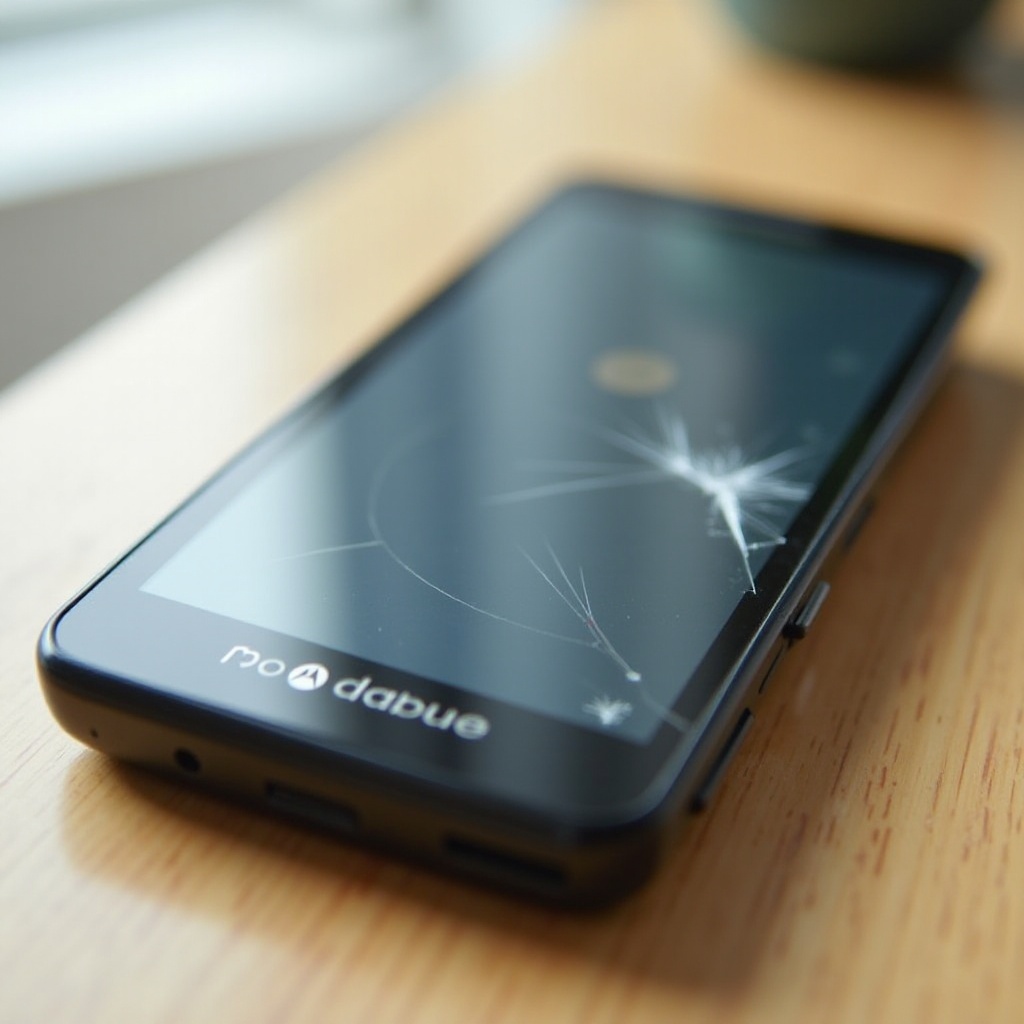
Before you can accurately diagnose Motorola Razr screen issues, you need a clear picture of how its foldable display is built. This phone does not use a standard rigid glass panel. Instead, it combines a flexible OLED screen with a hinge that flexes every time you open and close the device.
How the Inner Foldable OLED Screen Works
The main inner display on the Motorola Razr is a flexible OLED panel covered by a thin, specially designed surface. Several layers work together:
- A top protective polymer layer that looks like a screen protector but is part of the display and should not be peeled off.
- A touch digitizer layer that senses taps, swipes, and gestures.
- The OLED layer that lights up individual pixels and shows the image.
- Support layers that allow the panel to bend smoothly around the hinge.
These layers must flex thousands of times over the phone’s life. That flexibility makes the Razr possible, but it also makes the display more sensitive to pressure, sharp objects, twisting, and repeated folding. Over time, stress can lead to creases, micro-cracks, touch failures, and color distortions.
Outer Display vs. Inner Display: Key Differences
The Razr also features a smaller outer display, which serves a different purpose and uses a different structure:
- The outer screen is fixed, not foldable, and is usually protected by a more rigid cover.
- It handles quick tasks: checking notifications, controlling music, taking selfies, and glancing at widgets.
- It tends to be more durable because it does not bend and carries less mechanical stress.
Many Motorola Razr screen issues appear on the inner display first, because that is the part that folds. When you troubleshoot, always note whether the symptom affects the inner display, the outer display, or both. This distinction will guide you toward either software changes, hinge-related checks, or a likely hardware repair.
With this design in mind, you can now match your own symptoms to the most common Razr screen problems people report.
Most Common Motorola Razr Screen Issues in 2024
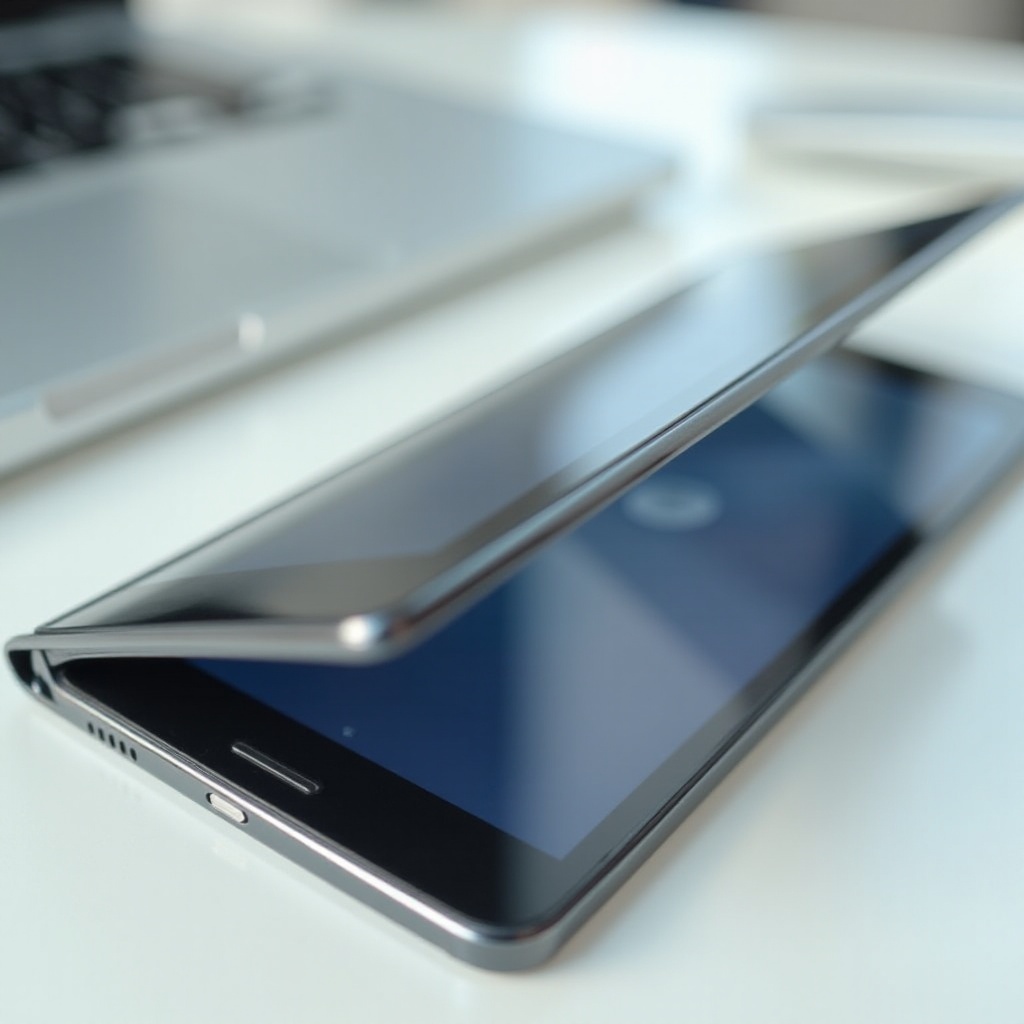
Motorola Razr screen issues usually fall into a few repeatable patterns. Recognizing which pattern matches your phone is the key to choosing the right fix and avoiding unnecessary repairs.
Screen Flickering and Random Brightness Changes
Flickering is a widespread complaint among Razr users. It may show up as:
- The entire screen pulsing or strobing, especially at low brightness.
- Sections of the display suddenly brightening or dimming.
- Brief flashes when you open apps, unlock the phone, or fold/unfold the device.
Several causes are possible:
- Software bugs introduced by system or app updates.
- Issues with the display driver or power management.
- Early-stage hardware failure in the OLED panel.
Sometimes a system update or display setting change resolves the flicker. In other cases, especially if the effect worsens and appears at every brightness level, the panel itself may be failing and heading toward the need for replacement.
Touchscreen Not Responding or Acting Erratically
Touch-related Motorola Razr screen issues can be particularly frustrating because they interfere with nearly every action:
- A band or corner of the display ignores taps and swipes.
- The phone registers touches in the wrong spot.
- Gestures misfire, or the screen stops responding for a few seconds at a time.
These problems often arise from:
- Damage or wear in the touch digitizer layer.
- Heavy pressure from sitting on the phone or carrying it in tight clothing.
- Software conflicts or a misbehaving app that hijacks the touch input system.
If the outer display responds normally while the inner display has dead zones or ghost touches, the issue usually lies with the foldable panel.
Crease, Lines, and Dark Spots Around the Hinge
All foldable phones show some crease where the screen bends. However, certain visual changes signal real trouble:
- The crease looks deeper or sharper in one isolated area.
- You notice vertical or horizontal lines running through the fold.
- Dark patches, discolored spots, or areas with reduced brightness appear near the hinge.
These patterns typically point to physical stress, layer separation, or damage inside the OLED stack. If lines or dark areas appear and remain in the same place over time, the hardware is almost certainly affected.
Once you have matched your symptom to a common pattern, you should not jump straight to buying a new phone. Instead, start with a series of quick checks that can reveal whether your Razr screen issue comes from software or settings rather than permanent damage.
Quick Checks Before Assuming Hardware Failure
Many Motorola Razr screen issues that feel serious at first actually trace back to software conflicts, settings, or something simple like a misbehaving app. Before you assume the display is dead, run through a basic diagnostic routine.
Restart, Safe Mode, and Software Updates
Start with the fastest steps first:
- Restart the phone. A full reboot clears temporary glitches and resets drivers.
- Boot into Safe Mode so only system apps run. If the screen works normally in Safe Mode, a third-party app is likely causing the problem.
- Go to Settings and check for system, security, and firmware updates. Install anything pending, especially display or stability patches.
If flickering, ghost touches, or random blackouts disappear after these actions, your hardware is probably intact, and you are dealing with software or app-related issues.
Checking Display Settings and App Conflicts
Next, simplify your display environment:
- Turn off adaptive brightness and set a fixed brightness level.
- If the Razr lets you adjust refresh rate, choose a standard value instead of a higher setting.
- Switch to a simple static wallpaper instead of live or animated backgrounds.
Then review your apps:
- Think about what you installed or updated just before the issues started.
- Clear cache or temporarily uninstall apps that use the display heavily, such as games, social media, and streaming apps.
- Open a system app like Settings or Phone and see whether the problem appears there or only inside specific apps.
If the display behaves normally in system apps but not in certain third-party apps, you can focus your fix on those apps rather than the hardware.
Inspecting for Physical Damage and Environmental Factors
Finally, look for physical clues:
- Examine the screen and frame in bright light for hairline cracks, dents, or bulges.
- Check the hinge area for dust, grit, or signs of impact.
- Consider recent exposure to moisture, extreme cold, or intense heat, such as leaving the phone in a hot car.
If you find visible damage or remember a strong impact, you may be facing hardware trouble. If everything looks clean but issues persist after these checks, it is time for deeper troubleshooting.
Step-by-Step Troubleshooting for Motorola Razr Screen Problems
Once you have ruled out the simplest causes, you can move to more focused troubleshooting. The goal is to confirm whether you can solve the problem yourself or whether your Razr needs professional repair.
Fixing Basic Touch Issues and Ghost Touches
For unresponsive areas or ghost touches, try this sequence:
- Remove any third-party screen protector or case that might press on the screen edges or hinge. Many standard protectors are not designed for foldable displays and can distort the panel.
- Gently clean the inner display with a soft, dry microfiber cloth. Oils, dust, and residue can sometimes interfere with capacitive touch detection.
- Open Settings and reduce or disable features like ‘edge touch protection’ or aggressive ‘palm rejection’ if they are triggering false positives.
- If your Razr includes a built-in hardware or touch test under device diagnostics, run it to see whether specific regions fail.
If ghost touches always occur in the same area, or if a hardware test shows a dead zone, the touch digitizer layer may be damaged and beyond software repair.
Dealing With Screen Flicker, Lines, and Color Distortion
For visual defects such as flicker, lines, and odd color patches:
- Set brightness to a medium level and turn off adaptive brightness.
- Turn off any high refresh rate or advanced display modes if those options are available.
- Disable eye comfort filters and color adjustment features so you can see the raw screen behavior.
- When you see lines or color artifacts, take a screenshot and view it on another device.
If lines or color bands appear in the screenshot, the issue is likely with software or the graphics pipeline. If the screenshot looks normal while the physical screen still shows defects, the OLED panel or its wiring is likely failing.
When to Try a Factory Reset (and When Not To)
A factory reset is a serious step that erases your data, so only consider it when:
- You have tried restarts, Safe Mode, updates, and setting changes.
- The issue appears across multiple apps and on the home screen.
- You see no clear external damage, but the behavior remains consistent.
Before you reset:
- Back up important photos, contacts, and files to the cloud or a computer.
- Check that you know the login details for your Google and Motorola accounts.
- Remove any security locks or double-check you can sign in again later.
Perform the factory reset from Settings and then test the screen on a clean system. If your Motorola Razr screen issues survive a full reset, they are almost certainly hardware-related, and hinge stress becomes a prime suspect.
Hinge-Related Screen Issues and Early Warning Signs
The hinge is the heart of any foldable phone, and on the Razr it directly affects the inner display. Understanding hinge-related symptoms helps you catch problems before they become catastrophic.
Symptoms That Point to Hinge Stress on the Screen
Look for signs that your screen issues change as you move the hinge:
- The display flickers, cuts out, or shows lines only at certain fold angles.
- The image becomes distorted in the middle while the phone is half-open.
- The hinge feels stiffer, crunchier, or looser than it did when new.
These symptoms suggest that internal connections or layers near the fold are under stress or starting to deform. Continued use in this state can quickly worsen the damage.
Normal Crease vs. Problem Crease
Every Razr has a crease, but not every crease is a defect. Signs of a normal crease include:
- A smooth, uniform line across the center where the display bends.
- A slight visual shadow that does not affect touch or color.
Warning signs of a problem crease include:
- A sharp ridge or raised area that you can feel with a finger.
- Visible bubbles, cracks, or small gaps along the fold.
- Bright or dark lines that follow the crease and do not move.
If your crease changes shape or texture, treat it as an early warning and reduce folding as much as possible.
When to Stop Folding the Phone and Seek Help
If your Razr shows hinge-linked symptoms, or if you hear grinding, popping, or clicking from the hinge when you move it, stop folding the phone frequently. Use it in a single position if you can, and take these steps:
- Record photos and short videos of the issue for proof.
- Write down when the problem started and any drops or impacts you remember.
- Prepare to contact support, as continued folding may lead to total display failure.
While you arrange support or a repair booking, you can apply some temporary workarounds to keep the phone usable.
Temporary Workarounds While You Arrange a Repair
Temporary fixes will not heal physical damage, but they can help you use your Motorola Razr safely while you wait for a repair or decide on your next move.
Adjusting Navigation, Gestures, and Touch Sensitivity
When part of the screen is unreliable, modify how you interact with the device:
- Switch from gesture navigation to on-screen buttons or the reverse, depending on which keeps key controls away from damaged zones.
- Move keyboard position or enable one-handed mode if your keyboard app supports it, so you avoid dead areas.
- Reduce touch sensitivity if ghost touches are frequent; increase it only if the screen misses taps.
These tweaks can significantly reduce daily frustration and accidental inputs.
Using the External Display to Reduce Stress on the Inner Screen
To minimize further stress on the foldable panel:
- Rely on the outer display for quick checks of notifications, calls, and messages.
- Avoid repeatedly snapping the phone open and shut for small tasks.
- Keep the Razr open at a comfortable angle for longer sessions instead of folding it after every use.
Fewer folding cycles can slow the progression of some hinge-related Motorola Razr screen issues.
Accessibility Features That Help With Partial Screen Failure
Accessibility tools can help you work around damaged areas:
- Enable floating assistive menus or custom gesture shortcuts that you can drag to a safe region.
- Increase text and icon size so you can interact with a smaller portion of the screen.
- Use voice commands, voice typing, and Google Assistant more often to reduce touch input.
These short-term strategies do not fix the underlying problem, but they help you keep control of your phone until you decide how to repair or replace it.
Repair, Warranty, and Support Options for Motorola Razr Owners
Once you confirm that your Motorola Razr screen issues are hardware-related, you must decide how to fix them. Your best option depends on warranty coverage, protection plans, repair costs, and how long you intend to keep the phone.
Checking Warranty, Protection Plans, and Coverage Details
Start by reviewing your coverage situation:
- Look up the original purchase date and standard warranty length for your Razr.
- Check whether you bought an extended warranty or device protection from your carrier, retailer, or a third-party service.
- Read the fine print to see whether screen damage and hinge issues count as defects, accidents, or exclusions.
If the phone is still under warranty and there is no obvious evidence of misuse, you may qualify for a free repair or a reduced-cost replacement. Device protection plans often cover accidental damage but may charge a deductible.
Contacting Motorola Support and Authorized Service Centers
If coverage looks promising or you prefer official parts:
- Visit Motorola’s support website and start a repair request.
- Provide a clear description and attach photos or videos showing the screen defects.
- Choose between mail-in repair or visiting an authorized service center if one operates near you.
Authorized centers use approved parts and tested procedures, which helps preserve your device’s reliability, future support eligibility, and potential trade-in value.
Third-Party Repair Shops: Pros, Cons, and Risks for Foldables
If your Razr is out of warranty or official service is too expensive or slow, third-party repair shops become an option. Weigh these points carefully:
Pros:
- Often lower upfront cost than official service.
- Possible same-day or next-day turnaround.
- Convenient if a local shop markets experience with foldable devices.
Cons:
- Aftermarket parts may not match the quality or durability of original components.
- Water resistance, dust sealing, and structural integrity can suffer after an unofficial repair.
- Future manufacturer support and trade-in value may be reduced or denied.
If you choose a third-party shop, ask direct questions about their experience with foldables, what parts they use, and what warranty they offer on the repair.
After you repair or replace your screen, the next logical step is to protect your investment. Good habits can dramatically lower your risk of facing the same issues again.
Preventing Future Motorola Razr Screen Issues
Foldable phones demand more careful handling than traditional slabs. By adjusting how you open, close, carry, and protect your Razr, you can extend the life of the screen and avoid many common problems.
Best Practices for Opening, Closing, and Carrying the Razr
Treat the hinge and inner display as precision parts:
- Open and close the phone slowly in one smooth motion instead of snapping it.
- Use two hands when possible and avoid twisting the two halves in opposite directions.
- Do not open the phone by pulling on one corner or edge, which can add uneven stress.
- Carry the Razr in a front pocket, bag compartment, or case where it will not flex or face constant pressure.
These simple habits reduce the mechanical strain that often leads to creases, layer separation, and hinge-linked display failures.
Recommended Cases, Screen Protectors, and Accessories
The right accessories offer protection without adding stress:
- Choose a case designed specifically for your Motorola Razr model, with proper hinge clearance and no pressure on the fold.
- Use only screen protectors approved for foldable displays or supplied by Motorola or a trusted brand.
- Avoid strong magnetic mounts that clamp the phone or press directly on the hinge or inner screen.
Quality accessories act like shock absorbers, helping you avoid cosmetic and functional damage from everyday bumps and minor drops.
Daily Habits to Avoid Heat, Pressure, and Impact Damage
Your daily routine also affects screen health:
- Keep the phone out of direct sunlight and hot environments such as car dashboards.
- Do not sit on the Razr or keep it in a back pocket where it can bend.
- Avoid stacking heavy items on top of it in backpacks or bags.
- Wipe the device regularly with a soft cloth to keep dust away from the hinge and edges.
By combining careful handling with smart accessory choices, you can dramatically reduce the likelihood of recurring Motorola Razr screen issues after a repair or replacement.
Conclusion
Motorola Razr screen issues can be disruptive, but they are rarely random. Flickering, ghost touches, deepening creases, and hinge-linked defects each follow clear patterns with specific causes. When you understand how the Razr’s foldable OLED display works and how the hinge stresses the panel, you can use structured troubleshooting to separate minor software problems from serious hardware failures.
Quick checks, display setting adjustments, and app tests often fix the simplest issues. More focused diagnostics, including touch tests and screenshot comparisons, help confirm whether the panel itself is failing. If your screen problems survive a factory reset or change with hinge movement, it is time to consider repair options and review your warranty or protection plan.
Whether you choose official Motorola service or a reputable third-party shop, act early to limit damage and cost. Once your Razr is back in working order, careful handling, proper accessories, and smart daily habits will go a long way toward preventing the same screen issues from returning. With the right approach, you can enjoy the benefits of a foldable phone while keeping its display reliable for much longer.
Frequently Asked Questions
Why is my Motorola Razr screen flickering even after a restart?
If your Razr screen still flickers after a restart, the cause may be a software bug, a display driver issue, or early hardware failure. Update your system, test the phone in Safe Mode, and adjust brightness and refresh rate. If the flicker appears across apps and does not change after updates, the OLED panel or its connections may be failing and you should contact Motorola support or a repair center.
Can Motorola Razr screen issues be fixed without replacing the display?
Some Motorola Razr screen issues come from software errors, app conflicts, or settings and can be fixed without replacing the display. Examples include minor touch glitches, app-specific flickering, and problems caused by incompatible screen protectors or aggressive display modes. However, permanent lines, dark spots, deep crease damage, and hinge-linked defects usually indicate hardware damage and often require professional screen repair or replacement.
Is it worth repairing a damaged Motorola Razr screen or should I upgrade?
Whether a Razr screen repair is worth it depends on cost, coverage, and how long you plan to keep the phone. If your device is under warranty or covered by a protection plan, repairing it is often the best value. If you must pay full price for a foldable screen replacement, compare the repair quote with the price of upgrading. As a rule of thumb, repair makes sense if it costs significantly less than a new device and will extend your Razr’s useful life by at least a year; otherwise, upgrading may offer better long-term value.