
Introduction
A bright vertical streak cutting through your display can ruin the experience of using your phone in an instant. Many Motorola users now see the phrase ‘Motorola green line’ in forums and search results as they try to understand why a sharp, neon line has suddenly appeared on their screens.
This thin or thick green bar usually runs from the top to the bottom of the display and stays visible in every app. It can appear on the lock screen, home screen, and even when you are only viewing simple system menus. Once you notice it, it is almost impossible to ignore.
If you see a Motorola green line on your phone, you likely want to know three things right away:
- What caused it
- Whether it is a software glitch or permanent hardware damage
- How to fix it or at least keep your phone usable
This guide walks through clear tests, practical fixes, and realistic repair options. You will learn how to diagnose the issue, try safe solutions, protect your data, and decide whether repair or replacement makes the most sense.
What Is the Motorola Green Line Issue?
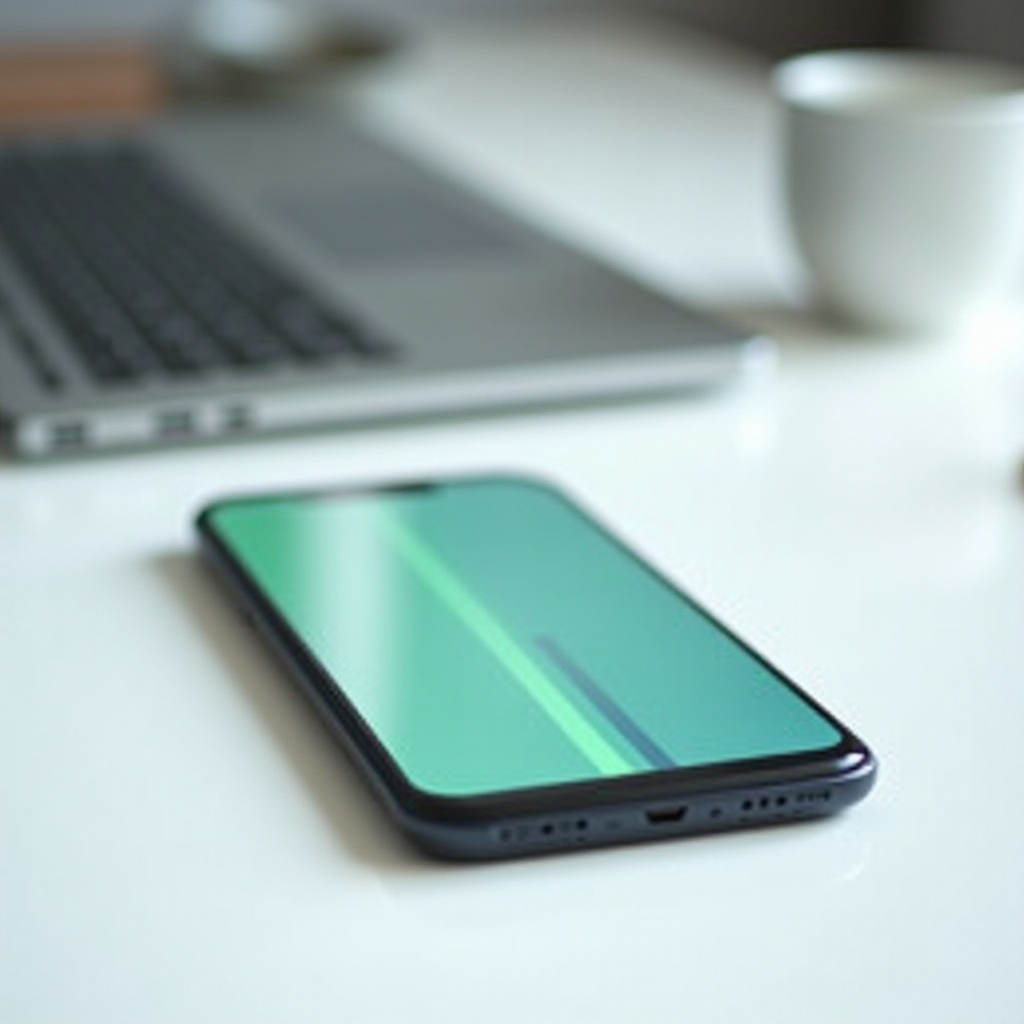
The Motorola green line issue describes a persistent, usually vertical green line on your phone display. Most users report that:
- The line runs from the top edge of the screen to the bottom
- It stays in the same position across apps and screens
- It does not disappear when you rotate the phone or change content
Sometimes this line is only a few pixels wide. In other cases, it is thicker and surrounded by lighter or darker areas. It can be a solid color or shift in brightness depending on the background.
Two key traits set it apart from normal visual glitches:
- The line does not behave like a software element. It does not scroll with the content on the screen.
- It often appears as soon as the display lights up, even before Android finishes loading.
Because many recent Motorola phones use OLED or AMOLED panels, they offer rich colors and deep blacks. These technologies also bring some vulnerabilities. Failures in pixel rows, columns, or internal drivers can create distinct vertical lines that mimic what users call the Motorola green line.
Understanding that this line is usually a display defect rather than a simple app bug helps you choose the right troubleshooting steps. Before looking at causes, it is useful to know which phones are most likely to be affected in 2024.
Common Motorola Models Affected by the Green Line Problem in 2024
In 2024, reports of the Motorola green line issue appear most often on devices with OLED or AMOLED screens. These panels are common on:
- Motorola Edge series models with curved or premium flat displays
- Higher-end Moto G devices that feature OLED screens
- Other mid-range and upper-mid-range Motorola phones with high refresh-rate OLED panels
LCD-based models can develop lines as well, but the bright, clean vertical green line pattern is more typical of OLED and AMOLED technology. Each pixel in these panels lights itself, and failures in rows or drivers can create visible, straight-line artifacts.
User reports often follow patterns such as:
- A green line appears after a small drop or bump that leaves no obvious crack
- The line shows up after a heavy gaming or charging session, when the phone gets quite warm
- The device is older and has been used at high brightness for a long time
Even if your exact model is not widely reported, the combination of OLED technology, high refresh rate, and hard use can still produce this issue. To handle it correctly, you need to understand what actually causes the Motorola green line on a screen.
Main Causes of the Motorola Green Line on Phone Screens
Several different problems can lead to a Motorola green line. Some are related to the display hardware itself, while others come from physical damage or software conflicts. Knowing the likely cause helps you decide whether it is worth trying software fixes or if you should focus on repair.
OLED and AMOLED Panel Defects
OLED and AMOLED panels rely on vertical and horizontal lines of pixels controlled by driver circuitry. If a column of pixels or its driver fails, a visible vertical line can appear.
This can happen due to:
- Hidden manufacturing defects that show up after months of real use
- Long-term stress on the panel at high brightness and high refresh rates
- Partial failure of the internal circuitry that drives rows or columns of pixels
When the cause sits inside the panel, software changes rarely help. The green line tends to stay visible on every screen and even during startup, no matter which app you open.
Physical Damage, Drops, and Screen Stress
A Motorola phone does not need a shattered display to have serious internal damage. Internal screen layers and connectors can fail while the glass looks fine.
Common triggers include:
- A small drop that bends the frame just enough to disturb internal connections
- Sitting on the phone or carrying it in a tight back pocket
- Strong pressure on the screen or edges, even with a case on
These events can cause micro-cracks or misalignment inside the display assembly. As a result, a full vertical line of pixels can stop working correctly and show as a green bar. Often, the owner remembers a recent hit but dismisses it because the glass did not crack.
Overheating and Intensive Usage
Heat is another important factor behind the Motorola green line. Heavy use and charging can push your display and its driver chips beyond normal stress.
Typical risk scenarios include:
- Long gaming sessions at high brightness and high refresh rates
- Streaming videos for hours while the phone charges
- Leaving the phone in a hot car or under direct sunlight
Repeated overheating does not always show an effect right away. Over time, however, heat can weaken solder points, drivers, and sensitive display components, leading to permanent lines, flickering, or dark spots.
Software, Firmware, and Display Driver Glitches
Sometimes software or firmware issues make your screen look damaged when it is not. Problems may come from:
- A buggy system update that affects how the display driver works
- Corrupted display driver files after a failed update or low-storage event
- Conflicts with third-party apps that overlay graphics, filter colors, or change refresh rates
In these cases, the Motorola green line might appear:
- Only in certain apps or modes
- Only after a restart or when the phone heats up
If software is at fault, careful testing, updates, or a reset can clear the problem. To find out which type of issue you are dealing with, you need to run a few quick, simple checks.
How to Confirm a Real Green Line Screen Issue
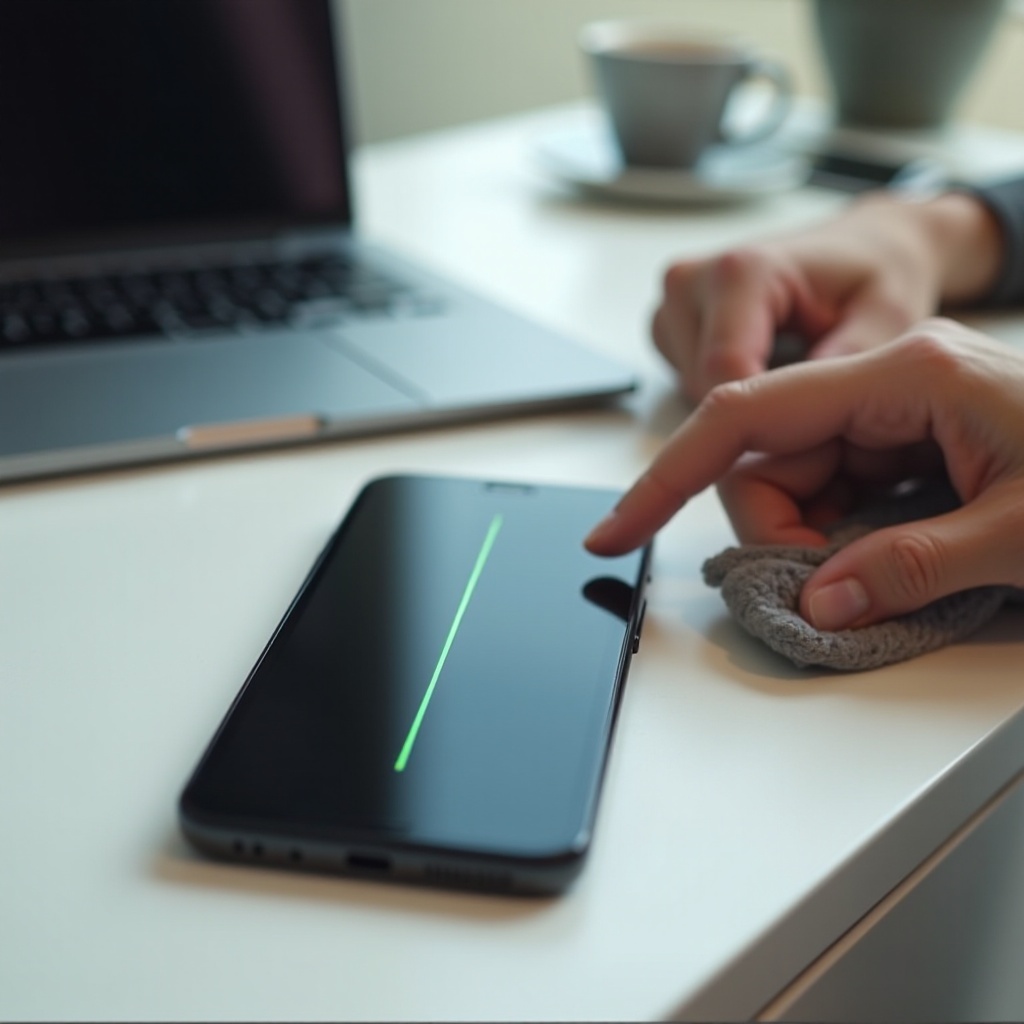
Before you reset your phone or pay for a new display, confirm whether the Motorola green line looks like a hardware failure or a software artifact. A few basic tests can give you a much clearer picture.
Screenshot Test to Separate Hardware from Software
The screenshot test is one of the easiest ways to tell the difference:
- Open any screen that clearly shows the green line.
- Take a screenshot.
- View that screenshot on your Motorola phone and on another device, such as a laptop or another phone.
Now compare:
- If the green line appears in the screenshot on the other device, the issue may be software-related, because the phone captured the line in the image.
- If the screenshot looks clean on the other device but you still see a line on the Motorola display, the problem is almost certainly hardware.
This single test can save you from wasting time on software fixes if the display itself has failed.
Checking the Line on Boot Logo and Recovery Mode
Another useful step is to see when exactly the Motorola green line appears:
- Restart your phone and watch from the moment the screen turns on.
- Check whether the line appears on the Motorola logo screen before Android loads.
- If you can, boot into recovery mode and see whether the line is visible there as well.
Findings usually mean:
- If the green line shows on the boot logo and in recovery mode, the cause is almost always hardware.
- If the line appears only after Android has loaded, a deeper software or driver problem is still possible.
Inspecting the Display and Frame for Visible Damage
A careful visual inspection can reveal clues you missed at first glance:
- Check the corners and edges for small dents or bends.
- Shine a light across the screen at an angle to look for hairline cracks.
- Look for tiny gaps between the screen and frame that suggest flexing or separation.
These subtle signs, combined with a persistent green line, strongly suggest internal display damage. Once you finish these tests, you can move on to safe software fixes to either solve or rule out non-hardware causes.
Quick Software Fixes to Try Before Repair
If your tests leave any chance that software plays a role in your Motorola green line problem, it makes sense to try easy, low-risk fixes first. They are simple, fast, and sometimes enough to clear minor glitches or driver issues.
Restart and Forced Restart on Motorola Phones
A basic restart can fix many temporary problems:
- Hold the power button.
- Tap ‘Restart’ and wait for the phone to reboot.
If the phone does not respond, try a forced restart:
- Hold the power and volume down buttons together for several seconds until you see the logo.
After restart, check whether the green line has changed, moved, or become less visible. Even if it remains, this confirms that the line is not a simple one-time glitch.
Updating Android and Motorola System Apps
Outdated software can sometimes produce display issues or conflicts. To update your Motorola phone:
- Go to ‘Settings > System > System updates’.
- Install any available Android or security updates.
- Open the Google Play Store, tap your profile icon, and select ‘Manage apps & device’.
- Update Motorola system apps and Google Play services.
After installing updates, restart your phone. If the green line was connected to a driver or system bug, you might see improvement at this stage.
Adjusting Display Settings and Refresh Rate
Some users notice changes in flickering or line behavior when they tweak display settings. To experiment safely:
- Go to ‘Settings > Display’.
- Lower the refresh rate (for example, from 120 Hz to 60 Hz if your model supports it).
- Switch between different color modes, such as Natural and Saturated.
- Turn off extra visual features that may stress the display.
These settings changes will not repair a physically damaged panel, but they might reduce some visual artifacts or make the green line slightly less intense.
Testing in Safe Mode to Rule Out Third-party Apps
Safe Mode starts your phone with only core apps and services. This helps you find out whether a third-party app is involved.
To enter Safe Mode on most Motorola phones:
- Hold the power button.
- Tap and hold ‘Power off’ until a Safe Mode prompt appears.
- Confirm to restart in Safe Mode.
Use your phone for a while in Safe Mode and watch the screen:
- If the green line disappears or behaves differently, a third-party app may be causing the problem.
- If the line looks exactly the same, the issue is likely deeper than a simple app conflict.
If none of these quick steps help, move on to advanced troubleshooting. That way you can either fix a severe software issue or confirm that hardware is the real cause.
Advanced Troubleshooting: Factory Reset and Diagnostics
When basic changes do not make a difference, deeper troubleshooting can help you reach a final answer. A factory reset, followed by diagnostics, is the strongest way to rule out software as the cause of the Motorola green line.
Backing Up Your Motorola Safely in 2024
A factory reset erases all data on your device, so backing up is essential. Before you reset:
- Turn on Google backup under ‘Settings > System > Backup’.
- Sync photos and videos to Google Photos or another cloud service.
- Back up messaging apps, such as WhatsApp, to Google Drive.
- Move important documents to cloud storage or a computer.
Confirm that you know the Google account and password linked to the phone. You will need these to sign back in after the reset.
Performing a Full Factory Reset Step by Step
To perform a factory reset on your Motorola phone:
- Open ‘Settings > System > Reset options’.
- Tap ‘Erase all data (factory reset)’.
- Confirm by entering your PIN, pattern, or password.
- Wait for the phone to erase data and restart.
When the phone restarts, set it up as a new device without restoring apps right away. First, check whether the green line appears on the clean, fresh system:
- If the line is still there, you can safely assume it is a hardware issue.
- If the line disappears, install your apps slowly and watch for any change.
Using Built-in Motorola Hardware Tests and Diagnostics Tools
Some Motorola phones include diagnostics tools in a pre-installed app like ‘Device Help’ or ‘Moto’. If you have one of these apps:
- Open the app and look for ‘Hardware tests’, ‘Checkup’, or a diagnostics menu.
- Run screen tests that show solid colors (white, black, red, green, blue).
These tests make it easier to see if the green line stays in exactly the same place across all colors. If it does, this pattern usually confirms a problem inside the display panel.
Once you have tried both basic and advanced software steps, and the Motorola green line still remains, it is time to treat the issue as hardware failure and explore your repair and replacement options.
When the Motorola Green Line Means Hardware Failure
There is a point at which software changes no longer make sense, and you must accept that the display itself has failed. Recognizing this stage helps you avoid wasting time and gives you the information you need for support, insurance, or repair decisions.
Warning Signs of Permanent Screen Damage
The Motorola green line most likely comes from hardware failure if you notice that:
- The line appears from the first moment the screen lights up.
- It looks identical before and after updates, Safe Mode, and a factory reset.
- The line stays perfectly straight and static, without shifting or breaking.
These signs match the typical behavior of a failed pixel column or driver circuit inside the panel, not a software bug.
Green Line Plus Flickering, Ghost Touch, or Black Spots
In many cases, the green line is not the only symptom. You might also see:
- Flickering or shimmering areas near the line
- Ghost touches or dead spots where touch does not register
- Small black, purple, or multicolored patches that grow over time
When these issues appear together, the display is likely breaking down. The risk that the screen will soon become hard or impossible to use increases.
Why DIY Hardware Fixes Are Risky for Most Users
Modern smartphones are not friendly to casual repairs. Attempting a DIY screen replacement can cause more problems than it solves:
- The display is glued to the frame and can crack easily during removal.
- You need proper tools and experience to manage tiny connectors and seals.
- Cheap replacement panels can have poor color accuracy, weak brightness, or new defects.
In addition, opening the phone can void any remaining warranty and reduce water resistance. For most users, professional repair is a safer and more reliable path.
Repair, Warranty, and Replacement Options in the US
Once you accept that the Motorola green line is a hardware problem, you must decide how to handle it. The best choice depends on your warranty status, budget, and how much you value your current device. You also need to decide whether to repair the phone or replace it.
Checking Motorola Warranty Status and Eligibility in 2024
Start by checking whether your phone is still under warranty:
- Find your phone’s IMEI number under ‘Settings > About phone’ or on the original box.
- Visit Motorola’s official support website.
- Enter your IMEI or serial number to view your warranty status.
If the device is still within the warranty period and there is no visible physical damage, you may qualify for a free or low-cost screen repair. If your phone has cracks, dents, or signs of water damage, Motorola may classify the problem as out-of-warranty damage instead.
Official Motorola Service vs. Third-party Repair Shops
You usually have two main choices for a hardware repair:
- Official Motorola or authorized service centers
- Independent third-party repair shops
Official or authorized service centers often:
- Use genuine Motorola parts
- Follow factory repair procedures
- Provide a warranty on the repair
Third-party repair shops can:
- Offer lower prices
- Provide faster service in many local areas
- Use either original or compatible parts, depending on the shop
For a major display issue like a Motorola green line, a reputable provider is essential. Poor repairs can introduce new problems such as touch issues, color shifts, or new lines on the screen.
Typical Screen Replacement Costs and Turnaround Times
Screen replacement costs in the US vary by model and region. In general:
- Budget and mid-range Motorola phones cost less to repair, but the price can still be significant compared to the phone’s value.
- Premium models, especially those with curved or high-refresh OLED panels, can be expensive to fix.
Turnaround times include:
- Same-day repairs at some local shops with parts in stock
- Several days to a week for mail-in service or if parts must be ordered
Before committing, request:
- A clear written quote for parts and labor
- The expected repair time
- Details on any warranty on the new screen
Using Carrier Insurance or Protection Plans
If you bought your Motorola phone through a carrier, you may have insurance or a device protection plan:
- Review the plan details for screen or physical damage coverage.
- Check the deductible amount and how many claims you can make.
- Decide whether using a claim for this incident makes financial sense.
Sometimes, paying an insurance deductible to get a replacement device is cheaper and quicker than paying full price for a screen repair, especially for older phones.
Temporary Workarounds if You Can’t Fix the Green Line Immediately
You may not be ready or able to repair or replace your phone right away. In the meantime, you can make your device easier to use and protect your data before the situation worsens.
Tweaking Display Settings to Reduce Visual Distraction
While you cannot remove the Motorola green line without a hardware fix, you can try to make it less distracting:
- Enable Dark Mode under ‘Settings > Display’. The darker interface can reduce the contrast of the line in many apps.
- Lower the screen brightness to reduce strain on damaged pixels.
- Choose wallpapers and themes that use darker colors around the area where the line appears.
These small adjustments can make daily tasks a bit more comfortable while you plan your next steps.
Using Casting and External Displays
If the green line covers text or key parts of the screen, consider using an external display when you need to work or Read more comfortably:
- Cast your screen to a TV or monitor using Chromecast or another wireless casting method.
- If supported by your Motorola model, connect via USB-C to HDMI to mirror your screen on a monitor.
This approach keeps the phone usable for messaging, browsing, and media, even if the built-in display continues to degrade.
Prioritizing Data Backup Before the Screen Gets Worse
Screen defects often get worse over time. To avoid losing access to your information, make data backup a priority:
- Regularly sync contacts, photos, and documents to cloud services.
- Back up important apps that store local data.
- Export passwords and recovery codes where needed.
If the Motorola green line turns into a larger failure or the screen stops responding, you will already have your essential data safe and ready to restore to another device.
How to Prevent Future Motorola Green Line Issues
Even after you fix or replace your device, you will likely want to avoid facing a Motorola green line problem again. While no method can eliminate all risk, better protection and careful habits can reduce the chances of severe screen issues.
Choosing Protective Cases and Screen Protectors Wisely
Proper protection can limit the physical stress that leads to internal display damage:
- Choose a case with raised edges and enough flexibility to absorb impacts.
- Use a quality tempered-glass or film screen protector to reduce scratches and minor shocks.
- Avoid cases that are extremely rigid or make the phone hard to hold securely.
These accessories cannot prevent every failure, but they help in many everyday drops and bumps.
Safer Charging and Usage Habits to Reduce Heat
Heat is one of the main enemies of modern displays and internal components. You can lower heat stress by:
- Avoiding long gaming or streaming sessions while charging
- Keeping the phone out of direct sunlight and hot, enclosed spaces
- Removing very thick cases during fast charging if the phone feels hot
Cooler operating temperatures can help extend the life of both the screen and the battery.
Best Practices for Long-term OLED and AMOLED Care
To support long-term health of OLED or AMOLED screens:
- Use automatic brightness or keep brightness at moderate levels when possible.
- Shorten the screen timeout so static images do not remain for long periods.
- Use dark themes and wallpapers, which can reduce strain on certain pixels.
These practices may not directly stop a Motorola green line from ever appearing, but they lower the overall stress on the display hardware.
Should You Keep, Repair, or Replace Your Motorola Phone?
Once you understand the cause, impact, and repair cost of the Motorola green line, the next decision is what to do with your phone. Each option has trade-offs, and the best choice depends on your situation.
Comparing Repair Cost vs. Phone Value in 2024
To decide whether repair is worthwhile, compare:
- The estimated cost of a screen replacement
- The current value of your phone on the used or trade-in market
- How long you plan to use the device after repair
If the repair cost is close to half or more of your phone’s value, it might be smarter to put that money toward a newer model instead.
When an Upgrade Makes More Sense Than a Screen Fix
An upgrade can be the better choice if:
- Your phone already has other problems, such as poor battery life or slow performance
- The device is no longer receiving major software updates
- Newer models offer features that you care about, like better cameras, faster charging, or longer support
In these cases, repairing the green line only delays the need for a new device.
Considering Alternatives While Staying Close to the Motorola Experience
If you enjoy Motorola’s clean Android interface, gestures, and simple software but worry about display issues, you have options:
- Look at newer Motorola models with solid reliability records and consider adding extended warranty coverage.
- Compare them with close alternatives that also offer a near-stock Android experience.
- Review support policies and protection plans for any new device you consider.
Balancing the user experience you like with your tolerance for repair risk will help you choose a phone that suits your needs.
Conclusion
The Motorola green line on your screen is a frustrating sight, but it does not have to be a mystery. With simple tests like the screenshot check and Safe Mode, followed by a careful factory reset and diagnostics, you can separate software glitches from true hardware failure.
If the issue comes down to the display panel, you can explore warranty claims, carrier insurance, professional repair, or a full upgrade. Along the way, you can reduce frustration and protect your data with smart settings changes, casting, and regular backups.
Armed with a clear understanding of the Motorola green line issue, you can make confident decisions about whether to keep, repair, or replace your phone and take steps to reduce the odds of facing the same problem again.
Frequently Asked Questions
Why did a green line suddenly appear on my Motorola screen?
A sudden green line on your Motorola screen usually points to a failure in the display panel or its driver circuitry. Common triggers include a drop, pressure on the screen, overheating, or long-term wear on an OLED or AMOLED display. In some cases, a software glitch or driver bug can also cause display anomalies, but if the line appears on the boot logo and stays after a factory reset, it is almost always a hardware issue.
Can I fix a Motorola green line issue at home without replacing the screen?
You can try several safe steps at home: restart the phone, install all system updates, adjust display settings, boot into Safe Mode, and perform a full factory reset after backing up your data. These actions can resolve problems caused by software or drivers. However, if the Motorola green line comes from physical damage or an internal panel failure, no software fix will remove it. In that case, only a screen replacement or professional repair can solve the problem.
Is the Motorola green line problem covered under warranty in 2024?
Coverage in 2024 depends on your warranty status and how Motorola or your carrier classifies the issue. If your phone is still within the warranty period and there are no visible signs of physical or liquid damage, you may qualify for a free or discounted repair. If there are cracks, dents, or water damage, the issue is usually treated as out-of-warranty, and you must pay for the repair or use a carrier insurance or protection plan if you have one. Always confirm your coverage details on Motorola’s official support site or with your carrier.