
Introduction
Beats headphones are renowned for their exceptional sound quality and cutting-edge design. Knowing how to optimize their controls can significantly enhance your listening experience. Whether you’re adjusting the volume or skipping tracks, mastering these controls ensures convenience and enjoyment. This guide will take you through understanding basic and advanced features, troubleshooting common issues, and optimizing the use and maintenance of your Beats headphones.
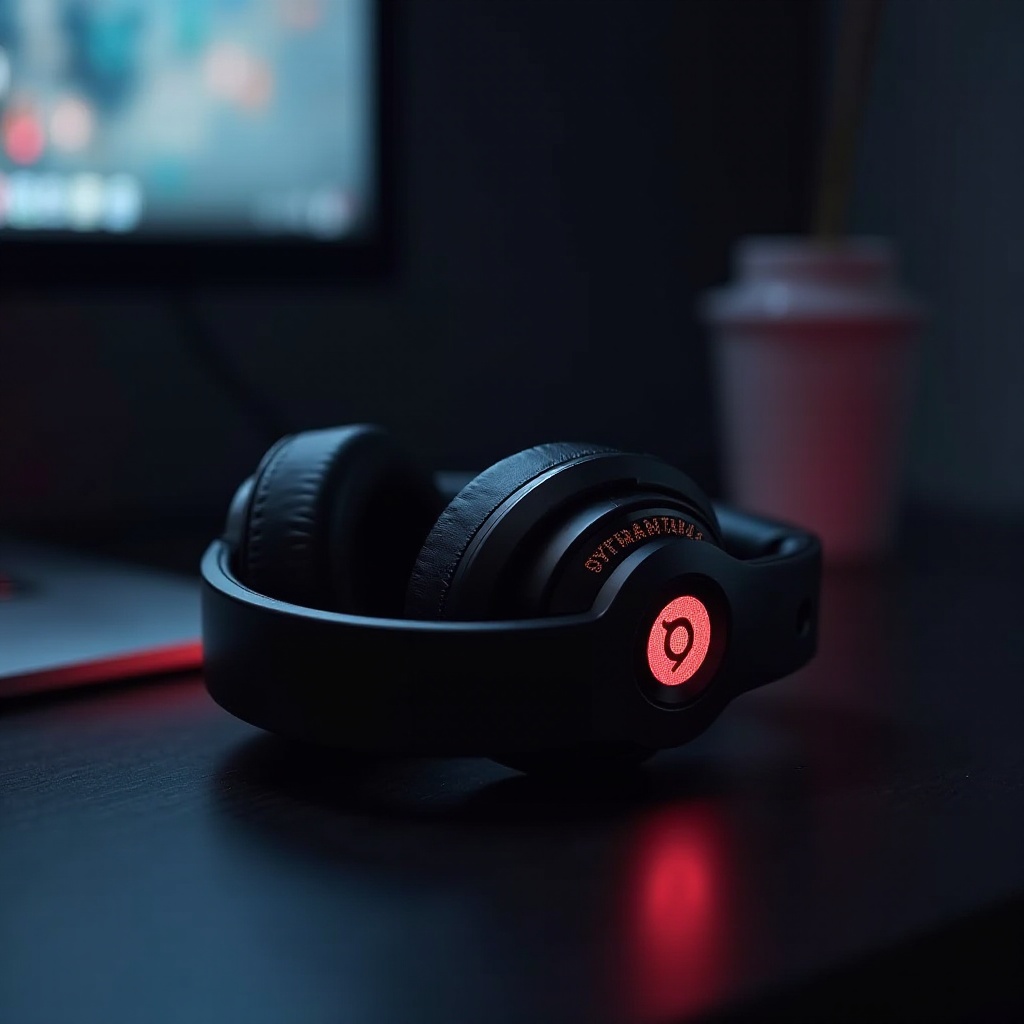
The Basics of Beats Headphones Controls
A thorough understanding of your Beats headphones’ layout is crucial for quick and efficient use. Each model may have slightly different controls, but the core functions remain consistent across the board. Familiarizing yourself with these controls will greatly improve your user experience by making interactions seamless and intuitive.
-
Overview of Common Control Features: Most Beats headphones provide intuitive controls for adjusting volume, skipping tracks, and handling calls. These buttons are typically situated on the ear cups, allowing for quick adjustments without removing the headphones.
-
Understanding Buttons and Their Functions: Most Beats headphones include the following controls:
- Volume Control: Buttons marked ‘+’ and ‘-‘ to increase or decrease volume.
- Play/Pause and Track Navigation: A multifunction button to play, pause, skip forward (double-tap), or skip backward (triple-tap).
- Call Management: The same multifunction button is used to answer or end calls with a single press.
Advanced Features and Customization
Beyond the basic controls, Beats headphones offer advanced features that enhance usability. Customization allows you to tailor headphone functionality to your individual needs. With voice commands and digital assistant integration, you enjoy a truly hands-free experience.
-
Using Voice Commands with Your Beats: Certain models offer voice command capabilities. Just speak to activate digital assistants like Siri or Google Assistant, enabling control over playback, messaging, and other tasks hands-free.
-
Integrating Beats with Digital Assistants: Pair with a compatible device to use advanced features. Most Beats models work seamlessly with Apple and Android devices, allowing for voice-activated commands such as:
- ‘Hey Siri, play my workout playlist.
-
‘Ok Google, skip this song.
-
Customizing Your Experience via the Beats App: The Beats app provides options to adjust sound settings and monitor battery life. Here’s how to personalize your headphones:
- Download the Beats app from your device’s app store.
- Connect your headphones via Bluetooth.
- Adjust settings to tweak EQ and preferences to your liking.
Troubleshooting Common Controls Issues
Even the best devices encounter occasional issues. Knowing how to address these can save time and optimize performance. Here’s how to resolve common Beats headphone controls problems.
- How to Reset Your Beats Headphones: If your headphones stop responding, try a reset.
- Hold the power button for 10 seconds.
-
The LED indicator should flash; release the button.
-
Steps When Controls Are Unresponsive: If controls don’t respond, consider the following:
- Check battery levels and recharge if needed.
-
Disconnect and reconnect Bluetooth connections.
-
Dealing with Connectivity Issues: To improve connectivity:
- Ensure the device is within optimal range.
- Remove potential interferences or obstacles.
- Regularly update device firmware for compatibility.
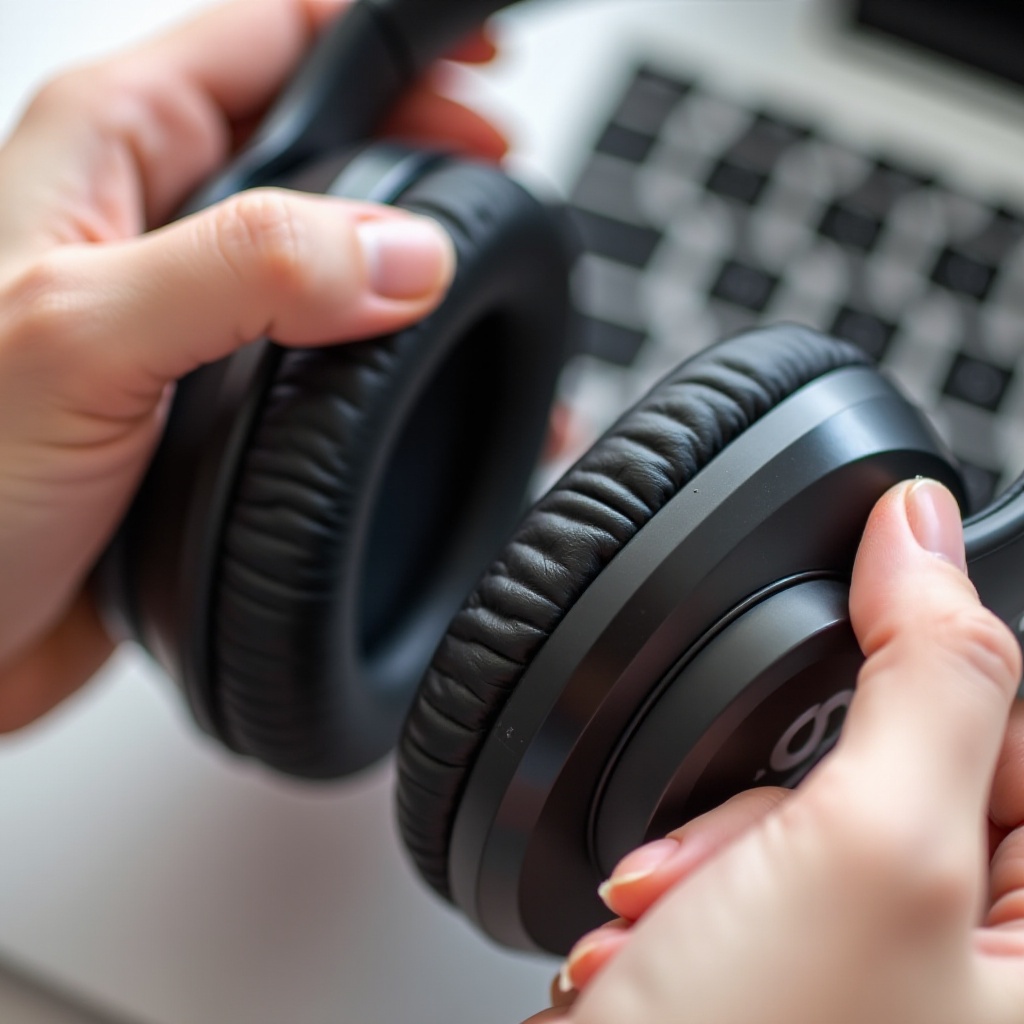
Tips for Optimizing Beats Headphones Use
Maximize your Beats headphones’ capabilities with simple optimization tips. These strategies improve performance and prolong device lifespan.
- Maximizing Battery Life: Keep your headphones charged to avoid unexpected interruptions:
- Maintain volume at moderate levels to conserve battery.
-
Turn off devices when not in use.
-
Keeping Your Headphones Updated: Regular updates enhance performance and address bugs:
- Regularly check for firmware updates through the Beats app.
-
Follow instruction prompts for seamless installations.
-
Proper Care and Maintenance: Regular upkeep keeps your headphones in optimal working condition:
- Clean headphones with a soft, dry cloth.
- Store them in a protective case to prevent damage.
Conclusion
Mastering Beats headphones controls involves understanding both basic and advanced functionalities. Proper control knowledge elevates the listening experience, making daily use more intuitive and enjoyable. By optimizing headphone use through troubleshooting and regular maintenance, you’ll ensure long-term satisfaction and performance.
Frequently Asked Questions
How do I pair my Beats headphones with different devices?
To pair your Beats with a new device, activate Bluetooth pairing mode by holding the power button until the LED flashes. Then select your headphones from the device’s Bluetooth menu.
Can I customize Beats headphones controls for specific functions?
Yes, the Beats app allows you to adjust controls and sound settings personalized to your preference, enhancing usability.
What should I do if my Beats headphone controls stop working?
Try resetting your headphones and checking for software updates. If issues persist, consulting support or the troubleshooting section in this guide can help.