
Introduction
Changing a computer mouse can streamline your computing experience, especially if your old one is causing issues or lacks modern features. Upgrading might seem daunting, but it’s a straightforward process when approached step by step. This guide provides you with everything needed to effortlessly swap your mouse, covering everything from preparation to troubleshooting.

Understanding Different Mouse Types
Having a clear idea of mouse types is fundamental to making an informed decision. These days, the market offers devices tailored to various user preferences.
-
Wired vs Wireless Mice: Wired mice offer steady, lag-free performance, ideal for gamers. Conversely, wireless mice provide flexibility by eliminating cables. However, they depend on batteries and can occasionally suffer from connectivity lapses.
-
Optical vs Laser Technology: Optical mice use LEDs, providing reliable performance on opaque surfaces. Laser mice, using lasers, offer superior precision and function on a broader range of surfaces, including glass.
-
Ergonomic vs Gaming Mice: Ergonomic mice prioritize comfort, supporting your wrist during long sessions. Gaming mice are designed for performance, featuring additional programmable buttons and heightened sensitivity, perfect for intense gaming sessions.
Preparing to Change Your Mouse
Before disconnecting your old mouse, a bit of preparation guarantees a smooth transition. Understanding what to expect ensures a seamless update process without unwelcome surprises.
-
Back Up Current Settings: Save any personalized settings used with your current mouse, such as button configurations or speed settings. This backup will help replicate your setup on the new device.
-
Check System Compatibility: Before purchasing a new mouse, confirm its compatibility with your operating system. Review the packaging or manufacturer’s website to ensure specifications align with your system’s capabilities.
-
Gather Necessary Tools: Ensure you have any required components, such as batteries for wireless models or installation discs for drivers. Having everything ready will prevent installation delays.
Step-by-Step Guide to Changing Your Mouse
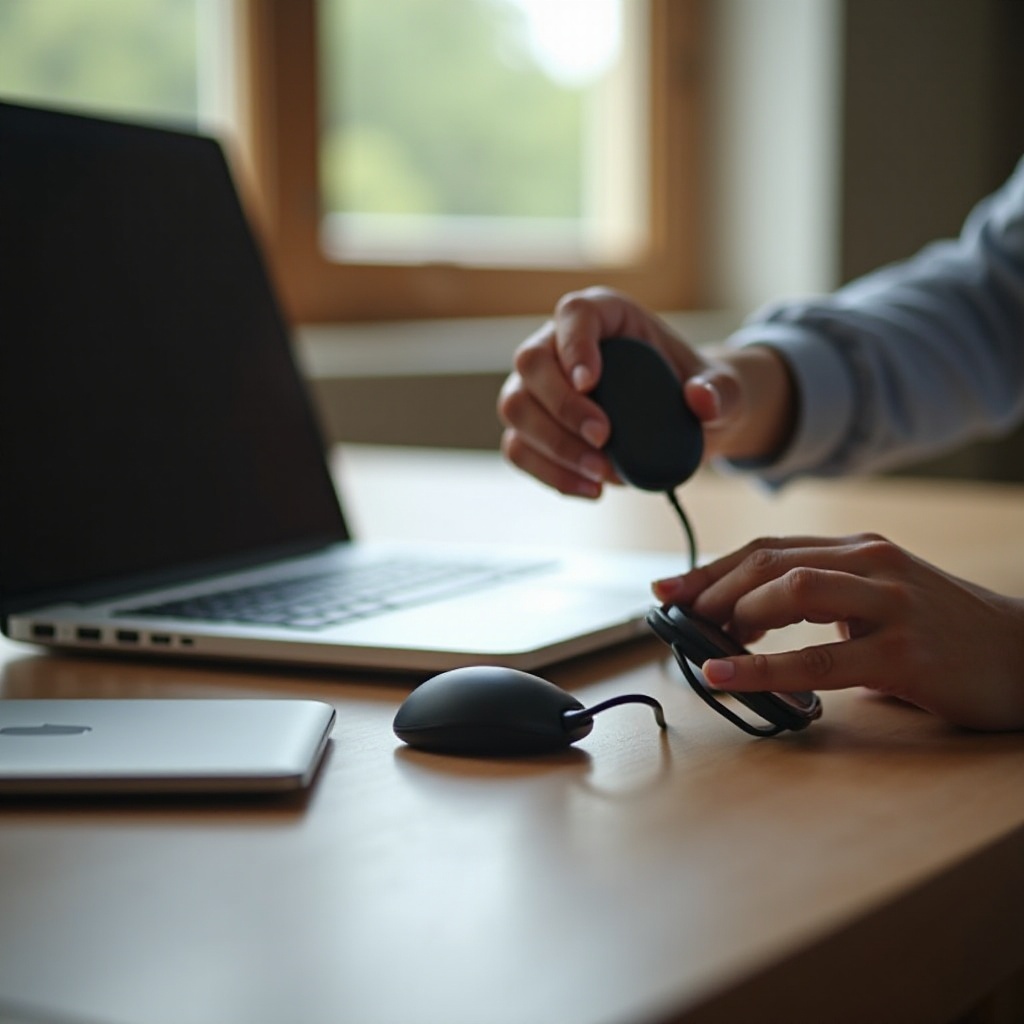
Execute the physical switch efficiently by following these systematic steps. This segment ensures no step is missed, leading to a hassle-free installation.
- Disconnecting the Old Mouse:
- Power down your computer for added safety.
- Detach the USB or PS/2 connection for wired mice, or remove the wireless adapter from the port.
-
Wireless mice users should remove batteries to fully power down.
-
Installing the New Mouse:
-
Connect the mouse via its USB connector or plug in the wireless receiver. For Bluetooth models, initiate pairing through your system’s Bluetooth settings following your mouse’s manual.
-
Installing and Configuring Software:
- Install the new mouse’s drivers from the accompanying disc or download the latest version from the manufacturer’s site.
- Open settings to adjust pointer speed, button layout, and additional features to your liking.
Troubleshooting Common Issues
Issues might crop up, but they’re usually simple to resolve. Tackle potential problems with these targeted solutions:
-
Connection Problems: If unrecognized, verify that all connections are secure. For wireless models, ensure the battery is fresh and the receiver properly seated.
-
Driver Installation Errors: Should driver difficulties arise, downloading drivers directly from the manufacturer can be a more reliable solution than using packaged software.
-
Cursor and Sensitivity Issues: Modify the settings in your control panel to adjust sensitivity and precision. This quick fix often resolves erratic cursor behavior.
Tips for Maintaining Your New Mouse
Maintain your mouse to ensure it performs well over the long term. A few simple practices can significantly extend your mouse’s lifespan.
-
Regular Cleaning: Dust can impair buttons and sensors. A clean, soft cloth can keep your mouse free from grime and performing optimally.
-
Software Updates: Stay updated with the latest software versions to ensure smooth operation and gain access to new features or improvements.
-
Ergonomic Best Practices: Position your mouse correctly to prevent strain during extended sessions. An ergonomically sound setup can prevent discomfort and repetitive strain injuries.
Conclusion
Switching your mouse doesn’t have to be complicated. With the right preparation and steps, you can transition smoothly and enjoy all the benefits a modern mouse has to offer. Keep this guide for future reference, empowering you to handle upgrades with ease.
Frequently Asked Questions
How do I know if my new mouse is compatible with my system?
Check the box or the manufacturer’s website for compatibility information. Ensure your system’s specifications meet the device’s requirements.
How can I resolve sensitivity issues with my new mouse?
Adjust the pointer speed and sensitivity settings within your operating system’s control panel or through the mouse’s software application.
What should I do if my computer doesn’t recognize the new mouse?
Ensure all connections are secure, replace or recharge batteries for wireless mice, and restart your computer. If issues persist, update or reinstall the mouse drivers.