
Introduction
Feeling lost when searching for a downloaded file on your iPhone? You’re not alone in this common struggle. As iPhones become integral to our daily tasks, managing downloads efficiently becomes crucial. This guide will help you navigate and control your iOS downloads, enabling effective file management, and enhancing your overall iPhone experience.
Understanding the iOS File Management System
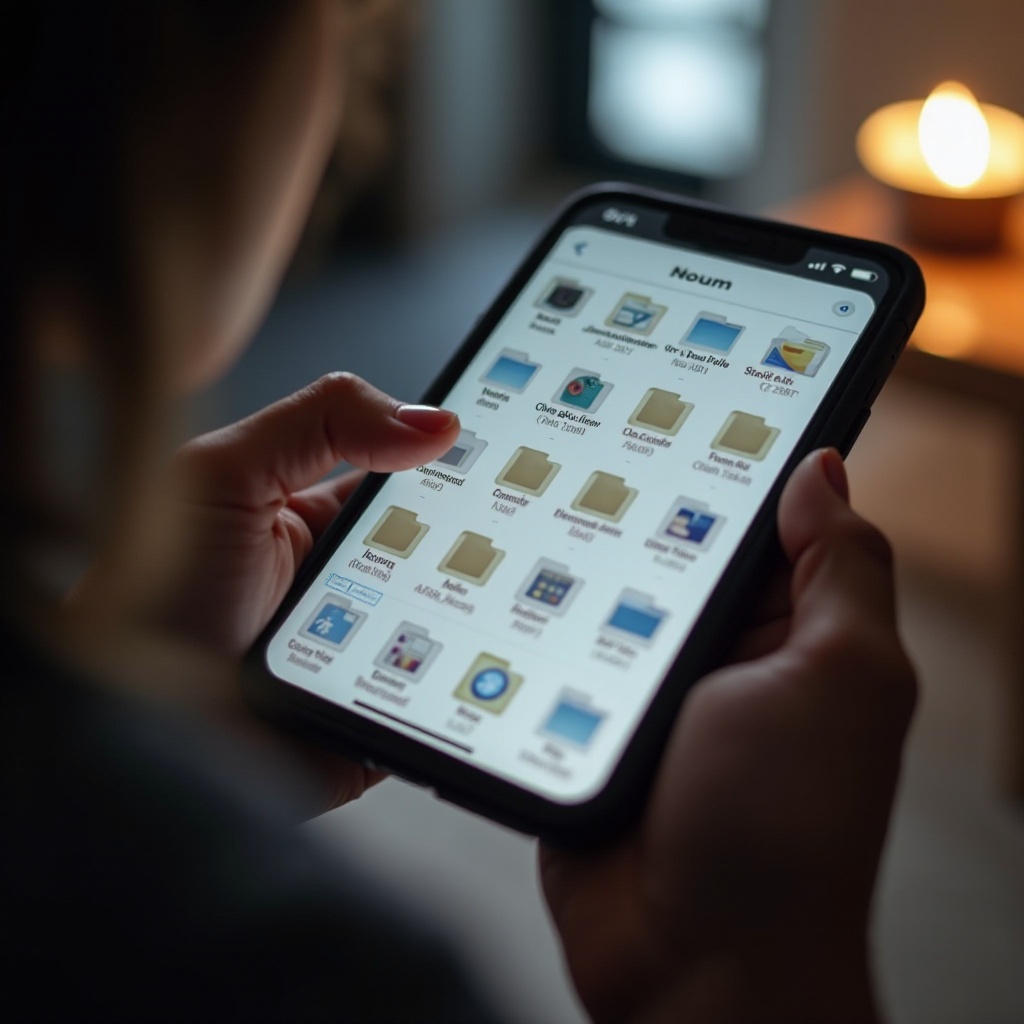
Apple’s iOS offers robust security and performance optimization, which translates into a distinctive file management system. In this system, the Files app reigns supreme. Acting as a centralized hub, the app provides seamless access to both locally stored files and those stored in iCloud.
By familiarizing yourself with the iOS file structure, you gain the power to efficiently manage your downloaded content. Gaining proficiency with the Files app is the first step towards mastering your downloads.
Accessing Your Downloads on iPhone
Now that you understand the basics of iOS’s file system, let’s delve into accessing and locating your downloads. Follow these straightforward steps:
- Launch the Files app on your iPhone.
- Navigate to the ‘Browse’ tab at the app’s bottom.
- Utilize the search bar to type the file’s name you need.
- Explore the ‘Recents’ and ‘Downloads’ folders for files downloaded through Safari.
Occasionally, downloads might be elusive due to app-specific settings. Ensure your app settings allow downloads to be visible and accessible through the Files app.
Common Download Destinations on iPhone
Grasping where your files may reside simplifies the search process. Two primary locations usually house downloads:
- Downloads Folder in Files App: This is a common spot for files downloaded via Safari or Mail.
- App-Specific Folders: Some apps, like Spotify and Netflix, store content in dedicated directories.
Consistently checking these areas aids quick access to your files, despite the varied destinations.
Organizing and Managing Downloads
Effective organization is crucial for seamless access. Here are tips to streamline your download management:
- Create categorized folders within the Files app, such as ‘Projects’, ‘Personal’, ‘Work’.
- Leverage iCloud Drive for file backup and cross-device access.
- Regularly audit and eliminate unnecessary files to conserve space.
Streamlined organization minimizes clutter, fostering an efficient digital workspace.
Enhancing Download Management with Third-Party Apps
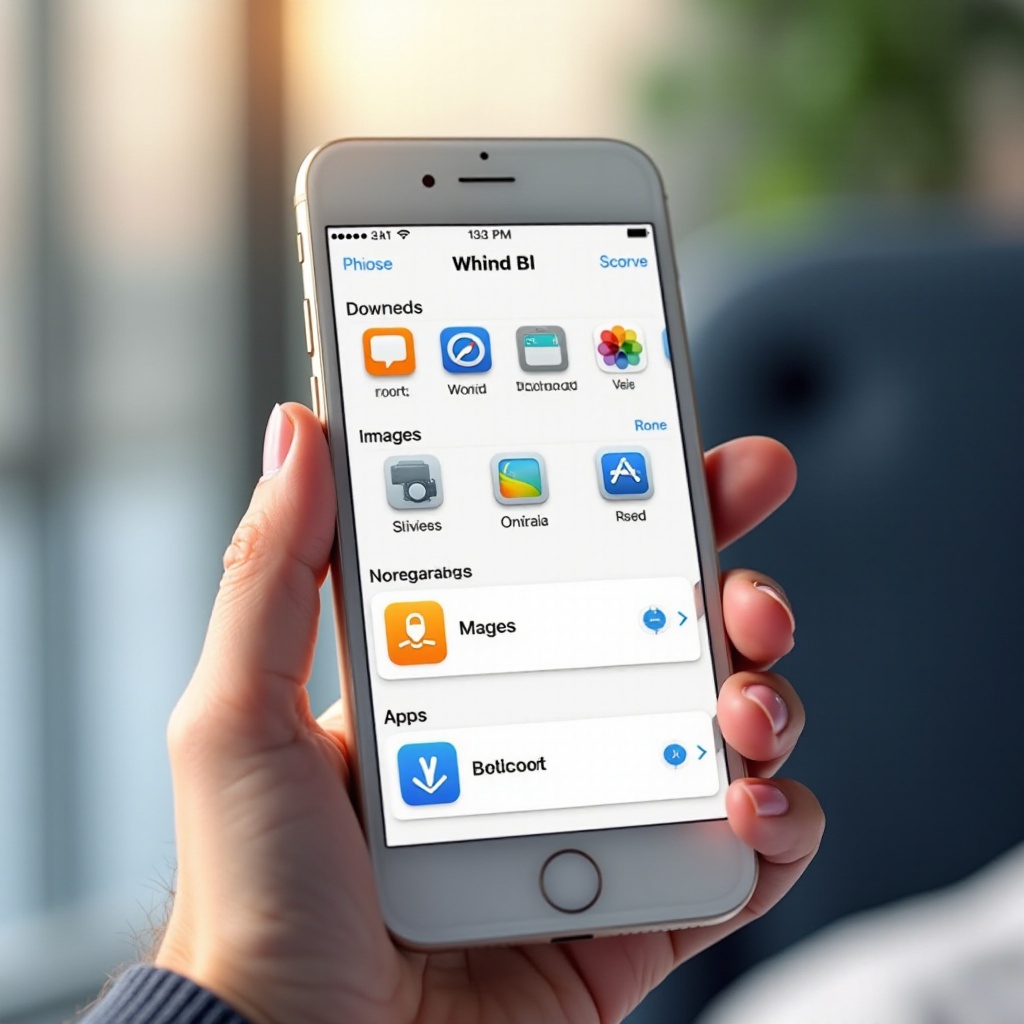
While Apple’s Files app offers solid functionality, third-party options can further improve your file management:
- Documents by Readdle: Provides a robust file management experience akin to desktop functionality.
- Dropbox: Syncs files across devices with robust cloud storage solutions.
- Google Drive: Ensures easy file access across iOS, Android, and more.
Choosing the right app for your needs enriches your file management approach, offering additional features and conveniences.
Troubleshooting Common Download Issues
No system is foolproof, and downloads can pose challenges. Tackle these problems with simple solutions:
- I Can’t Find My Download: Check alternate formats or directories. Return to the download-originating app and verify export options if necessary.
- Storage Issues: Review storage usage in iOS settings, routinely clear unnecessary files, and use automatic iCloud backups to optimize space.
Efficient troubleshooting ensures a smoother download experience, keeping your files and storage under control.
Conclusion
Mastering download storage and management on your iPhone boosts productivity, enhancing your digital organization. With this guide, you are well-equipped to take charge of your files, optimize your storage habits, and make the most of iPhone functionality.
Frequently Asked Questions
How do I find a PDF I downloaded on my iPhone?
Begin by checking the Files app under ‘Recents’ or ‘Downloads’. If another app was used, explore its specific file storage.
Can downloads be saved directly to an external drive?
Direct saving to external drives on iOS isn’t supported. Consider using cloud services for backing up important files externally.
What should I do if I can’t find my download even in the Files app?
Revisit the app from which you downloaded and check export settings. Duplicate download attempts might provide the needed files.