
Introduction
Siri’s voice alerts can sometimes break your focus with unnecessary interruptions. Though it can be useful, many users prefer not to have their notifications read aloud in certain situations. This guide aims to help you turn off Siri’s notification announcements on your iPhone, making your interaction with the device more tailored to your preferences.
Understanding Siri’s Notification Announcements
Siri’s announcement feature is designed to provide on-the-go updates without needing to physically check your phone. For some, it’s a handy way to receive messages while driving or working out. However, understanding its functionality is key to deciding whether you want it turned on or off.
Why You Might Want to Disable Siri’s Notifications
While having updates read aloud can be convenient, there are substantial reasons one might choose to disable this feature. For instance, during a meeting or when deeply focused on a task, alerted voice interruptions can break concentration. Furthermore, if privacy is a concern, overheard announcements can be troubling. Tailoring your notification settings can help maintain a peaceful and private environment.
Step-by-Step Guide to Turn Off Siri Notification Reading
You can manage Siri’s notification announcements easily by adjusting your settings:
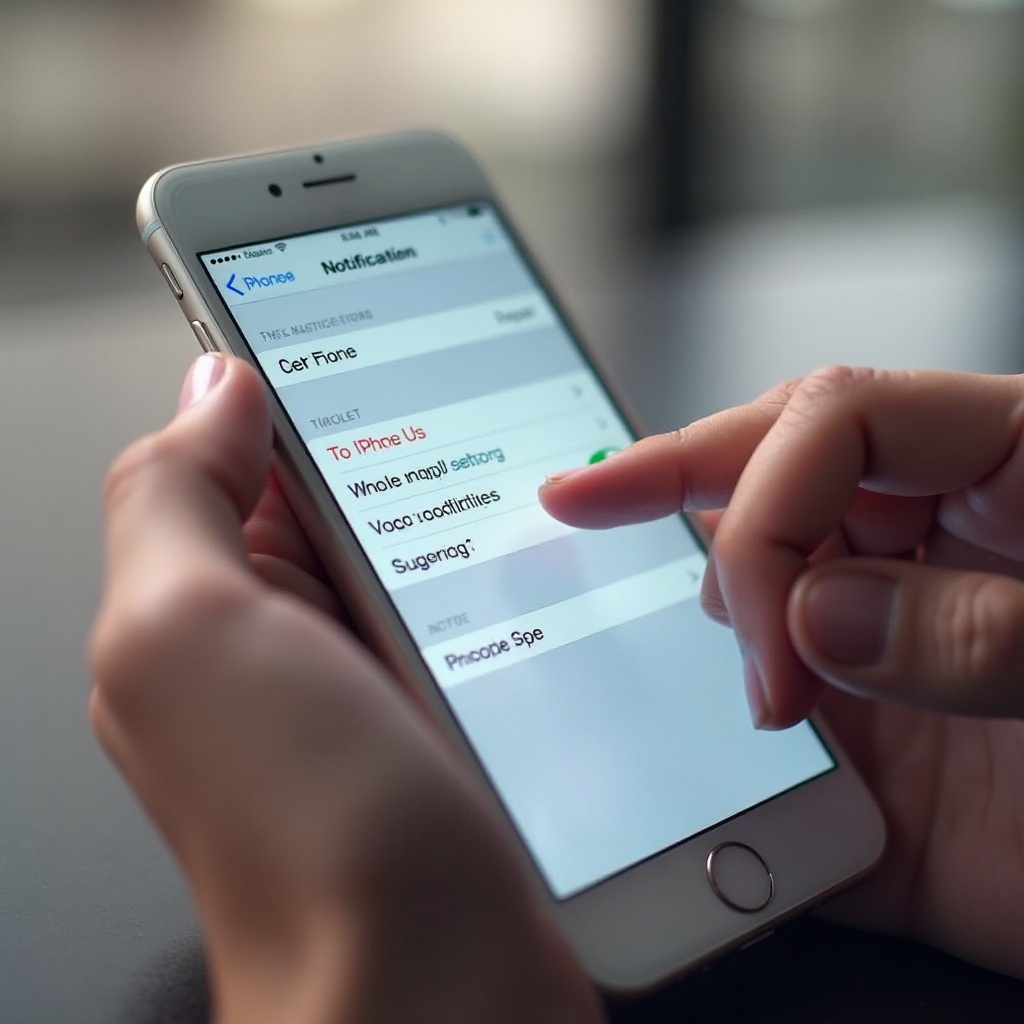
- Open the ‘Settings’ app on your iPhone.
- Scroll and tap on ‘Notifications.
- Within ‘Notifications,’ select ‘Announce Notifications.
- To stop all apps from announcing notifications, toggle the ‘Announce Notifications’ switch off.
- If you prefer selective announcements, go under ‘Announce Notifications From,’ and toggle individual apps off as desired.
This targeted approach ensures you only hear what matters most.
Alternative Methods to Manage Notifications
For just the right balance, consider using these methods to optimize your notifications:
- Activate the ‘Do Not Disturb’ mode to silence all alerts during sensitive times. Access it via the Control Center or under ‘Focus’ in ‘Settings.
- Customize notifications per app. In ‘Settings,’ head to ‘Notifications,’ select a specific app, and set the desired alert style, including turning them off entirely if needed.
This enables a comprehensive notification management strategy, preventing unwanted interruptions at crucial moments.
Troubleshooting Common Issues
Occasionally, users might face persistent announcement issues despite toggling settings. Try these solutions if you encounter problems:
- Ensure your iPhone is running the latest software by going to ‘Settings,’ tapping ‘General,’ and selecting ‘Software Update.
- If Siri continues to misbehave, consider resetting your settings. Go to ‘Settings,’ select ‘General,’ then ‘Reset,’ and choose ‘Reset All Settings.
- For recurring issues that resist in-house troubleshooting, reaching out to Apple Support might offer a resolution.
Being proactive with these measures ensures a smooth, efficient experience.
Tips for Personalizing Your Notification Experience
Curating your notification practices isn’t just about silencing messages but enhancing usefulness. Here are ways to customize:
- Use Focus modes to schedule silenced periods and restrict notifications to essentials.
- Enable announcements only when wearing headphones, allowing private audio notifications if needed.
- Periodically revisit your settings as preferences and notification patterns evolve with time.
These adjustments can harmonize your daily tasks with necessary alerts, streamlining your overall iPhone usage.
Conclusion
Managing how Siri announces notifications is a straightforward process that can greatly enhance your iPhone experience. By customizing settings to fit your lifestyle, you ensure that technology aids rather than interrupts your day. Enjoy the autonomy of deciding what caliber of notifications you allow, encouraging a balanced and disturbance-free digital environment.
Frequently Asked Questions
How can I stop Siri from reading messages on AirPods?
To prevent Siri from reading messages aloud on AirPods, go to ‘Settings,’ select ‘Notifications,’ then ‘Announce Messages,’ and toggle off for AirPods.
Why does Siri keep announcing my notifications even after I’ve turned it off?
Ensure that all app notifications are disabled within ‘Announce Notifications.’ Also, check for pending software updates, as outdated systems might not register the changes.
Can I set Siri to announce notifications only at certain times?
Yes, you can use Focus modes to selectively allow notifications at specific times, providing a balanced blend of accessibility and privacy.