
Introduction
Apple Music’s expansive song library enriches the auditory experience for millions. The shuffle feature, integral to dynamic playback, adds an element of surprise and discovery to your listening sessions. Knowing how to shuffle and optimize this feature transforms casual listening into an engaging journey, bringing fresh melodies to once-familiar tracks.
Understanding Apple Music’s Interface
A seamless shuffle experience starts with mastering Apple Music’s interface. The effortless navigation enhances user enjoyment, offering features that personalize and enrich playback.
Navigating the Home Screen
Apple Music’s home screen provides users with easy access to their favorite tunes. The streamlined design showcases personalized recommendations, recent plays, and new releases, inviting exploration with every tap. Knowing where to find these elements lets you jump straight into your shuffle sessions without missing a beat.
Overview of Library and Playlist Sections
Within the Library section, users can find all their saved music. This comprehensive collection is the backbone of any shuffle session, where options to browse playlists or individual tracks reside. By navigating the playlist section, users can tailor their experience, arranging tracks based on mood or theme. Mastering these sections ensures a well-rounded musical adventure.
How to Shuffle Songs in Apple Music on Your Phone
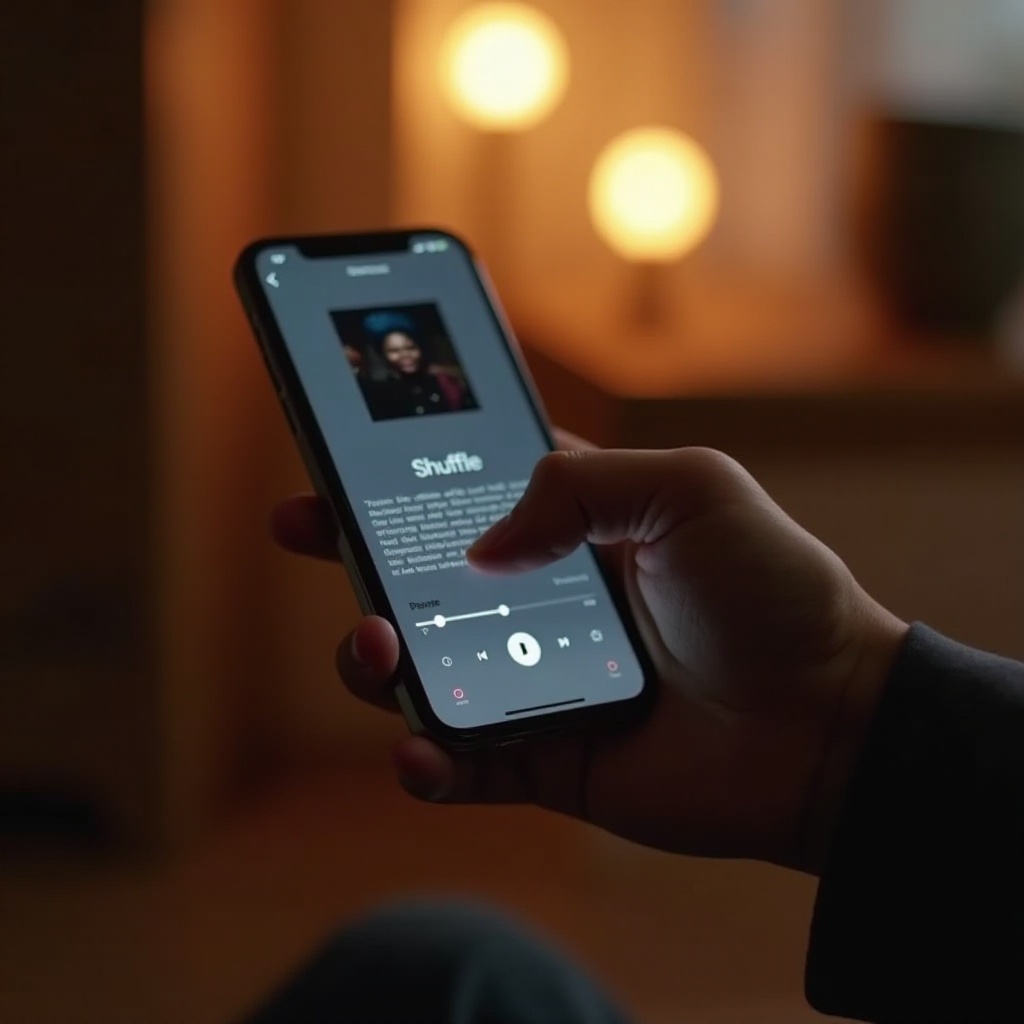
To make the most of your listening sessions, shuffling with purpose can breathe new life into your playlist. Following these steps maximizes your experience:
Shuffling Your Entire Music Library
- Launch the Apple Music app and head to the Library.
- Select ‘Songs’ to view your complete collection.
- Tap the ‘Shuffle’ button to begin playing tracks in random order.
This fundamental action is your gateway to an unpredictable music experience.
Shuffling a Specific Playlist
- Access the ‘Playlists’ tab within your Library.
- Choose a playlist to focus your shuffle.
- Hit ‘Shuffle’ at the top, diversifying your listening.
This targeted approach revitalizes beloved or neglected playlists by uncovering overlooked gems.
Shuffling Albums and Artists
- Explore the ‘Albums’ section in your Library.
- Select an album for shuffle, inviting a mix of the familiar and forgotten.
- For an artist-centric session, tap ‘Artists’, pick a name, and start shuffling their tracks.
These methods keep your sessions lively, avoiding predictable patterns.
Leveraging Siri for Hands-Free Shuffle
Siri’s abilities extend into Apple Music, offering hands-free control over your shuffle settings. Ideal for moments where multitasking is key, Siri helps manage your music with simple commands.
Setting Up Siri for Music Commands
Start by ensuring Siri is enabled in your settings. Once ready, familiarize yourself with voice commands like ‘Hey Siri, shuffle my playlist’ for effortless playback changes.
Using Voice Commands to Activate Shuffle
Create variability in playback with Siri’s spontaneous shuffle commands, perfect for enhancing any task without pausing productivity. With just a request, your music adapts, providing endless entertainment.
Enhancing Your Listening Experience
Beyond the basics, Apple Music offers advanced features to push your experience further. By taking control through personalization and smart tools, your auditory canvas becomes a masterpiece.
Creating Customized Playlists for Effective Shuffling
Curate playlists to reflect distinct moods or themes. Break down selections by genre, mood, or activity. This personalized approach adds layers to your shuffle, providing familiarity alongside new discoveries.
Utilizing Smart Shuffle Features
Smart Shuffle introduces AI-driven song recommendations. Dive into these features for nuanced shifts in your playlist, expanding horizons with perfectly suited tracks.
Troubleshooting Shuffle Issues
While the shuffle feature is generally reliable, sometimes issues may arise. Addressing these quickly ensures uninterrupted enjoyment.
What to Do When Shuffle Isn’t Working
- Restart Apple Music to refresh settings.
- Confirm internet connectivity if streaming live.
- Visit the App Store for app updates, ensuring optimal operation.
Most problems dissipate with these straightforward solutions.
Ensuring App and OS Compatibility
A seamless Apple Music experience often depends on software health. Regular updates keep systems running smoothly, bridging compatibility between your device and music app features.
Conclusion
Understanding how to use the shuffle feature elevates a basic playlist to a dynamic listening experience, filled with discovery and variety. By mastering these skills in Apple Music, you unlock a world of auditory potential. Enjoy diving into variations of your favorite tracks, and let the music surprise you.
Frequently Asked Questions
How do I enable shuffle mode on Apple Music with my voice?
Simply activate Siri by saying, ‘Hey Siri,’ followed by ‘shuffle my music’ or ‘shuffle my playlist’ for hands-free control.
Can I shuffle downloaded songs offline on Apple Music?
Yes, Apple Music allows you to shuffle downloaded songs offline, ensuring your music mixes remain uninterrupted by connectivity issues.
Why is the shuffle feature not working on my Apple Music app?
If the shuffle feature isn’t operating, try restarting the app, checking internet connections, or updating the app to resolve most issues.