
Introduction
Voicemail still matters, even with constant texting and messaging apps. When you miss a call from a client, a recruiter, or a family member, a working voicemail ensures you do not lose important information. If your inbox is not set up, callers may not be able to leave a message at all, or they may hear a generic, unprofessional recording.
Many iPhone users delay voicemail setup because it feels confusing or buried in menus. The good news is that the process is simple once you know where to tap. You only need your iPhone, an active phone plan, and a few minutes to configure everything.
This guide explains how to set up your iPhone voicemail step by step, create a custom greeting, use Visual Voicemail and voicemail transcription, manage your inbox, reset your password, and fix common problems. By the end, you will have a clean, reliable voicemail system that matches how you work and communicate.

What You Need Before Setting Up iPhone Voicemail
Before you start tapping around the Phone app, take a moment to confirm that your iPhone and phone plan can actually use voicemail and, ideally, Visual Voicemail. A few quick checks now will save time and frustration later.
These checks include your device software and your carrier plan. Once both are in good shape, the actual setup inside the Phone app becomes much smoother.
Check Your iPhone Model and iOS Version
Most recent iPhone models support voicemail and Visual Voicemail, but features work best when your software is up to date. To check:
- Open Settings.
- Tap General.
- Tap About to see your model name.
- Go back and tap Software Update to check for updates.
If you see an update available, plug in your phone, connect to Wi‑Fi, and install it. Updated software often includes carrier improvements that affect voicemail performance and reliability.
Confirm Voicemail Is Included in Your Phone Plan
Voicemail is usually included by default with major carriers, but not always on budget or data‑only plans. To confirm:
- Open your carrier app and check your plan features.
- Log in to your carrier account on the web and review your line details.
- Call customer service and ask whether voicemail and Visual Voicemail are enabled on your line.
If voicemail is not active, ask the carrier to turn it on. You generally cannot complete setup on your iPhone until the carrier side is ready. Once you know voicemail is available and your iOS is current, you are ready to walk through the actual setup process.
How to Set Up Basic Voicemail on Your iPhone
After you verify your plan and software, you can configure your basic voicemail. This creates your voicemail password and sets up your first greeting. All of this happens inside the Phone app, and you only need a few steps.
Completing this section gives you a working voicemail box so callers can finally leave messages when you miss calls.
Open the Phone App and Go to the Voicemail Tab
Follow these steps to reach voicemail settings:
- Tap the green Phone app on your Home Screen or in the Dock.
- Look at the bottom right and tap Voicemail.
You will see one of two things:
- A Set Up Now button, which means voicemail is ready to configure.
- A Call Voicemail button, which usually means the carrier has not activated Visual Voicemail yet.
If you see Call Voicemail, you can still use basic voicemail by calling your carrier voicemail number, but for full Visual Voicemail you will need your carrier to enable it.
Create and Confirm Your Voicemail Password
If you see Set Up Now:
- Tap Set Up Now.
- Create a numeric voicemail password (usually 4–6 digits).
- Tap Done.
- Re-enter the same password to confirm.
- Tap Done again.
Choose a password you can remember but others cannot easily guess, especially if your iPhone is for business. This password controls access to your voicemail from your phone and sometimes from other devices or carrier numbers.
Choose Default or Custom Voicemail Greeting
Next, your iPhone will ask you to select a greeting:
- Default: A generic, carrier‑provided greeting.
- Custom: A greeting you record in your own voice.
To choose:
- On the greeting screen, tap Default to preview the system greeting.
- Tap Custom if you want to record your own message.
- If you choose Custom, tap Record, speak clearly, then tap Stop and Play to review.
- Tap Save to apply your greeting.
You can change this greeting at any time, so do not worry if it is not perfect yet. Once saved, your basic voicemail is set up, and callers can now leave messages when you miss calls.
How to Record a Custom Voicemail Greeting
A custom greeting sounds more professional and personal than the default robotic voice. It tells callers they reached the right person and gives them confidence to leave a message.
Now that your basic voicemail is active, refining your greeting is the next step to making your voicemail match your personal or professional brand.
Decide on a Professional or Personal Greeting Style
Your greeting should match how you use your phone:
- Professional use (clients, customers, hiring managers):
- Include your name, company (if relevant), and a polite request for details.
- Example: ‘Hi, you have reached Sarah Lee at Bright Marketing. I cannot take your call right now. Please leave your name, number, and a brief message, and I will return your call as soon as possible.’
- Personal use (friends, family, mixed use):
- Keep it friendly but clear.
- Example: ‘Hi, this is Jordan. Sorry I missed your call. Leave a message and I will get back to you soon.’
Think about the impression you want to leave and the type of calls you usually receive. A short, clear script is better than a long, rambling message.
Step-by-Step: Recording a New Greeting
To update or create a new custom greeting:
- Open the Phone app.
- Tap the Voicemail tab.
- Tap Greeting in the top‑left corner.
- Select Custom.
- Tap Record, then speak your message clearly into the microphone.
- Tap Stop when you finish.
- Tap Play to listen.
- If you are not happy with it, tap Record again to re‑record.
- Once satisfied, tap Save.
Your new greeting will play for all callers immediately. If your schedule or role changes, repeat these steps to update the recording.
Tips for Clear and Polished Audio
To make your greeting easy to understand:
- Record in a quiet room with minimal background noise.
- Hold the phone near your mouth, but not too close.
- Speak slowly and clearly.
- Smile while you talk; it makes your voice sound more welcoming.
These small details help your voicemail sound professional and easy to follow.
How to Use Visual Voicemail on iPhone
Basic voicemail works, but Visual Voicemail makes it much easier to manage messages. Instead of dialing a number and listening to prompts, you see a list of messages on your screen and tap the one you want.
Once your greeting is set, learning Visual Voicemail will help you handle messages more quickly and stay organized, especially if you miss several calls each day.
What Visual Voicemail Is and How It Works
Visual Voicemail displays your messages like emails:
- Each voicemail appears with the caller number or name, date, and length.
- You tap a message to play it.
- You can scrub through the audio, pause, or replay easily.
This feature is built into the iPhone Phone app for supported carriers, so you do not need a separate app. It saves time and lets you skip long prompts or unwanted messages.
Check If Visual Voicemail Is Available With Your Carrier
Most major U.S. carriers support Visual Voicemail, but not every plan includes it. To check:
- Open the Phone app and tap Voicemail.
- If you see a list layout with messages, you already have Visual Voicemail.
- If you only see Call Voicemail, your carrier may not support it on your plan.
If it is not available:
- Visit your carrier website or app and look for Visual Voicemail details.
- Contact customer service and ask if they can enable it for your line.
Once enabled by your carrier, restart your iPhone and go back to the Voicemail tab. The Visual Voicemail interface should appear.
Managing Messages in the Visual Voicemail Inbox
Using Visual Voicemail is straightforward:
- Play a message: Tap the voicemail, then tap the Play button.
- Call back: Tap the Call button under the message.
- Send a text: Tap Message to reply via SMS or iMessage.
- Delete: Tap Delete to remove a message.
- Undelete: Scroll down to Deleted Messages to recover a recent deletion.
This interface gives you fast control over your voicemail, so you can quickly act on important messages and clear out the rest.
Using Voicemail Transcription on iPhone
Voicemail transcription is a helpful feature that converts spoken messages into text, so you can read your voicemail instead of listening to it. It is especially useful when you are in a meeting, on public transport, or somewhere noisy.
After you get comfortable with Visual Voicemail, transcription becomes a natural extension that makes scanning and saving information even easier.
Viewing and Reading Your Voicemail Transcriptions
To see transcriptions:
- Open Phone → Voicemail.
- Tap a message that has been recorded.
- If transcription is available, you will see text appear under the playback controls.
You can:
- Read the text to get the main idea without playing audio.
- Scroll to see the entire message.
- Tap Play if you want to hear the original recording as well.
Transcriptions may not be perfect, especially with accents or background noise, but they usually capture the important details.
Copying, Sharing, and Searching Transcribed Voicemails
Transcriptions can also help you keep records and find information later:
- Copy text: Long‑press the transcription and tap Copy.
- Share: Paste the text into Notes, Messages, email, or your task app.
- Search: Use your notes app or email search to find names, numbers, or keywords from voicemails you have saved.
This makes voicemail more useful for follow‑ups, reminders, and documentation.
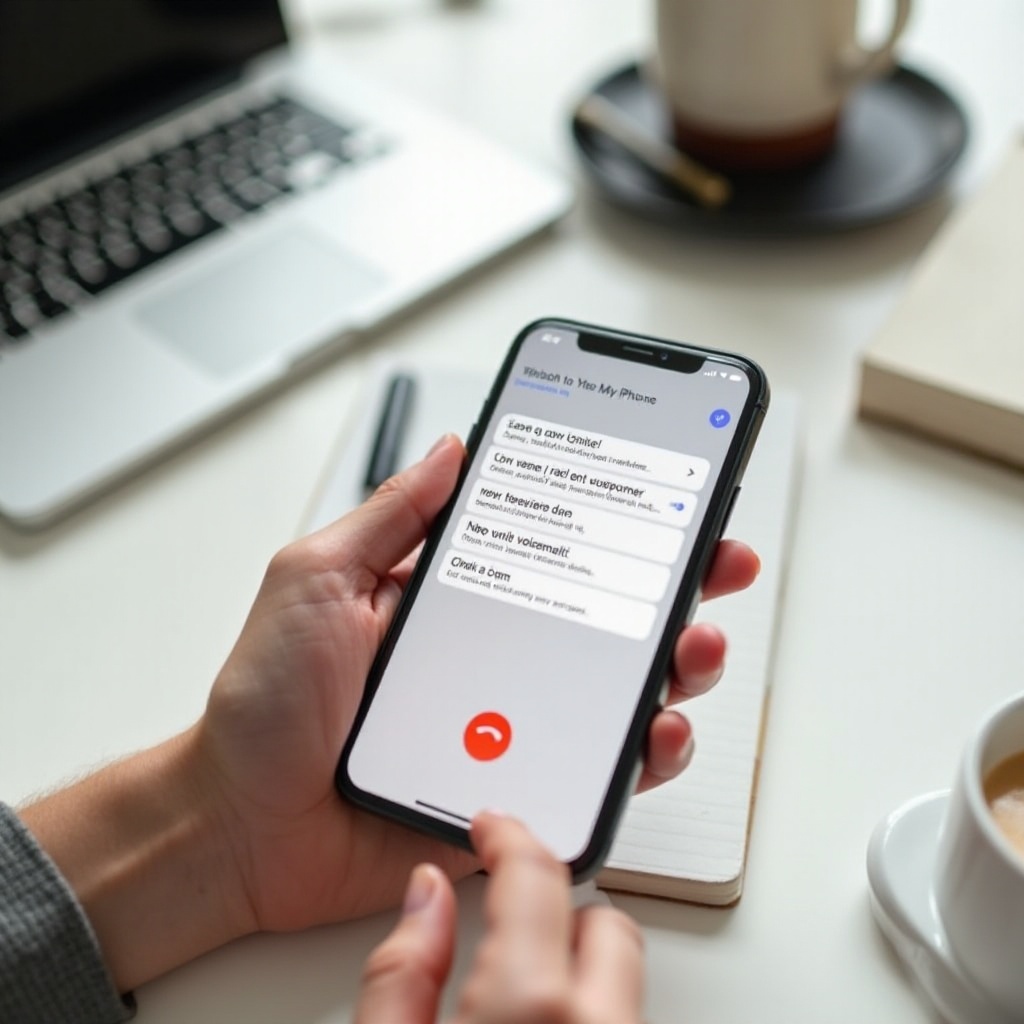
How to Manage and Organize Your Voicemail Messages
Once your voicemail is working and transcription is active, you need a simple routine to keep the inbox under control. A clean voicemail box prevents missed messages and avoids the ‘mailbox is full’ warning callers sometimes hear.
Good management habits here also make it easier to find key messages later, especially for work or legal matters.
Play, Save, and Delete Voicemails
To manage each message:
- Listen: Tap the voicemail, then Play.
- Save important messages by leaving them in the main list or exporting them (for legal or sentimental messages, consider using a screen recording or carrier tools if allowed).
- Delete unneeded messages by tapping Delete.
Aim to review new voicemails daily and clear anything you do not need. This habit keeps your inbox focused on active conversations.
Recovering Recently Deleted Voicemail Messages
If you delete a voicemail by mistake:
- Open Phone → Voicemail.
- Scroll down and tap Deleted Messages.
- Tap the message you want to restore.
- Tap Undelete or Recover if shown.
Deleted messages stay here for a limited time, depending on your carrier, so restore them as soon as you notice the mistake.
Keeping Your Voicemail Inbox from Getting Full
To avoid a full inbox:
- Delete spam and robocall messages immediately.
- Clear old messages at least once a week.
- Save critical voicemails outside the inbox if you need them long‑term.
A light, organized inbox ensures new callers can always leave messages.
How to Change or Reset Your Voicemail Password
Your voicemail password protects your messages, especially when you access voicemail from another phone or over a carrier line. Sometimes you need to change it for security or because you forgot it.
After organizing your inbox, updating your password is a smart way to keep your voicemail secure and aligned with your overall security habits.
Changing Your Password from the iPhone Settings
If you know your current password and want to change it:
- Open Settings.
- Scroll down and tap Phone.
- Tap Change Voicemail Password.
- Enter your new numeric password.
- Tap Done.
- Enter it again to confirm, then tap Done.
Your new password takes effect immediately. Update any notes or password manager entries you use.
Resetting a Forgotten Voicemail Password Through Your Carrier
If you forgot your voicemail password and cannot access voicemail:
- Open your carrier app and look for a Reset Voicemail Password option.
- Or log in to your carrier website and search for voicemail settings.
- If you cannot find it, call customer support and ask them to reset your voicemail password.
After they reset it, you may be prompted on your iPhone to create a new password.
Best Practices for a Secure Voicemail Password
To keep your voicemail secure:
- Avoid simple codes like 0000 or 1234.
- Do not use your birth year or phone number.
- Use a random, unique code and store it in a trusted password manager if needed.
This reduces the risk of unauthorized access to your messages.
Common iPhone Voicemail Problems and Quick Fixes
Even after a proper setup, voicemail can act up. You might see error messages, miss notifications, or notice that Visual Voicemail is not loading correctly. Most issues have simple fixes you can try yourself.
Understanding these fixes helps you keep voicemail reliable over time, instead of only thinking about it the first day you set it up.
‘Voicemail Unavailable’ or ‘Call Voicemail’ Message
If you see ‘Voicemail Unavailable’ or only a Call Voicemail button:
- Make sure you have a cellular signal (not just Wi‑Fi).
- Restart your iPhone.
- Go to Settings → General → About and check for a Carrier Settings Update.
- If prompted, tap Update.
If the problem persists:
- Contact your carrier and ask them to reset your voicemail or Visual Voicemail.
- After they do, restart your phone and open the Voicemail tab again.
Not Receiving New Voicemail Notifications
If callers say they left messages but you do not see alerts:
- Open Settings → Notifications → Phone.
- Make sure Allow Notifications is on.
- Enable Lock Screen, Notification Center, and Banners.
- Check that Sounds are on and a tone is selected.
- Verify that Focus or Do Not Disturb is not blocking calls and notifications.
Then, test by calling your iPhone from another phone and leaving a voicemail. Check if the notification appears.
When to Update Carrier Settings, Reset Network, or Contact Support
If voicemail still misbehaves:
- Update carrier settings:
- Go to Settings → General → About.
- If a prompt appears, tap Update.
- Reset Network Settings (this clears Wi‑Fi passwords and network preferences, but not your data):
- Go to Settings → General → Transfer or Reset iPhone.
- Tap Reset → Reset Network Settings.
- Enter your passcode and confirm.
If nothing works, contact:
- Your carrier to check your voicemail service and reset it on their side.
- Apple Support if your carrier confirms everything is correct but the Phone app still fails.
Tips for a Professional-Sounding iPhone Voicemail Greeting
Your greeting is often the first impression you give to recruiters, clients, or colleagues. A clear, confident message shows that you are organized and easy to reach, even when you miss a call.
Now that your voicemail functions well and common issues are covered, refining the tone of your greeting helps you make the most of every missed call.
Key Elements of a Clear and Confident Greeting
A strong professional greeting usually includes:
- Your name, and optionally your company or role.
- A short apology for missing the call.
- A request for the caller name, number, and reason for calling.
- A simple promise to return the call.
Example:
Hi, you have reached Alex Rivera at Northside Tech. I am unable to take your call right now. Please leave your name, number, and a brief message, and I will get back to you as soon as possible.
Keep it under 20 seconds so callers do not lose patience.
Example Scripts for Work, Job Search, and Personal Use
Here are a few quick templates:
- Job search:
‘Hello, this is Taylor Morgan. I am not available right now, but your call is important to me. Please leave your name, number, and a brief message, and I will return your call as soon as I can. - Small business:
‘Thank you for calling Greenway Landscaping. We are unable to answer your call at the moment. Please leave your name, phone number, and service request, and we will get back to you during our next business hours. - Personal:
‘Hi, this is Chris. I cannot get to the phone right now. Leave a message and I will call you back soon.
Use one of these as a starting point and customize names and details.
When and How Often to Update Your Greeting
Update your greeting when:
- You change jobs or companies.
- You go on vacation or leave with limited availability.
- Your business hours or contact information change.
Regular updates keep callers informed and reduce confusion or missed expectations.
Conclusion
Setting up your iPhone voicemail only takes a few minutes, but it makes a big difference in how you handle missed calls. You have learned how to set up your voicemail password, record a custom greeting, use Visual Voicemail and transcription, organize your messages, reset your password, and fix common issues.
Take a moment now to test your setup. Call your number from another phone, let it go to voicemail, leave a message, and make sure everything works as expected. If something seems off, revisit the relevant section and adjust your settings.
Once your voicemail is configured and your greeting sounds clear and professional, you can feel confident that important calls will not slip through the cracks, even when you cannot pick up right away.
Frequently Asked Questions
Do I need data or Wi-Fi to set up and use iPhone voicemail?
You do not need Wi-Fi to set up basic iPhone voicemail, but you do need a cellular connection because voicemail runs through your carrier. Visual Voicemail and transcription usually require mobile data or Wi-Fi to download and display messages. If you have poor reception, move to a better signal area before setting up or checking voicemail.
Can I turn off voicemail on my iPhone if I do not want to use it?
You cannot disable voicemail completely from iOS settings. Voicemail is controlled by your carrier. To turn it off, contact your carrier and ask them to disable voicemail on your line. Some carriers let you extend the ring time so long that most callers hang up before voicemail picks up, but full removal always happens on the carrier side.
Will my voicemail change if I switch carriers or get a new iPhone?
When you switch carriers, your voicemail usually resets because each carrier runs its own voicemail system. You will often need to set it up again and record a new greeting. If you get a new iPhone but keep the same carrier and number, your voicemail typically stays the same, though you might be prompted to enter your password again or confirm Visual Voicemail after activating the new device.