
Introduction
Controlling phone notifications can greatly enhance your daily life. While ring notifications are crucial for keeping up with important alerts, they can become intrusive during meetings, while watching a movie, or spending time with loved ones. In this guide, we explore effective strategies to manage these notifications.
We’ll detail how to silence notifications on both Android and iPhone platforms, explore advanced techniques, and recommend third-party apps to further aid your notification management goals.
Understanding Phone Notifications and Their Impact
Smartphones keep us constantly informed through notifications about messages, app updates, and social media. Yet this flood of information can interrupt our focus and intrude upon personal time if not managed well.
Understanding the types of notifications and effectively managing them will significantly improve your time management and help maintain your focus. Now, let’s see how Android users can take charge of their notifications.
How to Mute Ring Notifications on Android
On Android devices, you have considerable flexibility in tailoring notifications to your needs. Here’s how you can mute those ring notifications:
-
Access Settings: Begin by opening the ‘Settings’ app on your smartphone.
-
Locate ‘Sound & Vibration’: Scroll to find ‘Sound & Vibration’ or a similar setting, and tap on it.
-
Adjust Ringtone Volume: You can slide the ringtone volume to zero or choose the ‘Vibrate Only’ mode.
-
Manage Individual App Notifications: Within ‘App Notifications,’ you can toggle off notifications for each app.
-
Activate Silent Mode: Quickly switch your phone to silent by pressing volume buttons and selecting the silent icon if available.
After optimizing your Android settings, let’s shift attention to iPhones to ensure users of both platforms can control interruptions effectively.
How to Mute Ring Notifications on iPhone
For those with iPhones, here’s how to manage your notification sounds:
-
Open ‘Settings’: Find and tap the ‘Settings’ icon on your iPhone.
-
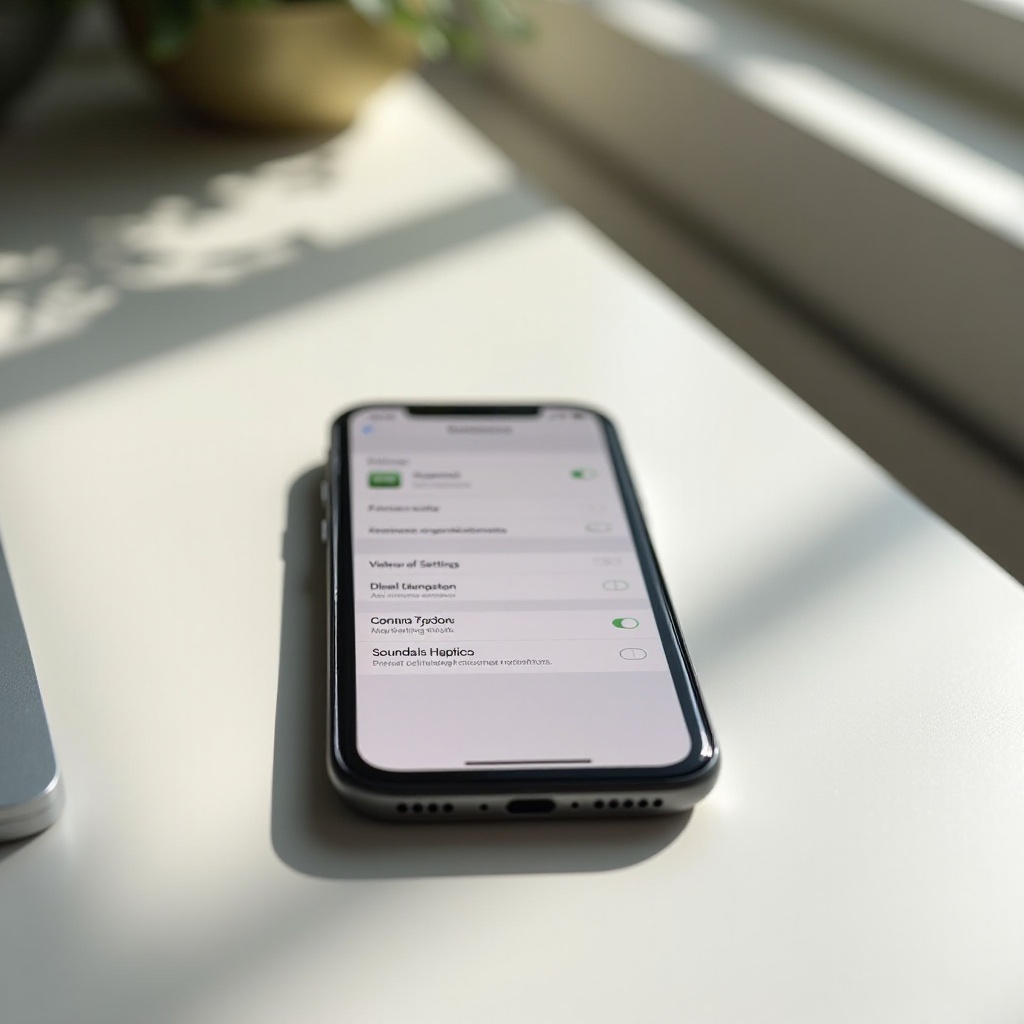
Navigate to ‘Sounds & Haptics’: Select ‘Sounds & Haptics’ to access sound management.
-
Lower Ringtone Volume: Drag the Ringtone slider down to minimize or eliminate sound.
-
Personalize App Notification Settings: Return to the main menu, select ‘Notifications,’ and manage app alerts individually.
-
Use Focus Mode: Employ Focus Modes found under ‘Settings’ > ‘Focus’ to create personalized notifications silencing times tailored to moments like work or rest times.
Following these steps will simplify your experience, marrying your need for alerts with the peace of reduced interruptions. For those seeking refined control, consider advanced strategies.
Advanced Techniques for Notification Management
To enhance your notification management beyond basic muting, explore these advanced options available on both Android and iPhone:
-
Activate Do Not Disturb Mode: Silence all alerts excluding those from important contacts. This feature can be toggled on quickly from your notification panel or found under ‘Settings.’
-
Setup Automatic Schedules: Both iPhone and Android allow you to configure when your device should enter ‘Do Not Disturb’ mode autonomously—ideal for work hours or overnight suppression.
Implementing these sophisticated techniques ensures that your phone provides you with the right notifications at the right time. Further enhance this experience by utilizing specially designed apps.
Best Third-Party Apps for Notification Control
For additional functionality beyond native settings, third-party apps can help manage notifications with precision:
-
Notification Blocker & Cleaner (Android): This app organizes your notification tray, blocking unnecessary alerts.
-
Mute It! (For both iPhone and Android): Offers automated rules for muting based on location, calendar, or Wi-Fi connection.
-
Pushbullet: Connects seamlessly with your desktop, allowing PC control over phone notifications.
These apps provide robust options for taking control of your device’s notification ecosystem. Always review app permissions and choose reputable software to maintain privacy.
Conclusion
Mastering the art of notification control on your smartphone can eliminate distractions and streamline your communication. Whether you’re an Android or iPhone user, employing these tips will make it easier to manage when and how notifications reach you.
By adjusting your settings thoughtfully, your smartphone becomes a more helpful tool, working in sync with your lifestyle rather than against it.
Frequently Asked Questions
How can I mute notifications for specific apps only?
Both Android and iPhone allow you to mute notifications for individual apps via the Notifications settings section.
What is the difference between mute and Do Not Disturb mode?
Mute silences app alerts while allowing calls, whereas Do Not Disturb mutes all alerts except from selected contacts during set periods.
Can I schedule notifications to mute automatically?
Yes, both Android and iPhone let you schedule Do Not Disturb times to suppress notifications automatically.