
Introduction
You want to tell someone exactly where you are, but typing an address or directions takes too long and often leads to confusion. That is where dropping a pin on your iPhone and sending it in a text becomes the fastest and most accurate solution.
When you know how to drop a pin on iPhone in text, you can share your precise location in seconds. Your friend taps the map in the text, opens their navigation app, and starts driving or walking straight to you. There is no guessing, no ‘I think I see you’, and no long back-and-forth about landmarks.
This guide walks you through every practical way to send your location in a text on iPhone. You will learn how to:
- Drop a pin in Apple Maps and send it via Messages
- Share your current location directly inside a text thread
- Use Google Maps pins on iPhone and text them
- Fix common issues and protect your privacy while sharing
To make the most of these methods, it helps to understand what people really mean when they talk about dropping a pin on iPhone in text and how it works behind the scenes.

What ‘Dropping a Pin on iPhone in Text’ Actually Means
People use different phrases for the same action: ‘drop a pin’, ‘send my location’, ‘share a pin in text’, or ‘send a map in a message’. On iPhone, all of these refer to one core idea: you select a point on a map and send that exact spot to someone in a text message.
Here is what happens in simple terms:
- Your iPhone uses GPS, Wi-Fi, and mobile networks to estimate your position.
- Apple Maps or Google Maps marks that position with a pin icon.
- The app turns that pin into a shareable map link.
- Messages sends that link as a bubble in your chat.
When the other person taps the map bubble or link:
- On iPhone, it opens the Maps or Google Maps app and shows your pin.
- On Android, it usually opens Google Maps with the same location.
- On a computer, it typically opens a map in a web browser.
You are not limited to your current position. You can drop a pin on:
- Your current location
- Any address or business you search for
- A random spot on the map, like a park entrance or trailhead
All of this depends on your iPhone being allowed to use location data. Before you start sending pins, you should check a few basic settings to make sure everything works correctly.
Before You Start: Settings to Enable for Smooth Location Sharing
Before you learn the different methods for how to drop a pin on iPhone in text, you should confirm that your device can actually find and share your location. If location settings are off or restricted, your pins may be inaccurate or may not send at all.
Taking a minute to set things up now will make the later steps feel effortless and reliable.
Update Your iPhone to the Latest iOS Version
Apple improves location and Messages features with each iOS update. Using the latest version helps reduce bugs, improves accuracy, and adds new sharing options.
To update your iPhone:
- Open Settings.
- Tap General.
- Tap Software Update.
- If an update is available, tap Download and Install.
Keep your iPhone plugged in or charged enough during the update. Once your device is up to date, Maps and Messages usually handle location sharing more smoothly.
Turn On Location Services for Your iPhone
Location Services lets your iPhone use GPS, nearby Wi-Fi networks, and mobile towers to figure out where you are. If Location Services is off, your iPhone cannot drop accurate pins or share your current position.
Turn it on like this:
- Open Settings.
- Scroll down and tap Privacy & Security.
- Tap Location Services.
- Make sure Location Services is switched On.
This switch enables location for the whole device. Individual apps still need their own permissions, which you will configure next.
Allow Maps and Messages to Access Your Location
Apple Maps and Messages both need permission to use location. Without these permissions, they cannot send an accurate pin or your current location.
Set permissions for Apple Maps:
- In Settings, go to Privacy & Security > Location Services.
- Scroll down and tap Maps.
- Select While Using the App or While Using the App or Widgets.
- Turn Precise Location On for best accuracy.
Set permissions for Messages:
- In Location Services, find and tap Messages.
- Select While Using the App.
- Turn Precise Location On if the option is available.
With these settings in place, you are ready to start sharing your location. The most common method uses Apple Maps, so we will start there before moving on to built-in iMessage tools and Google Maps.

Method 1: How to Drop a Pin in Apple Maps and Send It in a Text
Apple Maps comes preinstalled on every iPhone and connects tightly with the Messages app. This makes it one of the easiest and most natural ways to drop a pin and send it in a text. You can pin your current spot, a future meeting location, or any place you see on the map.
This method is especially useful when you want more control over exactly where the pin lands before you share it.
Dropping a Pin on Your Current Location in Apple Maps
To drop a pin where you are standing right now:
- Open the Maps app.
- Wait a moment for the blue dot to appear. That dot represents your current location.
- Tap the blue dot.
- In the small card that appears, tap Drop Pin if your iOS version shows that option.
You now have a pin at your current position. You can save it, label it, or immediately share it in a text message.
Dropping a Pin on Any Point on the Map
You do not always want to share where you are standing. Sometimes you need to pick a meeting point or show a place that does not have a clear street address, such as a park entrance, trail start, or specific corner of a large complex.
To drop a pin on any point:
- Open Maps.
- Drag and zoom the map to find the area you want.
- Press and hold on the map where you want to drop the pin.
- A pin appears at that location, and a small information card shows at the bottom of the screen.
If you are not happy with the exact spot, you can press and hold again to drop a new pin in a better position.
Sharing a Dropped Pin from Apple Maps via Messages
Once your pin is in place, sending it in a text only takes a few taps:
- With the pin selected, swipe up or tap the information card at the bottom.
- Tap the Share button (a square with an arrow pointing up).
- Select Messages from the share sheet.
- Choose a contact or conversation, or type a phone number.
- Add a brief note if you like, such as ‘Meet me here’ or ‘Use this entrance’.
- Tap Send.
The person you text will see a small map in the conversation. When they tap it, their Maps app opens and shows your pinned location, ready for navigation.
What the Recipient Sees When They Open Your Pin
On an iPhone:
- The map bubble opens in the Maps app by default.
- They see your pin and can tap Directions to start turn-by-turn navigation.
On Android:
- The link usually opens in Google Maps.
- The recipient sees the same point and can start navigation just as easily.
On a computer:
- The link tends to open in a web browser, showing an online map with the pinned location.
Apple Maps is great when you want a clear, static pin. If you are already chatting with someone, though, you might prefer an even faster way that stays entirely inside the Messages app. That is where the next method comes in.
Method 2: How to Share Your Current Location Directly in Messages (iMessage)
Switching between apps can feel slow when you are in the middle of a conversation. Messages includes built-in location tools so you can send your current location or share your live location directly from the chat screen.
This method is perfect when you want to say, ‘Here I am right now, come to this exact spot’, without opening Apple Maps first.
Using the ‘+’ or App Drawer in a Conversation
To start from inside Messages:
- Open the Messages app.
- Tap the conversation with the person you want to share your location with.
- Near the text field, tap the ‘+’ button or the App Drawer icon (depending on your iOS layout).
- Look for Location in the list of options.
- Tap Location.
You will see a small map preview and location options appear right inside the chat window, so you do not need to leave the conversation.
Choosing ‘Send My Current Location’ vs. ‘Share My Location’
Messages typically offers two key choices:
- Send My Current Location
- Share My Location
Here is the difference between them:
- Send My Current Location
- Sends a one-time map snapshot with a pin at your current position.
- The location does not update if you move.
- Best when you are staying in one place and want someone to come to you.
- Share My Location
- Starts live location sharing for a period of time, such as one hour, until end of day, or indefinitely with someone in your contacts.
- Your pin updates as you move.
- Best when someone needs to track your progress for safety or coordination.
To send your current location once:
- Tap Send My Current Location.
- A map bubble appears in the chat with your pinned location.
To share live location:
- Tap Share My Location.
- Choose how long you want to share your location.
- A notice appears in the chat showing that you are sharing location.
How Location Messages Look on iPhone vs. Android
When the other person receives your location message:
- On iPhone: They see a map bubble. Tapping it opens Apple Maps and shows your pin. If you are sharing live location, they can see your position change as you move.
- On Android: If their messaging app supports rich links, they see a map preview. Tapping it usually opens Google Maps with your location, either in the app or in a browser.
This built-in method keeps everything in one place. Still, many users rely on Google Maps as their main navigation app, especially for cross-platform sharing. The next method explains how to use Google Maps pins in your texts.
How to Stop Sharing Your Location After Sending
If you chose Share My Location, you should know how to turn it off when you are done:
- In the Messages conversation, tap the contact name or profile at the top of the screen.
- Look for Stop Sharing My Location.
- Tap it to end live sharing.
You can also open the Find My app to manage ongoing location sharing with friends and family. This gives you a central place to see who can view your location and to adjust or remove access.
Now that we have covered Apple Maps and iMessage, let us look at how to drop a pin using Google Maps and send it in a text from your iPhone.
Method 3: Using Google Maps to Drop a Pin and Text It on iPhone
Many people prefer Google Maps for its familiar interface, strong search results, and detailed business information. You can still learn how to drop a pin on iPhone in text using Google Maps and share that pin with anyone, whether they use iPhone or Android.
This approach is especially helpful when you know your contact relies on Google Maps, or when you are coordinating with a mixed group of different devices.
Dropping a Pin in Google Maps on iPhone
First, install Google Maps from the App Store if you do not already have it. Then follow these steps:
- Open Google Maps.
- Wait for the blue dot to show your current location if that is what you want to share.
- To pin your current spot, tap the blue dot and choose to drop a pin if prompted.
- To pin another place, press and hold on the map where you want the pin.
A red pin appears at that point, and a card at the bottom of the screen shows the location details and options.
Sending a Google Maps Pin in an SMS or iMessage
To send the pinned location in a text:
- Tap the information card at the bottom of Google Maps.
- Tap the Share button.
- Select Messages from the share menu.
- Choose a contact or conversation, type an optional note, and tap Send.
The recipient gets a Google Maps link in the text:
- On Android, it opens directly in Google Maps.
- On iPhone, it opens in the Google Maps app if installed, or in a web browser.
This makes Google Maps a strong choice when you share your location with people who are not using Apple Maps.
Pros and Cons of Google Maps vs. Apple Maps for Text Pins
Both apps can handle pin sharing well, but each has strengths:
Advantages of Google Maps:
- Often better business listings and reviews.
- More familiar to many Android users.
- Strong walking, biking, and transit directions in many regions.
Advantages of Apple Maps:
- Deep integration with iOS and the Messages app.
- Easier one-tap sharing from inside iMessage.
- Works closely with Siri and other Apple features.
You do not have to choose just one. Install both on your iPhone and pick the app that works best for the person or situation you are dealing with.
Knowing multiple methods is useful, but it helps to see how they solve real problems. Next, let us look at everyday situations where dropping a pin in a text makes your life easier.
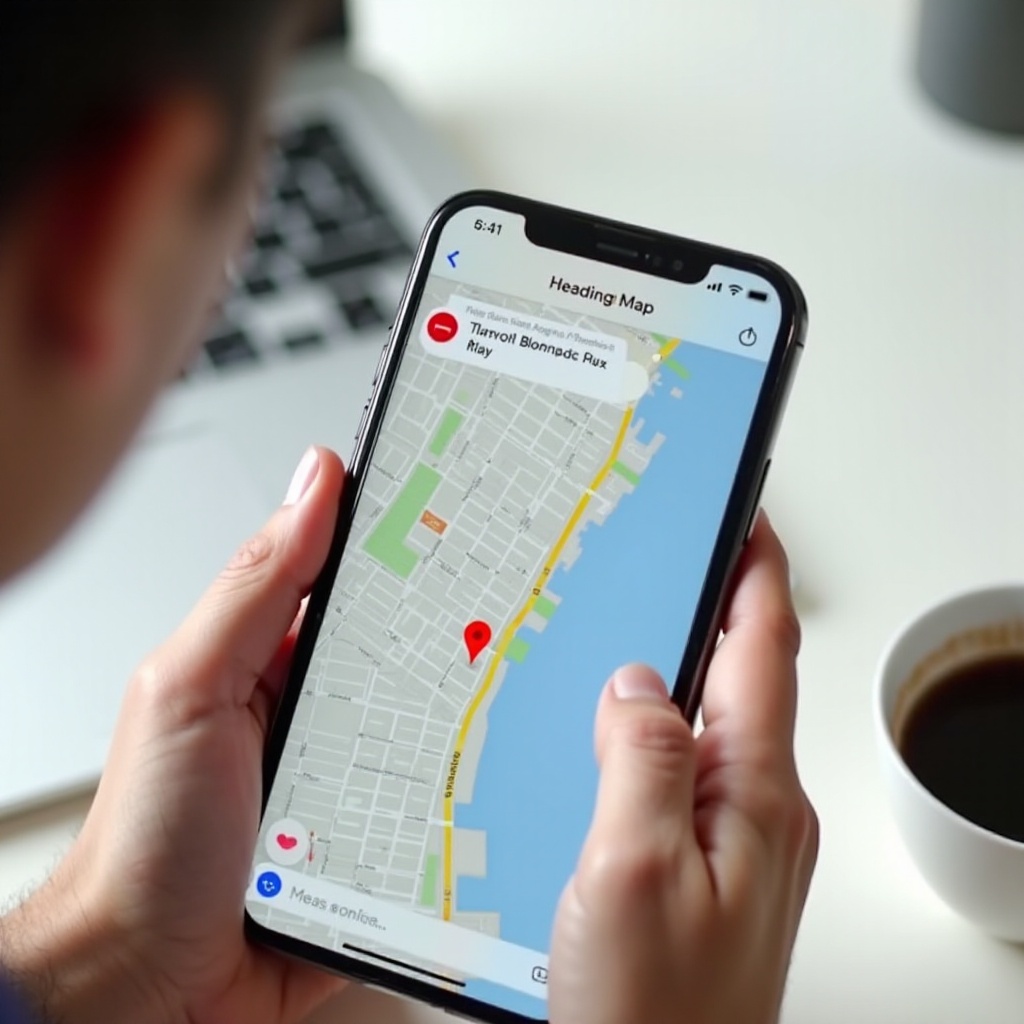
Practical Ways to Use Pin Drops in Everyday Life
Sharing a pin in a text is more than a tech trick. It solves common problems you face when trying to meet people, guide visitors, or help someone find a precise spot.
Once you see how flexible pin sharing can be, you will reach for it instead of typing long directions.
Meeting Friends or Family in Busy Locations
Crowded places such as malls, stadiums, festivals, and city centers make it hard to find someone with vague directions. Phrases like ‘I am near the big sign’ rarely help.
Instead, try this:
- Stand where you want to meet.
- Drop a pin in Apple Maps or Google Maps.
- Text the pin to your friend or family member.
They tap the pin, start navigation, and walk straight to you. This saves time and avoids confusion about landmarks and entrances.
Sharing Your Exact Spot with Rideshare or Delivery Drivers
Sometimes the default address is not the best pickup or drop-off location. You might prefer a side entrance, a less busy street, or a clearly marked spot away from traffic.
In those cases:
- Drop a pin at the ideal pickup or drop-off point.
- Share that pin through the rideshare app if it allows it, or send the link in a text if you can message the driver.
This helps drivers find you faster and reduces the chance of missed pickups and delays.
Sending a Pin Instead of Long Written Directions
Typing ‘turn left at the second light, then right after the gas station’ often leads to mistakes. A pin shows exactly where to go with no extra explanation.
Use a pin when you need to:
- Give directions to your home in a confusing neighborhood.
- Share a trailhead or scenic viewpoint in a large park.
- Invite people to an event in a complex with many similar entrances.
Pin sharing keeps your messages short and clear, and it works well even when people are unfamiliar with the area.
Of course, technology is not perfect. If you run into errors or missing options while trying to send a pin, the next section will help you fix the most common issues.
Troubleshooting: When You Can not Drop or Send a Pin on iPhone
You might sometimes see messages like ‘Location not available’, or you might not see any location option in Messages at all. These problems are usually easy to fix once you know where to look.
Here are the main issues you may encounter when you try to drop a pin on iPhone in text, along with practical solutions.
Location Not Available or Inaccurate on the Map
If the map shows the wrong place or can not find you:
- Confirm that Location Services is turned on in Settings > Privacy & Security > Location Services.
- Check that Wi-Fi and cellular data are enabled. They improve location accuracy even if you are not using Wi-Fi for internet.
- Move to an open area if you are indoors or surrounded by tall buildings, which can block GPS signals.
- Close the Maps or Google Maps app and reopen it to refresh your position.
- If the problem continues, restart your iPhone.
You can also toggle Airplane Mode on and off to reset your network connections and give the location system a fresh start.
Location or Map Option Missing in Messages
If you do not see a Location button or a ‘Send My Current Location’ option in a Messages conversation:
- Make sure you are chatting with a real phone number or Apple ID, not a short code or automated service.
- Verify that Messages has location permission in Settings > Privacy & Security > Location Services > Messages.
- Open the app drawer or tap the ‘+’ button to expand all available apps. Sometimes the Location option is further along the list.
- Restart your iPhone after changing settings to ensure Messages reloads its options.
If it still does not appear, you can always use Apple Maps or Google Maps directly and share the pin into the conversation using the system share sheet.
Resetting Location & Privacy Settings Safely
If nothing seems to fix your issue, you can reset your location and privacy settings. This clears old permissions and lets you start fresh.
To reset:
- Open Settings.
- Tap General.
- Tap Transfer or Reset iPhone.
- Tap Reset.
- Select Reset Location & Privacy.
After the reset, open Maps and Messages again. They will ask for permission to use your location. Allow it, then try dropping and sending a pin again.
Once everything works, the final step is learning how to share your location without sacrificing your privacy. The next section will help you keep control of who sees your pins and for how long.
Privacy and Safety Tips for Sharing Location via Text
Location sharing is powerful and convenient, but it can also expose sensitive information if you misuse it. When you drop a pin on iPhone in text, you should think about who can see that pin, whether it might be forwarded, and how long someone can track your movements.
A few simple habits can keep you safe while still letting you enjoy the benefits of quick, accurate location sharing.
When to Use One-Time Pin Sharing Instead of Live Location
One-time pin sharing is often the safer choice. Use Send My Current Location or a single pin link when:
- You want someone to come to a single meeting point.
- You do not want them tracking where you go afterward.
- You are sharing your home, a private address, or a workplace.
Reserve Share My Location (live sharing) for situations where:
- You trust the person and know why they need to track you.
- You want them to follow your progress, for example during a trip or while walking home at night.
- You plan to stop sharing as soon as the specific need ends.
After the meeting or trip, stop live location sharing so you regain full privacy.
Managing App-by-App Location Permissions
Not every app needs access to your location, and very few apps need it all the time. Reviewing permissions regularly limits how much data any one app can collect.
To audit your location permissions:
- Go to Settings > Privacy & Security > Location Services.
- Scroll through the list of apps.
- For each app, choose from Never, Ask Next Time Or When I Share, or While Using the App.
- Turn Precise Location off for apps that do not need exact coordinates.
This gives you more control over which apps can see where you are, and when.
Avoiding Oversharing in Group Chats
Group chats often include friends of friends, co-workers, or people you do not know well. Before you drop a pin into a group conversation:
- Check who is in the group and whether you trust everyone with your location.
- If you feel unsure, send your pin in a private one-to-one chat instead.
- Avoid sharing your home address or other sensitive locations in large, mixed groups.
When you combine smart sharing choices with the technical methods you have learned, you get the benefits of easy navigation and coordination without giving up your safety and privacy.
Conclusion
Learning how to drop a pin on iPhone in text gives you a simple and accurate way to share where you are or where you want someone to go. Whether you use Apple Maps, built-in Messages tools, or Google Maps, you can send a clear pin that works on almost any device.
Set up your location permissions once, then choose the method that fits each situation:
- Drop a pin in Apple Maps and share it via Messages for a precise, static point.
- Use the location options inside iMessage for quick one-tap sharing while you chat.
- Send a Google Maps pin when you need cross-platform flexibility and familiar map data.
Combine these tools with basic privacy habits, and you will handle meetups, pickups, and directions with far less stress and far more confidence.
Frequently Asked Questions
Can I drop a pin in a text on iPhone without using Apple Maps?
Yes. You can use Google Maps or other map apps on your iPhone. Drop a pin inside the app, tap ‘Share’, and choose ‘Messages’. This sends a map link as a text. The recipient can tap the link and open it in Google Maps or a browser, even if they do not use Apple Maps. You can also use the built-in ‘Location’ option in the Messages app to send your current location without opening Apple Maps first.
Why doesn’t the ‘Send My Current Location’ option appear in my Messages app?
If you do not see ‘Send My Current Location’ or a ‘Location’ button, check several settings. Make sure Location Services is turned on in Settings, and confirm that Messages is allowed to use your location under Privacy & Security > Location Services. Ensure you are in a regular chat with a real phone number or Apple ID, not an automated short code. Also, open the app drawer or tap the ‘+’ button to view all available apps. Restarting your iPhone after changing settings can help Messages reload the location options.
Is it safe to drop a pin and text my location to someone I don’t know well?
You should be cautious about sharing your exact location with people you do not fully trust. A pin reveals precisely where you are or where you plan to be and can be forwarded to others. If you must share, prefer a public meeting spot and send a one-time pin instead of live location. Avoid sharing your home or other private addresses with strangers. Afterward, you can review and adjust your location permissions in Settings and stop any live sharing in the Messages or Find My apps.