
Introduction
In today’s digital era, managing your online and digital presence is crucial, right down to the subtle details like emojis. Emojis bring expressions to life in our text messages, but sometimes your recent emojis list reveals more than just your mood. Whether you’re concerned about privacy or simply want a decluttered digital environment, clearing your recent emojis on an iPhone is a task worth mastering. Here, we will explore effective methods to clean up your emoji usage and keep your communications as private as you desire.
Understanding Emoji Data on iPhone
On an iPhone, the emojis you frequently use are stored as part of the keyboard dictionary. This feature predicts your typing habits and provides a seamless, personalized typing experience. While this customization is helpful, it can also inadvertently store emojis you’re not keen on displaying or sharing with others. Apple’s approach means that your emoji history is a built-in feature designed to enhance user experience. However, it occasionally brings about privacy concerns, making it essential to know how to manage this data effectively.
Method 1: Resetting Keyboard Dictionary
A straightforward way to eliminate recent emojis is to reset your keyboard dictionary. It’s the quick fix for a fresh start:
- Launch the ‘Settings’ app on your iPhone.
- Navigate to ‘General’.
- Tap on ‘Transfer or Reset iPhone’ at the bottom.
- Select ‘Reset’ followed by ‘Reset Keyboard Dictionary’.
- Confirm your action by entering your passcode if asked.
This method will wipe all personalized data such as custom words and emojis from your keyboard dictionary. While it’s an efficient removal method, remember that this action is irreversible and will also delete any learned corrections the device has memorized, which may impact your typing experience temporarily.
Method 2: Using Third-Party Apps
If resetting the entire dictionary feels too broad, several third-party apps offer more selective emoji history management. These applications can clear recent emojis without impacting other keyboard settings:
- iMyFone Umate Pro: Known for its capability to clean out various data types, including emoji history, efficiently.
- CleanMyPhone: Functions to manage storage and remove caches, keyboard data included.
When choosing an app, prioritize those with good reputation and positive reviews to ensure the security of your private information. Ensure it complies with the latest App Store security standards for maximum safety.
Advanced iPhone Settings for Emoji Management
Beyond clearing your keyboard data, utilizing additional iPhone settings can help better manage your emojis:
- Switch to an Alternate Keyboard: Installing keyboards like Gboard can temporarily alter or prevent unwanted emoji predictions from appearing.
- Disable Predictive Text: Turning off predictive text can halt your recent emojis from appearing in suggestions.
Exploring these settings provides further control and customization of your emoji use, allowing you to maintain your desired privacy level without resetting stored data completely.
Regular Maintenance for Emoji Privacy
Ensuring your emoji data remains private involves maintaining your device regularly. Resetting your keyboard and clearing unnecessary app data should become part of regular upkeep. Updating your device’s iOS also contributes to privacy. Software updates not only introduce new features but also patch security vulnerabilities, ensuring that your personal data, including emojis, is less susceptible to unauthorized access.
Common Troubleshooting Tips
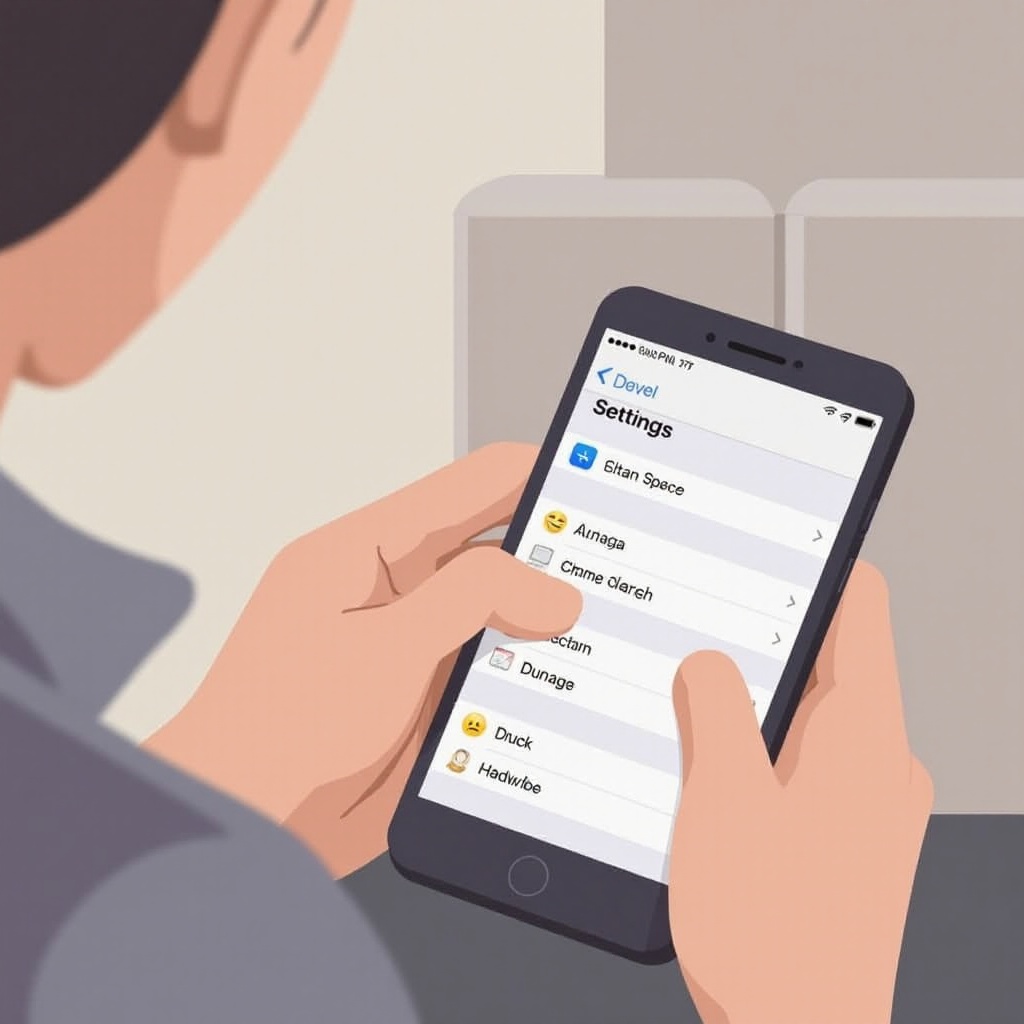
Encountering issues when clearing emoji data is not uncommon. Here are some simple troubleshooting steps:
- If the dictionary reset doesn’t seem effective, try restarting your iPhone.
- Check for iOS software updates that might be available since they often resolve minor glitches and bugs.
- Ensure any third-party apps you use are updated to their latest versions to maintain compatibility and functionality.
By following these troubleshooting tips, you can deal efficiently with any problems, ensuring a seamless experience while managing your recent emojis.
Conclusion
By employing the methods and tips outlined, you can effectively manage and clear your recent emojis on your iPhone. Regular maintenance and awareness of your settings can significantly enhance privacy and keep your device organized. Approach this process as part of routine iPhone management to ensure your digital communications reflect your current needs and privacy preferences.
Frequently Asked Questions
How often should I delete my recent emojis?
Delete recent emojis regularly if privacy is a concern or when emojis are no longer relevant.
Does resetting my keyboard affect other settings?
Resetting the keyboard only clears custom words and emojis. Other settings remain unchanged, but it resets typing learning.
Are there any risks in using third-party apps?
Yes, ensure any app used complies with security standards and has positive reviews to protect your data from unauthorized access.