
Introduction
Unwanted calls can significantly disrupt your peace and productivity, making it essential to know how to block them effectively. VTech phones, known for their user-friendly interfaces, offer convenient ways to manage and block unwanted numbers. This comprehensive guide will help you learn step-by-step how to block a number on your VTech phone, delve into troubleshooting solutions, and explore additional features for efficient call management.
Understanding how to leverage your phone’s capabilities will also enhance your overall user experience, putting you back in control of your incoming calls.
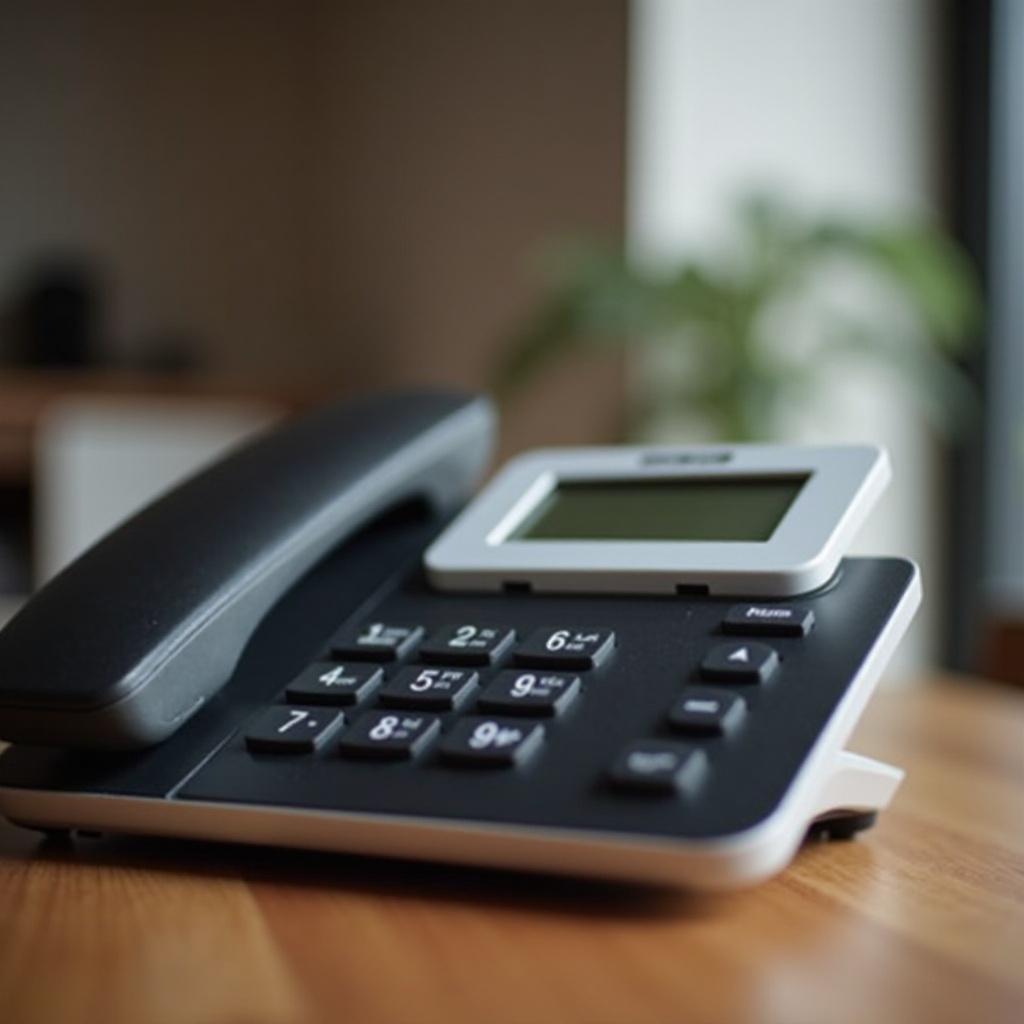
Understanding Your VTech Phone Model
Identifying your specific VTech phone model is the first step in accessing precise features tailored to your device, as call-blocking capabilities may vary. Here’s how you can easily find your model number:
- User Manual: Check your user manual’s cover or inside pages for the model number.
- Device Inspection: Look directly on the phone’s base unit or handset where a sticker might display this information.
- Packaging: Original packaging or purchase receipts usually indicate the model number.
Knowing your model number ensures you can follow the correct procedures specific to your device. Having a clear understanding of the model specifications also enables you to take full advantage of its call-blocking capabilities.
Step-by-Step Guide to Blocking Numbers
Armed with your model information, it’s time to set up call blocking on your VTech phone. Most models follow a similar process:
- Access the Settings Menu: Press the ‘Menu’ button on your handset.
- Navigate to Call Block Options: Use the arrow keys to scroll and select ‘Call Block’ or ‘Manage Call List’ options.
- Add a Number to the Block List: Enter the offending number manually or select from recent calls.
- Confirm the Action: Press ‘Select’ or ‘OK’ to add the number to your block list.
Refer to your model-specific manual if you encounter variations in the process. Once blocked, numbers will no longer reach you, reducing disturbances effectively.

Troubleshooting Common Call Blocking Issues
Encountering issues with number blocking is not uncommon, and they can usually be resolved with simple troubleshooting steps:
- Missing Menu Options: Ensure your phone’s software is up-to-date, which may resolve missing options.
- Blocked Numbers Still Calling: Double-check the number in your block list and ensure it wasn’t entered incorrectly.
- Device Errors or Freezing: Restart your device or follow the manual’s reset instructions if these problems persist.
Even these troubleshooting steps can usually resolve issues, but more stubborn problems may require contacting VTech support for professional guidance.
Additional Features for Call Management
Blocking numbers is just one way to manage calls efficiently. VTech phones come equipped with additional features that further enhance your call management capabilities:
- Caller ID Screening: This feature allows you to see who’s calling before deciding to answer.
- Do Not Disturb Mode: Use this feature to silence all incoming calls at specific times, such as during meetings or bedtime.
Utilizing these features in conjunction with number blocking creates an optimized approach to handling unwanted interruptions, maximizing your phone usage.
Conclusion
Mastering the ability to block unwanted numbers on a VTech phone empowers you to have more control over who can reach you, thus enhancing your peace and productivity. With straightforward steps and a range of call management options, you can effortlessly improve your phone experience, enjoying more effective communication on your terms.
Frequently Asked Questions
How can I unblock a number on my VTech phone?
Navigate to ‘Call Block’ in the Menu, select the blocked number, and choose ‘Unblock’ to remove it from the list.
Does blocking a number prevent all types of communication?
Blocking a number on VTech phones prevents calls but might not block text messages or other types of communication.
What should I do if blocking a number doesn’t work?
Verify the list entry, update the firmware, and consult VTech support if issues persist.