
Introduction
Changing the name of your phone hotspot takes a minute and prevents confusion. A clear, unique name helps people pick your network from a crowded list, keeps your devices from jumping to the wrong hotspot, and protects your privacy by removing personal details from the name. When you share a connection at work, school, coffee shops, hotels, or on the road, a simple rename can make all the difference.
This guide shows you how to rename your hotspot on iPhone and Android. You will see quick answers up front, followed by detailed steps for iPhone, stock Android, Samsung Galaxy, Google Pixel, OnePlus, and Motorola. You will learn best practices for naming and security, plus fixes for common issues that can block renaming or hide your hotspot. Move through each section in order. Use the troubleshooting section if anything does not work as expected.
Quick Answers: iPhone vs. Android at a Glance
You can rename a hotspot on both iPhone and Android, but the process is different.
- iPhone: The hotspot name always matches your iPhone device name. You change it by renaming the device in Settings > General > About > Name.
- Android: Most Android phones let you edit the hotspot name directly under Settings > Network and internet (or Connections) > Hotspot. You do not need to rename the device.
- After renaming: Other devices will see the new name. They must reconnect because the network looks new to them.
- Passwords: Changing the name does not change the password. Update both so you share one clear set of credentials.
Now that you know where to find the setting on each platform, prepare your phone and plan a secure name. A few quick checks will save time and prevent errors.
Before You Start: Requirements and Security Basics
Before you rename your hotspot, confirm a few details. These checks ensure you see the right options and avoid connection issues.
- Check your carrier tethering plan and restrictions
- Some carriers limit or block hotspot use. If hotspot options are grayed out or you get an error, check your plan details or contact your carrier. Make sure your plan includes hotspot data.
- Know the difference between device name and SSID
- On iPhone, the hotspot SSID equals your device name. On Android, the hotspot SSID is a separate setting. This difference determines where you rename.
- Use strong passwords and WPA2 or WPA3 security
- Keep security on WPA2-Personal or WPA3 if available. Use at least 12 characters with a mix of letters, numbers, and symbols. Avoid common words and personal info.
- Prepare to reconnect devices
- After you rename the SSID, your laptops and tablets must forget the old name and connect to the new one. Have the new password ready.
With the basics covered, you are ready to rename your hotspot on iPhone. Then you will do the same on Android and brand-specific skins.
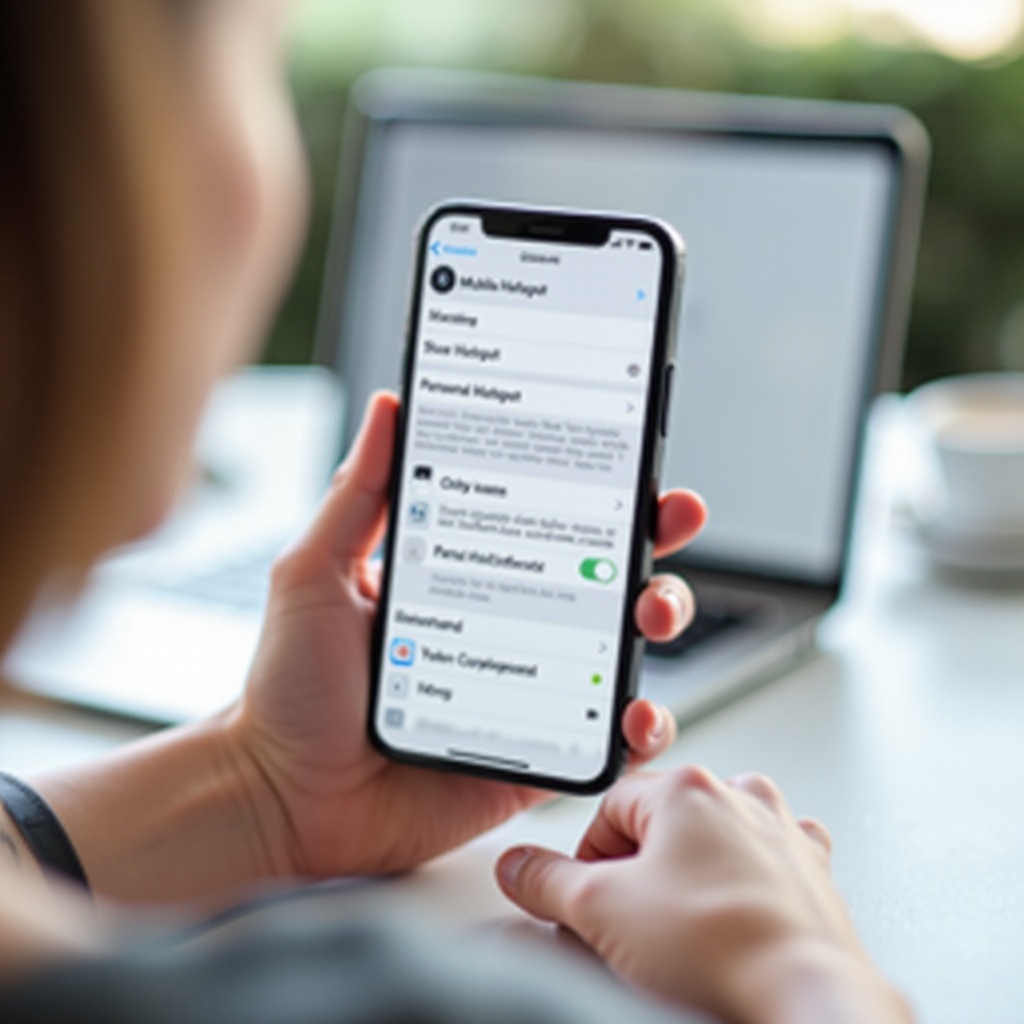
Change Your Hotspot Name on iPhone (iOS)
On iPhone, the hotspot name is tied to your device name. You cannot set a separate hotspot SSID. Follow these steps to rename cleanly and avoid connection glitches.
1) Check your current hotspot name
– Open Settings > Personal Hotspot.
– Look under Allow Others to Join. Nearby devices see your iPhone name as the hotspot network.
2) Rename your iPhone to change the hotspot name
– Go to Settings > General > About > Name.
– Tap Name, enter a new device name such as Ava iPhone Hotspot, and tap Done.
– Keep the name short and readable. Avoid emojis and unusual symbols. Many devices do not handle them well.
3) Toggle Personal Hotspot off and on
– Return to Settings > Personal Hotspot.
– Turn Allow Others to Join off, then on.
– Nearby devices should now see the new name. If not, restart your iPhone.
4) Update the hotspot password and review Family Sharing
– In Personal Hotspot, tap Wi‑Fi Password and set a strong passphrase.
– If you use Family Sharing, confirm who can join automatically. Make sure they look for the new name.
5) Maximize compatibility or performance as needed
– If some devices fail to connect, enable Maximize Compatibility. This forces the hotspot to use 2.4 GHz for broader support.
– Turn it off again if you want better speed and lower congestion on newer devices.
With iPhone complete, move on to Android, where you can edit the hotspot SSID directly in settings. The process is quick and flexible.
Change Your Hotspot Name on Android (Stock)
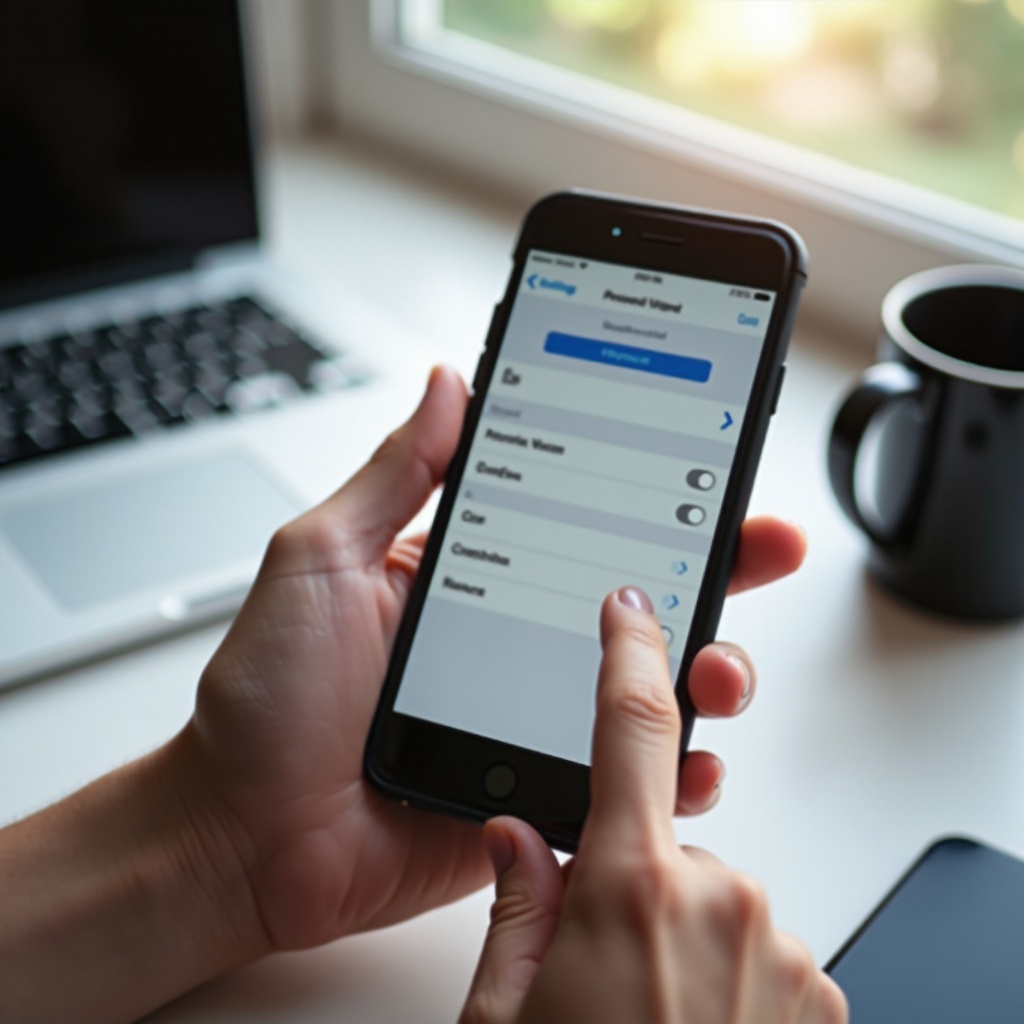
On stock Android, you edit the hotspot SSID without renaming your phone. The exact wording can vary by brand and Android version, but the core steps stay the same.
1) Open hotspot settings
– Go to Settings > Network and internet > Hotspot and tethering.
– Tap Wi‑Fi hotspot.
2) Edit the hotspot name (SSID)
– Tap Hotspot name or Network name.
– Enter a short, unique name such as Sam Pixel Hotspot.
– Use letters, numbers, underscores, or hyphens. Avoid special characters that some devices cannot parse.
3) Set security and password
– Keep Security on WPA2-Personal or WPA3 if available.
– Tap Hotspot password and create a strong passphrase of at least 12 characters.
4) Save and reconnect your devices
– Tap Save.
– Turn the hotspot off and on to refresh the broadcast.
– On laptops and tablets, forget the old network and connect to the new one.
If your phone runs a custom skin, the path names may look different. The next sections show the exact steps for Samsung, Pixel, OnePlus, and Motorola. Use these guides to avoid guesswork.
Samsung Galaxy (One UI) Steps
Samsung phones use One UI, which rearranges network menus but keeps hotspot renaming straightforward.
1) Open Mobile Hotspot settings
– Go to Settings > Connections > Mobile Hotspot and Tethering > Mobile Hotspot.
– Tap Configure or the three‑dot menu if you do not see editing fields.
2) Edit network name and password
– Tap Network name (SSID) and enter your new name.
– Tap Password to set a strong passphrase.
– Keep Security on WPA2-Personal or WPA3. Avoid open hotspots.
3) Choose the band and options
– Select 2.4 GHz for maximum compatibility or 5 GHz for better speed when supported.
– Turn off Auto Hotspot if it overrides your SSID or shares it automatically with family devices.
– Tap Save, then toggle Mobile Hotspot off and on.
If you share your connection with a Galaxy tablet or watch, confirm that those devices reference the new name. Reconnect them with the updated SSID and password to avoid auto joining an old name.
Google Pixel Steps
Pixel phones keep the path close to stock Android and add simple sharing tools that make setup fast.
1) Navigate to hotspot settings
– Go to Settings > Internet > Hotspot and tethering > Wi‑Fi hotspot.
2) Rename and secure your hotspot
– Tap Hotspot name, enter your new SSID, and tap OK.
– Keep Security on WPA2 or WPA3 and set a strong password.
3) Share your hotspot details
– Tap the QR code icon to generate a code for quick joins.
– Use Nearby Share to send credentials to trusted Android devices.
– If older devices cannot join, switch the hotspot band to 2.4 GHz for wider support.
After Pixels, OnePlus and Motorola users follow similar, simple paths. You will find the rename field and security settings in one place.
OnePlus and Motorola Steps
Both OnePlus and Motorola stick close to Android defaults but use slightly different labels. Follow the steps for your brand.
OnePlus (OxygenOS)
1) Open Settings > Wi‑Fi and Network > Personal Hotspot.
2) Tap Hotspot settings or Configure Hotspot.
3) Edit the SSID, set Security to WPA2 or WPA3, and create a strong password.
4) Choose 2.4 GHz for compatibility or 5 GHz for speed if the option exists.
5) Save and toggle the hotspot off and on.
Motorola (MyUX)
1) Open Settings > Network and Internet > Hotspot and tethering > Wi‑Fi hotspot.
2) Tap Hotspot name to rename it.
3) Set a strong password and confirm Security mode.
4) Tap Advanced to pick a band or enable compatibility options if needed.
5) Save and reconnect your devices.
With the basics done on all major brands, set a smart, safe hotspot name that avoids connection problems and protects your identity.
Naming Best Practices: Make It Secure and Compatible
Your hotspot name should help people find you fast while keeping your information private. Use these tips to avoid common pitfalls and improve reliability across devices.
- Keep it simple and readable
- Use short words and clear separators: Alex_Hotspot or Mia-Phone-5G. Shorter names reduce truncation on older devices.
- Avoid personal information
- Do not include your full name, address, company, school, or phone number. Keep it neutral.
- Stick to ASCII characters
- Many devices choke on emojis, accented letters, or unusual symbols. Use letters, numbers, underscores, and hyphens.
- Avoid copycat names
- Do not mimic public networks like Airport Free WiFi. That can confuse users and may trigger security warnings.
- Separate 2.4 GHz and 5 GHz names if supported
- Use suffixes like -2G and -5G to help your devices pick the best band.
- Rotate your password regularly
- Renaming does not secure your hotspot alone. Update the password when you share access widely or suspect a leak.
If issues appear during renaming or devices fail to see your new SSID, work through the troubleshooting steps below. Start with the simplest fixes and move to resets only if needed.
Troubleshooting: When You Cannot Rename or Do Not See the New Name
Most renames take seconds, but some setups block changes or hide the hotspot. These checks restore control and visibility.
- Option grayed out due to work profile or MDM restrictions
- If your phone is managed by your employer or school, a policy might lock hotspot changes. Open work profile settings or contact IT support for help.
- Carrier or APN limitations on tethering features
- Some carriers disable hotspot editing on certain plans. Check your account, switch to a plan that allows tethering, or update the APN to the carrier default.
- Hotspot not visible after rename
- Interference, distance, or band mismatches can hide your SSID. Try 2.4 GHz for better range. Move away from crowded Wi‑Fi channels. Toggle the hotspot off and on.
- Devices auto join the wrong network
- Laptops and tablets prefer known networks. Forget the old SSID on each device:
1) Open Wi‑Fi settings.
2) Find the old network.
3) Tap Forget or Remove.
4) Connect to the new SSID and enter the password. - Name did not update on iPhone
- After renaming the device, restart the iPhone, then toggle Personal Hotspot. If the old name persists, reset network settings and try again.
- Reset network settings and update software
- As a last resort, reset network settings. This erases saved Wi‑Fi and Bluetooth profiles. After the reset, update your system software and try again.
Once your new name appears consistently, share it only with trusted people and store the password securely. Then reconnect your devices and verify a stable link.
After You Rename: Reconnect and Share
You changed your hotspot name. Now make sure all devices use it and store the new password so they reconnect smoothly next time.
- Forget the old network on each device
- On laptops, tablets, and consoles, remove the old SSID to prevent auto joining. Connect to the new name and confirm internet access.
- Share credentials securely
- Use a QR code on Android or a trusted sharing method to send the network name and password to people you trust. Never post credentials publicly.
- Save details in a password manager
- Store the SSID and password in a manager so you can recall them anytime, even if you rotate passwords later.
- Test with one device at a time
- Confirm the first device connects and stays stable, then add others. This isolates issues and avoids confusion.
With your devices reconnected and your new name set, finish with a quick recap. Then you will be ready to share your hotspot without guesswork in any setting.
Conclusion
Renaming your hotspot should feel simple and quick. On iPhone, change the device name to change the hotspot name, then toggle the hotspot to broadcast the update. On Android, open hotspot settings and edit the SSID directly. In both cases, keep security strong with WPA2 or WPA3 and a long password.
Name your hotspot for clarity and privacy. Avoid personal details, stick to ASCII characters, and consider suffixes if you offer both 2.4 GHz and 5 GHz. If issues occur, check carrier restrictions, work profiles, band settings, and saved networks on your devices. A toggle, restart, or software update often fixes stubborn problems.
With a clear name and secure password, your phone becomes a reliable mobile router. Friends and devices can find and join without confusion, and you maintain better control over who connects and when.
Frequently Asked Questions
Does changing my hotspot name disconnect devices already connected?
Yes. When you rename a hotspot, devices treat it as a new network and disconnect. On each device, forget the old SSID and connect to the new name with the new password.
Can I set different hotspot names for 2.4 GHz and 5 GHz or for each SIM or eSIM?
Some Android phones let you choose a band and in some cases present separate bands under one SSID. If your phone allows dual band naming, add suffixes like -2G and -5G. iPhone does not split names by band, and most phones use one hotspot profile for all SIMs.
Why does my iPhone hotspot name match my device name, and can I separate them?
Apple links Personal Hotspot to the device name for simple discovery across Apple services. You cannot set a separate hotspot name on iOS. To change what others see, rename the device under Settings > General > About > Name.