
Introduction
Siri is a powerful virtual assistant that comes with iPhones, but its capability to announce notifications can sometimes be invasive. While beneficial for hands-free operation, you might prefer to control when and how notifications are announced. Tailoring these settings can improve your interaction with your iPhone, allowing you to focus without unexpected distractions.
Understanding how this feature works will empower you to make informed decisions about managing your notification settings and customizing your user experience.

Understanding Siri’s Notification Announcements
Siri’s notification announcement feature is tailored for use with AirPods or compatible headphones. When connected, Siri will read incoming messages aloud, providing convenient access to notifications without needing to look at your screen.
This functionality exists in devices operating iOS 15 and later and allows users to stay informed without interrupting their activity. However, altering this setting to align with your needs will provide a seamless device experience.

Step-by-Step Guide to Turning Off Siri Announcing Notifications
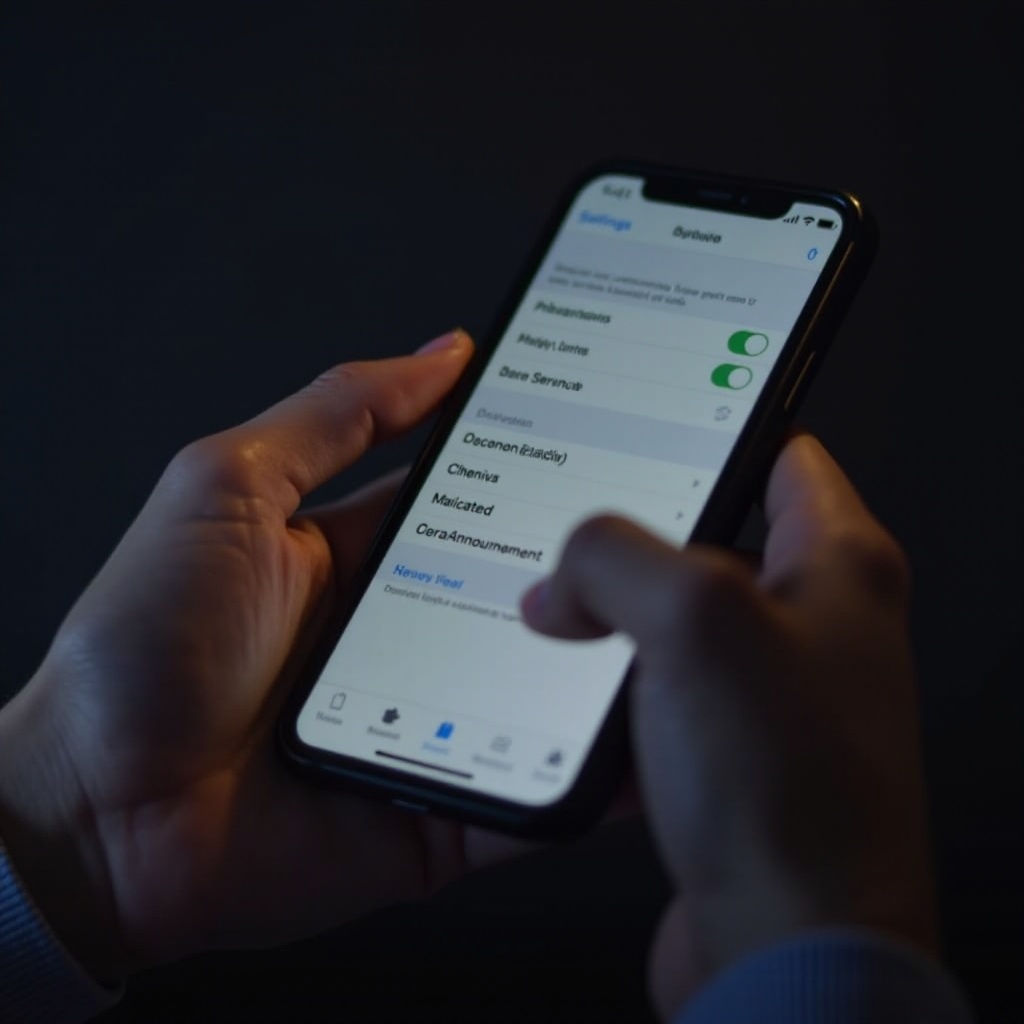
If you decide that turning off Siri’s announcing notifications will improve your use of the device, follow these simple steps:
- Access the Settings app.
- Scroll down to and tap ‘Notifications.
- Find ‘Announce Notifications’ and choose this option.
- Toggle off ‘Announce Notifications’ to stop Siri from voicing alerts.
Ensuring the settings align with your iOS version and headphones connection eliminates unwanted notifications and enables personalized management, promoting a distraction-free engagement with your iPhone.
Additional Notification Management Options
Exploring further into notification settings gives you more control over how alerts are handled:
-
Customizing App-Specific Notifications: Within the Notifications menu, individual app settings can be adjusted for sound, banners, and alert styles. This lets you tailor which apps can give notifications and how they present them.
-
Utilizing Focus Mode: Engage Focus mode through the Control Center to silence notifications according to specific conditions or timeframes, enhancing productivity without missing essential alerts.
By optimizing these options, you ensure that your notifications are appropriate and effective for varying situations, from meetings to leisure.
Optimizing Siri and Other iOS Features
Beyond notification management, maximizing Siri’s potential enhances overall functionality:
-
Personalizing Siri Settings: You can adjust Siri’s voice and language in the Settings app. Choosing from different voice options and languages can make interactions more pleasant and tailored to personal preference.
-
Expanding Siri’s App Integration: Leveraging Siri’s capabilities in other apps allows you to command actions efficiently without manually navigating. Setting shortcuts within App settings optimizes Siri’s performance.
Implementing these changes enhances Siri’s useability, broadening its service in everyday tasks and routines, providing stability and control to how the device operates.
Conclusion
Personalization is the key to enriching how your device serves you daily. By managing notification announcements, not only do you control what happens audibly around you, but you also guide how your device helps streamline operations throughout your day.
The adjustments covered create a robust framework for easing through digital interactions, optimizing the phone usage, and refining the way technology works for you, helping craft an experience catered to individual needs and comforts.
Frequently Asked Questions
How do I manage notifications for specific apps?
Enter the app’s notification settings under ‘Notifications’ in the Settings app and adjust alerts and sounds based on your preference.
Can I temporarily turn off Siri’s notification announcements?
Yes, enabling Focus mode from the Control Center can temporarily silence notifications, including those announced by Siri.
Will turning off notifications affect Siri’s other functionalities?
Disabling this feature only stops audible notifications. Siri’s other functions, like voice commands, reminders, and app integrations, remain intact.