
Introduction
Constant interruptions from unknown callers can disrupt your day and lead to unnecessary stress. With the surge in spam and telemarketing calls, it is essential to manage these distractions effectively. iPhones offer a built-in feature that allows you to silence unknown callers, letting you maintain your focus and peace. This guide will delve into activating this feature, outlining its benefits, and providing additional tips for enhancing your phone call security and privacy.
Why Silencing Unknown Callers is Important
Receiving calls from unknown numbers isn’t just a minor inconvenience; it can cause significant disruptions to your daily routine. These calls often originate from telemarketers, scammers, or automated bots, and by silencing them, you prevent these unwanted distractions and protect yourself from potential scams. An uninterrupted environment means you can engage in important tasks without the constant worry of who might be calling next. With control over your incoming calls, you can focus on what truly matters.
Let’s dive into how the iPhone’s built-in feature specifically addresses this issue.
Understanding the Silence Unknown Callers Feature
The Silence Unknown Callers feature on iPhones offers a straightforward solution to automatically block calls from numbers not saved in your contact list. This seamless feature helps filter out potentially disruptive calls while ensuring important ones from known contacts get through. Understanding how this feature determines which calls to silence allows you to use it confidently. It’s an easy setup in your iPhone settings, balancing accessibility and peace of mind for users.
Next, let’s examine how to enable this critical feature on your iPhone.
How to Activate Silence Unknown Callers
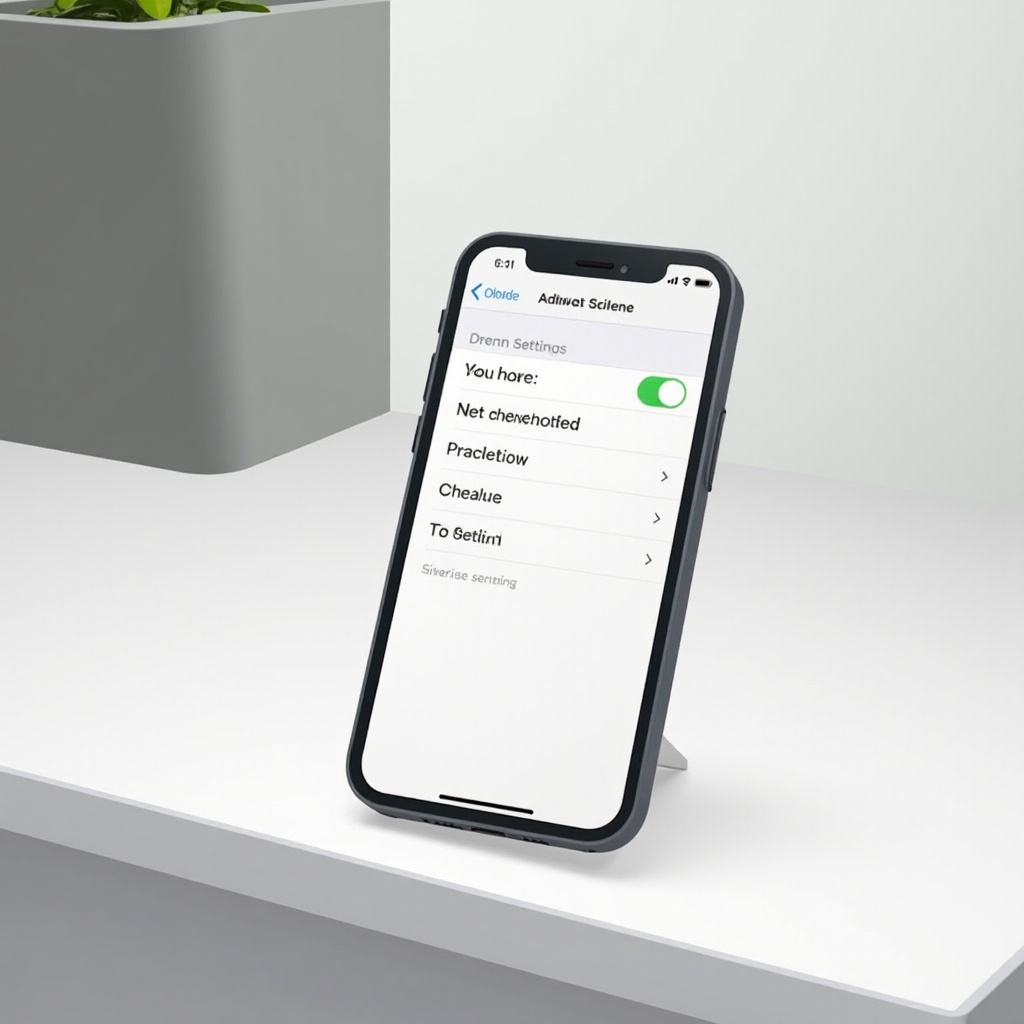
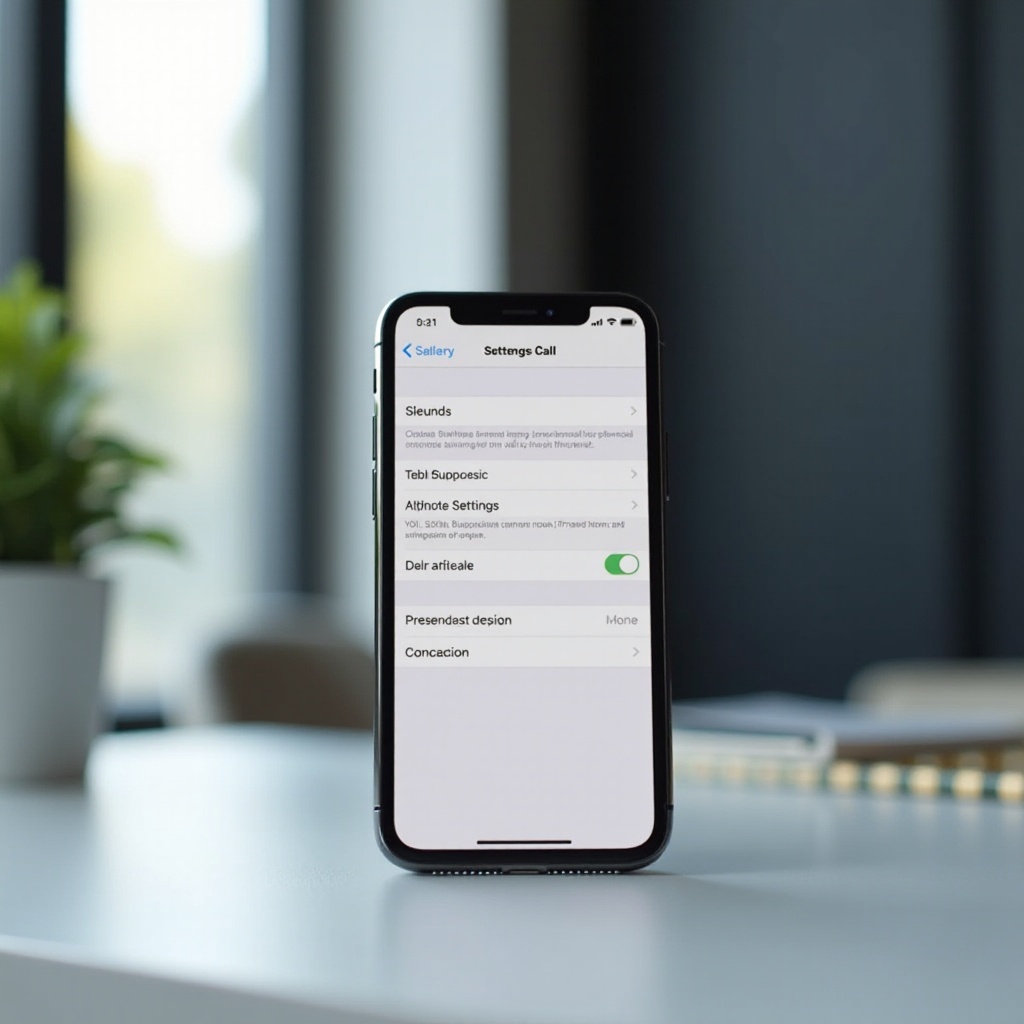
Activating the Silence Unknown Callers feature is quick and easy. Follow these steps:
- Open the ‘Settings’ app on your iPhone.
- Scroll down and tap on ‘Phone’.
- Within the Phone settings, locate ‘Silence Unknown Callers.
- Toggle the switch to enable it.
Upon activation, calls from unknown numbers are automatically silenced and sent to voicemail. You can still view these calls in your recent call history. This feature complements other iPhone functionalities meant to streamline your calling experience.
Additional iPhone Features for Managing Calls
Beyond just silencing unknown callers, iPhones come equipped with several other tools to manage calls efficiently:
- Do Not Disturb Mode:
-
Silence all incoming calls and notifications during specified periods, except those on your allowed list. To activate, navigate to ‘Settings’, select ‘Focus’, then adjust your Do Not Disturb preferences.
-
Blocking Specific Numbers:
- Frequently getting calls from the same unwanted number? Block it by opening the Phone app, find the number in Recent, tap the ‘i’ icon, then select ‘Block this Caller’.
These options work in tandem with the Silence Unknown Callers feature to offer comprehensive protection against unwanted calls. For those who desire even more control, third-party apps offer additional call management features.
Using Third-Party Apps for Enhanced Call Management
While iPhone provides significant inbuilt call management tools, several third-party applications can enhance these capabilities:
- Truecaller: Identifies unknown numbers and blocks spam effectively.
- Hiya: Offers advanced caller ID services and customized blocking solutions.
- Nomorobo: Automatically blocks known robocalls and spam numbers.
These apps can also provide additional layers of protection and customization, ensuring continued management of incoming calls. Even with these tools, maintaining phone security and privacy is critical.
Tips for Improving Call Security and Privacy
When it comes to securing your calls, proactive measures make all the difference:
- Keep Contacts Updated: Regularly review and update your contact list to ensure no important numbers are accidentally silenced.
- Report Spam Calls: Make use of carrier services designed to report spam calls, improving overall network detection of unwelcome calls.
- Review Call Settings Regularly: Periodically reassess and update your call settings to keep them aligned with your current security and privacy preferences.
By applying these tips, you can fortify your call management strategy, providing peace of mind and letting you concentrate on the tasks that matter most.
Conclusion
Silencing unknown callers on your iPhone is a straightforward yet powerful method to reduce disruptions and maintain control over your communications. With built-in features, complementary applications, and additional tips, you can ensure a quiet and secure mobile experience. Take the necessary steps today, and discover the benefits of uninterrupted focus and increased productivity.
Frequently Asked Questions
What happens to calls that are silenced?
Silenced calls are sent directly to voicemail without disturbing you and can be seen in your recent call history for later review.
Can emergency contacts reach me if this feature is on?
Yes, calls from numbers saved in your contacts will come through normally, ensuring you don’t miss urgent calls.
Does the Silence Unknown Callers feature affect other call settings?
This feature works independently but integrates smoothly with other settings like Do Not Disturb, offering comprehensive call management.