
Introduction
Connecting your iPhone to Bose devices can dramatically improve your audio experience, offering superior sound quality and convenience. Whether you are pairing with Bose headphones or speakers, the process is straightforward and unlocks a world of high-quality audio. This guide will lead you through the steps to seamlessly pair your iPhone with Bose devices for an uninterrupted auditory sensation.
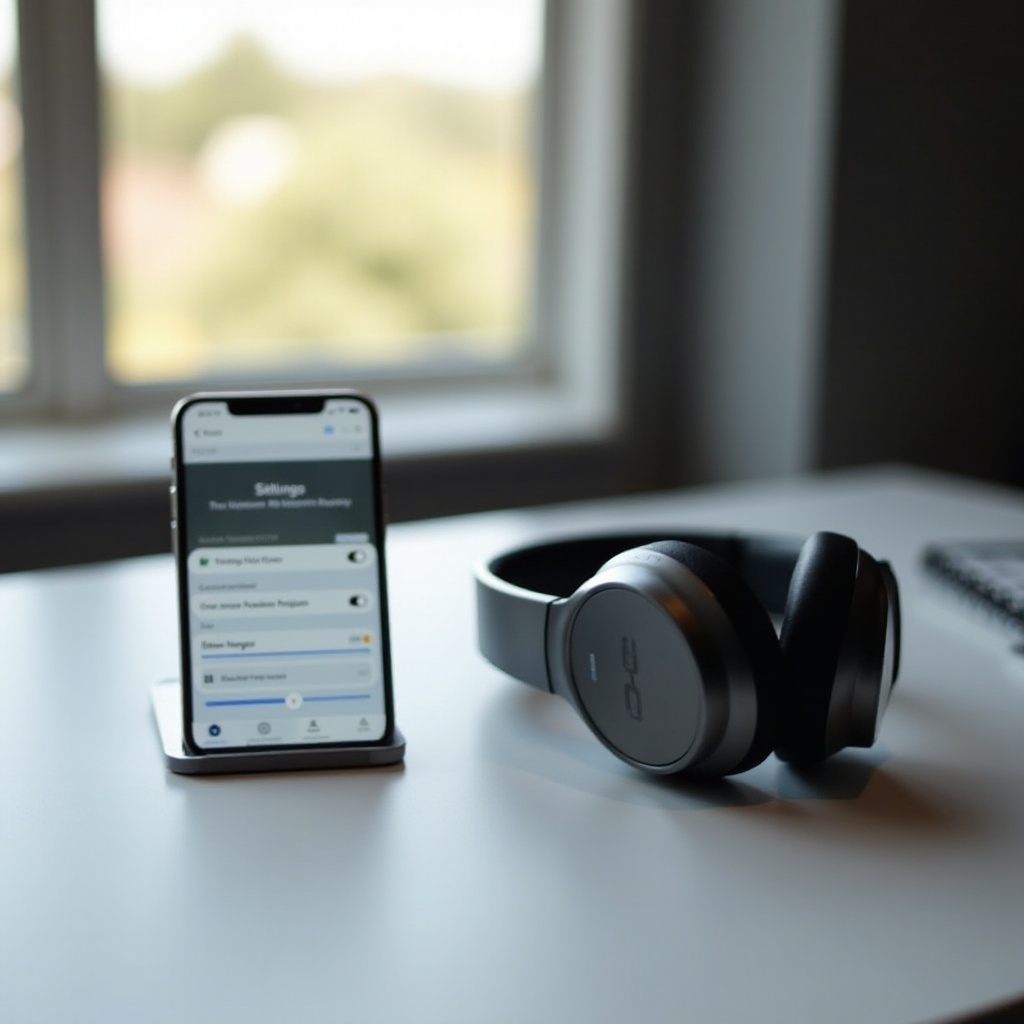
Preparing Your Devices for Pairing
Before you initiate the pairing process, it’s important to ensure both your iPhone and Bose device are ready. This preparation ensures a smooth connection without disruptions.
-
Ensure Your iPhone’s Software is Updated: Open the Settings app, navigate to ‘General,’ and tap ‘Software Update.’ Install any available updates to ensure compatibility and optimal performance.
-
Charge Your Bose Device Fully: To prevent unexpected disconnections, make sure your Bose headphones or speakers have sufficient battery life before pairing.
-
Understand Compatibility Requirements: Confirm that your iPhone and Bose device are both Bluetooth-enabled and compatible with each other to ensure a successful connection.
Step-by-Step Guide to Pairing iPhone with Bose Headphones
Pairing your iPhone with Bose headphones is a simple process:
-
Enable Bluetooth on Your iPhone: Open the Settings app and switch on Bluetooth.
-
Activate Pairing Mode on Bose Headphones: For most Bose headphones, press and hold the power button until the Bluetooth light begins blinking. This signals readiness to pair.
-
Connect via iPhone Bluetooth Settings: In the Bluetooth settings on your iPhone, find and select your Bose headphones from the list of available devices. Tap to connect.
Once paired, play some music or a podcast to ensure audio is being correctly routed to your headphones.
Step-by-Step Guide to Pairing iPhone with Bose Speakers
Similar to headphones, connecting Bose speakers to your iPhone requires a few quick steps:
-
Turn on Bose Speaker and Enter Pairing Mode: Switch on the speaker and press the Bluetooth button until it starts blinking, indicating it’s in pairing mode.
-
Select and Connect Speaker in iPhone’s Bluetooth Menu: In the Bluetooth settings, look for your Bose speaker under ‘Other Devices.’ Tap on it to initiate pairing.
-
Confirm Successful Connection: Try playing audio to verify the connection. Adjust the volume on both the speaker and your iPhone for optimal audio levels.
With your speaker paired, enjoy the exceptional sound quality Bose is known for.
Troubleshooting Common Pairing Issues
Even with the best preparation, sometimes issues may arise during pairing. Here are common problems and their solutions:
-
Fixing Bluetooth Connectivity Problems: Double-check that Bluetooth is enabled on both devices. Toggling Bluetooth off and on can sometimes resolve issues.
-
Resetting Your Bose Device: Reset the Bose device by holding the power button for about 10 seconds until it powers off, then try pairing again.
-
When to Restart Your iPhone: If issues persist, a simple restart of your iPhone might clear any temporary glitches obstructing the pairing process.
Enhancing Your Audio Experience with Additional Tools
After successfully pairing, there are several tools and settings you can use to elevate your audio experience:
-
Utilizing the Bose Connect App: Download and explore the Bose Connect app to access firmware updates, manage multiple connections, and customize settings for your device.
-
Customizing Audio Settings on iOS: Use the Settings app to adjust equalizer settings and sound preferences on your iPhone for enhanced audio performance.
-
Maintaining a Stable Bluetooth Connection: Keep devices in close proximity and clear of potential obstacles to maintain a stable connection, ensuring uninterrupted audio quality.
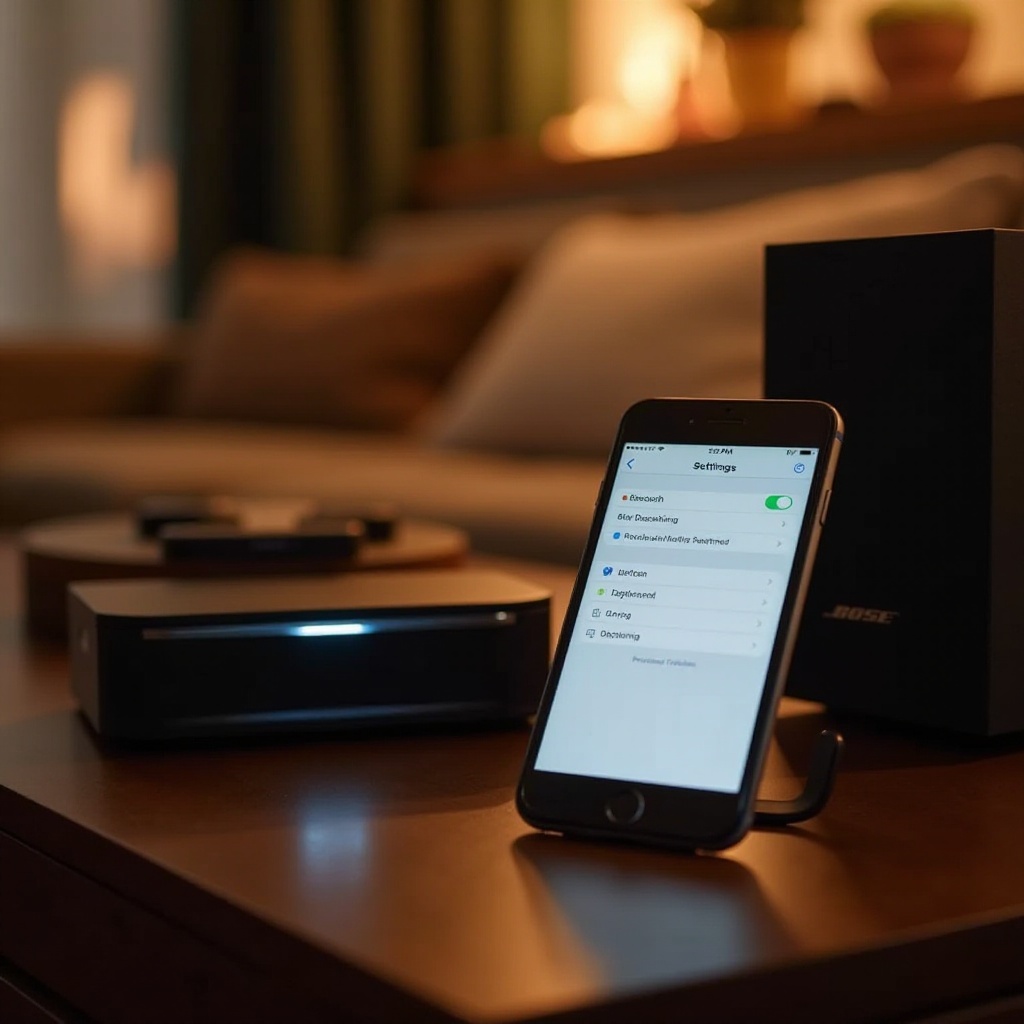
Conclusion
By following these steps, pairing your iPhone with Bose devices becomes a seamless task that significantly enhances your listening experience. The satisfaction of high-quality Bose audio is just a few steps away, making every listening session enjoyable, whether you’re on a call, streaming music, or listening to a podcast.
Frequently Asked Questions
What should I do if my iPhone doesn’t connect to my Bose device?
Ensure Bluetooth is on for both devices, restart them, and try reconnecting. Check for software updates that might resolve any compatibility issues.
Can I pair more than one Bose device to my iPhone?
Yes, multiple devices can be paired but only one can actively connect at any given time for audio streaming.
What are the steps to disconnect my iPhone from a Bose device?
Go to Bluetooth settings on your iPhone, find the connected Bose device, and tap ‘Disconnect’ to sever the connection.