
Introduction
Dropping a pin on your iPhone enables convenient location marking. Whether pinpointing a memorable destination or guiding a friend to a new cafe, this feature on Apple Maps simplifies navigation tasks. In this guide, we detail the straightforward process to efficiently drop pins and enhance your mapping experience.

Understanding Pins on iPhone
Pins in Apple Maps serve as virtual location markers. They allow users to flag places for easy future reference or for sharing. This tool proves invaluable in daily activities, ensuring you can revisit favorite spots without hassle.
Preparing your device settings properly lays the groundwork for a seamless pin-dropping experience, enhancing the utility of this feature.
Preparing Your iPhone for Pin Dropping
To drop a pin effectively, first verify that Location Services are active on your device. It ensures optimal Maps functionality and accurate pin placement. Follow these preparation steps:
- Access the ‘Settings’ app.
- Navigate to ‘Privacy & Security.
- Tap ‘Location Services’ and enable it.
- Find ‘Maps’ and select ‘While Using the App.
Moreover, updating your iOS software via ‘Settings,’ ‘General,’ ‘Software Update,’ optimizes app performance, including the pin drop feature.
Once your iPhone is configured, you can proceed with dropping a pin.

Step-by-Step Guide to Dropping a Pin
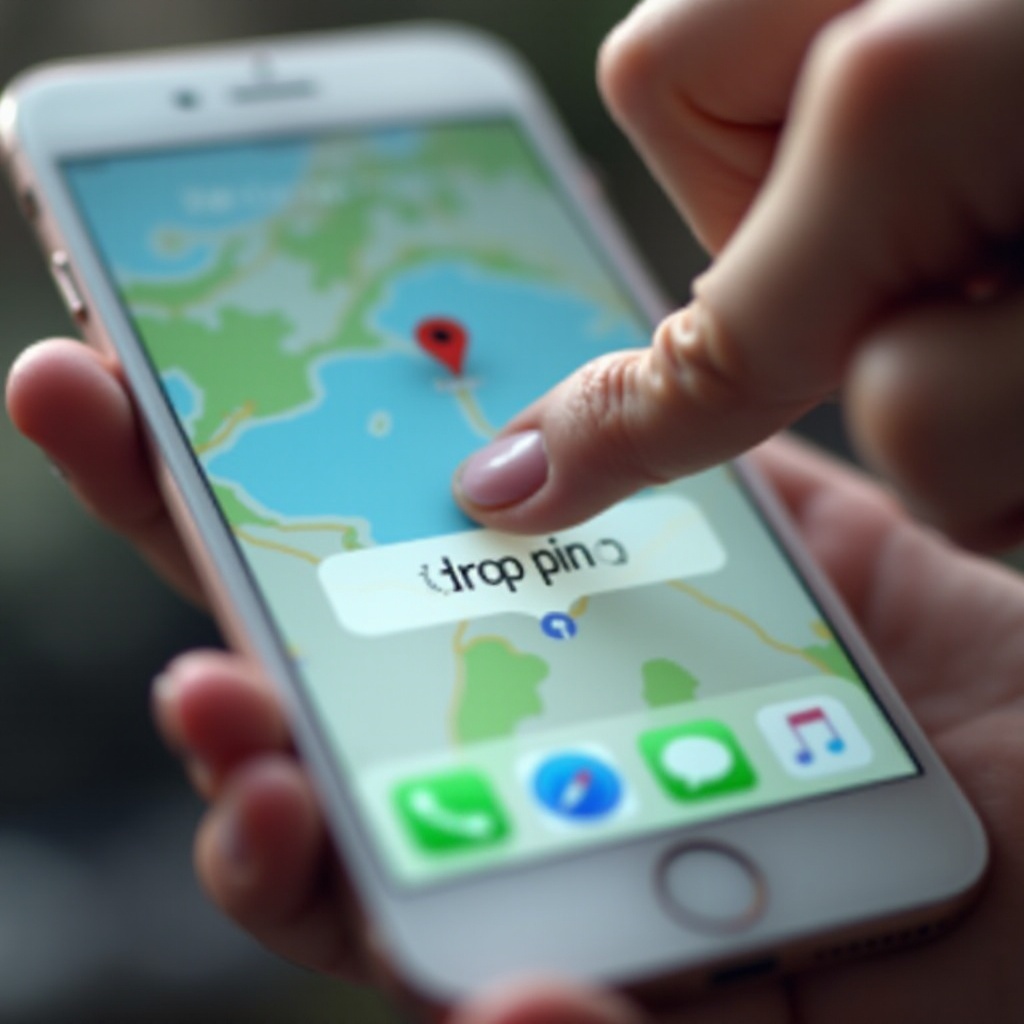
Begin by launching the Apple Maps app from your home screen. Locate your desired spot using the map or search function. To drop a pin:
- Press and hold on the target location until a red pin appears.
- Swipe up on the displayed info card.
- Choose to save the location under ‘Favorites’ or share with contacts.
Mastering these steps allows troubleshooting with confidence.
Troubleshooting Pin Drop Issues
While the process is meant to be smooth, occasionally troubles may arise. Here are common issues and how to resolve them:
- Problem: Unable to drop a pin.
- Solution: Restart the Maps app or your iPhone.
- Problem: Pin inaccurately placed.
- Solution: Manually adjust the pin location by moving it to the correct spot.
After addressing these issues, you will be ready to explore advanced pin functionalities.
Advanced Uses of Pin Dropping
Pins in Apple Maps offer more than basic marking:
- Customize names and notes for each pin by accessing the info card.
- Use pins creatively for planning trips, marking key points along your journey, or coordinating meetups.
These advanced uses make navigation richer and tasks more organized.
Conclusion
Effectively dropping pins on your iPhone transforms navigation, makes travel planning more efficient, and instills a sense of connectivity with locations you cherish. Start employing pin drops in your daily routine for greater ease and organization.
Frequently Asked Questions
How do I delete a pin on my iPhone?
To delete a pin, tap the pin on Apple Maps, swipe up the information card, and tap ‘Remove Pin.’
Can I drop multiple pins at once?
While you can drop multiple pins during a session, each pin must be dropped individually.
Are dropped pins accurate?
Pins are generally accurate due to GPS data, though obstructions can cause minor inaccuracies. Adjust manually if needed.