
Introduction
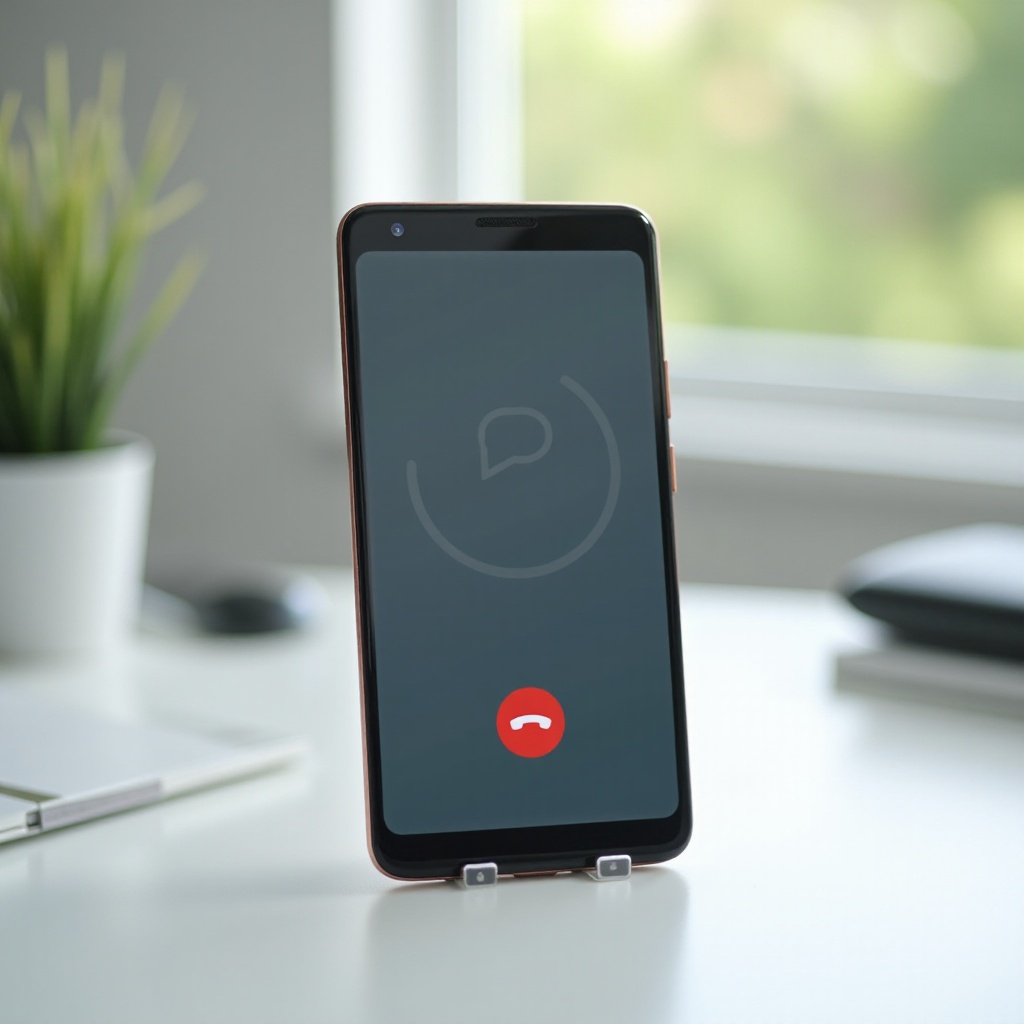
Struggling with your Google Pixel not receiving calls can significantly impact your daily communication. Google’s Pixel range, while renowned for its performance, can sometimes face reception challenges. This comprehensive guide will help you uncover potential causes and explore practical fixes to restore your phone’s call reception capabilities effectively.
Common Causes of Call Reception Issues
Identifying why your Google Pixel isn’t receiving calls is essential before moving on to solutions. Typically, the root causes fall into three main categories:
-
Network Connectivity Problems: Weak signals or network interruptions can prevent calls from getting through, often influenced by geographical factors or service provider limitations.
-
Software Glitches or Bugs: Occasionally, system updates or internal software errors can interfere with call reception, necessitating attention to updates or reset procedures.
-
Hardware Malfunctions: Physical issues like a damaged antenna or other internal components may lead to persistent call reception problems, necessitating repair.
Once you comprehend these causes, you can proceed with targeted troubleshooting efforts.
Preliminary Troubleshooting Steps
Start with these basic troubleshooting methods to quickly resolve possible reception issues on your Google Pixel:
-
Verify Network Signal: Check the signal strength indicator on your device. If it is low, try relocating to a place where the reception is better.
-
Restart Your Device: Reboot your phone to clear temporary system glitches that may affect call reception.
-
Check Call Forwarding and Do Not Disturb Settings: Ensure neither call forwarding is activated nor Do Not Disturb mode is enabled as they can prevent incoming calls.
If basic steps do not alleviate the issue, more intricate troubleshooting techniques are available.
Advanced Troubleshooting Solutions
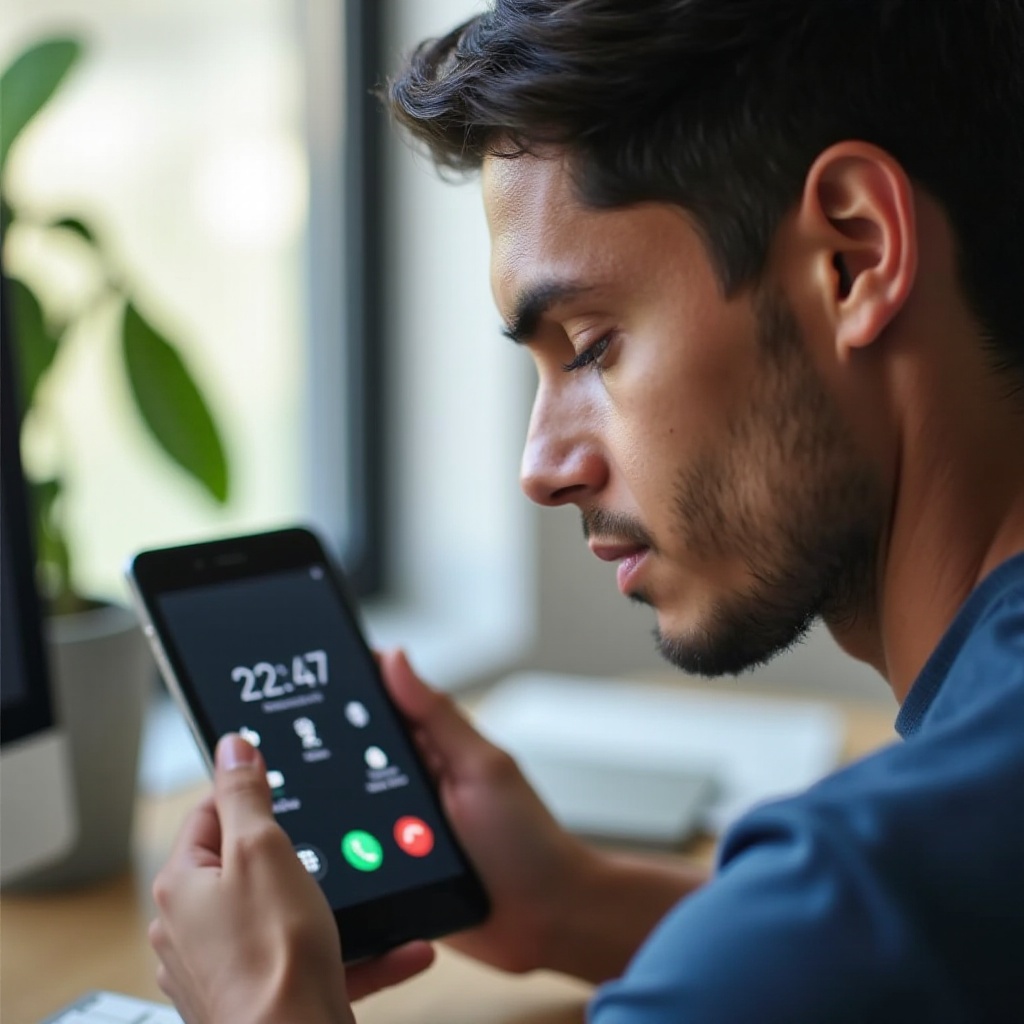
When initial efforts are insufficient, consider these advanced options:
-
Software Update Checks: Ensure your Pixel’s software is current. Updates frequently include fixes for call-related bugs and glitches.
-
Network Settings Reset: Performing a reset can solve persistent connectivity problems by reverting network settings to their defaults without affecting personal data.
-
Factory Reset as a Last Resort: Consider a factory reset if no other methods work. Ensure you back up any data, as this process will wipe your device clean.
With advanced troubleshooting, you can tackle more complex issues that affect call reception, helping to ensure a more stable phone connection.
Diagnosing Network and SIM Card Issues
Persistent problems often indicate network or SIM card concerns. To diagnose possible issues, try the following:
-
Inspect SIM Card Placement: Confirm that your SIM card is correctly installed and undamaged. This can prevent unnecessary interruptions in service.
-
Consult Carrier for Network Status: Have a word with your service provider to check for any localized outages or account-related issues that might be contributing to the problem.
-
Test with Alternative SIM Card: Use another SIM card to determine if the problem persists, identifying if the original card is faulty.
By exploring these network and SIM card diagnostics, you can determine if external factors are influencing your call reception.
When to Seek Professional Help
If you have tried all the above solutions to no avail, professional help might be necessary:
-
Persistent Issues and Professional Diagnosis: For stubborn reception problems, a certified technician can conduct a thorough examination and rectify hardware issues.
-
Utilizing Warranty and Support Services: Do not forget to utilize warranties or support services provided by Google or your carrier, ensuring professional-grade help for hardware or persistent software problems.
Seeking expert help ensures thorough device evaluation, helping to maintain optimal functionality and user confidence.
Conclusion
Call reception issues on your Google Pixel can range from simple network interruptions to complex hardware faults. By systematically following troubleshooting steps from basic to advanced, most issues can be resolved at home. For persistent problems, professional intervention may be necessary, ensuring your device remains efficient and reliable.
Frequently Asked Questions
Why is my Google Pixel not receiving calls from specific contacts?
Specific contacts could be blocked or stored incorrectly. Check your contact list for errors and ensure necessary contacts are unblocked.
Can a software update fix call reception issues on my Google Pixel?
Yes, software updates can address known bugs or glitches affecting call reception. Ensure your device is updated for optimal performance.
How do I know if my SIM card is faulty?
If an alternative SIM card works without issues, your original SIM card might be faulty. Consider replacing it through your carrier.