
Introduction
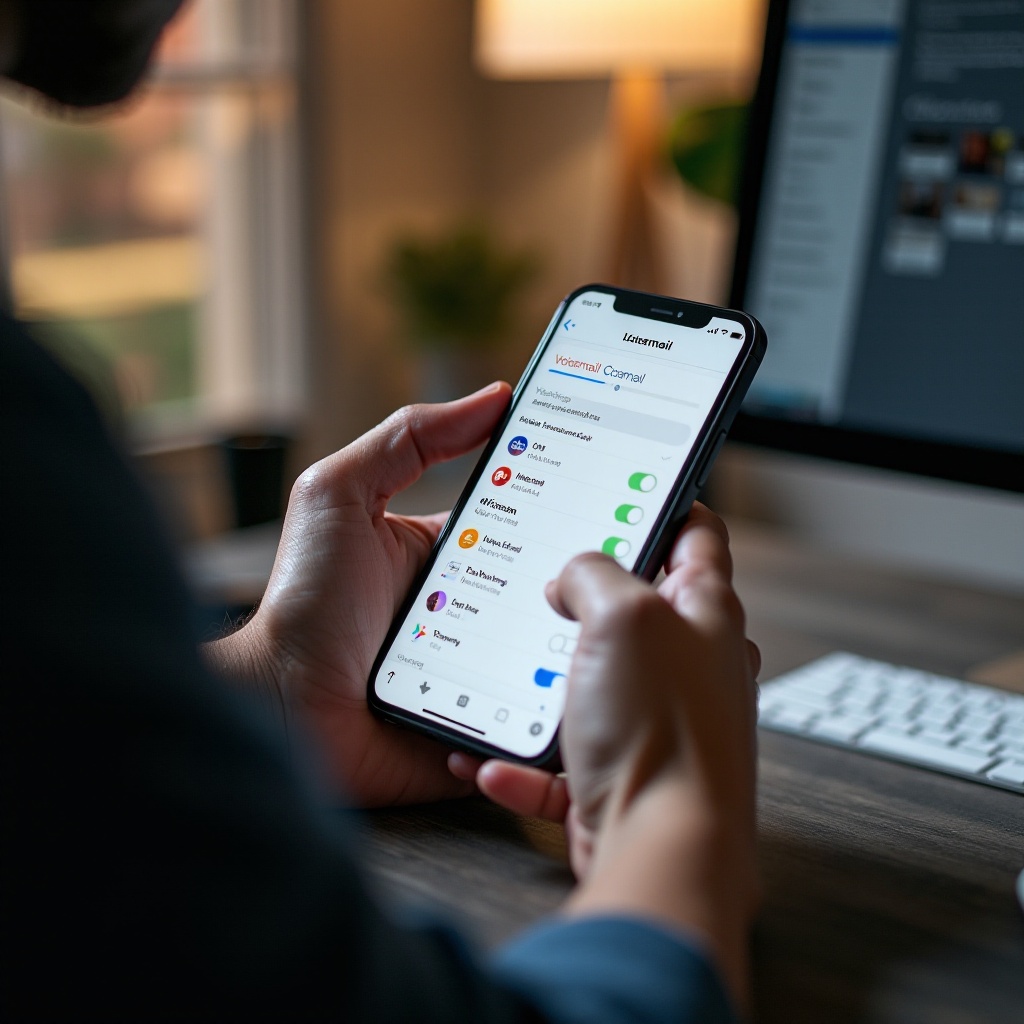
Voicemail is an essential feature on iPhones, ensuring you receive important messages when you’re unable to pick up calls. Yet, many users face issues with their voicemail, which can be quite frustrating if not addressed. Whether your voicemails are not showing up, Visual Voicemail isn’t functioning, or you’re missing notifications, this guide is here to help you fix these common problems efficiently.
Recognizing the root of the issue is often the first step in resolving it. With the right troubleshooting techniques, you can have your voicemail working perfectly again in no time.
Common Voicemail Issues on iPhone
iPhone users frequently experience similar voicemail issues, which can usually be sorted out with the right approach.
- Voicemail Not Showing Up: New messages sometimes fail to appear in the list, leaving users unaware of missed communications.
- Visual Voicemail Not Working: Problems arise when the feature designed to transcribe messages isn’t operational.
- No Voicemail Notifications: New ones might arrive without alerting you, causing missed messages.
Understanding these common issues will make solving them much easier as we delve into practical troubleshooting steps.
Basic Troubleshooting Steps
Let’s start with basic methods. These steps are simple and can often rectify most voicemail problems.
-
Check for iOS Updates: Always ensure your iPhone is running the latest iOS version. Navigate to Settings > General > Software Update to verify.
-
Restart Your iPhone: A simple reboot can clear temporary system glitches. Hold the power button, slide to power off, and restart after a minute.
-
Ensure Cellular Network Connectivity: Check your network status, as voicemail needs a stable connection. Also, confirm Airplane Mode is disabled.
These steps resolve many minor issues, but should they not suffice, more advanced solutions might be necessary.
Advanced Solutions
If basic troubleshooting doesn’t help, try these advanced methods.
-
Reset Network Settings: This restores default network settings. Go to Settings > General > Reset > Reset Network Settings. Remember, this will erase saved Wi-Fi passwords.
-
Use the ‘Airplane Mode’ Toggle: Switching Airplane Mode on and off can refresh the network connection. Control Center allows this through its airplane icon.
-
Reconfigure Voicemail Settings: Access your voicemail by holding the ‘1’ key on the dialer pad, and follow prompts to check or reset settings.
These strategies can handle stubborn issues keeping your voicemail from working correctly.
Carrier-Specific Solutions
Some voicemail problems stem from carrier-related issues. Here are your next steps:
-
Contact Your Carrier for Support: If your voicemail issues persist, your carrier may need to resync your voicemail service or provide further assistance.
-
Check for Carrier Settings Updates: Such updates can solve network-related issues. Access Settings > General > About; if updates are available, a prompt will appear.
Exploring these options can uncover underlying issues that are beyond your device’s control.
When to Seek Professional Help
If your voicemail issues persist despite all attempts, this might signal something more complex.
-
Signs You Need Technical Assistance: When the usual fixes fail, hardware issues might be the cause.
-
Options for Professional Services: Consulting with Apple Store technicians or authorized providers ensures expert help and a properly functioning device.
Professional help ensures deeper technical issues are identified and fixed effectively.
Conclusion
Addressing voicemail issues on your iPhone involves a series of troubleshooting steps. Regularly updating your iOS and maintaining network settings can prevent many problems before they become serious. Professional support is always available for unresolved issues. Following these steps will help you keep your voicemail reliable and functioning, ensuring you stay connected with the people who matter most.
Frequently Asked Questions
How do I reset my iPhone voicemail password?
Contact your carrier or navigate to Settings > Phone > Change Voicemail Password to reset it.
Why is my voicemail still not working after an update?
After updates, try resetting network settings or contact your service provider for further diagnostics.
Can I retrieve deleted voicemails on my iPhone?
Yes, go to your Voicemail tab and scroll to ‘Deleted Messages’ to retrieve them if they haven’t been permanently erased.