
Resolving Android Auto Maps Crashing Issues on Your Phone
Introduction
Android Auto maps crashing is a frequent issue that can disrupt navigation during your drives. This guide aims to diagnose the root causes and provide actionable solutions. From understanding why crashes occur to implementing proactive measures, this comprehensive article will ensure smooth operation of Android Auto maps on your phone. Our goal is to enhance your overall driving experience and connectivity.
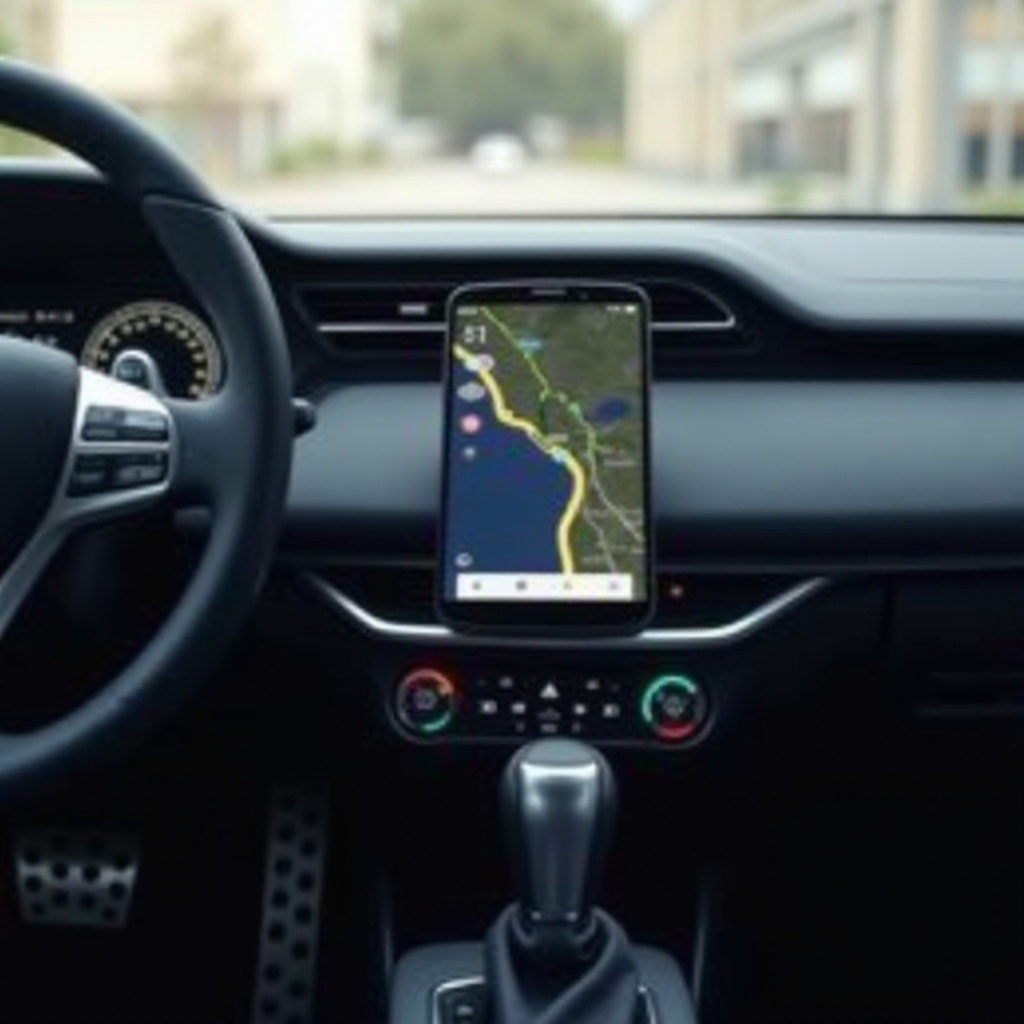
Understanding the Android Auto Maps Crashing Problem
To effectively resolve the issue, we first need to understand what causes maps to crash on Android Auto. Often, glitches in software updates, insufficient memory, or unstable connections between your phone and vehicle’s infotainment system are the culprits. Such disruptions can lead to an inconvenient experience, but by identifying these causes, you can be better equipped to apply targeted solutions.
Common Causes of Maps Crashing in Android Auto
Among the common reasons for Android Auto maps to crash are outdated software, excessive cache, and unstable connections. An outdated app might not function as intended, while too much stored data can overload your phone’s memory. Moreover, connectivity issues between your phone and the car display can further exacerbate the problem. Understanding these causes sets the stage for the troubleshooting guide that follows.
Step-by-Step Troubleshooting Guide
To tackle these problems effectively, consider the following steps:
-
Updating Software and Applications: Begin by ensuring that Android Auto and Google Maps are up-to-date with the latest versions. Regular updates can resolve compatibility issues and improve performance.
-
Clearing Cache and App Data: Access your phone’s app settings and select Android Auto and Maps. Clearing cache and data releases memory space, improving the apps’ functionality.
-
Reinstalling Android Auto and Maps: If issues persist, uninstall and then reinstall both apps. This can refresh their functionalities and eliminate embedded glitches.
These systematic steps should help restore the stability of your Android Auto maps.
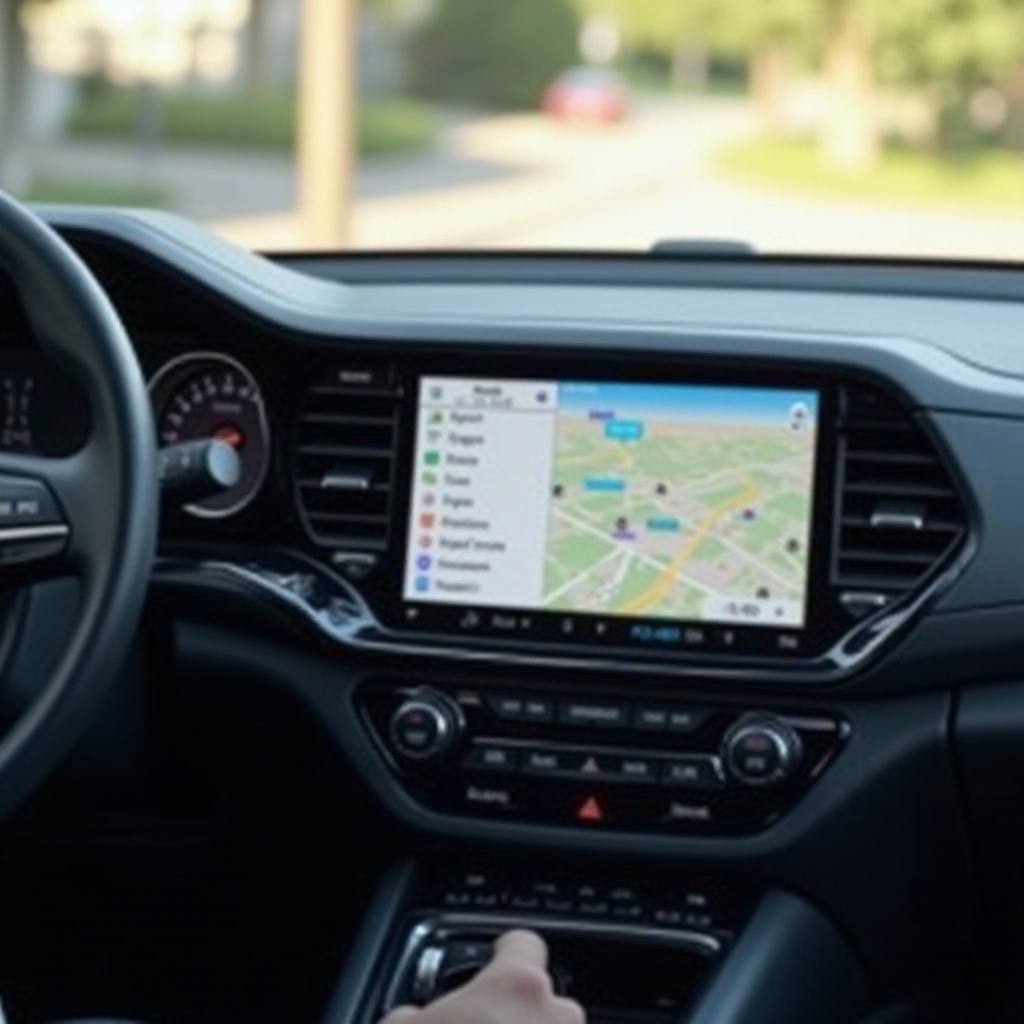
Advanced Solutions and Connectivity Tips
If the basic solutions do not suffice, here are more advanced strategies:
-
Checking Hardware Compatibility: Make sure your phone model supports the latest Android Auto features. Older hardware might encounter more issues than newer, compatible models.
-
Optimizing Connectivity with Car Systems: Inspect the USB cables and ports for reliable data transmission. High-quality accessories ensure stable connection between your phone and vehicle.
Implementing these solutions can resolve persistent connectivity issues that impede smooth operation.

Preventative Measures for a Stable Experience
To ensure Android Auto continues functioning properly, consider these protective steps:
- Regularly update your phone’s OS along with all applications.
- Minimize multitasking while running Android Auto as it can overload the phone processor.
- Keep your phone’s storage optimized by removing unnecessary files.
Following these preventative measures will significantly reduce future disruptions and maintain effective functionality.
Conclusion
Android Auto maps crashing is an issue that can be addressed through careful troubleshooting and proactive practices. By understanding common causes, applying correct solutions, and maintaining regular updates, you can continue to enjoy a reliable Android Auto experience. Participation in community forums to share insights can also help enhance collective knowledge.
Frequently Asked Questions
Why does Android Auto Maps keep crashing despite updates?
Despite updates, crashes can persist due to hardware limitations or incompatibility. Regular checks on both phone and car compatibility can alleviate ongoing issues.
Can using a third-party map app solve the crashing issue?
Third-party apps might offer temporary relief, but addressing Android Auto-specific issues often resolves the problem more comprehensively.
How can I report consistent issues to Google?
You can report issues through Google’s support channels or forums to request assistance or provide feedback on persistent problems.