
Introduction
Mac and iPhone users often enjoy a well-integrated experience, especially with features like AirPlay that provide seamless screen mirroring. However, occasional issues with mac iPhone mirroring can disrupt this experience. This article explores the common causes of these problems and provides straightforward solutions to get your devices back on track.
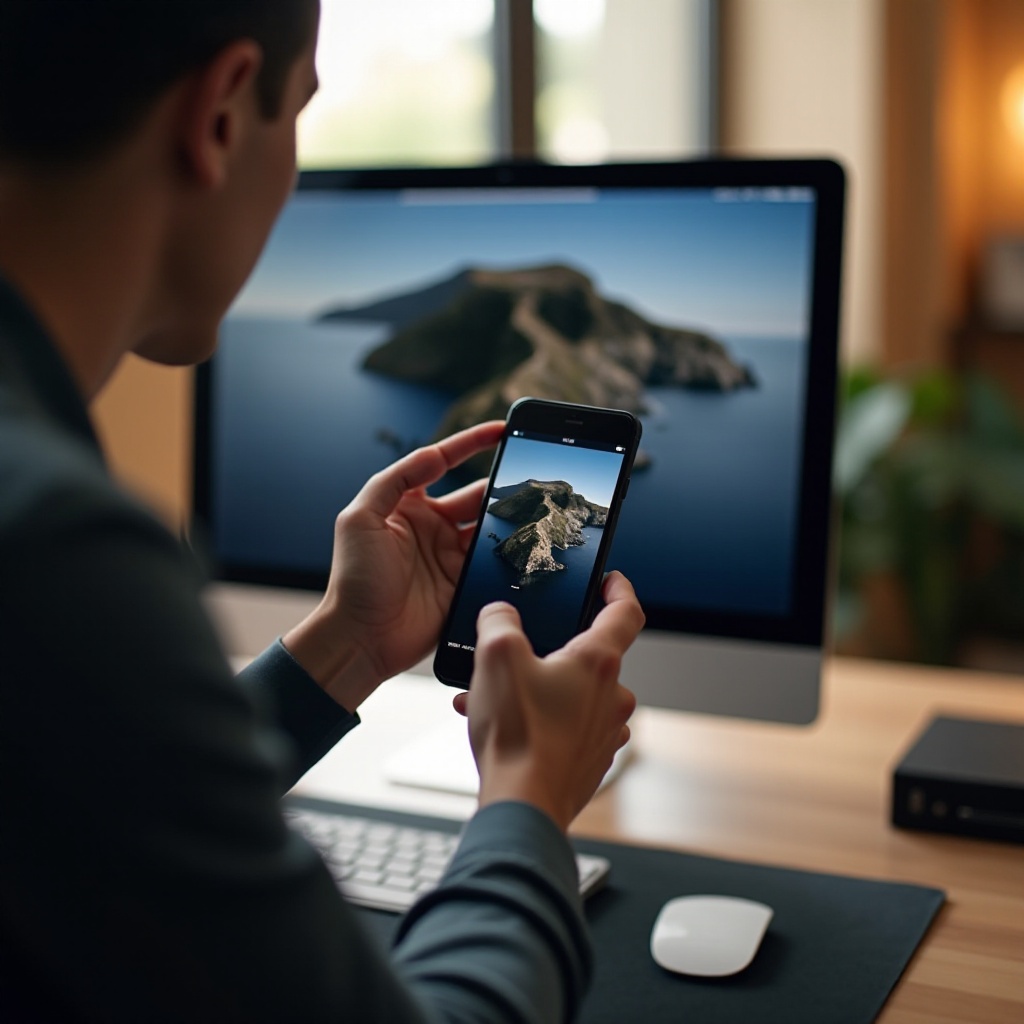
Understanding Mac iPhone Mirroring
Screen mirroring through AirPlay allows you to project your iPhone’s display onto your Mac, making it ideal for presentations and entertainment. For successful mirroring, both devices need to be on the same Wi-Fi network and compatible with AirPlay. Regular software updates are also crucial to prevent connectivity issues and ensure optimal functioning.
Common Causes of Mirroring Issues
Some typical reasons for mirroring problems include:
- Device Compatibility: Verify your Mac and iPhone support AirPlay. Some older models may encounter compatibility issues.
- Software Updates: Check that both devices have the latest updates installed. Outdated software often disrupts connections.
- Network Connectivity: Ensure both devices are on the same Wi-Fi network. Network reliability is foundational for effective mirroring.
Understanding these factors sets the stage for basic troubleshooting steps.
Basic Troubleshooting Steps
If you encounter mirroring issues, start with these basic solutions:
- Check Software Versions: Make sure your Mac and iPhone are running the latest OS updates to avoid compatibility problems.
- Verify Network Settings: Confirm both devices are on the same Wi-Fi network and check router settings for any restrictions.
- Restart Devices: Restarting your iPhone and Mac can resolve minor technical glitches affecting the mirroring function.
If these actions do not resolve the problem, it may be necessary to explore more advanced techniques.
Advanced Solutions for Mirroring Problems
For persistent issues, delve into these advanced fixes:
- Adjust Firewall Settings: Ensure your Mac’s firewall allows incoming connections from your iPhone, particularly for AirPlay.
- Use AirPlay Alternatives: Consider third-party applications like Reflector or AirServer if Apple’s AirPlay does not work efficiently in your environment.
- Resolve Wi-Fi Interference: Improve signal strength by reducing interference or optimizing router placement.
Implementing these solutions can greatly enhance mirroring stability and performance.

Additional Tips for a Smooth Mirroring Experience
For ongoing reliability, keep in mind:
- Regular Maintenance: Frequently update your devices and apps to avoid known issues.
- Professional Support Options: If problems persist, contacting Apple Support may provide personalized solutions.
These tips can help maintain a seamless experience, minimizing disruptions.
Conclusion
Mirroring from iPhone to Mac should enhance your productivity and entertainment. By understanding common issues and applying both basic and advanced solutions, you can eliminate frustrating disruptions. Keep your software and devices updated and consider professional support for persistent issues, allowing you to enjoy the benefits of seamless connectivity.
Frequently Asked Questions
Why is my iPhone not mirroring to my Mac?
Ensure your devices are compatible, updated, and on the same Wi-Fi network for optimal performance.
How do I reset AirPlay settings on my iPhone?
Disable and re-enable AirPlay in your iPhone’s settings, and check your network connection stability.
What are reliable third-party apps for screen mirroring?
Reflector and AirServer are popular alternatives known for enhancing mirroring capabilities.