
Introduction
Struggling with JBL headphone connectivity can interrupt your listening experience and lead to frustration. Whether you’re trying to enjoy music or join a call, wireless headphones offer convenience but sometimes face issues. This guide provides a comprehensive approach to resolving these common connectivity problems, ensuring you’re back to seamless audio enjoyment.
Understanding JBL Connectivity Problems
JBL headphones offer great sound quality, yet sometimes Bluetooth connections falter. Problems may arise from outdated software, device interference, or hardware issues. Identifying these potential obstacles is key to effective troubleshooting. This understanding will guide you in targeting and eliminating the root causes.
Initial Troubleshooting Steps
Begin by addressing basic checks, as simple fixes often resolve connectivity issues.
- Bluetooth Settings: Make sure Bluetooth is enabled on your device as a common oversight can lead to connection failures.
- Battery Levels: Verify the battery levels on both your device and JBL headphones since low power can impede connectivity.
- Device Compatibility: Ensure your JBL headphones are compatible with your device’s Bluetooth version, as mismatched versions can prevent successful pairing.
These initial steps often address minor problems, setting the stage for effortless connections.
Advanced Solutions for Persistent Issues
If basic checks aren’t enough, explore advanced solutions to resolve lingering connectivity issues.
- Forgetting and Re-pairing JBL Headphones: Go to Bluetooth settings, forget the JBL device, and attempt re-pairing to refresh the connection.
- Updating Device Firmware and Software: Keep devices updated to the latest firmware and software, addressing bugs and connectivity improvements.
- Resetting JBL Headphones: Follow the manual’s instructions to perform a factory reset, which clears previous settings, enabling fresh pairings.
Engage these solutions to tackle stubborn issues, ensuring compatibility across different devices.
Specific Device Troubleshooting
Connectivity challenges can vary depending on the device being used. Here are targeted solutions for common devices:
- Smartphones: Check Bluetooth compatibility and restart your phone; simple yet effective methods for resolving connectivity issues.
- Computers and Tablets: Ensure no pending software updates, as updates can offer refreshed settings that aid in connection.
- Different JBL Models: Refer to your JBL model’s specific guide for instructions related to pairing and troubleshooting.
Understanding and adapting to device-specific needs increases your success in resolving these problems.
Identifying Hardware Problems
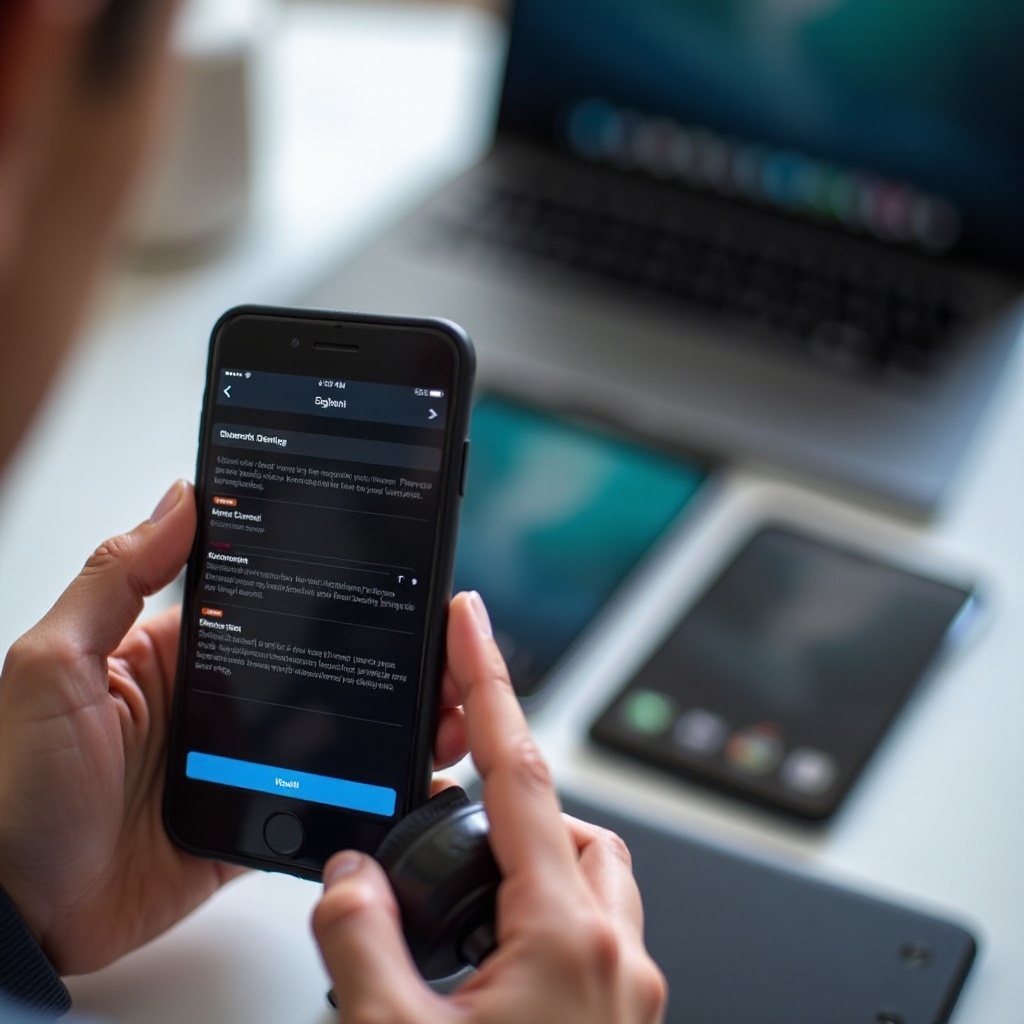
Hardware issues might be at play if connectivity continues to fail. Look for physical damage and test the headphones with other devices. Should hardware problems be evident, it’s advisable to contact JBL support for repair or explore warranty options. Addressing hardware concerns ensures persistent issues are not overlooked.
Conclusion
With the support of this guide, you can reclaim seamless JBL headphone connectivity. Regular checks on software updates, minimal interference, and periodic device assessments will safeguard your wireless experience. Focus on the steps outlined to return your JBL headphones to great functionality and impeccable sound quality, free from disruption.
Frequently Asked Questions
Why are my JBL headphones not connecting to my phone?
Bluetooth settings, battery levels, or device compatibility should be checked.
How can I troubleshoot interference issues with JBL headphones?
Reduce nearby Bluetooth devices and try pairing in a different environment.
What should I do if my JBL headphones won’t reset?
Consult the manual for specific instructions or contact customer support.