
Introduction
If you’ve ever attempted to send a GIF from your iPhone only to realize it’s missing, you’re not alone. GIFs enrich our conversations with humor and animation. Understanding why they vanish can help bring them back and prevent future issues.

Understanding GIFs on iPhone
GIFs are deeply integrated into iOS, turning static chats into lively exchanges. They function smoothly in iOS apps, particularly in Messages, thereby adding layers of expression to text. This integration underpins how we engage with others digitally and why missing GIFs disrupt communication.
People commonly use GIFs to:
– Inject humor into their texts
– Express emotions effectively
– Make chats memorable
Grasping these uses underscores why resolving their disappearance is critical.
Common Reasons for Disappearing GIFs
Disappearing GIFs often result from a few key issues:
-
Impact of iOS Updates: Apple frequently updates iOS to enhance performance and security. Occasionally, these updates introduce compatibility issues, leading to vanishing GIFs due to unknown bugs.
-
App Glitches and Phone Settings: Apps central to GIF functionality, like Messages, may experience bugs, affecting GIF visibility. Additionally, certain phone settings designed to conserve data might inadvertently block GIFs.
Knowing these causes is pivotal in formulating a plan to restore your GIFs.

Troubleshooting Steps to Restore GIFs
Start with these basic troubleshooting steps to resolve missing GIFs:
-
Restarting Your iPhone: A simple restart can resolve minor software glitches that might be affecting GIFs. Hold the power button, slide to power off, then turn it back on after a minute.
-
Checking for iOS and App Updates: An outdated iOS or app might be the culprit. Go to ‘Settings > General > Software Update’ to see if your iOS is current. Also, ensure apps like Messages are up-to-date.
-
Reinstalling Apps Like Messages: Sometimes, a fresh start is necessary. Delete and reinstall the Messages app by pressing its icon, selecting ‘Remove App’, and then downloading it again from the App Store.
Applying these initial solutions often restores normal function. However, should issues continue, moving on to advanced tactics might be needed.
Advanced Solutions for Persistent Issues
When basic troubleshooting doesn’t resolve the issue, consider these advanced solutions:
-
Resetting Network Settings: Address connectivity issues by resetting the network settings. Navigate to ‘Settings > General > Reset > Reset Network Settings’. Note that this will erase saved Wi-Fi passwords, which need re-entering post-reset.
-
Restoring Factory Settings: As a last remedy, resetting your device to factory settings might be required. Ensure to back up all vital data to iCloud or a computer first. Execute this by heading to ‘Settings > General > Reset > Erase All Content and Settings’.
These steps might seem extensive, but they are effective in tackling persistent GIF-related issues and enhancing your overall iPhone experience.
Preventive Measures to Avoid Future Issues
To ensure continued GIF functionality, adopt these preventive actions:
-
Keeping Apps and iOS Updated: Regular updates ensure smooth compatibility and introduce new features. Frequent updates reduce the risks of glitches.
-
Regular Backups and Maintenance: Consistently back up your device to iCloud or a local computer to safeguard data. This also enables quick restoration, should a reset be necessary.
Together with earlier fixes, these steps maintain your iPhone as a GIF-friendly device, ready to handle future interactions effortlessly.
Conclusion
Restoring missing GIFs involves understanding the root causes, applying a strategic set of solutions, and adopting preventive tactics. By following these well-rounded steps, you can ensure your GIFs stay an active part of your digital conversations, maintaining the vibrancy GIFs bring to your communication.
Frequently Asked Questions
How do I check if my GIF settings are correct?
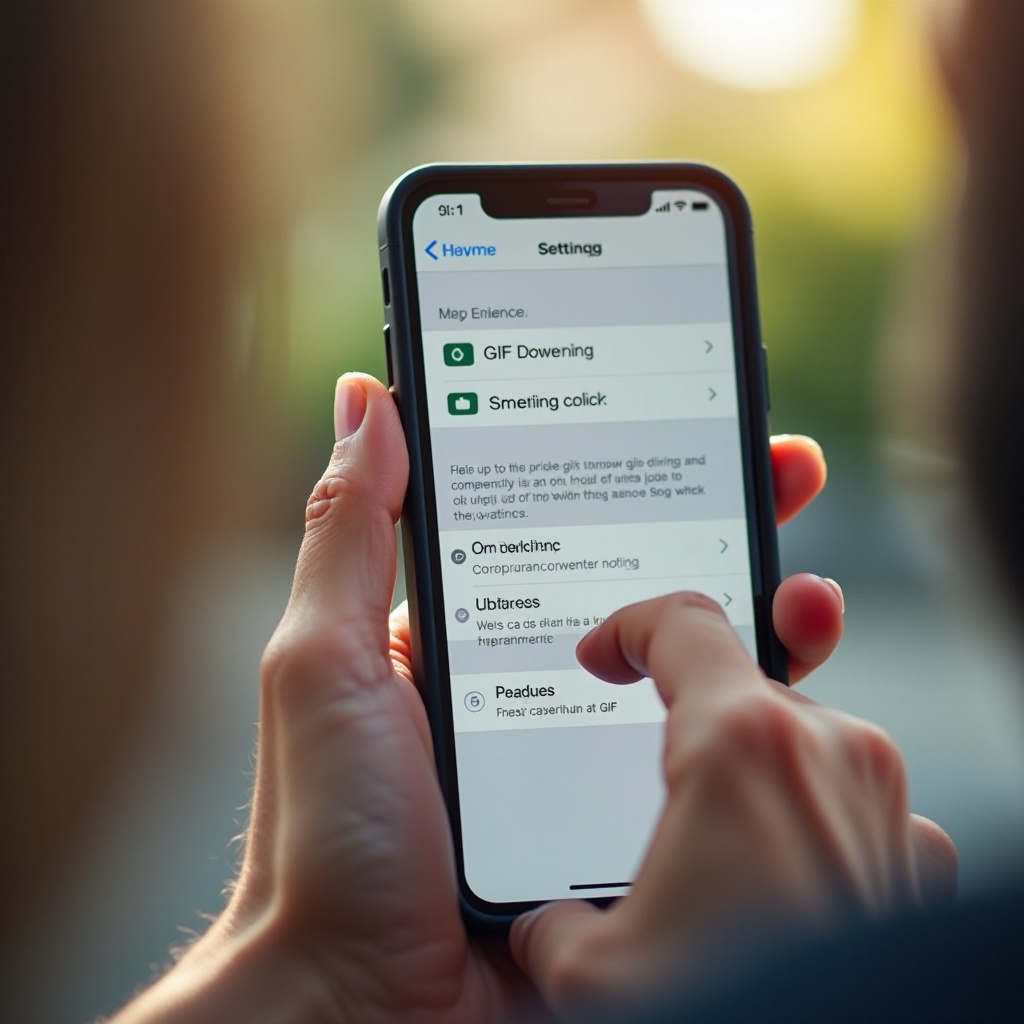
Ensure that apps like Messages have access to your photo library, including GIFs. This can be verified under ‘Settings > Privacy > Photos’.
Can third-party apps solve the missing GIF problem?
Yes, using third-party GIF keyboards or apps can provide alternative solutions, allowing you to access GIFs outside of native applications.
What should I do if GIFs are still missing after trying all solutions?
If issues persist, contact Apple Support for further assistance. They can guide you through advanced diagnostics or suggest hardware checks if needed.