
Introduction
Apple Watch users often utilize the screenshot feature for quick visual recordings, only to find these images missing on their iPhone. This guide aims to provide a clear solution to this problem, ensuring that users can easily relay information between devices. Understanding both the common causes and effective solutions is critical for resolving the issue and restoring functionality.
Understanding the root causes of this issue will allow you to tailor your troubleshooting efforts more effectively. Once we pinpoint the reasons for the failed transfers, implementing solutions becomes more straightforward.
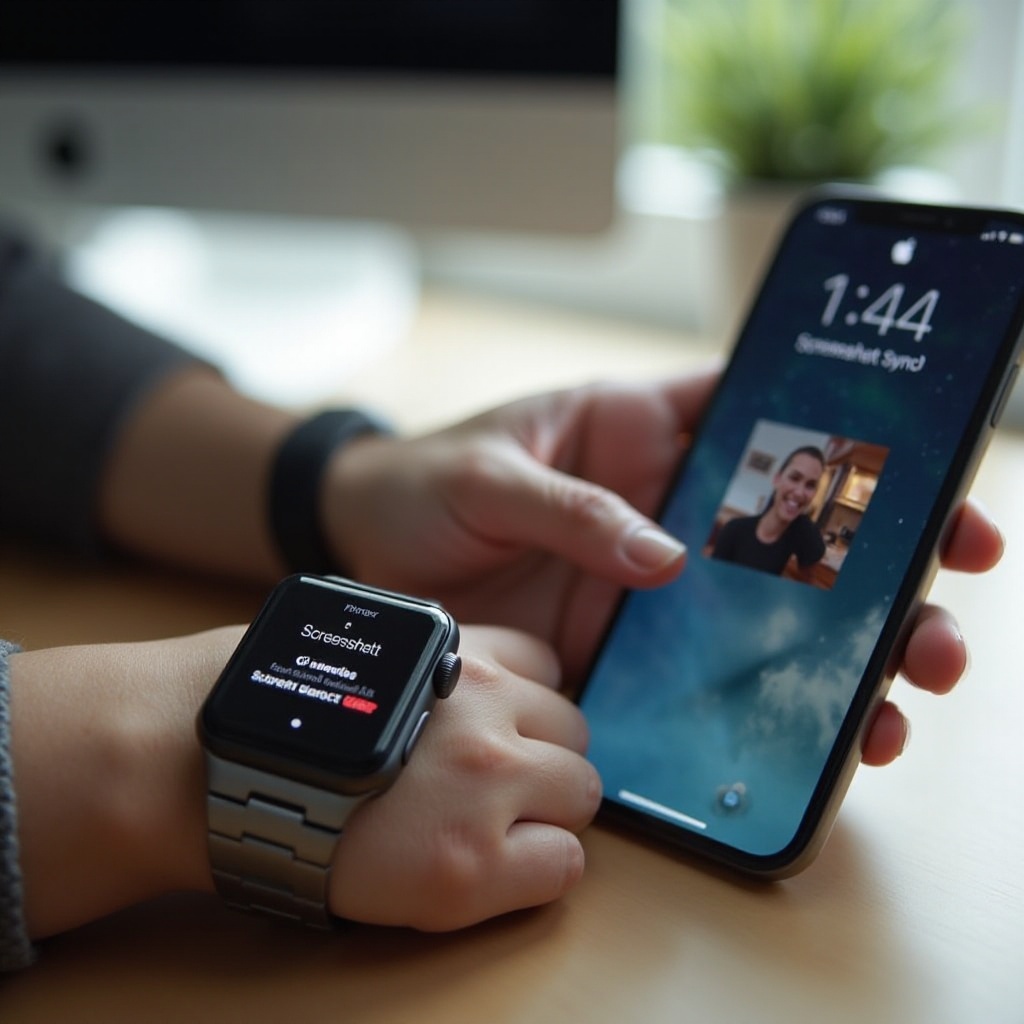
Understanding Apple Watch Screenshot Challenges
Apple Watch screenshots might not appear on your iPhone due to several technical glitches. These issues often stem from incorrect settings, software mismatch, or connectivity troubles. Pinpointing the exact source of these challenges is crucial as it helps direct the troubleshooting process.
Connectivity problems between the Apple Watch and iPhone often result in syncing troubles. To maintain seamless compatibility, it’s essential to keep software up-to-date and ensure proper device settings.
Common Causes for Screenshot Transfer Issues
To systematically address the issue of missing Apple Watch screenshots on your iPhone, let’s examine potential causes:
- iOS and watchOS Compatibility: Screenshots can fail to transfer if there’s a mismatch in software versions between your devices. Always verify that both are running compatible versions.
- Incorrect Settings Configuration: Sometimes, screenshots aren’t enabled on one or both devices. Double-check that settings are activated in both the Apple Watch and iPhone.
- Connectivity and Syncing Problems: A stable Bluetooth and Wi-Fi connection is required for smooth syncing. Weak signals can disrupt the transfer of screenshots.
Each of these factors can independently or collectively contribute to transfer problems, and understanding these will guide us into efficient troubleshooting.
Effective Solutions to Fix Screenshot Issues
With the causes identified, let’s explore practical solutions:
-
Verify Screenshot Settings on Apple Watch and iPhone: Ensure screenshots are enabled on both devices. For your Apple Watch, use the Watch app on your iPhone, navigate to General, and enable the screenshots feature.
-
Update iOS and watchOS to Latest Versions: Compatibility can be addressed by checking that both devices are updated to the latest software. Use your iPhone’s Settings > General > Software Update and the Watch app for updating.
-
Troubleshoot Bluetooth and Wi-Fi Connectivity: Screenshots rely on stable connections. Ensure both devices are paired correctly. Disconnect and reconnect if necessary to refresh the connection.
Implementing these steps ensures that crucial settings are in place to facilitate screenshot transfers, paving the way for advanced troubleshooting if needed.
Advanced Techniques for Persistent Problems
If initial steps don’t solve the issue, consider these advanced solutions:
-
Unpair and Repair Apple Watch and iPhone: This process can restart the syncing system and fix issues. Use the Watch app to unpair, then follow the setup steps to re-pair the devices.
-
Address iCloud Sync Configuration: Screenshots should sync through iCloud; therefore, ensure that iCloud Photo Library is active. Verify your settings in the iPhone’s Photos app under Settings.
These advanced strategies target deeper system issues that might be blocking seamless screenshot transfers, ensuring all connectivity aspects are optimized.
Tips to Prevent Future Screenshot Issues
Being proactive can prevent potential syncing issues:
- Regularly update both devices to the latest software versions.
- Frequently check settings configurations to confirm screenshots remain active.
- Monitor connectivity by maintaining robust Bluetooth and Wi-Fi signals.
By following these tips, you maintain a well-functioning system that supports continuous screenshot transfers.
Conclusion
By understanding and addressing the potential hindrances affecting screenshot transfers from Apple Watch to iPhone, you can ensure seamless syncing between devices. Taking a proactive approach in maintaining updates, configurations, and connectivity will help you avoid future problems and maintain efficient functionality.
Frequently Asked Questions
How do I enable screenshots on my Apple Watch?
Enable screenshots by accessing the Watch app on your iPhone, selecting General, and toggling ‘Enable Screenshots’.
Why aren’t my screenshots appearing in the Photos app?
Ensure Bluetooth and Wi-Fi are active, and verify settings on both devices.
What should I do if the problem persists after troubleshooting?
Contact Apple Support for further assistance and diagnosis.