
Introduction
If you’re dealing with recurring app crashes on your Android device, you’re not alone. The ‘Android system app keeps stopping’ error can disrupt your activities and become a major inconvenience. This guide offers easy-to-follow solutions and preventive strategies to fix this issue and maintain your device’s smooth operation, making sure apps function optimally.

Common Causes of Android System App Crashes
System app crashes are usually rooted in several fundamental issues. Identifying these causes is the first step in rectifying the problem:
- Outdated Software: If your Android OS or apps aren’t updated, compatibility issues can arise.
- Insufficient Resources: Overloaded storage or RAM can impede app functionality.
- Conflicting Applications: Some apps may conflict with system operations because of overlapping permissions or features.
Understanding these common causes allows us to implement solutions effectively, which can help mitigate the issue promptly.
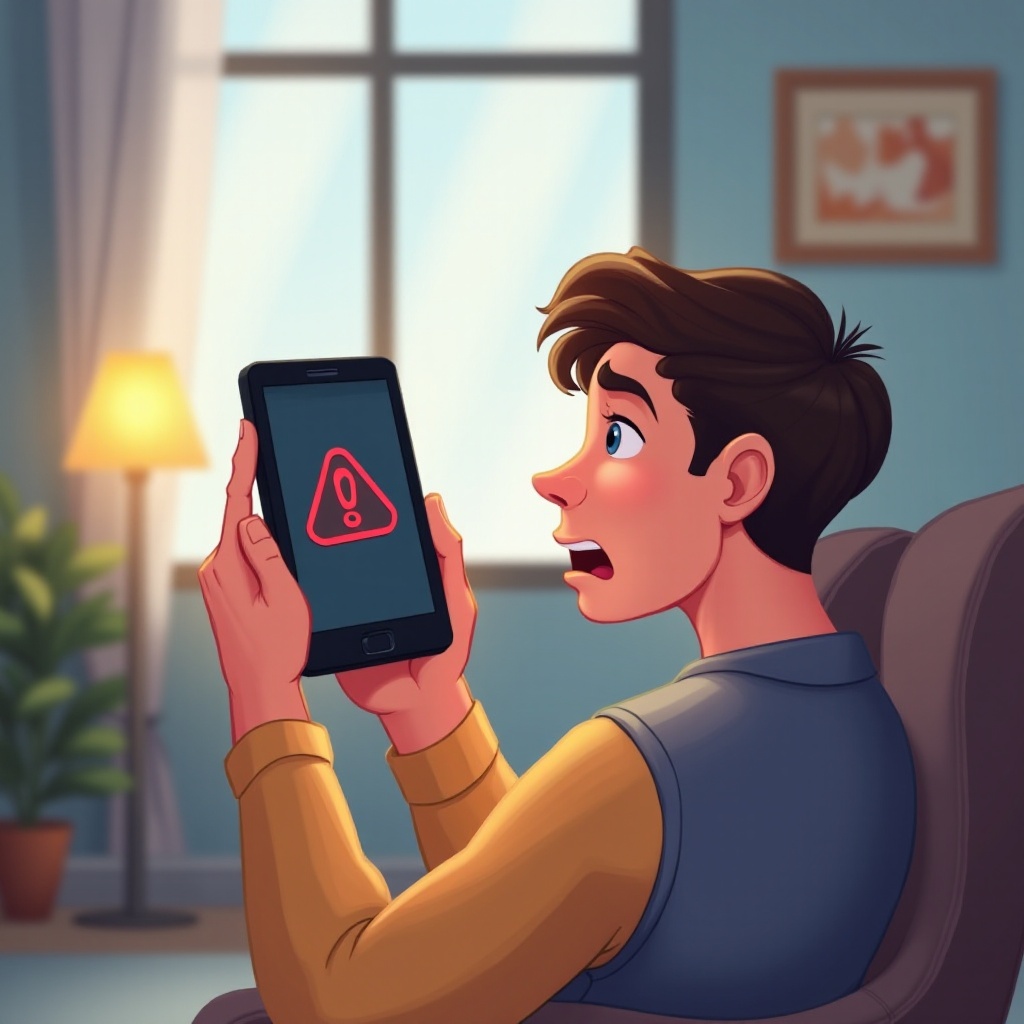
Solutions to Fix Android System App Issues
Once you’re aware of the probable causes, implementing solutions becomes straightforward. Here’s what you can do:
-
Update Android System and Apps: Regular updates are critical. Always check the ‘Settings’ menu for system updates and ensure all apps are up to date. This enhances compatibility and can prevent most app-related errors.
-
Clear Cache and Data: Navigate to your app settings, select the problematic app, and clear its cache and data. This process often resolves issues stemming from corrupted temporary files.
-
Restart Your Device: A simple reboot can clear minor glitches and refresh your device’s system processes.
These steps provide basic relief from app crashes. However, if the issue persists, advanced troubleshooting may be required.
Advanced Troubleshooting Methods
If standard solutions prove ineffective, consider these advanced steps:
-
Factory Reset: Backup your data thoroughly before proceeding. A factory reset reverts your device to its default settings, erasing all data. Use this method only as a last option.
-
Safe Mode Diagnostics: Boot your device in safe mode to disable third-party apps from operating. If the issue doesn’t occur in safe mode, a third-party app might be responsible for the crashes.
-
Contacting Support: Should difficulties continue despite all efforts, reaching out to your device manufacturer or carrier for expert assistance may be necessary.
With these advanced methods, nearly any persistent app issue can be resolved. Once the problem is under control, preventative measures are essential to prevent recurrence.
Preventive Measures for Long-Term Device Stability
Implementing preventive measures ensures ongoing device stability and minimizes future issues:
-
Regular Software Maintenance: Automate updates and schedule regular checks for app and system updates, ensuring peak performance and security.
-
Smart Storage Management: Efficiently manage your device’s storage by clearing unnecessary files and using external storage options whenever possible.
-
Use Trusted App Sources: Graphically secure the integrity of your apps by downloading only from official sources like the Google Play Store. Avoid third-party vendors to reduce malware risks.
By following these prevention strategies, you can significantly enhance the reliability and performance of your Android device.
Conclusion
Though app crashes can be frustrating, understanding the causes and implementing effective solutions can restore your device’s functionality. Advanced troubleshooting may be required at times, but once resolved, preventative actions will ensure a stable device experience moving forward.
Frequently Asked Questions
What should I do first if an app keeps stopping?
Begin by checking for both system and app updates to resolve possible compatibility issues.
Can I fix app crash issues without resetting my phone?
Yes, updating your app and clearing its cache often resolves the problem without requiring a reset.
How do I know if an app conflicts with my Android system?
Boot your device in safe mode; if the problem doesn’t occur, a third-party app may be causing the conflict.