
Introduction
Easily typing or messaging could be a game-changer with Samsung’s voice-to-text feature. Integrated into Samsung’s innovative design, this feature allows users to dictate messages and notes, increasing efficiency and accessibility. If you haven’t yet explored where this feature resides on your Samsung keyboard, you’re missing out on an effortless way to communicate.
Understanding Voice to Text on Samsung Devices
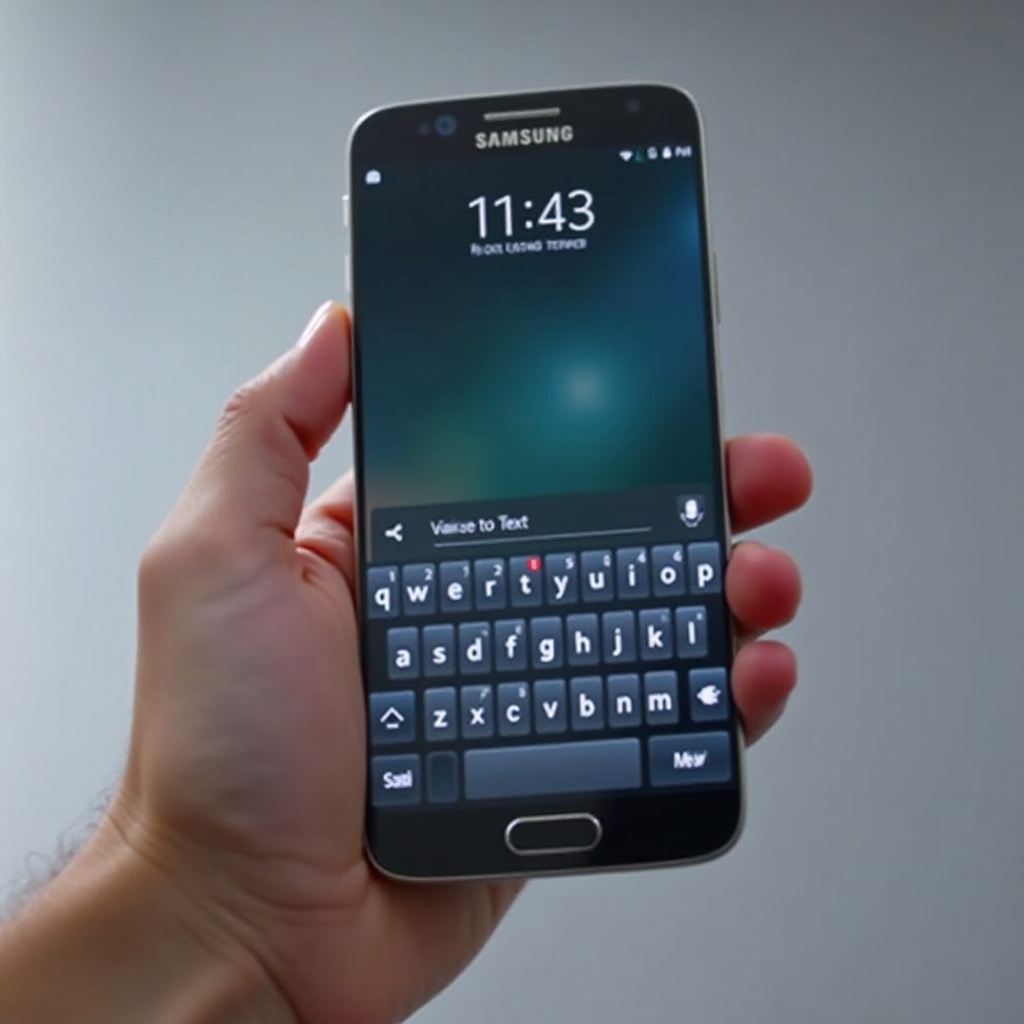
Voice-to-text technology facilitates transforming your spoken words into written text quickly. Leveraging advanced speech recognition software, this feature is embedded in Samsung keyboards on the majority of their devices. It caters to anyone who needs an alternative, faster method of text input, making it ideal for drafting quick messages or taking notes on the fly.
On Samsung devices, accessing voice-to-text is straightforward. This feature increases accessibility and can support various communication needs. Equipped within most models, this functionality is a testament to Samsung’s commitment to user-friendly technology solutions.
Setting Up Voice to Text on Samsung Keyboard
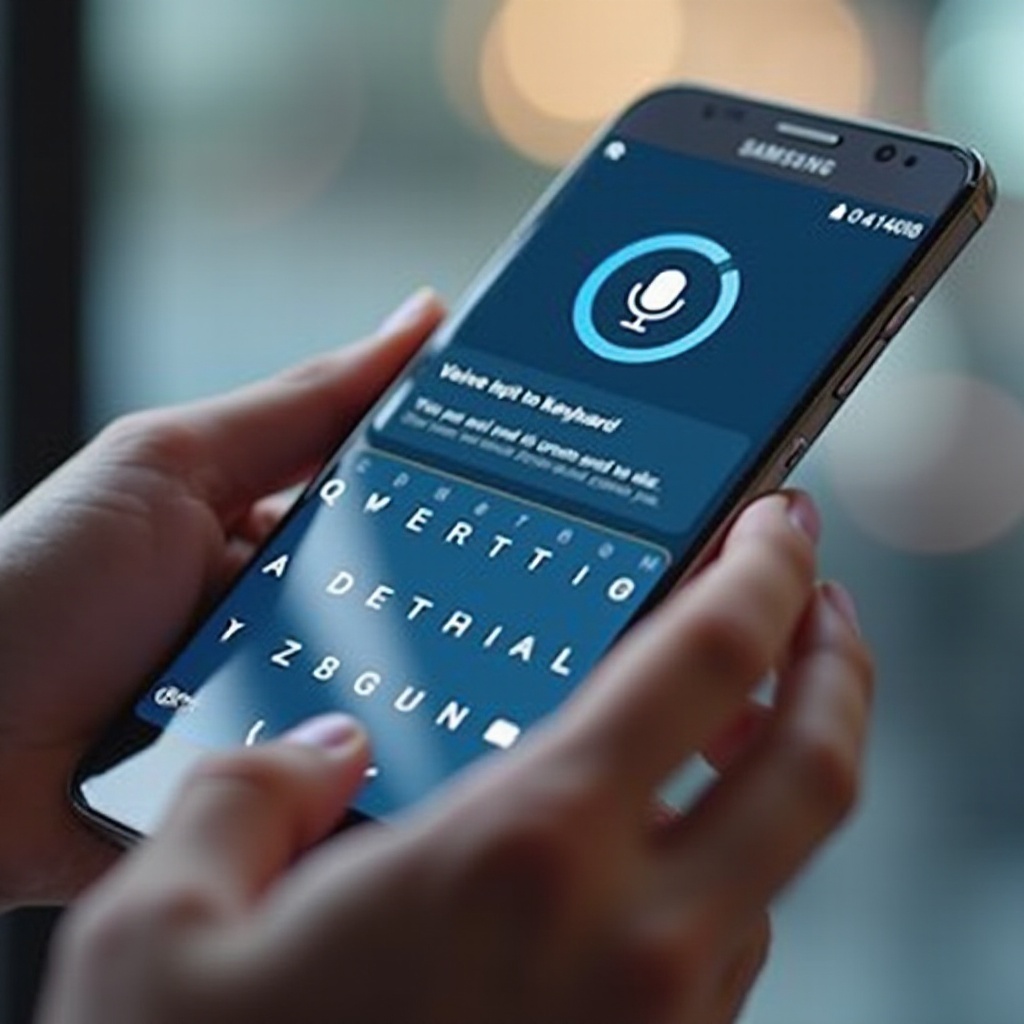
Configuring your Samsung keyboard for voice-to-text is simple. Here’s how to do it:
- Open your ‘Settings’ application.
- Tap on ‘General Management’.
- Choose ‘Samsung Keyboard Settings’.
- Locate ‘Voice Input’ and toggle it to ‘On’.
- Permit microphone access to ensure the feature works smoothly.
These steps activate the microphone icon on your keyboard, allowing instant access to voice typing. You can personalize your experience by adjusting your language preferences or experimenting with voice commands, so you can tailor the feature to your exact needs.
Tips for Effective Use of Voice to Text
Making use of voice-to-text involves more than just enabling it; effective usage requires some consideration.
- Speak clearly and steadily to ensure better accuracy.
- Find a quiet environment to minimize background noise interference.
- Customize settings for regional dialects to enhance recognition precision.
- Use voice commands for punctuation and formatting to streamline the dictation process.
Employ these strategies to maximize the potential of voice-to-text, turning it into a robust tool for everyday efficiency.
Troubleshooting Common Issues with Voice to Text
Despite the sophistication of Samsung’s technology, users may encounter some common problems:
- If the feature doesn’t activate, check the settings to ensure microphone permissions are granted and the device’s volume isn’t muted.
- For issues with recognition, try using the feature in quieter settings or adjust the audio sensitivity in your settings.
- Verify your language preferences are correctly set, as misconfigurations can impede performance.
Understanding and resolving these typical issues can enhance your experience, ensuring uninterrupted daily use of voice-to-text features.

Enhancing Productivity Using Voice to Text
Voice-to-text capabilities transition from pure convenience to true productivity enhancers. They allow users to perform tasks without physically typing, which can save time and effort.
Seamlessly integrate voice input with other Samsung applications for a coordinated effort in executing tasks. Whether creating calendar events, sending hands-free messages, or conducting quick searches, the voice-to-text feature extends usage scenarios.
There are notable benefits for those requiring accessibility support, simplifying interaction with devices significantly. By exploring and mastering this technology’s full potential, users can redefine their productivity landscape.
Conclusion
Samsung’s voice-to-text facility is more than just an alternate method of input. It serves as a powerful productivity tool, helping users easily perform text-centric tasks without hassle. This guide provides the steps to uncover, implement, and troubleshoot the feature effectively, empowering users to incorporate voice input seamlessly into their workflows. Embrace this convenient technology to discover a new level of interaction with your Samsung device.
Frequently Asked Questions
How do I activate voice to text on my Samsung keyboard?
Navigate to Settings > General Management > Samsung Keyboard Settings, then toggle ‘Voice Input’ to ‘On’. Grant microphone permissions if needed.
Which Samsung devices support voice to text?
Most Samsung devices with the Samsung keyboard and latest software updates support voice-to-text functionality, enhancing universal access.
How can I troubleshoot if voice to text is not working?
Ensure the microphone is enabled, the environment is quiet, and correct language settings are applied. Check your audio input sensitivity if issues persist.